
CFE guide · Estimating
Import a Callidus® Summary Report Into Your Estimate in One Click
Stop retyping takeoffs. Drop the Summary Report PDF from Callidus into CFE - Advanced Estimating Worksheet and every line comes in: code, description, quantity and units. Each line is typed and checked against your Import Rules, and your takeoff notes travel with it. Two minutes later the quantities sit in the Estimate Quote, ready for your labor and material prices.

Why retype a takeoff you already have?
A typical commercial job has 10 to 40 takeoff lines. Typing them by hand means one slipped digit on 3,467 feet of base can quietly cost you the job, or your margin. Worse, the notes the takeoff estimator wrote (addenda reviewed, "order in full boxes", "add 5 to 7% to this base") tend to stay in the PDF instead of reaching the estimate.
The Import Takeoff (Callidus) screen reads the printed Summary Report the way an estimator would, line by line, and shows you exactly what it found before anything touches your estimate.
The four steps
- Export from CallidusPrint or export the takeoff as a Summary Report PDF.
- Open or drop the PDFHome tab, Open PDF, or drag it onto the drop box.
- Review the previewTypes, checks, sub-lines and the net check, all on one screen.
- Transfer to EstimateOne green button. Rows land in the Estimate Quote.
1Export the Summary Report from Callidus
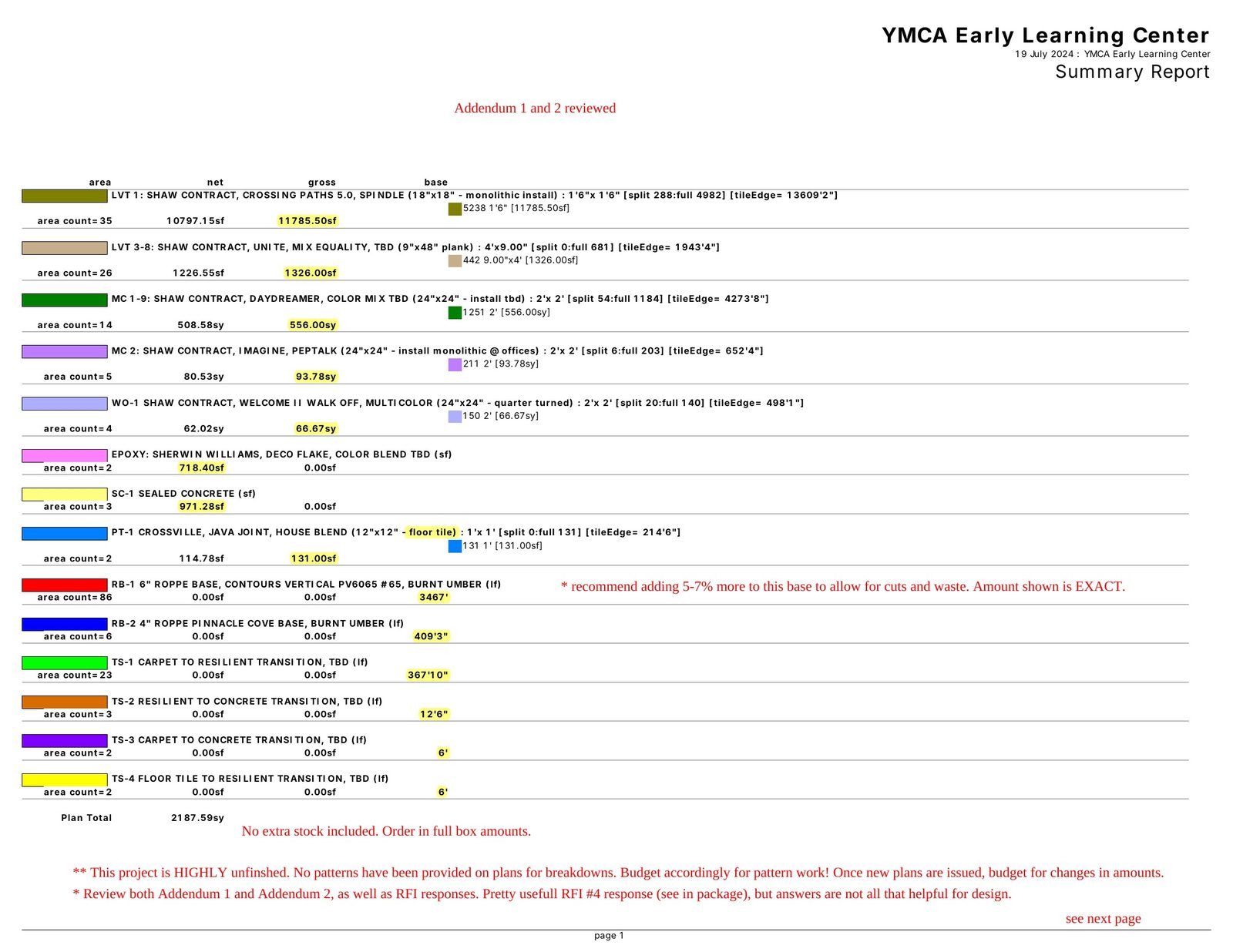
Use the standard Summary Report. CFE reads:
- Project name, takeoff date, who did the takeoff and the address
- Every product line: code, description, net, gross and base
- Text-box notes, such as "Addendum 1 and 2 reviewed"
- Yellow highlights, which mark the amounts the takeoff wants you to use
Keep product codes on the takeoff the same as the finish schedule (RB-1, TS-2, PT-1). CFE uses the code and keywords in the description to type each line, so consistent codes mean fewer lines to fix by hand. Our article on reading a flooring finish schedule shows how those codes are set.
2Open the PDF, or just drop it in
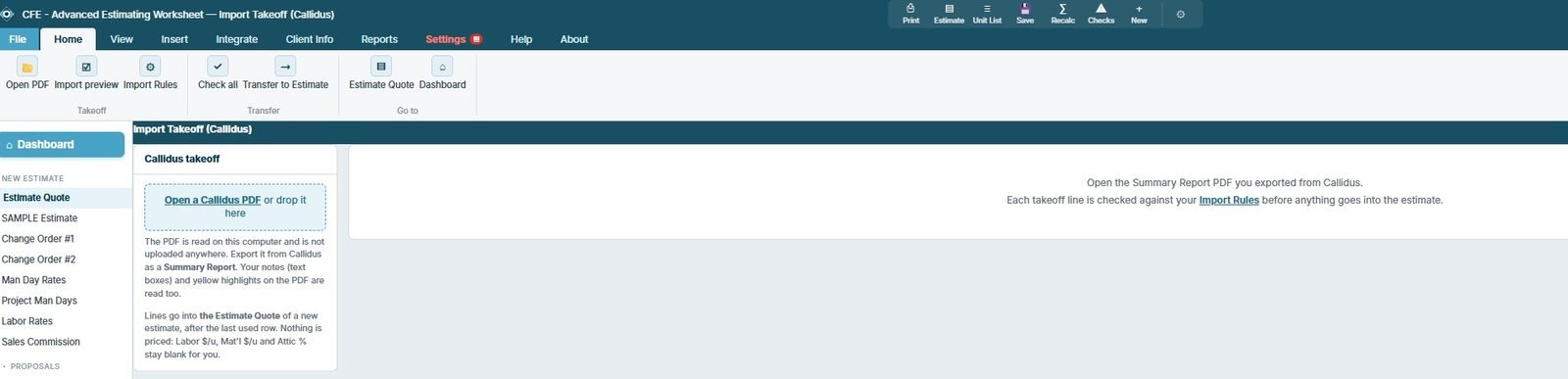
You can start from the green Import Callidus Summary Report button on the Dashboard, from Home › Import, or from the Integrate tab. The file is read on your computer with plain code, no AI. It is never uploaded, which matters when a GC’s drawings are under NDA.
Before reading, CFE says where the lines will go: Lines go into JE-100042 · Estimate Quote, with a Change link. Pick a Change Order or an Alternate there and the same takeoff prices a revision instead of the base bid.
3Review the import preview
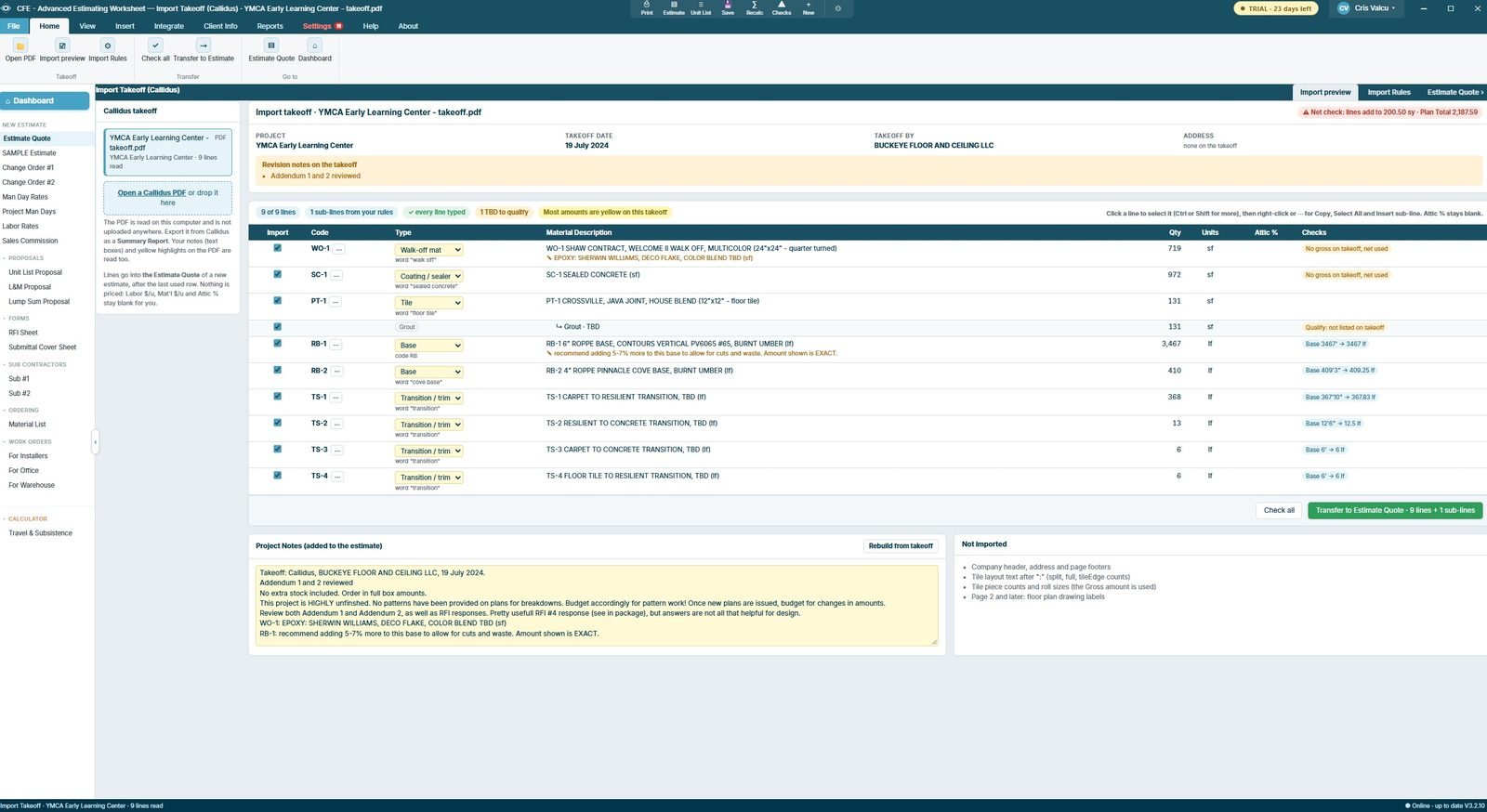
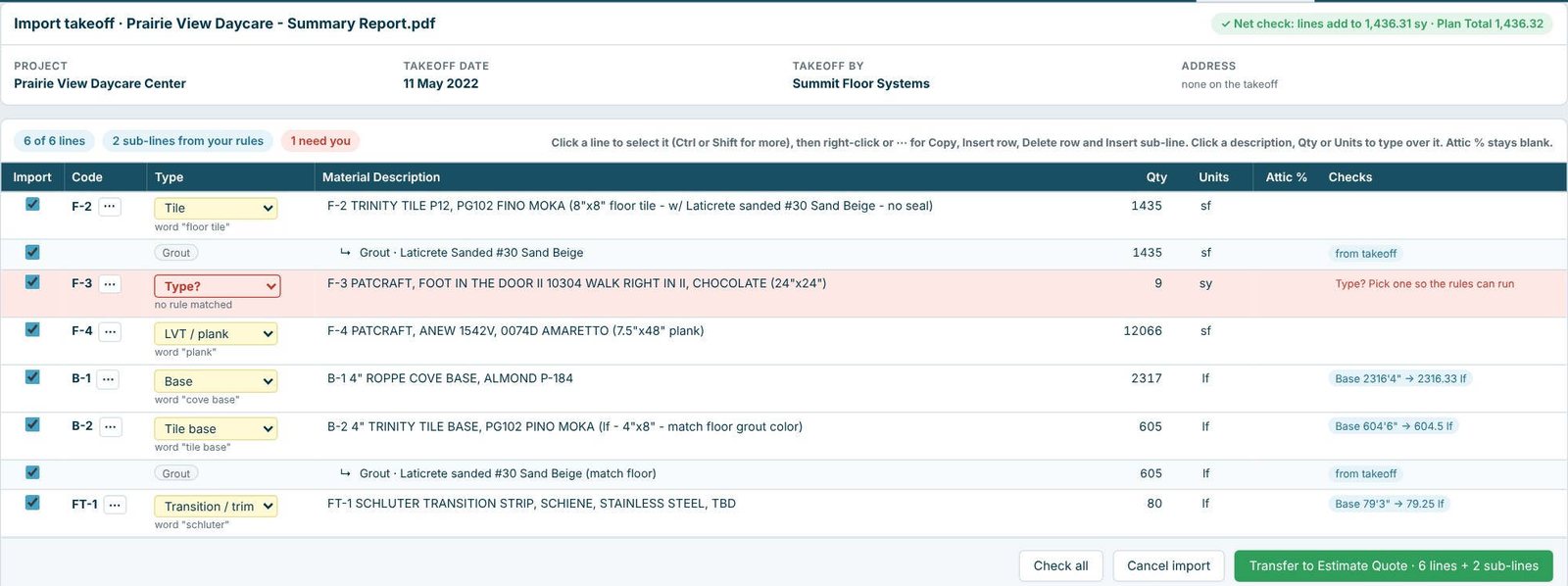
This is where the import earns its keep. Each line gets a Type (Base, Tile, Transition / trim, Walk-off mat and so on), picked by your Import Rules from the code or a keyword. The Checks column tells you what CFE did with each number (see the worked example below).
At the top, the net check adds the lines up and compares them with the report’s Plan Total. On the Prairie View Daycare takeoff the lines add to 1,436.31 sy against a Plan Total of 1,436.32, so the check is green. If they don’t match, the warning appears in red before you transfer, not after you’ve sent the bid.
4Transfer to the Estimate Quote
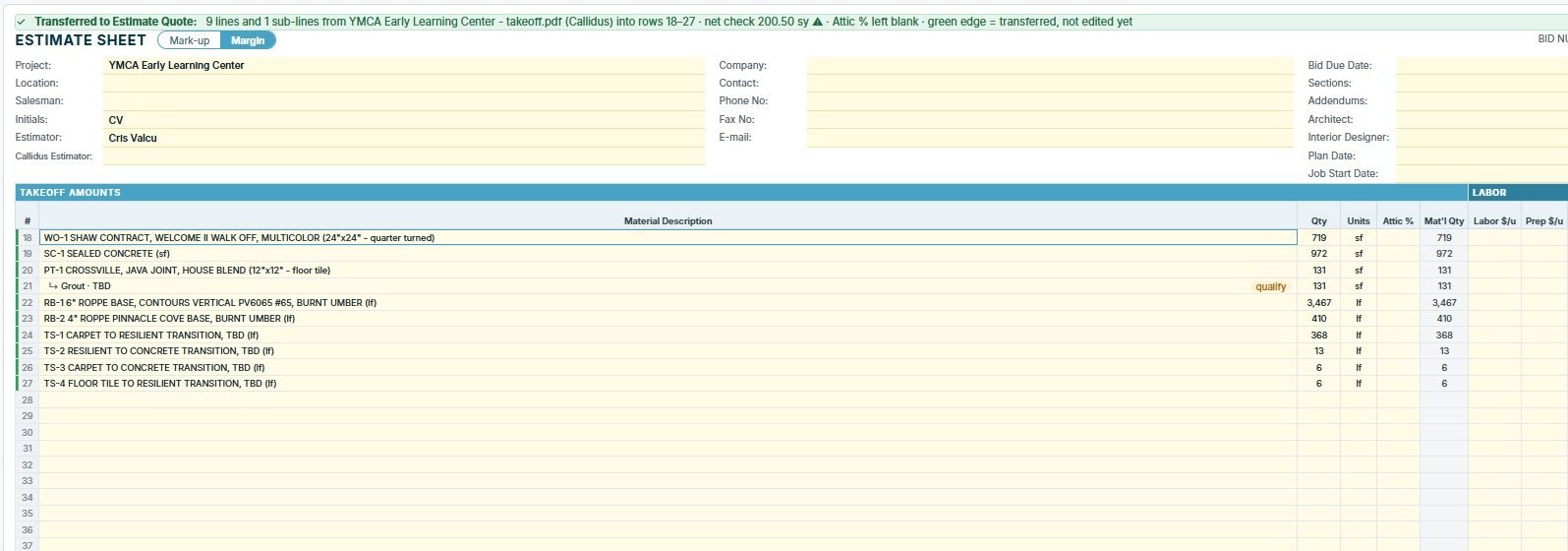
Press Transfer to Estimate Quote. The lines go in after the last used row, the project name fills the header, and a green bar names the file with an Undo transfer button. Nothing is priced for you: Labor $/u, Mat’l $/u and Attic % stay blank, because those are your numbers. The green edge stays on each transferred row until you change it, so you can see at a glance what you’ve reviewed.
Before pricing, go through every flagged line. "Net used" means no waste is in the number yet; see how much waste to add by flooring type and net vs gross quantities. Then set attic stock where the spec asks for it.
Worked example: what the Checks column did on a real takeoff
These are the lines from the YMCA Early Learning Center Summary Report shown in step 1, and what the import made of each one.
| On the Callidus report | In the import | Why |
|---|---|---|
| PT-1 floor tile: net 114.78 sf, gross 131.00 sf | 131 sf | Gross is used when the takeoff has one |
| SC-1 sealed concrete: net 971.28 sf, no gross | 972 sf, flagged | "No gross on takeoff, net used", so you can add waste |
| RB-1 6" base: 3467' | 3,467 lf, with the takeoff note | The "add 5 to 7%" note comes along with the line |
| RB-2 4" cove base: 409'3" | 410 lf | Feet and inches converted (409.25 lf), rounded up |
| TS-1 transition: 367'10" | 368 lf | 367.83 lf, rounded up |
| Not on the takeoff | Grout sub-line, 131 sf, flagged to qualify | Added by your Import Rules under the tile |

Left out on purpose: the company header and page footers, tile layout text after the colon (split, full and tileEdge counts), tile piece counts and roll sizes (the gross amount is used instead), and floor plan labels from page 2 on.
When a line says "Type?"
A line whose code and words match no rule shows a red Type? box and the check "Pick one so the rules can run". On the Prairie View Daycare takeoff, F-3 (a 24"x24" walk-off carpet tile) came in that way. Pick the type from the list and CFE adds that type’s sub-lines at once. Lines it did match show the word that decided it under the type, such as word "floor tile" or word "schluter", so you can see why each one was typed.
Click any description, Qty or Units in the preview to type over it before the transfer, and right-click a line (or use the ··· button) to insert a row above or below, add a ↳ sub-line or delete the row.
Set your Import Rules once
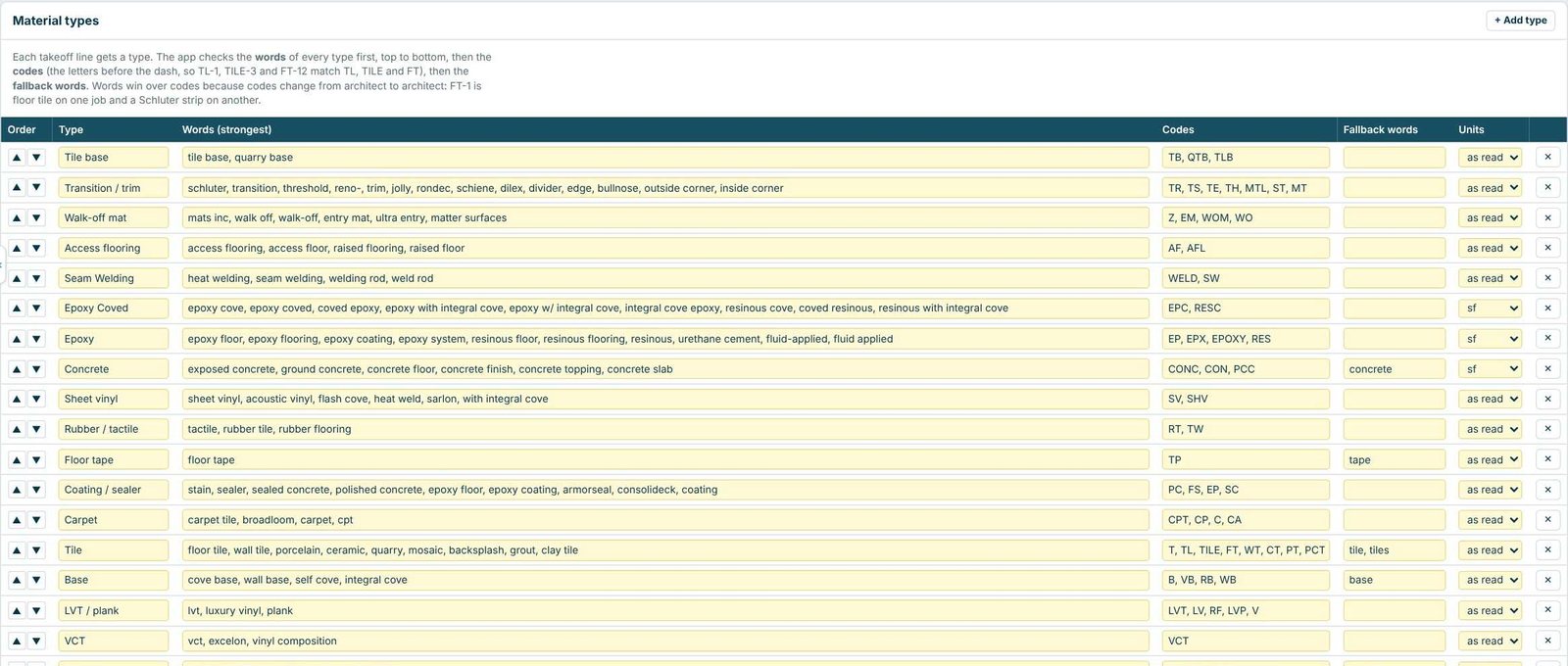
The Import Rules tab decides which type each line gets and which ↳ sub-lines come with it. CFE checks the words of every type first, top to bottom, then the codes (the letters before the dash, so TL-1, TILE-3 and FT-12 match TL, TILE and FT), then the fallback words. Words win over codes because codes change from architect to architect: FT-1 is floor tile on one job and a Schluter strip on another.
Sheet vinyl lines are where the rules pay off most: flash cove, cove stick and cap, seam welding and integral inside and outside corners can all be added as sub-lines automatically. Export rules to a file saves them as a small .cferules file, and Import rules from a file lets you add a co-worker’s words, codes and sub-line rules to yours or replace yours.
What to do next
With the quantities in, price the lines and follow your first estimate, step by step, then choose markup or margin. Using another takeoff program? Import an Excel or CSV takeoff works the same way. The Estimate Quote worksheet page shows the whole sheet.
Try the Callidus import free for 30 days
Every feature unlocked, no credit card. Drop in your own Summary Report and see your next bid fill itself in.
Frequently Asked Questions
Does my PDF get uploaded anywhere?
No. CFE reads the Summary Report PDF on your own computer with plain code, no AI, and nothing is sent to a server.
Does the import price the job for me?
No, on purpose. Quantities, units and descriptions come in; Labor $/u, Mat’l $/u and Attic % stay blank so you price every line yourself.
Why does a line say "No gross on takeoff, net used"?
Callidus reports a gross amount for products laid out as tile, plank or roll goods. Items measured as plain areas, like sealed concrete or epoxy, only have a net amount, so CFE uses the net and flags it so you can add waste.
Can I import a Callidus takeoff into a change order?
Yes. Before the import, use the Change link next to "Lines go into" and pick a Change Order or Alternate of the open bid. The lines land on that sheet instead of the base Estimate Quote.
Is the Callidus import included after the free trial?
The import is included in the 30-day free trial and in every subscription. In Limited Mode after the trial it is locked until you subscribe.

Written by
Cristian Valcu – Founder & CEO, Commercial Flooring Estimating LLC
Cristian has estimated commercial flooring with Callidus for over 20 years and built CFE - Advanced Estimating Worksheet to price those takeoffs without retyping them.
Last updated: