
CFE guide · Estimating
Import an Excel or CSV Takeoff Into Your Estimate
Open the .xlsx, .xlsm or .csv file, match its columns once, check the preview, and transfer. The pre-template shows the sheet with a yellow box over each column: pick Description, Qty, Units and so on. The import preview then lists every line with its product type and the ↳ sub-lines your Import Rules add. Transfer to Estimate Quote adds the lines after the last used row, unpriced, with Undo transfer on the green bar. Save format and the same layout is recognized next time.

Why import instead of retyping
Most takeoff programs, On-Screen Takeoff, Bluebeam Revu, PlanSwift, Measure Square, RFMS, STACK or Togal.AI, can export quantities to Excel or CSV. Retyping those numbers into an estimate is where a 1,212 becomes a 1,221, and nobody finds it until the material is short.
CFE - Advanced Estimating Worksheet reads the file instead. You tell it once which column is which, it checks the lines, converts units, adds the sub-lines your rules call for, and puts them on the Estimate Quote. The file itself is never changed.
The five steps
- Open the fileDashboard: Import Excel / CSV spreadsheet.
- Match the columnsPre-template: a yellow box over each column.
- Check the previewTypes, sub-lines and lines that need you.
- TransferLines go after the last used row; Undo transfer.
- Save the formatJust me or the team; skip the pre-template next time.
1Open the takeoff file
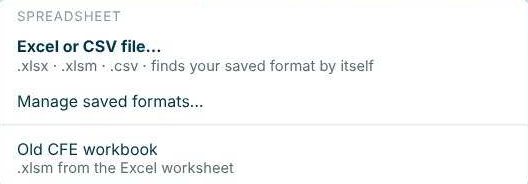
On the Dashboard, press Import Excel / CSV spreadsheet › Excel or CSV file (.xlsx, .xlsm or .csv). The same menu has Manage saved formats and Old CFE workbook, for .xlsm files from the Excel version of the worksheet. CFE asks where the lines go: a new Estimate Quote, or an existing estimate, one of its change orders or alternates, or a new change order. See change orders and alternates.
2Match the columns in the pre-template
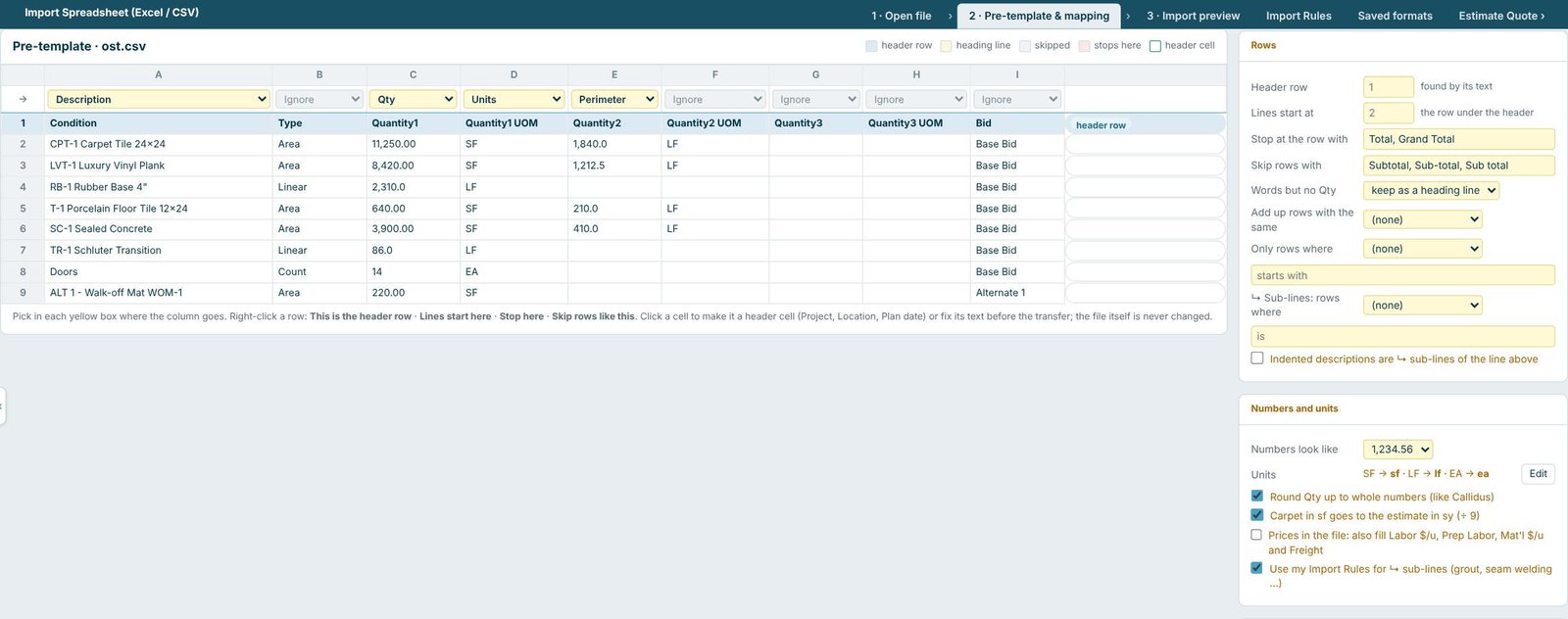
A file CFE does not know yet opens in the pre-template. Above each column, pick where it goes (Description, Qty, Units, Perimeter…) or leave it on Ignore. On the right:
- Rows: the header row (found by its text), where lines start, the row to stop at (such as Total, Grand Total) and rows to skip (Subtotal, Sub total). Right-click a row for This is the header row, Lines start here, Stop here or Skip rows like this.
- Numbers and units: how numbers look, unit names (SF to sf, LF to lf, EA to ea), Round Qty up to whole numbers and Carpet in sf goes to the estimate in sy (÷ 9).
- Header cells: click a cell to use it as the Project name, Location, Plan date, Architect, Interior designer or Addendums. These only fill empty fields.
Map a perimeter or second quantity column too. In the OST example, Quantity2 is the perimeter in LF, and the Import Rules turn it into a ↳ edging sub-line under the sealed concrete instead of you measuring it twice.
3Check the import preview
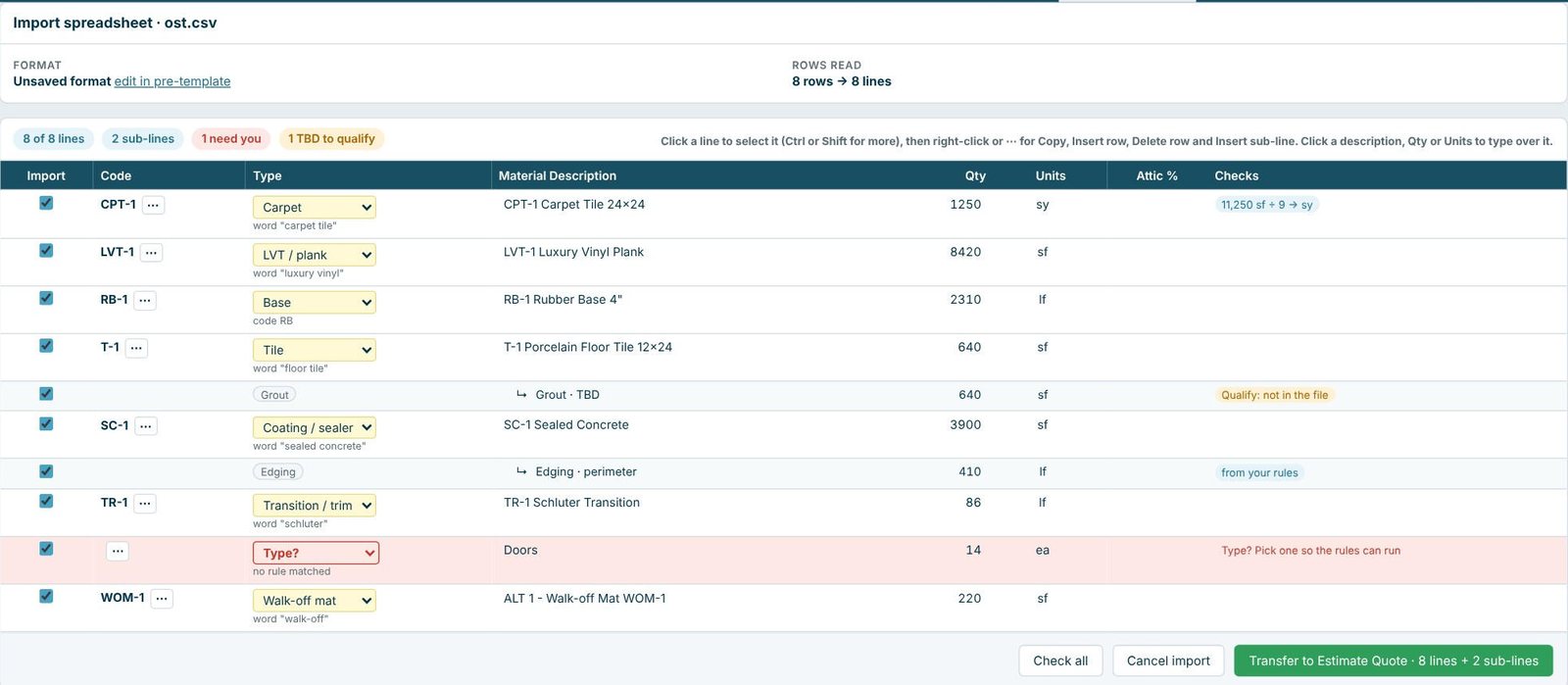
The Import preview lists every line with a checkbox, its code, a product Type (found from a word such as “carpet tile” or a code such as RB), the description, Qty and Units, and Checks. In the example, CPT-1 came in as 11,250 sf and goes to the estimate as 1,250 sy. The Import Rules added two ↳ sub-lines: Grout · TBD under the porcelain tile, flagged Qualify: not in the file, and Edging · perimeter under the sealed concrete. The Doors line shows Type? in red because no rule matched; pick a type so the rules can run. Click a description, Qty or Units to type over it. Not imported lists the columns that were not used.
4Transfer to the Estimate Quote
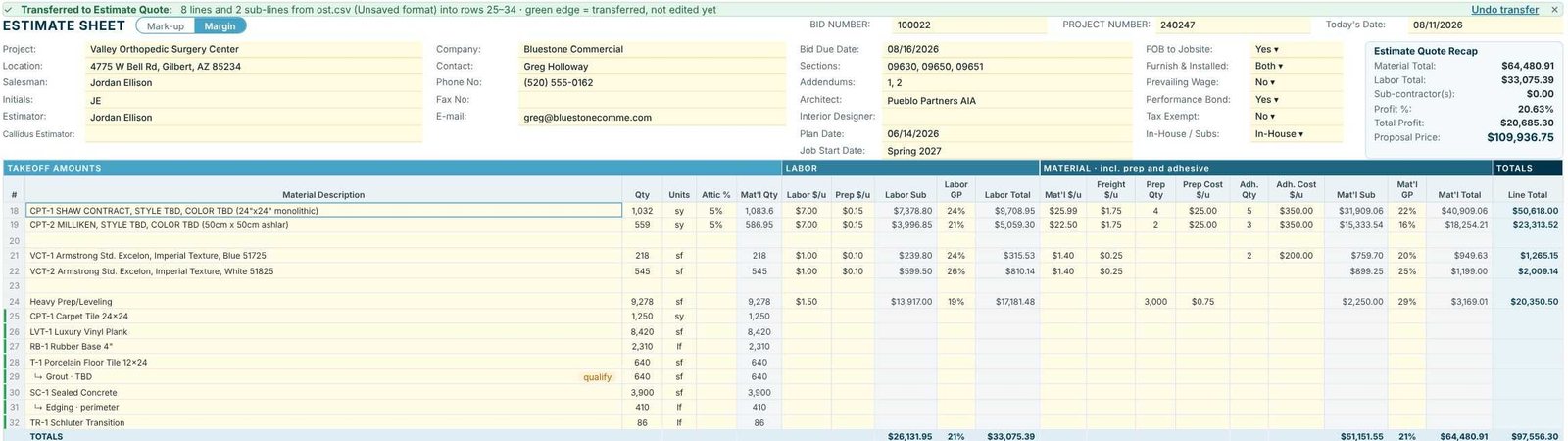
Press Transfer to Estimate Quote. The lines go in after the last used row, so nothing on the sheet is replaced. A green bar names the file and rows (8 lines and 2 sub-lines from ost.csv into rows 25–34), with Undo transfer. Transferred lines keep a green edge until you edit them, and the project notes get a line saying which file was imported. Nothing is priced: Labor $/u and Mat’l $/u stay blank for you.
5Save the format for next time
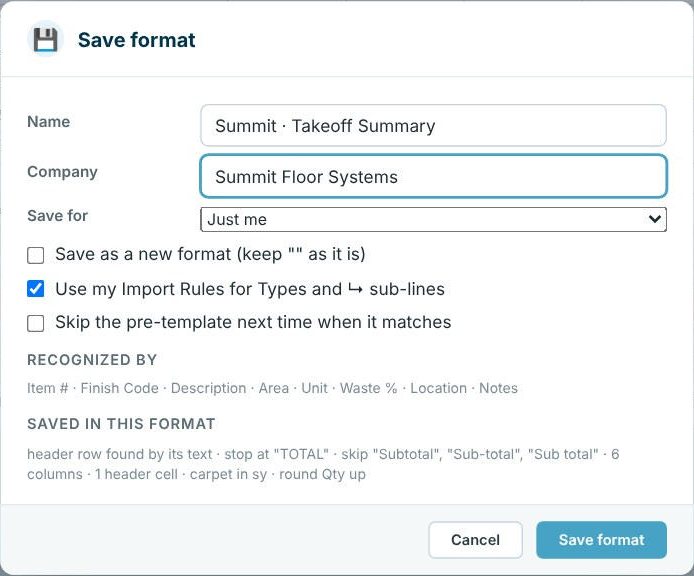
Press Save format, name it, and choose Just me or the team. The format remembers the columns, header row, stop and skip rows, header cells and unit settings, and is recognized by the column headings. Tick Skip the pre-template next time when it matches to go straight to the preview. Saved formats lists Team formats (kept on the CFE license server, shared with everyone on your license), My formats and the built-in CFE Estimate Quote layout; Share saves a .cfeformat file to email to someone outside the team.
Worked example: an On-Screen Takeoff export
ost.csv, nine rows, imported into the Valley Orthopedic Surgery Center estimate.
| In the file | On the estimate |
|---|---|
| CPT-1 Carpet Tile 24×24, 11,250.00 SF | 1,250 sy (11,250 ÷ 9) |
| LVT-1 Luxury Vinyl Plank, 8,420.00 SF | 8,420 sf |
| RB-1 Rubber Base 4", 2,310.0 LF | 2,310 lf |
| T-1 Porcelain Floor Tile 12×24, 640.00 SF | 640 sf, plus ↳ Grout · TBD 640 sf (qualify) |
| SC-1 Sealed Concrete, 3,900.00 SF, perimeter 410.0 LF | 3,900 sf, plus ↳ Edging · perimeter 410 lf |
| TR-1 Schluter Transition, 86.0 LF | 86 lf |
| Doors, 14 EA | 14 ea, after you pick a type |
| ALT 1 – Walk-off Mat WOM-1, 220.00 SF | 220 sf |
Eight lines and two sub-lines, with units converted and nothing retyped. The Callidus Summary Report has its own importer; see import a Callidus takeoff.
What to do next
Next, price the lines in the takeoff grid, set waste and attic stock, and finish your first estimate.
Import your next takeoff
Excel and CSV import is in the 30-day free trial. No credit card.
Frequently Asked Questions
Which takeoff programs can I import from?
Any program that exports to Excel (.xlsx, .xlsm) or CSV, such as On-Screen Takeoff, Bluebeam Revu, PlanSwift, Measure Square, RFMS, STACK or Togal.AI. You match the columns once and save the format.
Does CFE convert square feet of carpet to square yards?
Yes, when Carpet in sf goes to the estimate in sy is ticked in the pre-template: 11,250 sf of carpet tile comes in as 1,250 sy.
Will an import overwrite lines on my estimate?
No. Lines go in after the last used row, and Undo transfer on the green bar puts the sheet back the way it was.
Can my whole team use the same import format?
Yes. Save the format for the team and it is kept on the CFE license server for everyone on your license, who get changes on their next sign-in.

Written by
Cristian Valcu – Founder & CEO, Commercial Flooring Estimating LLC
Cristian has estimated commercial flooring for over 20 years and built CFE - Advanced Estimating Worksheet around the way flooring contractors actually price, propose and track their bids.
Last updated: