
Project Phases: Where Every Won Job Is, From Contract to Paid
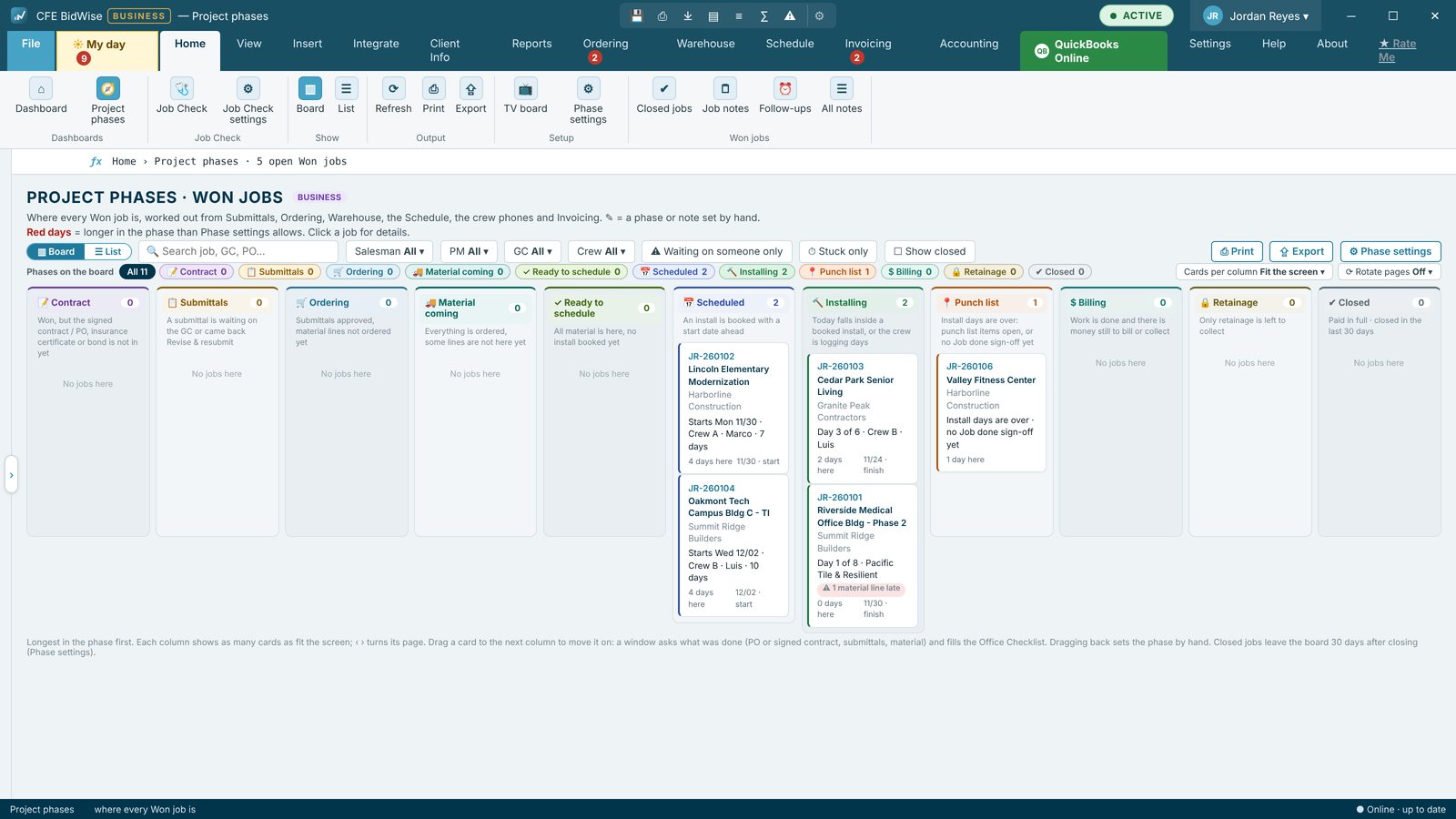
Every won job gets a phase, worked out by CFE BidWise from what the job already shows. Contract, Submittals, Ordering, Material coming, Ready to schedule, Scheduled, Installing, Punch list, Billing, Retainage and Closed come from the For Office checklist, submittals, the Material List, Warehouse, the Schedule, the crew phones and Invoicing. Nobody updates a status by hand, and the board shows who each job is waiting on.
| Phases | 11: Contract to Closed, rename or turn off any of them |
|---|---|
| Set by | The job's own data, or by hand with a note or a hold |
| Views | Board, List, Dashboard strip, Bid Tracker column, estimate card |
| Waiting on | Change orders, submittals, late material, At risk |
| History | Last 300 lines per job, with date, time and who |
| Plan | Business: 11 phases and the Board. Personal: 6 simple phases, list only |
Why a flooring office needs phases
A commercial flooring company can have dozens of won jobs at once, each at a different step: some waiting on a signed contract, some on submittals coming back from the architect, some on material, some on the GC to finish the walls. The questions are always the same: where is this job, who are we waiting on, and is anything stuck? Project phases answer them on one screen, for every job.
Worked out from the job, not typed
CFE BidWise reads what is already in the app. The For Office checklist on the Work Order gives Contract. Ordering › Submittals gives Submittals. The Material List and Warehouse receiving give Ordering and Material coming. The Schedule, crew days and % done give Ready to schedule, Scheduled and Installing. The crew phone's punch list and Job done give Punch list. Invoicing and payments give Billing, Retainage and Closed.
⚠ Waiting on flags sit on top without changing the phase: a change order to sign, a submittal sent back, late material, or a job At risk.
The board and the list
Home › Project phases has a Board, a column per phase with a card per job, and a List with filters, Print and Export. Filter by Salesman, PM, GC or Crew, show Waiting on someone only, or Stuck only. Phase chips above the board show or hide each column, each column pages through its cards, and the board can rotate pages by itself on a big screen. Print the board puts up to 6 phases side by side on a landscape page.
On the Dashboard, the Won jobs · where we are strip counts jobs per phase and filters the Bid Tracker with one click, and the Bid Tracker has a Phase column.
Where are we?
Click any job for its Where are we? panel: each step with what the app found, what the job is waiting on, the next step and its date, and the full history with dates, times and who did what. Next step opens the screen where that step is done, and Email the GC an update writes the email from the job's phase and adds it to Job notes.
When you know more than the app
Drag a card to another column, or use Set phase by hand: keep it automatic and add a note, hold the phase until you change it, or hold it until a date. Dragging a job forward asks for the steps in between, such as PO received, verbal or email OK, submittals approved or not needed, material from stock. The answers go on the Work Order's For Office checklist.
Bill ahead of the work: moving a job to Billing before the install is done can open a new invoice right away. The job stays in its work phase with a 💵 billed ahead flag, and payments don't close it until the work is done.
Your phases, your rules
The Master user can turn phases off, rename them and set how many days in a phase counts as stuck. Stuck jobs remind the PM and the salesman on My day. Closed jobs leave the board after 30 days and stay in the List. The phase also shows on the yellow estimate card, on the crew phones and, if you choose, on the warehouse TV.
See where your won jobs are
- Open Home › Project phases.
- Pick Board to see a column per phase, or List for a table you can filter, print and export.
- Click a job card to open Where are we? and read what it is waiting on.
- Press Next step to open the screen where that step is done.
- Use Set phase by hand to hold a phase or add a note when you know more than the app.
- Open Phase settings to rename phases, turn some off and set the stuck days.
- A phase for every won job, worked out by itself
- Board and List with Salesman, PM, GC and Crew filters
- Waiting on flags and stuck jobs
- Where are we? panel with the full history
- Move job window that fills the For Office checklist
- Bill ahead of the work
- Email the GC an update
- Print the board for the weekly meeting
Six simple phases in a list, so the one-person office still sees where each job is.
All 11 phases, the Board, Where are we?, Waiting on flags, Set phase by hand, Bill ahead, Email the GC, Phase settings, the TV view and stuck reminders on My day.
Compare every feature, Personal vs Business
Try CFE BidWise free for 30 days
Every feature unlocked, with a switch to try it as Personal or Business. No credit card. After the trial, the Estimate Quote and Dashboard keep working for free, or pick Personal ($69.99 a month) or Business ($129.99 a month per user).
Frequently Asked Questions
Do I have to update each job's phase?
No. CFE BidWise works out the phase from the job's own data: the For Office checklist, submittals, the Material List, Warehouse, the Schedule, the crew phones and Invoicing. You can still set it by hand when you know more.
Can I rename the phases?
Yes. The Master user can rename phases, turn some off and set how many days in a phase counts as stuck, in Phase settings.
Can I bill a job before the work is done?
Yes. Moving a job to Billing early can open a new invoice right away. The job keeps its work phase with a billed ahead flag until the install is done.
Is Project phases on the Personal plan?
Personal shows 6 simple phases as a list. The Board, Where are we?, Waiting on flags and Phase settings come with CFE BidWise Business.
CFE BidWise is made by Commercial Flooring Estimating LLC, built by a flooring professional with over 20 years in the business. Last updated: