
CFE guide · Estimating
Enter Takeoff Lines and Sub-Lines in the Estimate Grid
Each row of the Estimate Quote is one product, priced left to right. Type the description, Qty and Units; CFE adds attic stock for Mat’l Qty, prices labor and prep on the Qty, prices material, freight, prep material and adhesive on the Mat’l Qty, and applies a GP % to each side for the Line Total. Parts of a product, such as flash cove, cove stick or seam welding, go on ↳ sub-lines under it: right-click the line › Insert ↳ sub-line below. Select several rows to move, copy or delete them together, and Ctrl + Z undoes.

Why a flooring takeoff needs more than Qty × price
A commercial flooring line is never one number. Sheet vinyl has flash cove, cove stick, cap, seam welding and corners; carpet tile has attic stock; LVT has prep and adhesive. A spreadsheet with one price per line hides those costs inside a guess, and a spreadsheet with a row for each one loses track of which product they belong to.
The CFE - Advanced Estimating Worksheet grid prices each part separately and keeps it attached. A ↳ sub-line sits under its product, is priced on its own row, and moves, copies and deletes with it.
The five steps
- Type the lineDescription, Qty, Units.
- Price across the rowLabor, material, freight, prep, adhesive, GP.
- Add ↳ sub-linesRight-click › Insert ↳ sub-line below.
- Edit several rows at onceDrag down the # column, or Shift + click.
- Zoom and freezeView tab: Zoom %, Freeze, Gridlines.
1Type the description, quantity and units
Click a row under Material Description and type the material, color and size, as the hint in the formula bar says. Start with the finish code from the plans (CPT-1, RB-2, SV-1) so the line matches the finish schedule. Enter Qty and Units (sf, sy, lf or each). A blank row between groups keeps the sheet readable, and Bold on the Home tab makes a heading line such as LVT-1 INTERFACE LEVEL SET, 25cm x 1m planks (2 colors).
2Price the line across the row
The grid has three bands. Each column does one job:
- Takeoff amounts: Qty, Units, Attic % and Mat’l Qty (Qty plus attic stock; see waste and attic stock).
- Labor: Labor $/u and Prep $/u on the Qty give the Labor Sub; Labor GP turns it into the Labor Total.
- Material, incl. prep and adhesive: Mat’l $/u and Freight $/u on the Mat’l Qty, plus Prep Qty × Prep Cost $/u and Adh. Qty × Adh. Cost $/u, give the Mat’l Sub; Mat’l GP turns it into the Mat’l Total.
- Totals: Line Total is the Labor Total plus the Mat’l Total.
Price labor and material with separate GPs. Labor is where a flooring job loses money on the floor, so many estimators carry a higher labor GP than material GP; the worked example below shows 20% on labor and 21% on material.
3Add ↳ sub-lines for the parts of a product
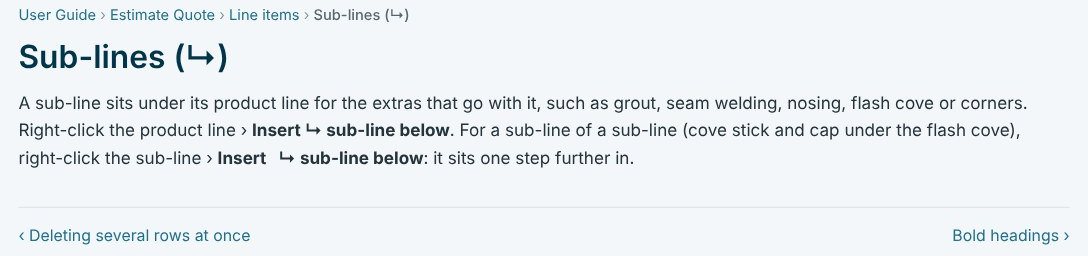
A sub-line sits under its product line for the extras that go with it, such as grout, seam welding, nosing, flash cove or corners. Right-click the product line › Insert ↳ sub-line below. For a part of a part, such as the cove stick and cap under the flash cove, right-click the sub-line › Insert ↳ sub-line below and it sits one step further in. On the Eastgate sample, SV-1 Parterre sheet vinyl carries flash cove, then cove stick and metal cap under the flash cove, then seam welding and integral inside and outside corners. Takeoffs imported from Callidus or Excel / CSV get these sub-lines from the Import Rules.
4Move, copy or delete several rows at once
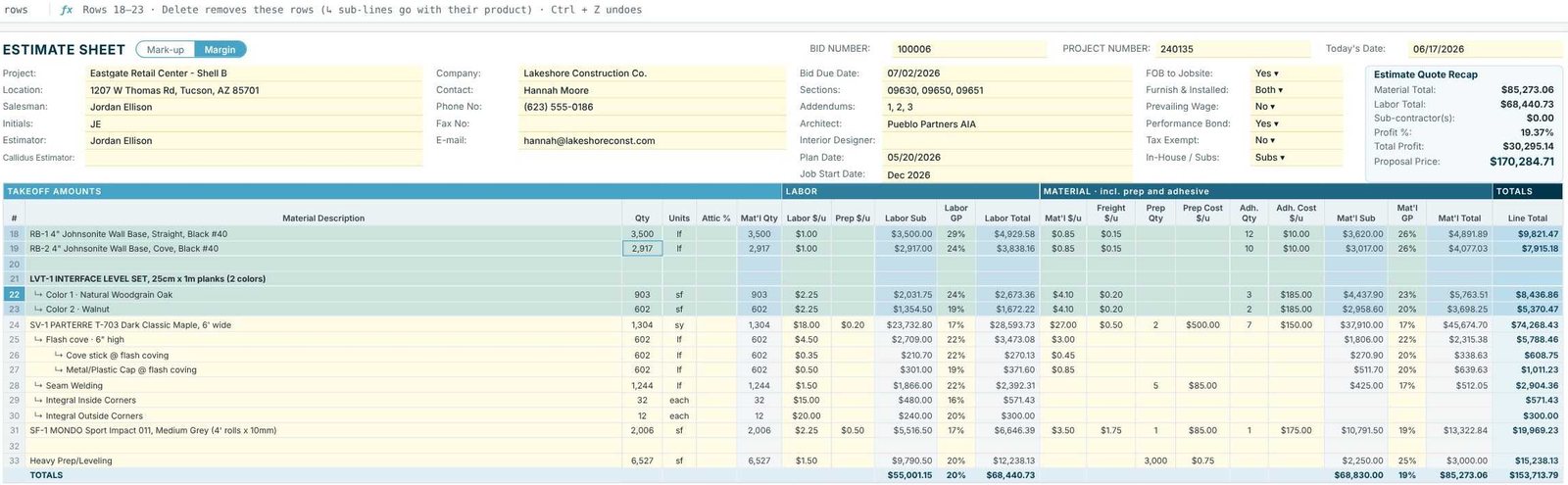
Drag down the # column, or click one row and Shift + click another, to pick several rows. The formula bar confirms what you picked, such as 6 rows · Rows 18–23, and reminds you that ↳ sub-lines go with their product. Then use Delete row, Copy, Cut, Move or Duplicate on the Home tab, or right-click. Ctrl + Z undoes. While you work, the status bar says Unsaved changes · auto-save every 30 seconds.
5Zoom and freeze for long takeoffs

On the View tab, Zoom in, Zoom out and Zoom % size the sheet; 80% shows the whole sheet, recap and totals at once, and 130% is easier on a laptop. Freeze keeps the headings in place so the first line is never covered, and Gridlines turns the cell lines off for a cleaner screen.
Worked example: one carpet tile line, column by column
CPT-1 Shaw Contract 24"x24" carpet tile on the Willow Creek Police Substation bid.
| Column | Value | How it is worked out |
|---|---|---|
| Qty / Attic % | 3,037 sy / 5% | From the takeoff |
| Mat’l Qty | 3,188.85 sy | 3,037 × 1.05 |
| Labor Sub | $21,714.55 | 3,037 × ($7.00 labor + $0.15 prep) |
| Labor Total at 20% GP | $27,143.19 | $21,714.55 ÷ (1 − 0.20), on Margin |
| Mat’l Sub | $90,308.70 | 3,188.85 × ($25.99 + $1.75 freight) + 4 × $25.00 prep + 5 × $350.00 adhesive |
| Mat’l Total at 21% GP | $114,314.81 | $90,308.70 ÷ (1 − 0.21) |
| Line Total | $141,458.00 | $27,143.19 + $114,314.81 |
Note that labor is priced on the 3,037 sy installed, while material is priced on the 3,188.85 sy bought. The GP is on Margin here; switch to Mark-up and the same 20% gives a lower price. See markup vs margin.
What to do next
Next, set waste and attic stock, price installers on the net area, and add freight, tax, bond and burden. The whole estimate is in your first estimate.
Price your next takeoff in CFE
The full estimate grid with sub-lines is in the 30-day free trial. No credit card.
Frequently Asked Questions
What is a sub-line in a CFE estimate?
A row marked ↳ that sits under its product for the extras that go with it, such as flash cove, cove stick, seam welding or corners. It is priced on its own row and moves, copies and deletes with its product.
Is labor priced on the quantity or on the material quantity?
Labor and prep labor are priced on the Qty. Material and freight are priced on the Mat’l Qty, which includes attic stock.
How do I delete several takeoff lines at once?
Drag down the # column or Shift + click to select the rows, then Delete row. Sub-lines go with their product, and Ctrl + Z undoes.
Does CFE save my estimate automatically?
Yes. While there are unsaved changes, CFE auto-saves every 30 seconds.

Written by
Cristian Valcu – Founder & CEO, Commercial Flooring Estimating LLC
Cristian has estimated commercial flooring for over 20 years and built CFE - Advanced Estimating Worksheet around the way flooring contractors actually price, propose and track their bids.
Last updated: