
CFE guide · Proposals and field paperwork
Order Materials From the Estimate With the Material List
The Material List turns the won estimate into a purchasing sheet. It pulls every material, its quantity, unit cost and freight from the Estimate Quote, with a separate section for each alternate and change order, and updates when the estimate changes. The office fills in the yellow columns: Ordered Qty, Actual $/u, Vendor, PO #, Date Ordered, Expected, Date Arrived and BOL #. CFE works out the actual material cost and the variance against the estimate, and counts what is ordered, arrived and not ordered yet.

Why order from the estimate
Once a job is won, someone has to buy what the estimate carried, and usually that someone is not the estimator. Handing over a printout and a highlighter is how a change order’s carpet gets forgotten, a pallet of adhesive gets ordered twice, and nobody can say whether the job made its material number.
CFE - Advanced Estimating Worksheet builds the purchasing sheet from the estimate itself. The estimator’s numbers stay locked in grey, the office types its own in yellow, and the sheet shows the difference. Because it updates when the estimate changes, a change order added next month shows up in its own section, ready to order.
The four steps
- Open the Material ListOrdering › Material List, pulled from the estimate.
- Read the colorsGrey from the estimate; yellow for the office.
- Order each change orderEvery alternate and CO has its own section.
- Mark ordered and sendMark ordered, Clear dates; Excel, CSV, PDF, email.
1Open the Material List

Open Material List under Ordering in the left menu. The banner says Pulled from Estimate Quote JE-100006 · updates when the estimate changes. The header carries the project, location, Ship to (Jobsite · FOB to Jobsite: Yes on this sample), bid number, GC company and contact, bid due date, project number, estimator, salesman and Ordered by. Next to the title CFE counts the job: 0 ordered, 0 arrived, 17 not ordered, and + 11 prep / adhesive lines with quantities.
2Read the columns and their colors
The legend on each section says it: grey is pulled from the estimate and locked; yellow is filled in by the office; green is what was actually ordered; dark yellow is the actual total, worked out and locked. From the estimate come Mat’l Qty, Units, Mat’l $/u, Freight $/u and Mat’l Sub. The office fills in Ordered Qty, Actual $/u, Vendor, PO #, Date Ordered, Expected and Date Arrived · BOL #. CFE adds Actual Mat’l Sub and Variance $, and the Status of each line. Under each product sit its ↳ Prep and ↳ Adhesive lines; type or pick the product there, or switch Prep & Adhesive from Per line to Combined for one line per product.
Order from the Mat’l Qty, not the takeoff quantity. It already has your waste and attic stock in it; see waste and attic stock.
3Order the alternates and change orders
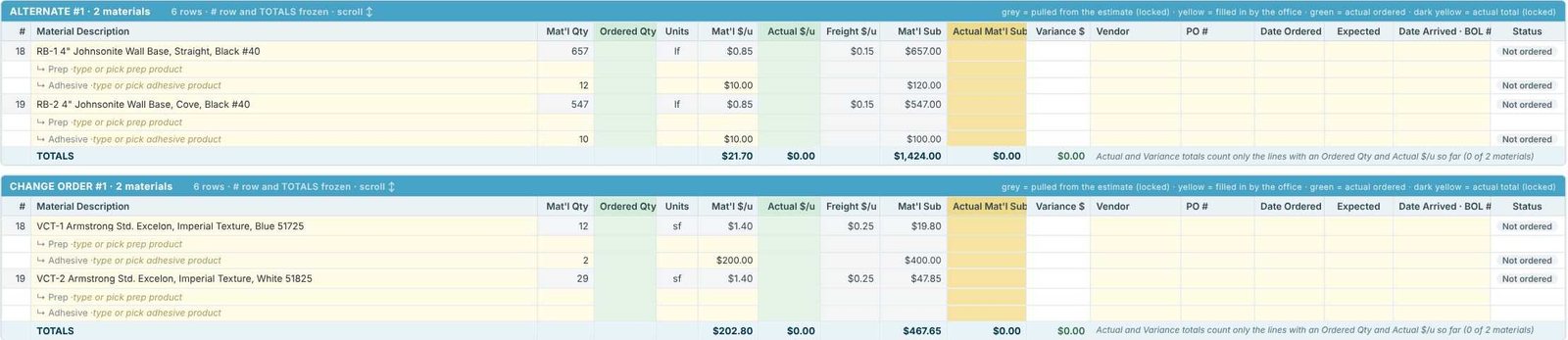
Below the Estimate Quote, every alternate and change order on the estimate gets its own section, titled with its name and the number of materials, with its own Totals row. On the Ridgeline Behavioral Health sample that is Alternate #1 (2 materials), Change Order #1 (2 materials) and Alternate #2 (3 materials). Order a section only when that alternate is accepted or that change order is signed; until then its lines stay Not ordered. See change orders and alternates.
4Mark lines ordered and send the list

The Rows group has Mark ordered and Clear dates for the order status and dates of the lines. Refresh from estimate pulls the estimate again after a change. Send the list to a vendor or the warehouse with Excel (.xlsx), CSV, Print, Print to PDF, Save PDF or Email PDF, or use Print Material List at the top right. The totals note keeps you honest: Actual and Variance totals count only the lines with an Ordered Qty and Actual $/u so far (0 of 17 materials).
Worked example: Change Order #1 on Eastgate
Eastgate Retail Center – Shell B, Change Order #1, 4 materials. Mat’l Sub = Mat’l Qty × (Mat’l $/u + Freight $/u); prep and adhesive lines are Qty × $/u.
| Line | How it is worked out | Mat’l Sub |
|---|---|---|
| VCT-1 Excelon, Blue | 14 sf × ($1.40 + $0.25) | $23.10 |
| ↳ Adhesive | 2 × $200.00 | $400.00 |
| VCT-2 Excelon, White | 35 sf × ($1.40 + $0.25) | $57.75 |
| CPT-1 Shaw Contract | 168 sy × ($25.99 + $1.75) | $4,660.32 |
| ↳ Prep and adhesive | 4 × $25.00 + 5 × $350.00 | $1,850.00 |
| CPT-2 Milliken | 91.35 sy × ($22.50 + $1.75) | $2,215.24 |
| ↳ Prep and adhesive | 2 × $25.00 + 3 × $350.00 | $1,100.00 |
| Totals | $10,306.41 |
$23.10 + $400.00 + $57.75 + $4,660.32 + $1,850.00 + $2,215.24 + $1,100.00 = $10,306.41, the Totals row on the sheet. When the office enters the Ordered Qty and Actual $/u from the vendor’s invoice, Actual Mat’l Sub and Variance $ show whether the change order’s material came in on budget.
What to do next
Next, send the materials to the installers and the office, pull them with the warehouse order and pick ticket, and print the job’s paperwork from Reports.
Order straight from the estimate
The Material List is in the 30-day free trial. No credit card.
Frequently Asked Questions
Does the Material List update when the estimate changes?
Yes. It is pulled from the Estimate Quote and updates when the estimate changes; Refresh from estimate pulls it again on demand.
Are change orders on the Material List?
Yes. Each alternate and change order gets its own section with its own totals, so you order it only when it is accepted or signed.
Can I track PO numbers and deliveries?
Yes. Each line has Vendor, PO #, Date Ordered, Expected, Date Arrived and BOL # columns, and a Status.
How do I compare actual material cost with the estimate?
Enter the Ordered Qty and Actual $/u. CFE works out the Actual Mat’l Sub and the Variance $ against the estimate for each line and section.

Written by
Cristian Valcu – Founder & CEO, Commercial Flooring Estimating LLC
Cristian has estimated commercial flooring for over 20 years and built CFE - Advanced Estimating Worksheet around the way flooring contractors actually price, propose and track their bids.
Last updated: