
CFE guide · Tracking and reports
Print, Email or Export Any Report From One Screen
The Reports tab lists every report for the open estimate on one screen, in two columns. They are grouped as Estimate, Proposals, Forms, Ordering & Warehouse, Field & Office, Sub-contractors and Company & Rates, and each one is tagged with who it is for: Internal, To the GC, To the client, Purchasing, Warehouse, Installers or Office. Every row has four buttons: Print and Print to PDF open a preview first, Email attaches the PDF, and Export saves a PDF, or an Excel or CSV file where the report has one.

Why one screen for every report
A flooring job produces more paper than the estimate itself: proposals for the GC, RFIs and submittals, a material list for purchasing, a pick list for the warehouse, a job order for the installer’s company and a work order for the office. Each lives on its own sheet, and finding the right one to print, in the right format, for the right person is a daily chore.
CFE - Advanced Estimating Worksheet gathers them on the Reports tab for the open estimate, labelled with who each one is for and what it shows. One click prints, saves a PDF, emails it or exports it, without opening the sheet first.
The four steps
- Open ReportsReports tab › All reports, List or By category.
- Find the reportGroups, audience tags and a line on each.
- The field and office reportsOrdering, warehouse, installers, office, subs, rates.
- Print, PDF, email, exportFour buttons on every row.
1Open the Reports tab

Open the Reports tab on the ribbon with an estimate open. The page is titled Reports and the box at the top right names the estimate (JE-100006, Eastgate Retail Center – Shell B). List or By category switches the layout; the note says Every report on one screen, in two columns. All reports shows everything, and the Jump to buttons go straight to a group: Estimate, Proposals, Forms, Ordering, Field & Office, Subs and Rates.
2Find the report you need
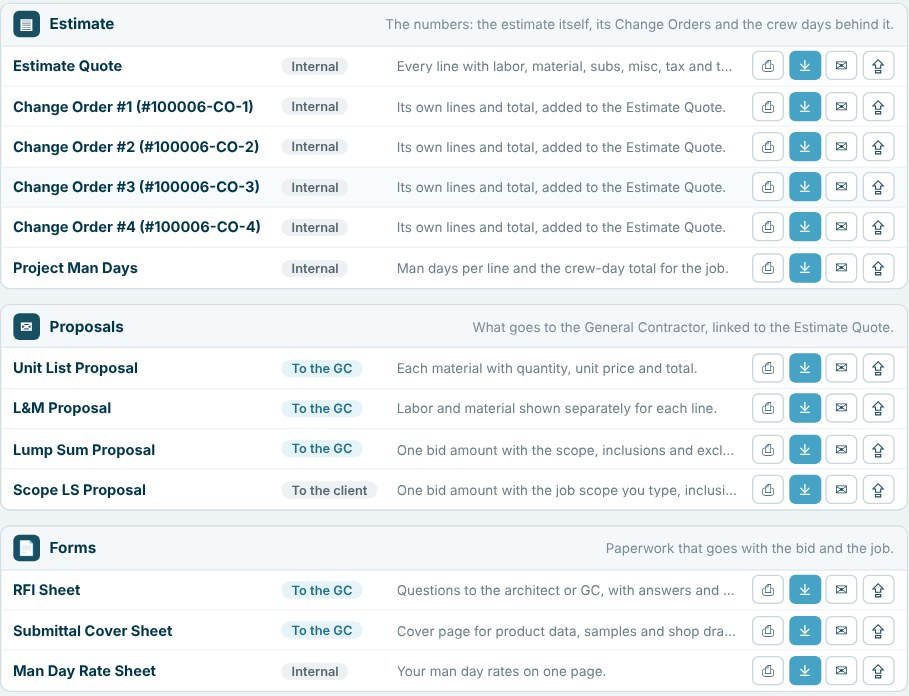
Each group has a line saying what it holds. Estimate is the numbers: the estimate itself, its Change Orders and the crew days behind it: the Estimate Quote, each change order with its number (#100006-CO-1 to CO-4) and Project Man Days. Proposals is what goes to the General Contractor, linked to the Estimate Quote: Unit List, L&M, Lump Sum and Scope LS. Forms is paperwork that goes with the bid and the job: RFI Sheet, Submittal Cover Sheet and Man Day Rate Sheet. Each row has a tag for its audience and a one-line description, so the Scope LS Proposal reads To the client and the Estimate Quote Internal.
Look at the tag before you hit Email. Anything marked Internal shows your costs and margins and should never reach a GC.
3The field, office and company reports
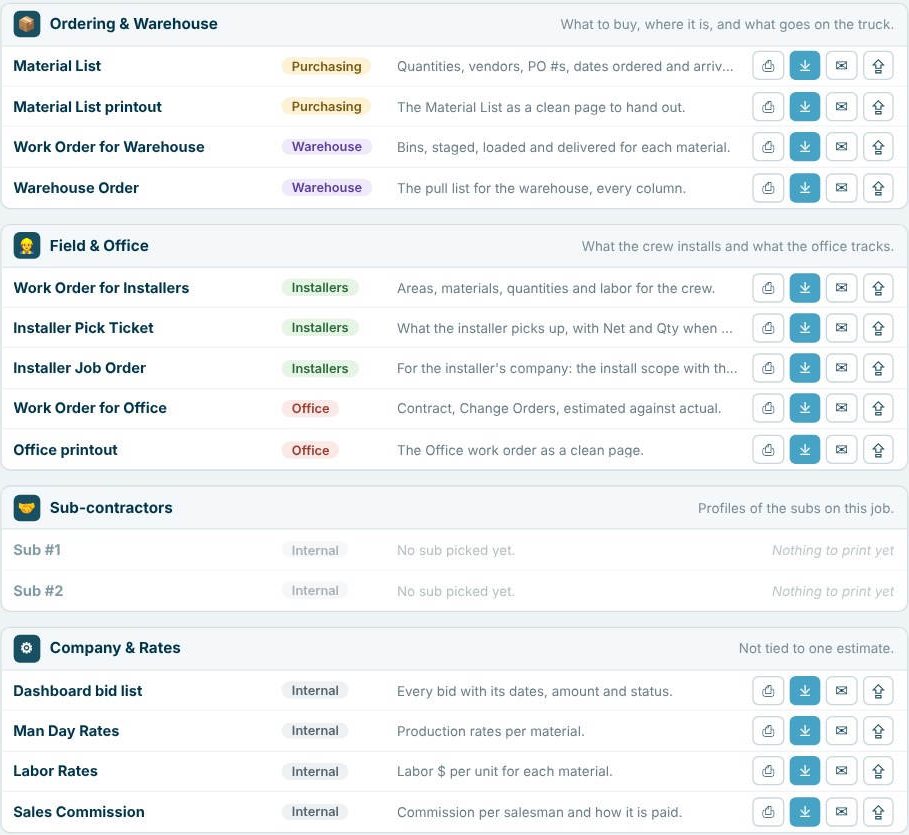
On the right, Ordering & Warehouse (what to buy, where it is, and what goes on the truck) holds the Material List and its printout, tagged Purchasing, and the Work Order for Warehouse and Warehouse Order, tagged Warehouse. Field & Office (what the crew installs and what the office tracks) holds the Work Order for Installers, Installer Pick Ticket and Installer Job Order for Installers, and the Work Order for Office and Office printout for the Office. Sub-contractors shows Sub #1 and #2, with Nothing to print yet until a sub is picked. Company & Rates is not tied to one estimate: the Dashboard bid list, Man Day Rates, Labor Rates and Sales Commission.
4Print, PDF, email or export
Every row ends in four buttons. Print and Print to PDF open the preview first, where you can turn the page Portrait or Landscape. Email attaches the PDF. Export saves a PDF, or an Excel or CSV file where the report has one, such as the Material List for a vendor or the Dashboard bid list for your own records. The status bar confirms which estimate you are printing from: Reports for estimate JE-100006 · Eastgate Retail Center – Shell B.
Worked example: who gets what on Eastgate
Eastgate Retail Center – Shell B with four change orders: 28 reports, counted by their audience tag.
| Tag | Reports | Count |
|---|---|---|
| To the GC | Unit List, L&M and Lump Sum proposals, RFI Sheet, Submittal Cover Sheet | 5 |
| To the client | Scope LS Proposal | 1 |
| Purchasing | Material List, Material List printout | 2 |
| Warehouse | Work Order for Warehouse, Warehouse Order | 2 |
| Installers | Work Order for Installers, Installer Pick Ticket, Installer Job Order | 3 |
| Office | Work Order for Office, Office printout | 2 |
| Internal | Estimate Quote, 4 change orders, Project Man Days, Man Day Rate Sheet, Sub #1, Sub #2, bid list, Man Day Rates, Labor Rates, Sales Commission | 13 |
| All reports | 5 + 1 + 2 + 2 + 3 + 2 + 13 = 28 |
Only 6 of the 28 are meant to leave the company. The other 22 carry your costs, labor or internal paperwork, and the tag on each row says so.
What to do next
Next, send the right proposal to the GC, order from the Material List, and follow the bid on the Bid Tracker.
Send every report from one screen
The Reports tab is in the 30-day free trial. No credit card.
Frequently Asked Questions
Where are all the reports in CFE?
On the Reports tab of the ribbon: every report for the open estimate on one screen, grouped as Estimate, Proposals, Forms, Ordering & Warehouse, Field & Office, Sub-contractors and Company & Rates.
Can I export a report to Excel?
Yes, where the report has one. Export saves a PDF, or an Excel or CSV file for reports such as the Material List.
Can I print a report in landscape?
Yes. Print and Print to PDF open a preview first, where you can turn the page Portrait or Landscape.
Which reports should I send to the GC?
The ones tagged To the GC or To the client: the proposals, the RFI Sheet and the Submittal Cover Sheet. Reports tagged Internal show your costs.

Written by
Cristian Valcu – Founder & CEO, Commercial Flooring Estimating LLC
Cristian has estimated commercial flooring for over 20 years and built CFE - Advanced Estimating Worksheet around the way flooring contractors actually price, propose and track their bids.
Last updated: