
CFE guide · Tracking and reports
Keep Every GC and Sub in One Database, With Bids and Quotes
Client Info is your company’s database of general contractors, subcontractors and other companies. It is shared by every estimate and every user, not saved inside one estimate. Each GC has its address, payment terms, where its bid invites come from, prequalification, contacts with a main contact, and every bid to that GC from the Bid Tracker with its win rate. Each sub has its trade, license, insurance, contacts and every quote it sent, with the estimates it was used on.

Why GCs and subs belong in one database
A flooring contractor bids the same twenty GCs all year and buys from the same handful of subs. Yet the contact details live in one estimator’s inbox, the win history lives in a spreadsheet nobody updates, and the sub’s quote for a job three months ago is a PDF somewhere. When the estimator is out, nobody knows who the right contact at Meridian is.
CFE - Advanced Estimating Worksheet keeps them in Client Info, one company database shared by every estimate and every user. The bids come from the Bid Tracker and the sub quotes from your estimates, so the database fills itself as you work.
The four steps
- Open the GCsClient Info › GCs: the list and one profile.
- Add and editNew, Edit, Add contact, Main contact, Save.
- Track the subsSubs: trade, license, insurance, every quote.
- Others, import and exportOthers; Import CSV, Export CSV; Add from my estimates.
1Open the general contractors
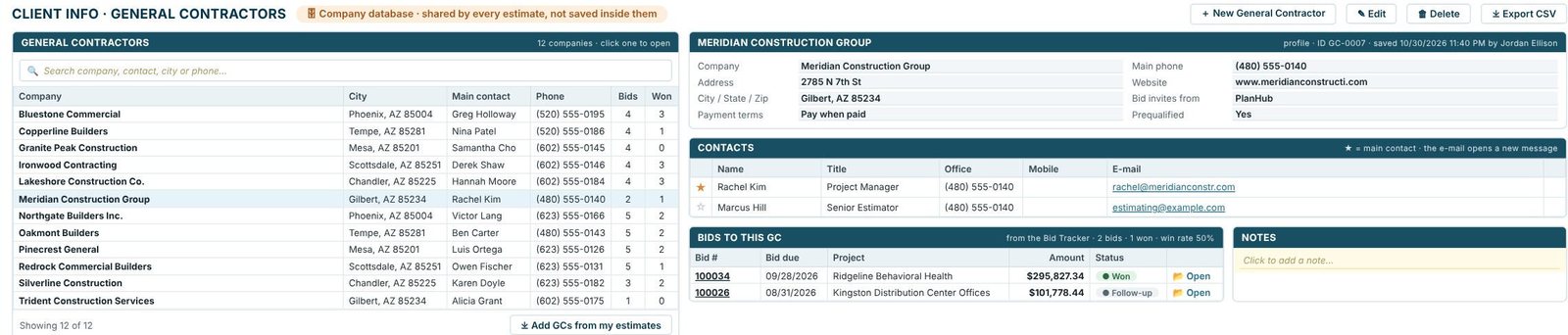
Open the Client Info tab and press GCs. The banner says Company database · shared by every estimate, not saved inside them. The list shows each company’s city, Main contact, phone, Bids and Won; search by company, contact, city or phone. Click a company to open its profile: address, Payment terms, main phone, website, Bid invites from (PlanHub for Meridian) and Prequalified. Contacts lists the people with title, office, mobile and email; the ★ marks the main contact, and the email opens a new message. Bids to this GC comes from the Bid Tracker: Meridian has 2 bids, 1 won, a 50% win rate. Add your own Notes next to it.
2Add and edit a company
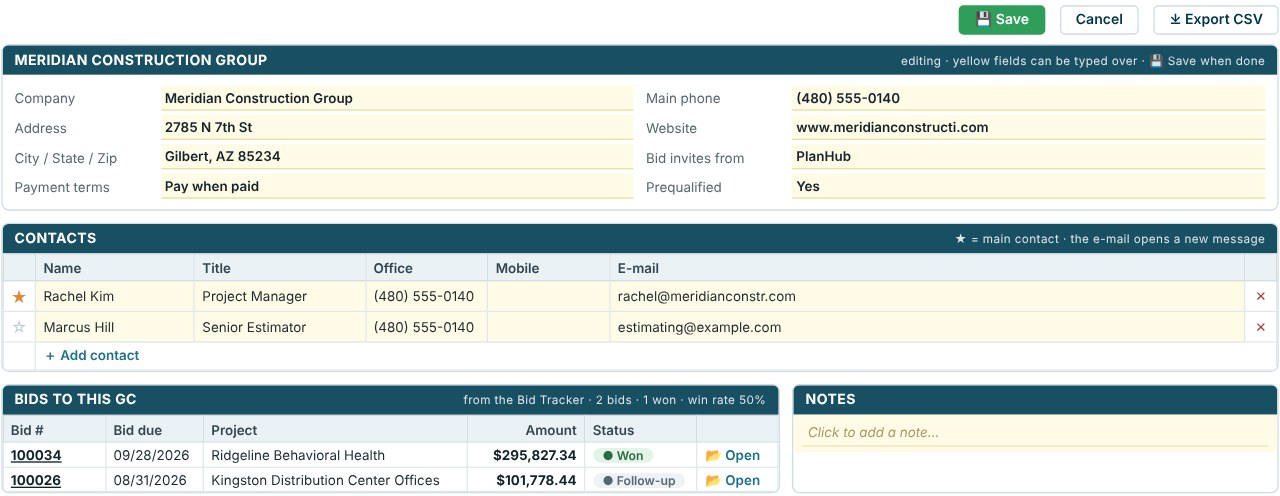
Press New for a new company, or Edit on an open one: editing · yellow fields can be typed over · Save when done. Under Contacts, + Add contact adds a person and ✕ removes one; Main contact on the ribbon sets the ★. Press Save to keep it or Cancel, and Delete removes the company. The profile header shows its ID and who saved it last, for example ID GC-0007 · saved 10/30/2026 11:40 PM by Jordan Ellison.
Fill in Bid invites from and Prequalified for every GC. When the bid board is full, the GCs you are prequalified with and win from are the ones to bid first.
3Track your subcontractors and their quotes
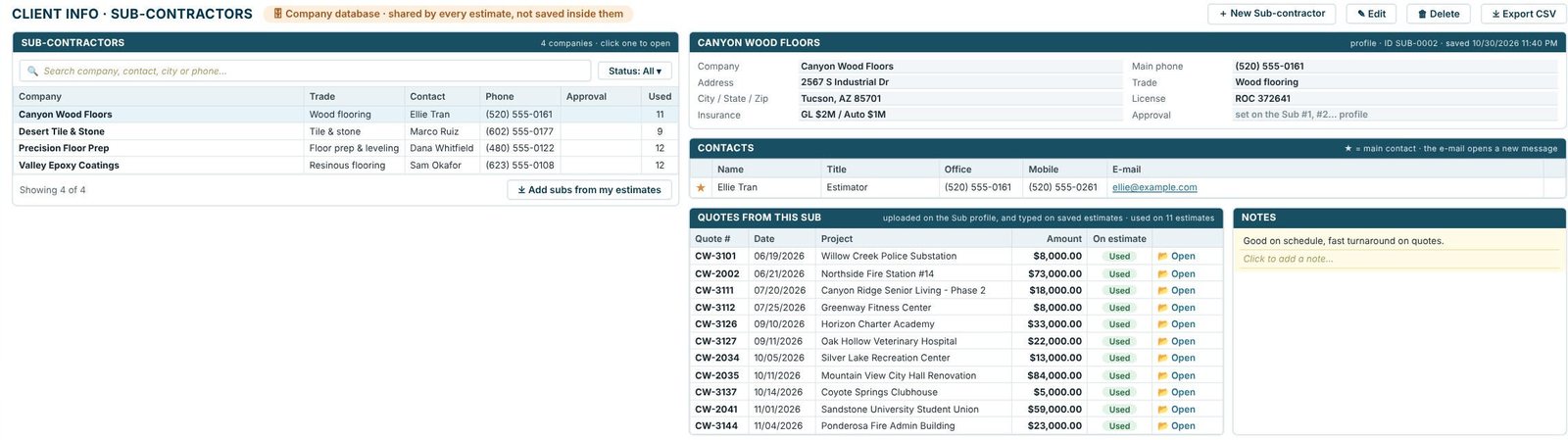
Press Subs. Each sub has its Trade, contact, phone, Approval and how many estimates it was Used on; Status filters the list. The profile adds the License and Insurance (GL $2M / Auto $1M for Canyon Wood Floors), and Approval, which is set on the Sub #1, #2… profile in the estimate. Quotes from this sub lists every quote with its number, date, project, amount and whether it was used on the estimate, uploaded on the Sub profile, and typed on saved estimates. See subcontractors and additional costs.
4Others, and getting data in and out
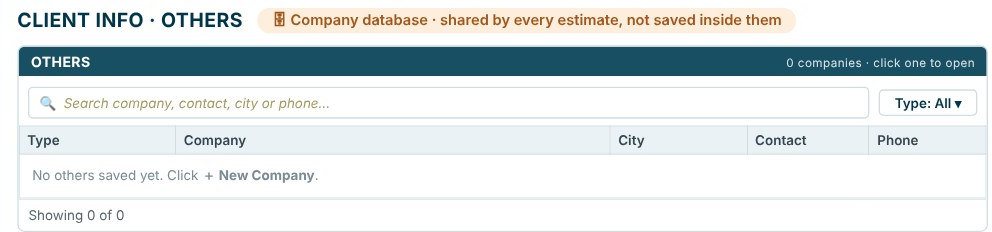
Others holds every company that is not a GC or a sub, with a Type to filter by and + New Company to add one. To fill the database quickly, Add GCs from my estimates and Add subs from my estimates collect the companies from the estimates you already saved, and Import CSV loads a contact list. Export CSV sends any list back out. The status bar says Shared by all users of this company, so every team member sees the same database.
Worked example: who to bid for first
The 12 GCs in the sample database have 46 bids and 20 wins between them, a 43% win rate. By GC, from the Bids and Won columns:
| GC | Bids | Won | Win rate |
|---|---|---|---|
| Bluestone Commercial | 4 | 3 | 75% |
| Ironwood Contracting | 4 | 3 | 75% |
| Lakeshore Construction Co. | 4 | 3 | 75% |
| Meridian Construction Group | 2 | 1 | 50% |
| Redrock Commercial Builders | 5 | 1 | 20% |
| Granite Peak Construction | 4 | 0 | 0% |
| All 12 GCs | 46 | 20 | 43% |
20 ÷ 46 = 43.5%. Three GCs win three bids in four; Granite Peak has taken four bids and given none. When two invites land on the same day, the database tells you which one to price first.
What to do next
Next, follow every bid on the Bid Tracker, fill in the GC on the project header, and add team members who share the database.
Build your GC database as you bid
Client Info is in the 30-day free trial. No credit card.
Frequently Asked Questions
Is the GC database shared by my team?
Yes. Client Info is a company database shared by every estimate and every user of your company, not saved inside one estimate.
Can CFE show my win rate per GC?
Yes. Each GC profile lists its bids from the Bid Tracker with the number won and the win rate, and the GC list shows Bids and Won for every company.
Where do the sub quotes come from?
They are uploaded on the Sub profile and typed on saved estimates. Each quote shows its date, project, amount and whether it was used on the estimate.
Can I import my contacts?
Yes. Import CSV loads a list, Export CSV saves one, and Add GCs from my estimates or Add subs from my estimates collects the companies from estimates you already saved.

Written by
Cristian Valcu – Founder & CEO, Commercial Flooring Estimating LLC
Cristian has estimated commercial flooring for over 20 years and built CFE - Advanced Estimating Worksheet around the way flooring contractors actually price, propose and track their bids.
Last updated: