
CFE guide · Getting started
Add Team Members and Seats to Your License
The Master user runs the team from Integrate › Team. Press Invite estimator and CFE emails a 6-digit team code; the estimator enters it on their own PC in About › License info, with no key to copy. Each seat is one estimator on up to 2 computers, one at a time. Add seats and Reduce seats change the bill automatically: added seats are charged for the days left, removed seats come off the next bill.

Why put the whole office on one license?
When every estimator buys their own copy, the company ends up with different settings, different terms and exclusions on the proposals, and no one place to see the bids. When someone leaves, their estimates leave with their license.
A team license in CFE - Advanced Estimating Worksheet keeps the company in charge. The Master user invites people, decides how many seats there are and handles billing; everyone else signs in to the company’s seat and uses the company’s settings. Settings are shared by all users of the company, so every proposal goes out with the same header, terms and defaults.
The four steps
- Open the Team screenIntegrate › Team, as the Master user.
- Invite an estimatorInvite estimator sends a 6-digit team code.
- Add or reduce seatsThe bill updates by itself.
- What team members seeTheir seat, the Master user and who handles billing.
1Open the Team screen

On the Integrate tab, press Team. The status line says signed in as Master user. The table lists each user with their email, the computers on their seat, when they last used it and their status: Active, Offline or Invited (with the date the invite code is good until).
2Invite an estimator
Press Invite estimator and type their email. CFE sends an email with a 6-digit team code. The estimator installs CFE on their own PC, opens About › License info and enters the code; there is no license key to copy. Until they do, they show as Invited; use Resend invite if the email got lost, and Remove user when someone leaves. Invites go out from your own address once Settings › Email is set up.
Remove a user the day they leave. Their seat frees up for the next hire, and the estimates they saved stay with the company.
3Add or reduce seats
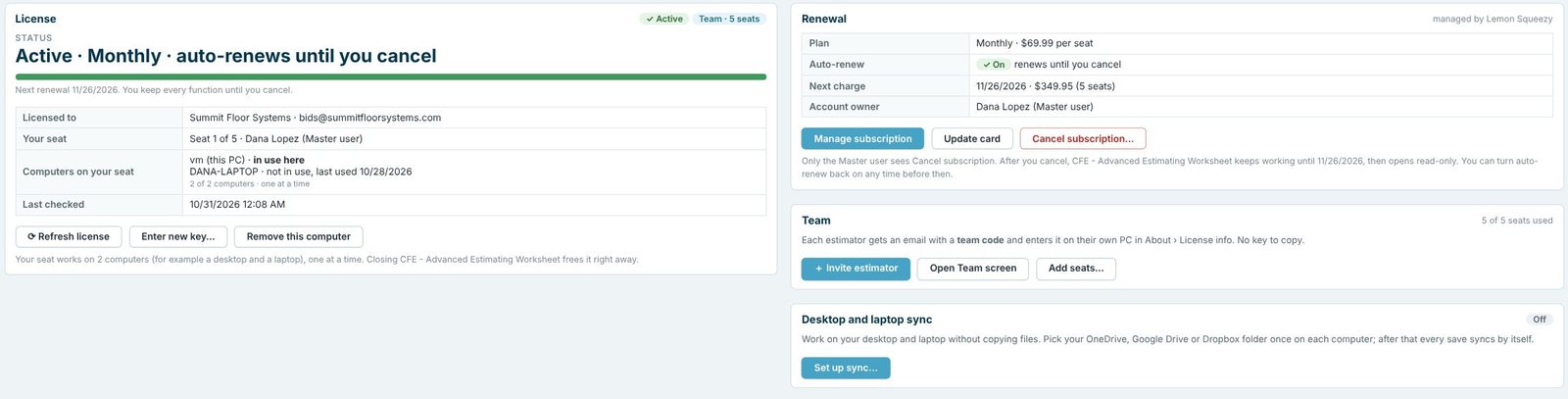
Press Add seats or Reduce seats on the Team screen or in License info. Seat changes go straight to Lemon Squeezy, which handles billing: added seats are charged today for the days left, and removed seats come off the next bill. Manage billing (or Manage subscription) opens the billing page, and Update card changes the card on file. Only the Master user sees Cancel subscription.
4What a team member sees

A team member’s License info shows the company, their seat (Seat 2 of 5 here), the Master user and Billing: handled by your company. They can refresh the license and remove a computer from their seat; to add a computer or change seats, they ask the Master user.
Worked example: a five-seat office
Summit Floor Systems, the sample company, on a monthly team plan.
| Value | |
|---|---|
| Plan | Monthly, $69.99 per seat every month |
| Seats paid / in use | 5 / 5 |
| Next bill | 11/26/2026: 5 × $69.99 = $349.95 |
| Master user | Dana Lopez |
| Estimator on two computers | Mike Reyes: SFS-EST-03 and MIKE-LAPTOP |
| Pending invite | Luis Ortega, code good until 11/03/2026 |
Adding a sixth estimator mid-month means pressing Add seats: the new seat is charged for the days left in this billing period, and the next bill is 6 × $69.99. Mike’s two computers share one seat because he only uses one at a time; see install and sync two computers.
What to do next
Next, make sure everyone’s work is safe with backup, restore and version history, and set the shared company settings. Prices are on pricing and free trial.
Try CFE with your team
Start the 30-day free trial, then invite your estimators when you subscribe. No credit card for the trial.
Frequently Asked Questions
How do I add another estimator to CFE?
As the Master user, open Integrate › Team and press Invite estimator. They get an email with a 6-digit team code and enter it in About › License info on their own PC.
How many computers can one seat use?
Two, for example a desktop and a laptop, one at a time. Closing CFE frees the seat right away for the other computer.
How is billing handled when I add seats?
Seat changes go straight to Lemon Squeezy, which handles billing. Added seats are charged today for the days left; removed seats come off the next bill.
Who can cancel the subscription?
Only the Master user sees Cancel subscription. After cancelling, CFE keeps working until the renewal date, then opens read-only, and auto-renew can be turned back on any time before then.

Written by
Cristian Valcu – Founder & CEO, Commercial Flooring Estimating LLC
Cristian has estimated commercial flooring for over 20 years and built CFE - Advanced Estimating Worksheet around the way flooring contractors actually price, propose and track their bids.
Last updated: