
CFE guide · Tracking and reports
Track Every Flooring Bid, Won or Lost, and Your Win Rate
Every estimate you create lands on the Bid Tracker on the Dashboard. Set its status (Draft, Sent, Follow-up, Won, Lost or On Hold) from the row, record the award amount and PO when you win, and the reason, winner and their price when you lose. The four boxes on top count your estimates, total bid amount, open bids and win rate for any period you pick.

Why track bids in the estimating app?
A flooring estimator sends dozens of bids a month. Without a tracker, the follow-up call that wins the job gets forgotten, the award amount after a value-engineering round never gets written down, and nobody can say why the last five bids were lost.
In CFE - Advanced Estimating Worksheet the tracker is not a separate list you have to keep up. Each Estimate Quote is a row the moment it is created, with its bid number, GC, contact, salesman, labor type, prevailing wage and estimate amount filled in from the estimate itself. You only add what happened to it.
The five steps
- Read the DashboardFour KPI boxes over the Bid Tracker.
- Set the statusClick the status pill: Draft, Sent, Follow-up, Won, Lost, On Hold.
- Record a winAward amount, date, PO number and a note.
- Record a lossReason, who got the job, their price and a note.
- Shape the listSort, search, filter and pick your columns.
1Read the Dashboard and the four KPI boxes
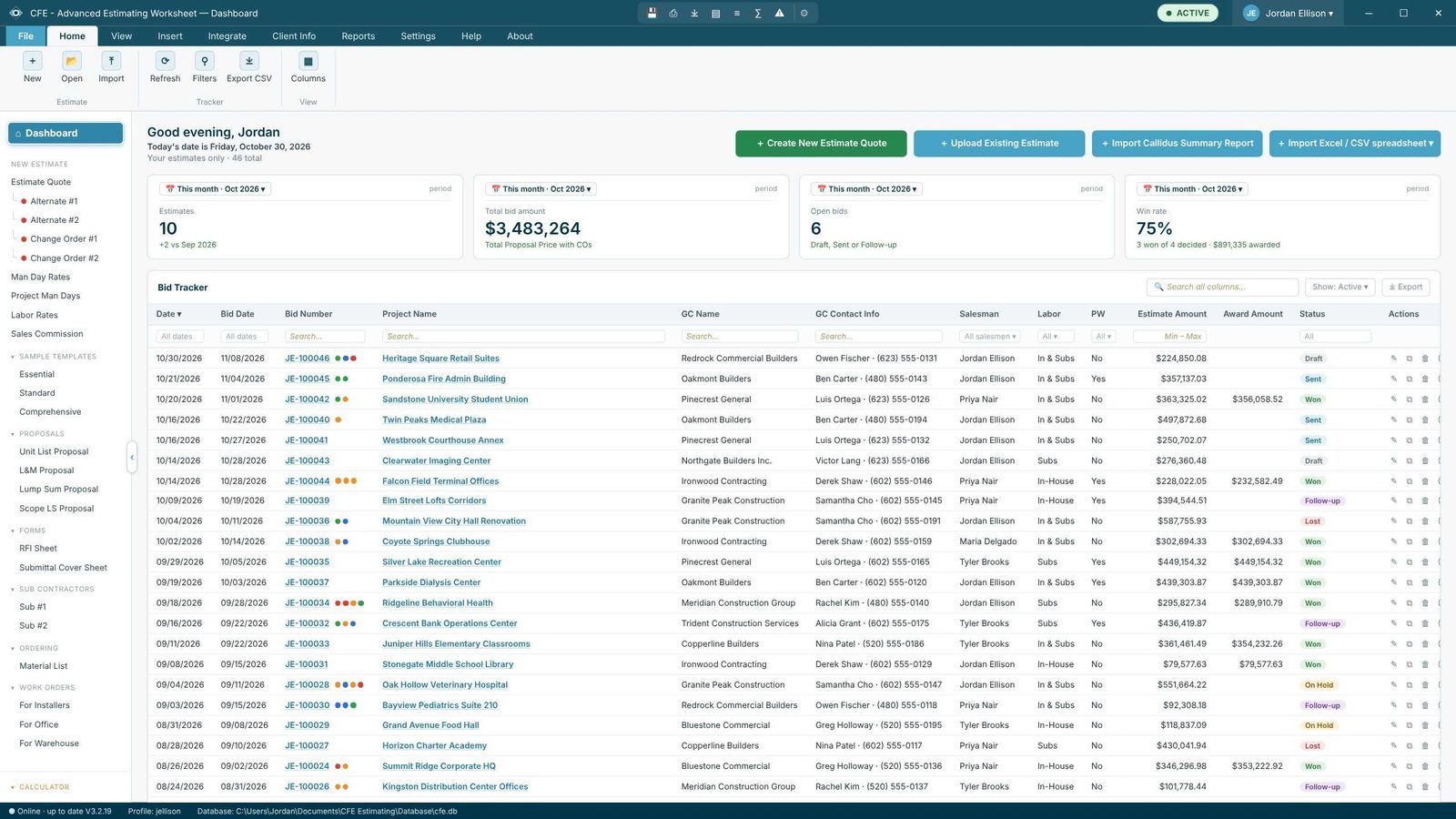
The four boxes on top are Estimates (how many you created), Total bid amount (the total proposal price with change orders), Open bids (Draft, Sent or Follow-up) and Win rate. Each box has its own period menu, so the Estimates box can show This year (46 estimates, +46 vs 2025) while Win rate shows This quarter.
2Change a bid’s status from the row
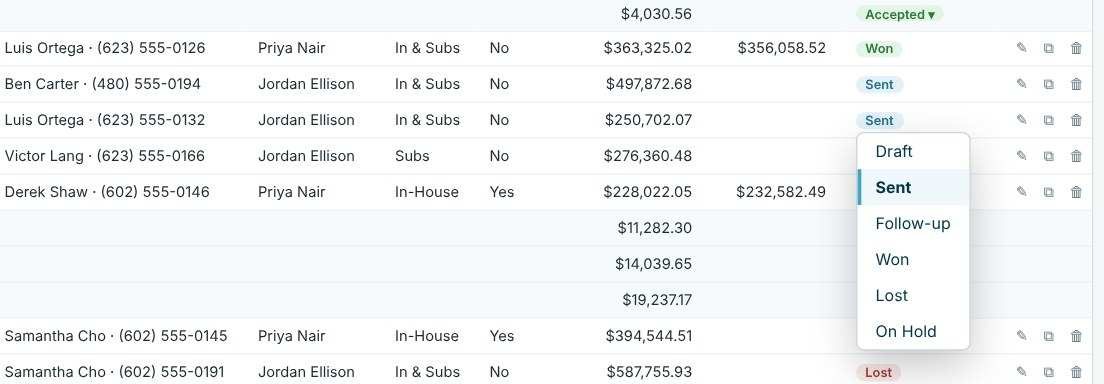
Click the status pill at the end of any row and pick the new status. Hover the pill later to see its history. Bids you no longer want to see can be ignored from the row actions and found again with Show › Ignored; Show › All lists everything.
3Mark a bid as Won
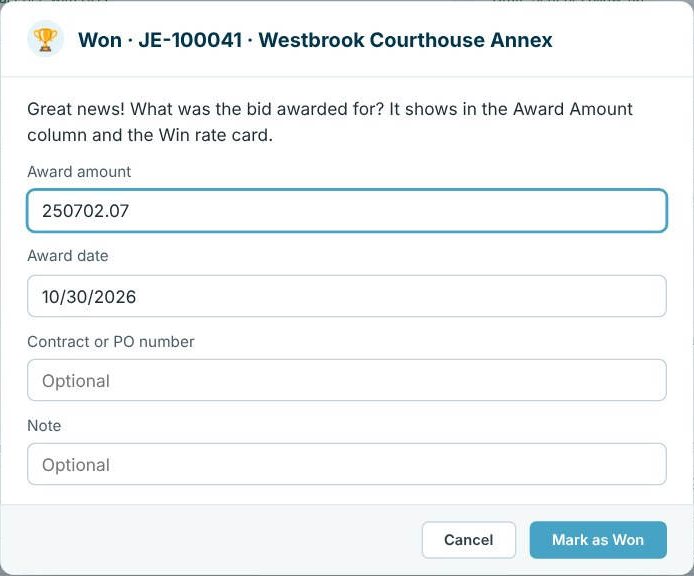
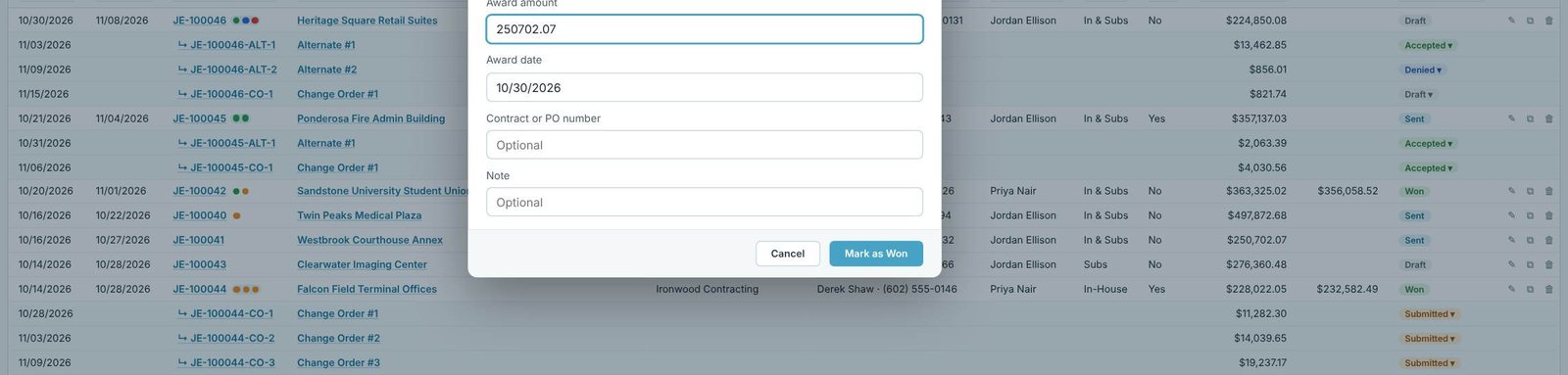
Choosing Won opens a short form: Award amount (it starts at the estimate amount), Award date, Contract or PO number and a Note. The award amount shows in its own column and counts toward the Win rate box. Hover it later to see the date, PO and note.
4Mark a bid as Lost, with the reason
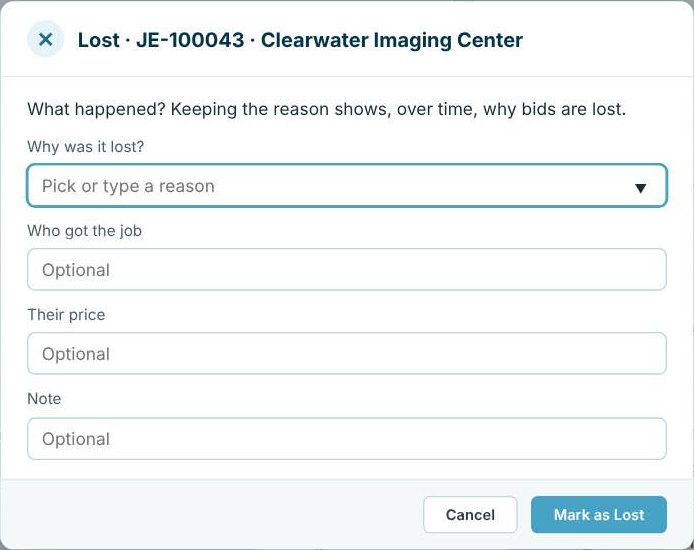
Choosing Lost asks why (pick or type a reason), who got the job, their price and a note. It takes ten seconds, and after a year it is the most useful sales data you own: which GCs you never win with, and how far off your price was.
Always ask the GC for the winning number. Even a rough "you were 8% high" is enough to tell a pricing problem from a relationship problem.
5Sort, search and choose your columns
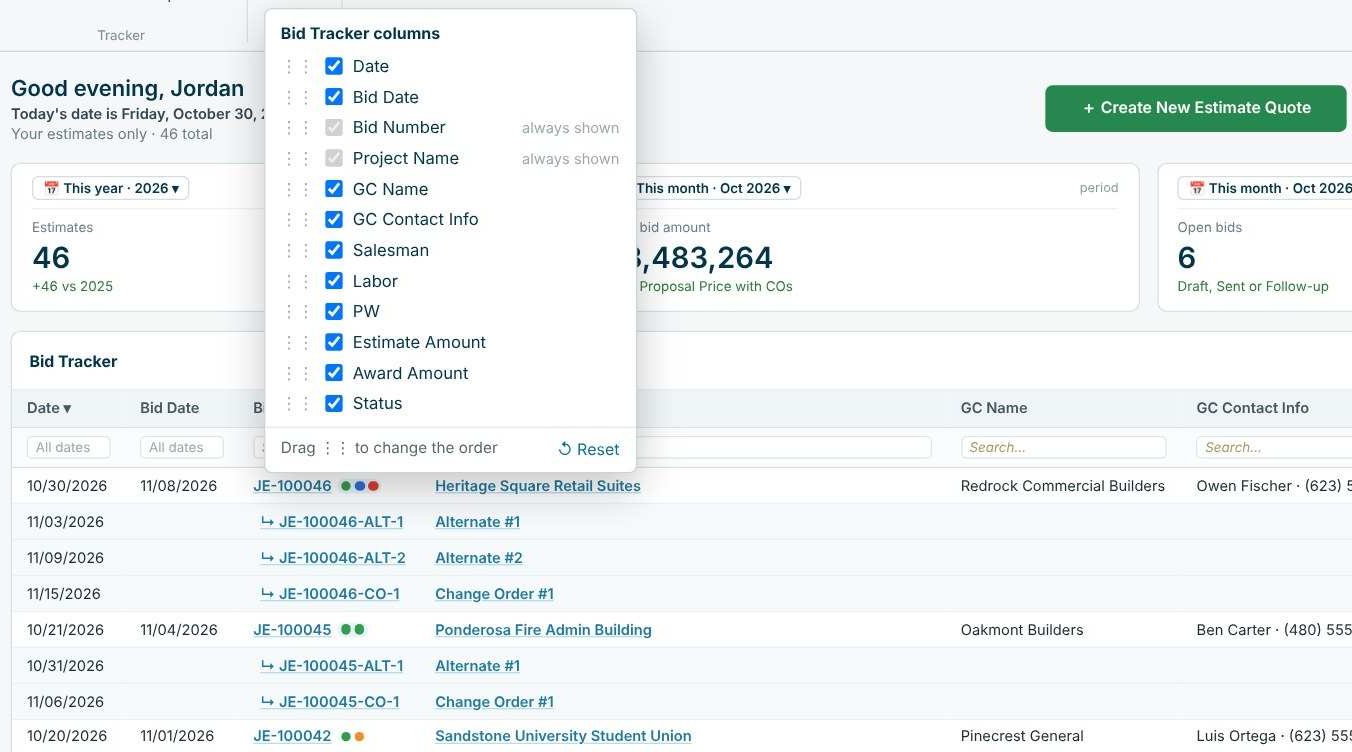
Click any column heading to sort, type in Search all columns to find every bid with a word in it, or use the filter boxes under each heading (dates, salesman, labor, prevailing wage and an amount range). Columns on the ribbon lets you hide columns and drag them into your own order; Bid Number and Project Name are always shown. Export CSV sends the list to Excel.
Worked example: an award after value engineering
JE-100042, Sandstone University Student Union for Pinecrest General, was bid at one number and awarded at another after a VE round. The tracker keeps both.
| Field | Value |
|---|---|
| Estimate amount | $363,325.02 |
| Award amount | $356,058.52 |
| Difference | $7,266.50 (2.0% below the bid) |
| Award date | 11/7/2026 |
| PO number | PO-51620 |
| Note | Awarded after VE round |

How the win rate is counted: the Win rate box divides bids won by bids decided (won plus lost) in its period. For Q4 2026 that is 3 won of 4 decided, a 75% win rate, with $891,335 awarded. Open bids are left out until they are decided, so a busy month of sent bids does not drag the rate down.
Alternates and change orders on the tracker
Every Alternate and Change Order you add to an estimate gets its own row, indented under its bid with its own ID (JE-100046-ALT-1, JE-100046-CO-1), amount, created date and status. Their statuses are Draft, Submitted, Accepted and Denied, and the colored dots next to the bid number show them at a glance. Click one of those rows to open that sheet. The change orders and alternates guide covers them in full.
What to do next
Next, print or email any sheet of a bid from the Reports tab, and keep your GC contacts in the GC and sub database. The bid tracker dashboard page shows the whole screen.
Start tracking your bids free
The Bid Tracker and win rate are in the 30-day free trial. No credit card.
Frequently Asked Questions
How does CFE calculate the win rate?
Bids won divided by bids decided (won plus lost) in the period you pick on the Win rate box. Draft, Sent, Follow-up and On Hold bids are not counted until they are decided.
Do I have to add bids to the tracker by hand?
No. Every Estimate Quote you create appears on the Bid Tracker with its bid number, project, GC, salesman and amount filled in from the estimate.
Can I record a different award amount than my bid?
Yes. When you mark a bid Won, the award amount starts at the estimate amount and you can type the real contract value, with the award date, PO number and a note.
Can I export the bid list?
Yes. Export CSV on the Dashboard ribbon, or Export on the tracker, saves the list for Excel.

Written by
Cristian Valcu – Founder & CEO, Commercial Flooring Estimating LLC
Cristian has estimated commercial flooring for over 20 years and built CFE - Advanced Estimating Worksheet around the way flooring contractors actually price, propose and track their bids.
Last updated: