
CFE guide · Getting started
Set Up Your Company Settings Before the First Bid
Ten minutes in Settings saves retyping on every bid. Fill in Company info, Logo and License so every proposal and RFI header prints correctly, then set Estimate defaults (profit mode, Labor GP, Material GP), Tax / Bond / Burden, Numbering and Email. Settings are saved once to the company database and used by every new estimate, proposal and RFI.

Why set up the company first?
Everything CFE - Advanced Estimating Worksheet prints carries your company: the proposal header, the page 2 header, the footer, the RFI sheet and the work orders. If the license number is missing or the logo is the wrong size, it is wrong on every page you send a GC.
The same goes for numbers. Your usual gross profit, bond, burden and tax rates should start every estimate, so you only change them when a job is different. Set them once in Settings and every new estimate starts from them.
The five steps
- Company infoName, address, phones, email, website and contact.
- Logo and licenseJPG or BMP logo; license, classification, DIR and DBE.
- Estimate defaultsProfit mode, Labor GP, Material GP, units, validity.
- Tax and numberingSales, county and municipal tax; bid number format.
- Email and quick barHow Email PDF sends, and your own toolbar.
1Fill in Company info
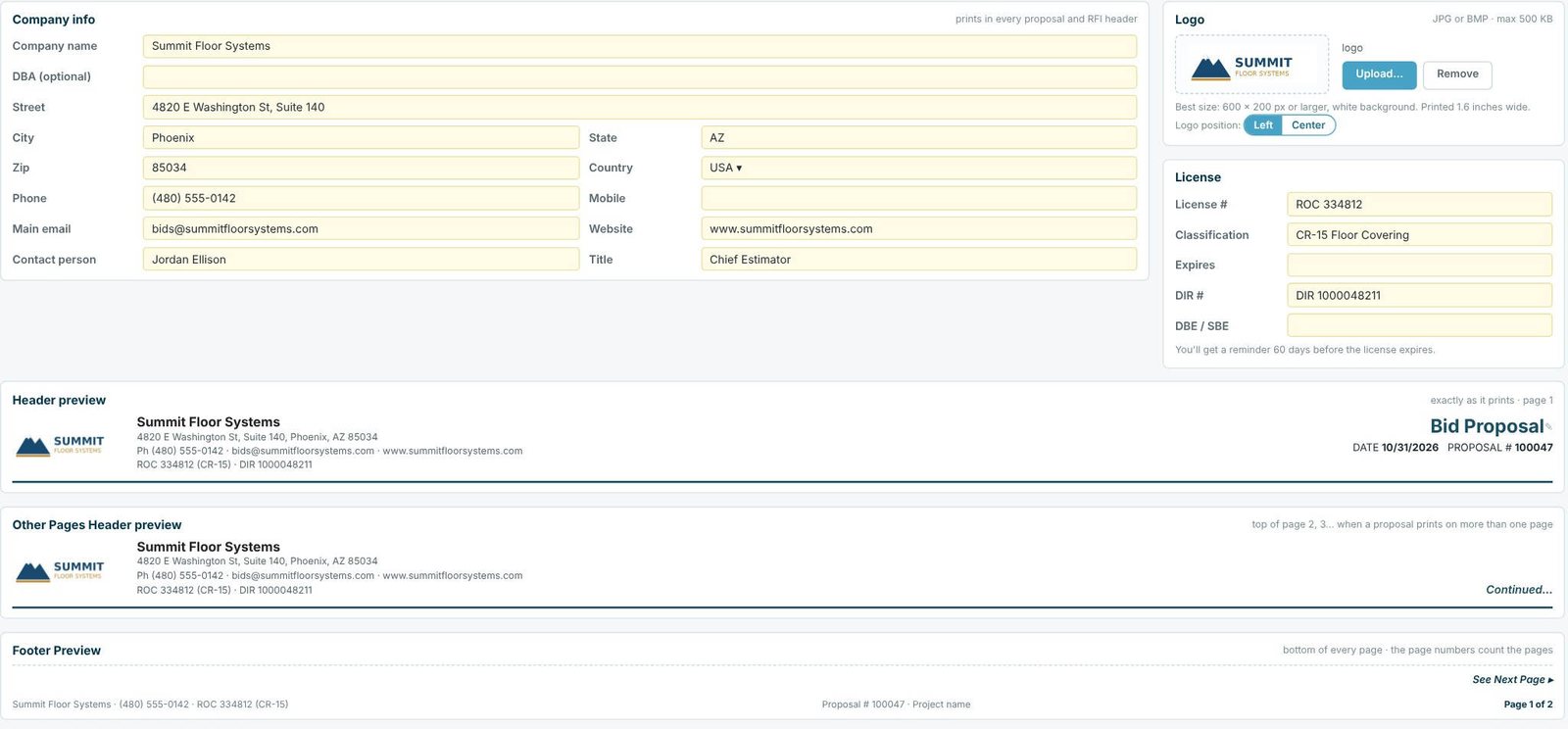
Open Settings › Company info and fill in the company name (and DBA if you use one), street, city, state, zip, country, phone, mobile, main email, website, and the contact person with their title. Underneath, the Header preview shows page 1 of a proposal exactly as it prints, the Other Pages Header preview shows pages 2 and on, and the Footer Preview shows the bottom of every page with the page count.
2Upload the logo and enter your license
Upload your logo as a JPG or BMP up to 500 KB. The best size is 600 × 200 pixels or larger on a white background; it prints 1.6 inches wide, on the left or centered. In License, enter the license number, classification, expiry date, DIR number and DBE / SBE certification if you have them. In the sample company that prints as ROC 334812 (CR-15) · DIR 1000048211 under the address, and CFE reminds you 60 days before the license expires.
Public and prevailing-wage bids often require the license and DIR numbers on the proposal itself. Filling them in here means you never send one without them.
3Set the estimate defaults
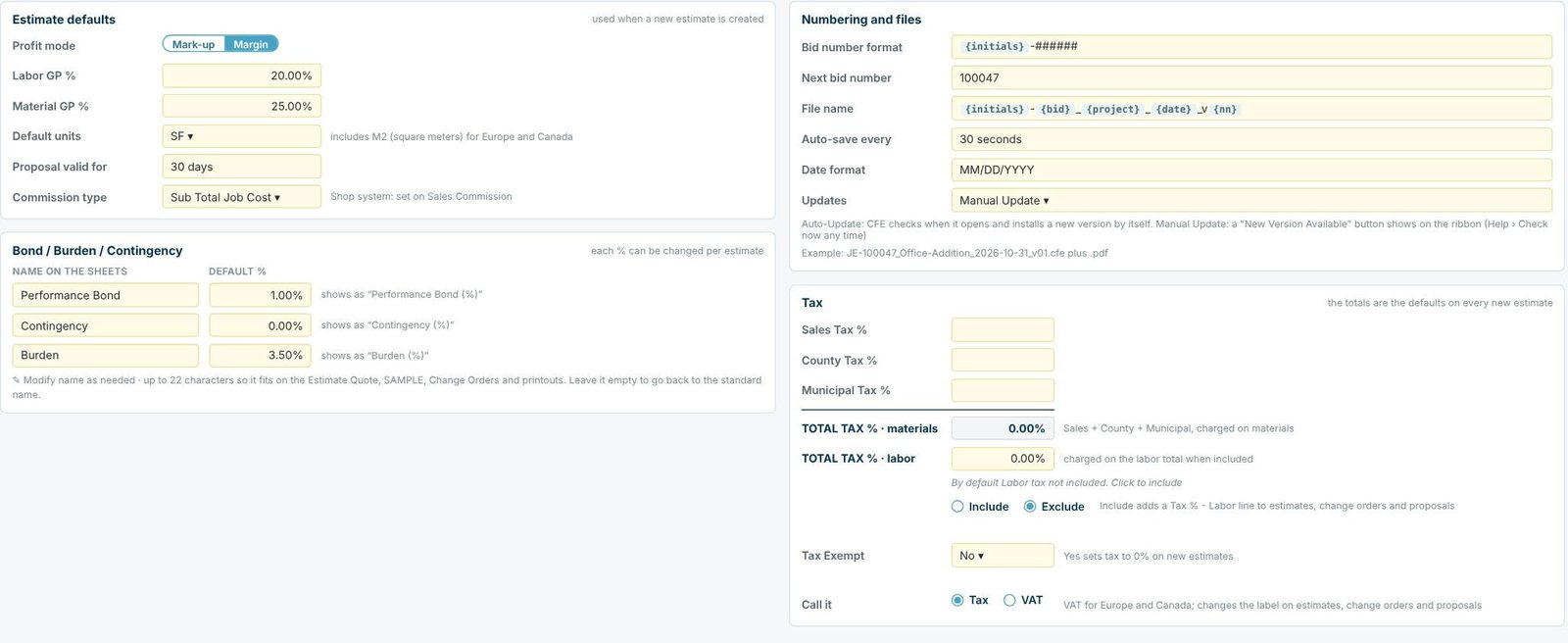
Under Estimate defaults pick the profit mode (Mark-up or Margin; see markup or margin), the starting Labor GP % and Material GP %, the default units (SF, which includes M2 for Europe and Canada), how long a proposal is valid for, and the commission type. In Bond / Burden / Contingency, set the default percentages and, if you want, rename them; each name can be up to 22 characters so it fits on the sheets. Each percentage can still be changed per estimate.
4Set tax and bid numbering
The Tax box adds sales, county and municipal tax into one Total tax % on materials. Labor tax is excluded by default; choose Include to add a Tax % – Labor line to estimates, change orders and proposals. Tax Exempt: Yes sets tax to 0% on new estimates, and Call it: VAT changes the label for Europe and Canada.
Numbering and files sets the bid number format ({initials}-###### makes JE-100047), the next bid number, the file name pattern, how often to auto-save (30 seconds), the date format and whether CFE updates itself (Manual Update or Auto-Update).
5Connect email and set your quick bar
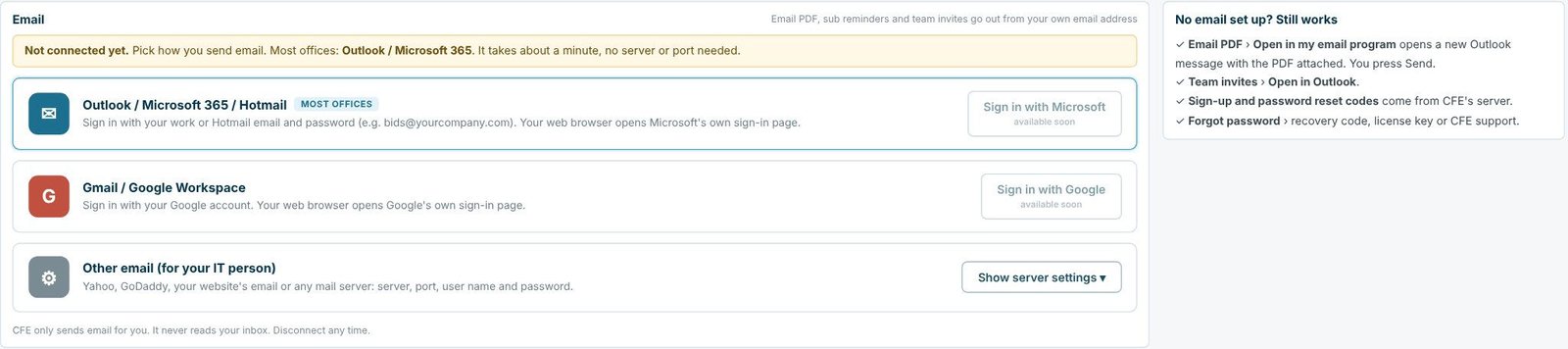
Settings › Email decides how Email PDF, sub-contractor reminders and team invites are sent: from your own address through Outlook / Microsoft 365, Gmail / Google Workspace or another mail server your IT person sets up. CFE only sends email for you; it never reads your inbox. With no email set up, Email PDF still opens a new Outlook message with the PDF attached.
Customize Ribbon is the one personal setting: pick up to 12 tools (Save, Print, Save PDF, Unit List, Recalc, Checks and so on) for the small quick bar at the top of the window. It is saved for you alone and does not change anyone else’s.
Worked example: the sample company’s settings
This is how the sample company, Summit Floor Systems in Phoenix, AZ, is set up, and what each setting does on the next bid.
| Setting | Value | What it does |
|---|---|---|
| Profit mode | Margin | Every new estimate prices at cost ÷ (1 − GP) |
| Labor GP / Material GP | 20% / 25% | Starting GP on each new line |
| Performance bond | 1.00% | Shows as "Performance Bond (%)" on the sheet |
| Contingency | 0.00% | Off until a job needs it |
| Burden | 3.50% | Shows as "Burden (%)" |
| Bid number format | {initials}-###### | Next bid is JE-100047 |
| File name | {initials}-{bid}_{project}_{date}_v{nn} | For example JE-100047_Office-Addition_2026-10-31_v01 |
| Auto-save | 30 seconds | A new estimate is never more than 30 seconds from saved |
| License | ROC 334812 (CR-15), DIR 1000048211 | Prints under the address on every proposal |
On the Eastgate Retail Center sample estimate those same defaults produce the 1% bond ($1,564.24) and 3.5% burden ($5,474.83) on a $156,423.79 job cost, without typing either percentage.
Proposal text lives here too
The Proposal text group in Settings holds your Terms & Conditions, Standard Exclusions, Qualifications, Special Provisions, Notice to Proceed, List of Sub-Contractors, Payment Schedule, Warranty, signature and custom text boxes. They are covered in their own guide: proposal terms, exclusions and qualifications.
What to do next
Next, write your proposal terms and exclusions, invite your team members, then build your first estimate.
Set up your company in the free trial
Every setting in this guide is open in the 30-day free trial. No credit card.
Frequently Asked Questions
Who can change the company settings in CFE?
Settings are shared by all users of the company and editing them requires an Admin. The one exception is Customize Ribbon, the quick bar, which each user sets for themselves.
What size should my logo be for the proposal header?
A JPG or BMP up to 500 KB, ideally 600 × 200 pixels or larger on a white background. It prints 1.6 inches wide, on the left or centered.
Do the defaults change estimates I already made?
No. Defaults are the starting values for new estimates. Existing estimates keep their own percentages, and you can change any of them per estimate.
Can I charge tax on labor?
Yes. Labor tax is excluded by default. Choose Include under Tax and CFE adds a Tax % – Labor line to estimates, change orders and proposals.

Written by
Cristian Valcu – Founder & CEO, Commercial Flooring Estimating LLC
Cristian has estimated commercial flooring for over 20 years and built CFE - Advanced Estimating Worksheet around the way flooring contractors actually price, propose and track their bids.
Last updated: