
CFE guide · Getting started
Install CFE and Sync Your Desktop and Laptop
Download CFE for Windows 64-bit, sign in, and you are estimating. To work on a desktop and a laptop, press Integrate › Set up sync on each computer and pick the same cloud folder (OneDrive, Google Drive or Dropbox). Every save goes to that folder, and every 2 minutes CFE brings in estimates saved on your other computer. Updates install with one click, or by themselves with Always Auto-Update.

Why sync instead of copying files?
Estimators start a bid at the office and finish it at home, or price on a laptop at the GC’s office. Emailing the file to yourself or carrying it on a USB stick ends the same way: two versions of the estimate and no way to know which one went to the GC.
CFE - Advanced Estimating Worksheet does not run its own cloud. It saves a copy of each estimate in a folder of the cloud service you already use (OneDrive, Google Drive or Dropbox), and that service carries the folder to your other computer. Your seat works on one computer at a time, so the same estimate is never changed in two places.
The five steps
- Download and installWindows 64-bit, from the download page.
- Open Set up syncIntegrate tab, Set up sync.
- Set up the cloud appSame account, folder kept on the computer.
- Check that it syncsSave on one, see it on the other.
- Keep it updatedUpdate Now, or Always Auto-Update.
1Download and install CFE
Go to the download page and download CFE - Advanced Estimating Worksheet for Windows 64-bit. Run the installer and open the app. The free trial needs no credit card and unlocks every feature for 30 days; see free trial vs Limited Mode for what happens after.
Sign in with your username and password. Your name and initials then fill the estimator fields of every new estimate.
2Open Set up sync on the first computer
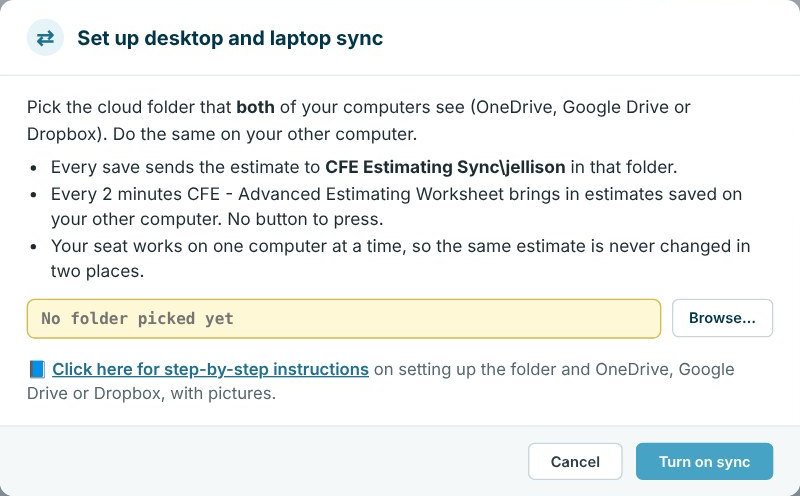
On the Integrate tab, press Set up sync. The dialog explains how it works:
- Every save sends the estimate to CFE Estimating Sync\your username in that folder.
- Every 2 minutes CFE brings in estimates saved on your other computer. No button to press.
- Your seat works on one computer at a time, so the same estimate is never changed in two places.
Press Browse, pick your OneDrive, Google Drive or Dropbox folder, and press Turn on sync.
3Set up the cloud app on both computers
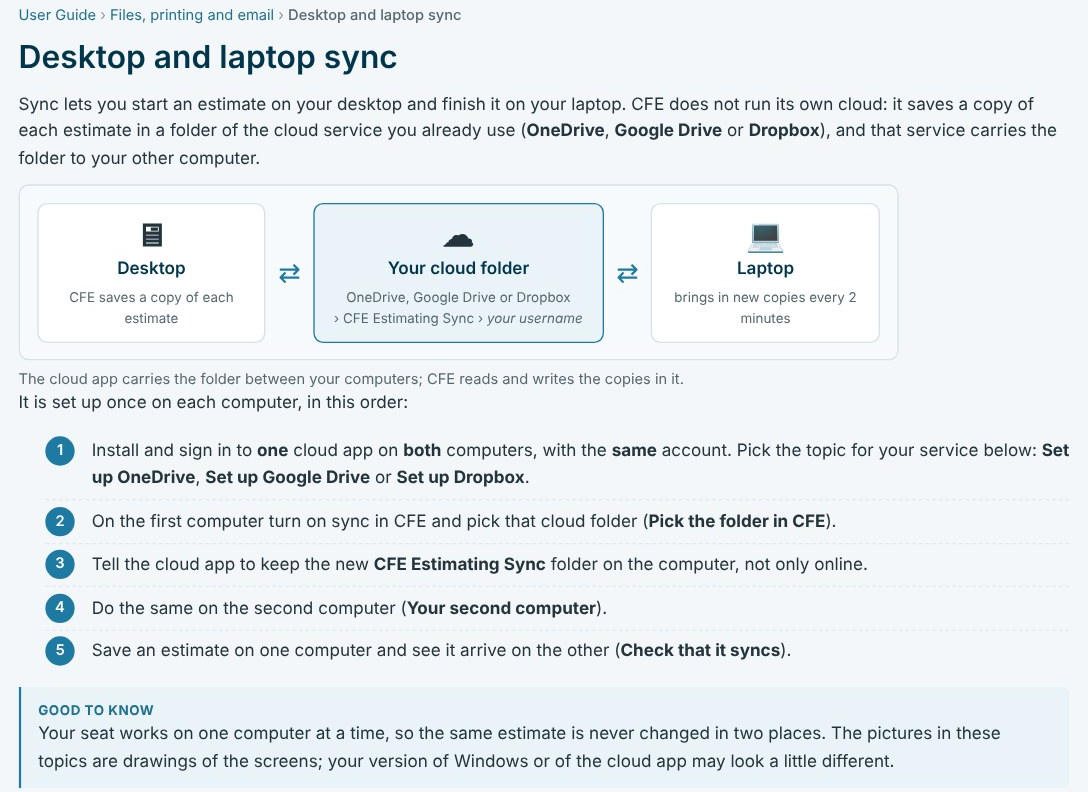
The Click here for step-by-step instructions link opens the User Guide topic for your service. In short: install and sign in to one cloud app on both computers with the same account, turn on sync in CFE and pick the folder, tell the cloud app to keep the new CFE Estimating Sync folder on the computer (not only online), then do the same on the second computer.
Use the cloud service your company already pays for. OneDrive comes with Windows 10 and 11, so most offices only need to sign in on both computers with the same Microsoft account.
4Check that it syncs
Save an estimate on the first computer, wait two minutes, and open the Dashboard on the second. The estimate is there with its bid number. Sync now on the Integrate tab brings in new copies at once instead of waiting. If an estimate does not arrive, the User Guide topic An estimate is not on my other computer lists what to check.
5Install updates
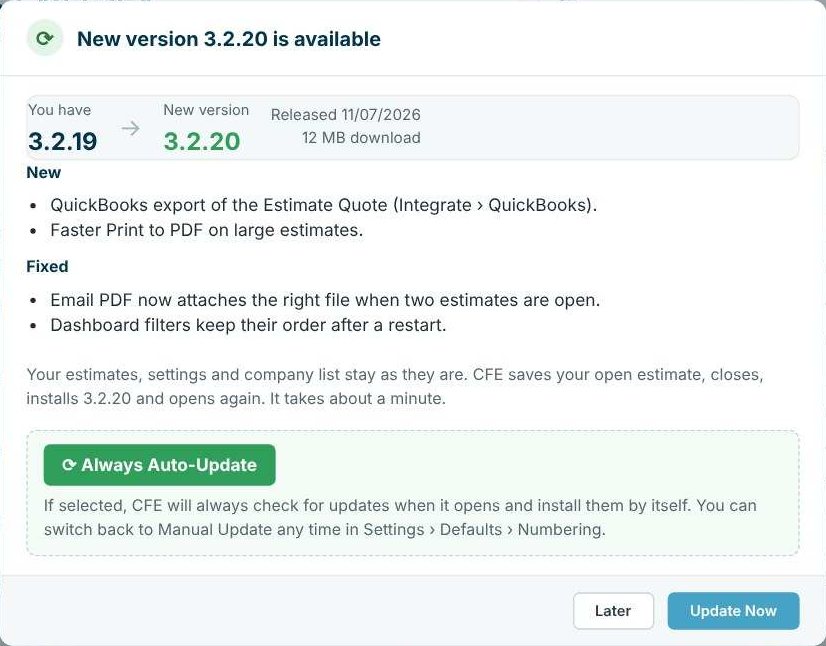
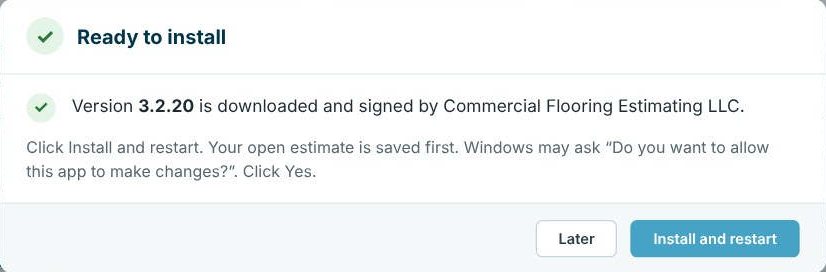
When a new version is out, CFE shows what is new and fixed and offers Update Now or Always Auto-Update. Your estimates, settings and company list stay as they are; CFE saves your open estimate, closes, installs and opens again in about a minute. On Manual Update a green New Version Available button stays on the ribbon until you install it, and you can switch modes in Settings › Defaults › Numbering.
Worked example: one estimator, two computers
How the sample company’s seats are used, from the Team screen.
| User | Computers on their seat | Status |
|---|---|---|
| Dana Lopez (Master user) | DANA-LAPTOP | Active |
| Tom Nguyen | SFS-EST-02 | Active |
| Mike Reyes | SFS-EST-03 · MIKE-LAPTOP | Active |
| Ana Ruiz | SFS-EST-04 | Offline |
Mike Reyes uses one seat on two computers, an office desktop and a laptop, with sync keeping both up to date. Each seat is one estimator on up to 2 computers, one at a time. To add people, see team members and seats.
What to do next
Next, set up your company settings, then build your first estimate. To protect your work, see backup, restore and version history.
Download CFE free
Windows 64-bit, 30-day free trial, every feature, no credit card.
Frequently Asked Questions
What do I need to run CFE?
A Windows 64-bit computer. Download it from the download page; the 30-day free trial needs no credit card.
Does CFE store my estimates in its own cloud?
No. Sync saves a copy of each estimate in a folder of the cloud service you already use, OneDrive, Google Drive or Dropbox, and that service carries it to your other computer.
How often do estimates sync between computers?
Every save sends the estimate to the sync folder, and every 2 minutes CFE brings in estimates saved on your other computer. Sync now does it at once.
Can I use one license on a desktop and a laptop?
Yes. Each seat is one estimator on up to 2 computers, used one at a time.

Written by
Cristian Valcu – Founder & CEO, Commercial Flooring Estimating LLC
Cristian has estimated commercial flooring for over 20 years and built CFE - Advanced Estimating Worksheet around the way flooring contractors actually price, propose and track their bids.
Last updated: