
CFE guide · Getting started
Set Up Your Proposal Terms, Exclusions and Signature
Write your proposal text once in Settings › Proposal text, and every new proposal and RFI uses it. CFE has boxes for Terms & Conditions, Standard Exclusions, Qualifications, Special Provisions, Notice to Proceed, List of Sub-Contractors, Payment Schedule, Warranty and My Signature, plus custom boxes you add. For each box you choose its title, which proposals it prints on (Unit List, L&M, Lump Sum, RFI), whether it is on by default, and whether it prints numbered, as bullets or as a paragraph.

Why the boilerplate matters more than it looks
The price gets a flooring contractor the job. The text under the price decides whether they make money on it. Floor prep, moisture testing, furniture moving, after-hours work, a second mobilization: when the proposal says nothing about them, the GC assumes they are included.
Most estimators keep that text in an old Word file and paste it into each proposal, so every bid has a slightly different version and some have none. In CFE - Advanced Estimating Worksheet the text lives in one place, Settings › Proposal text. It is saved to the company database and used by every new proposal and RFI, and settings are shared by all users of the company, so every estimator sends the same terms.
The five steps
- Open Proposal textSettings tab, Terms & Cond.
- Write each boxOne item per line; pick numbered, bullets or paragraph.
- Choose where each box printsUse on, and Default in Insert.
- Set up your signatureText above, closing, signature style and title.
- Save, and adjust per bidSave settings; Edit this bid on one proposal.
1Open Settings › Proposal text
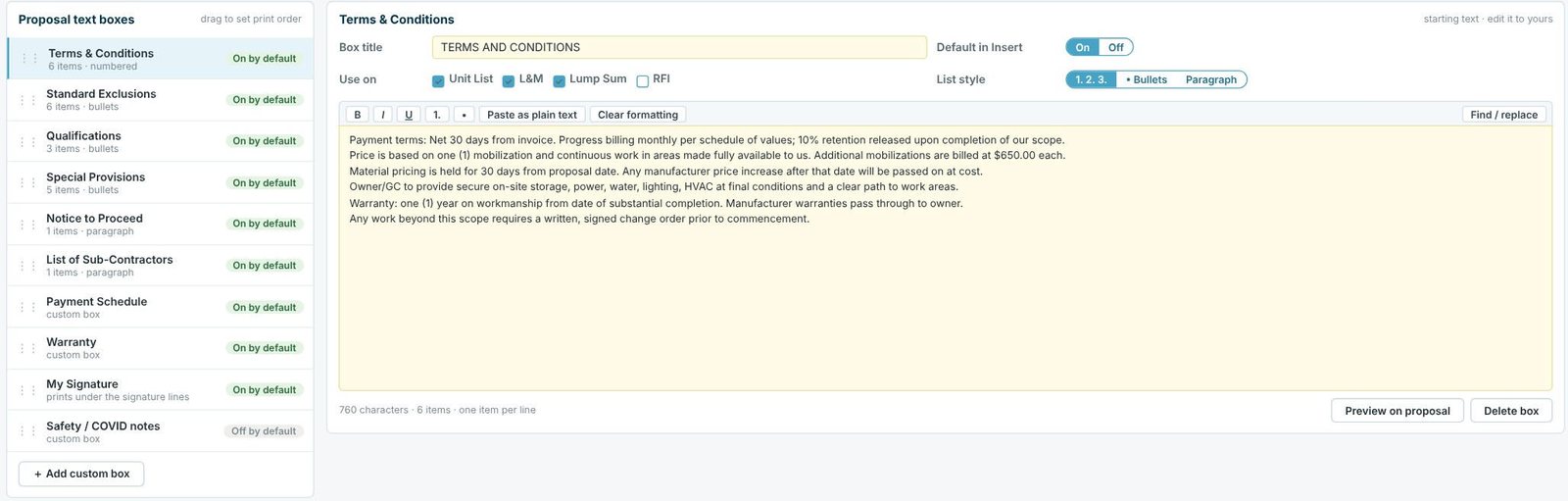
On the Settings tab, press Terms & Cond., Exclusions, Qualifications or Custom boxes. The bar at the top explains it in one line: these are the boxes the Insert tab adds to the bottom of each proposal. Editing settings requires Admin rights.
The Proposal text boxes list shows each box with how many items it has, its list style and whether it is on by default. Drag a box up or down to set the order it prints in.
2Write the text for each box
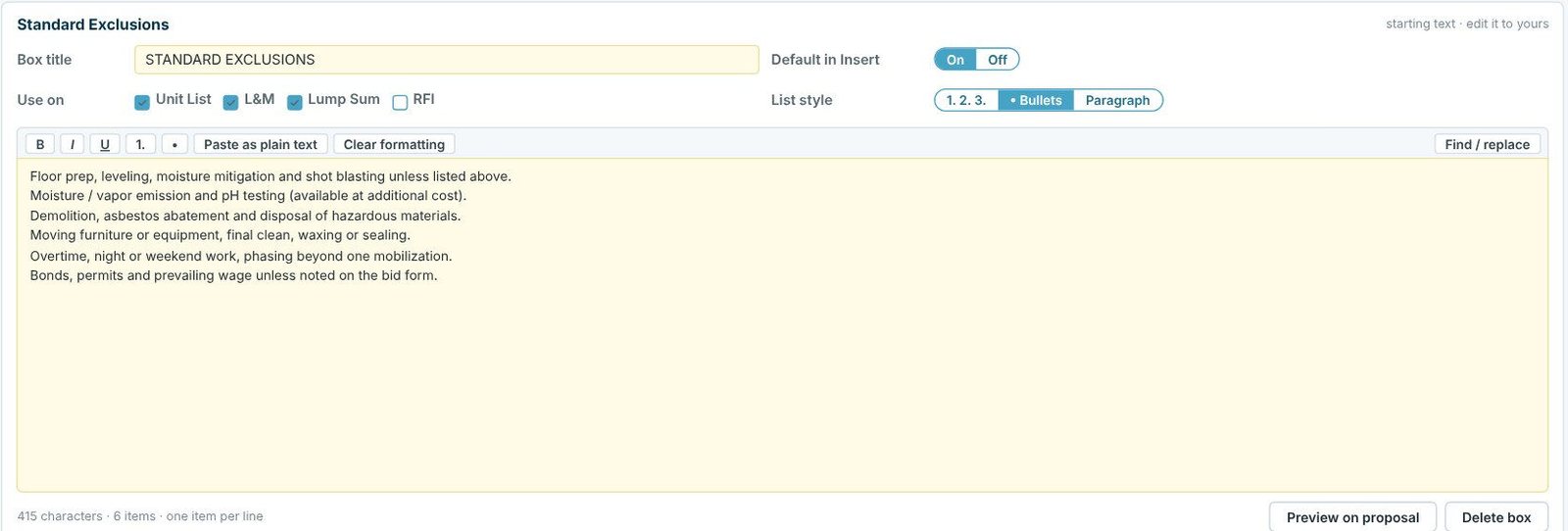
Type in the yellow box, one item per line. The toolbar has bold, italic, underline, numbered and bulleted lists, Paste as plain text (useful when you copy from an old Word file) and Clear formatting, and Find / replace works across the box. Under the box CFE counts the characters and items. Box title is the heading that prints, such as STANDARD EXCLUSIONS, and List style picks 1. 2. 3., Bullets or Paragraph.
Write exclusions as things, not promises: “Moving furniture or equipment” reads clearer to a GC than “we will not move furniture”. One item per line also keeps each one easy to strike on a single bid.
3Choose where each box prints
Use on ticks the documents the box can print on: Unit List, L&M, Lump Sum and RFI. Default in Insert decides whether the box starts ticked on a new proposal. In the sample company, Terms & Conditions, Standard Exclusions, Qualifications, Special Provisions, Notice to Proceed, List of Sub-Contractors, Payment Schedule, Warranty and My Signature are all on by default; the custom Safety / COVID notes box is off, ready for the jobs that ask for it. Preview on proposal shows the box in place before you save.
4Set up My Signature
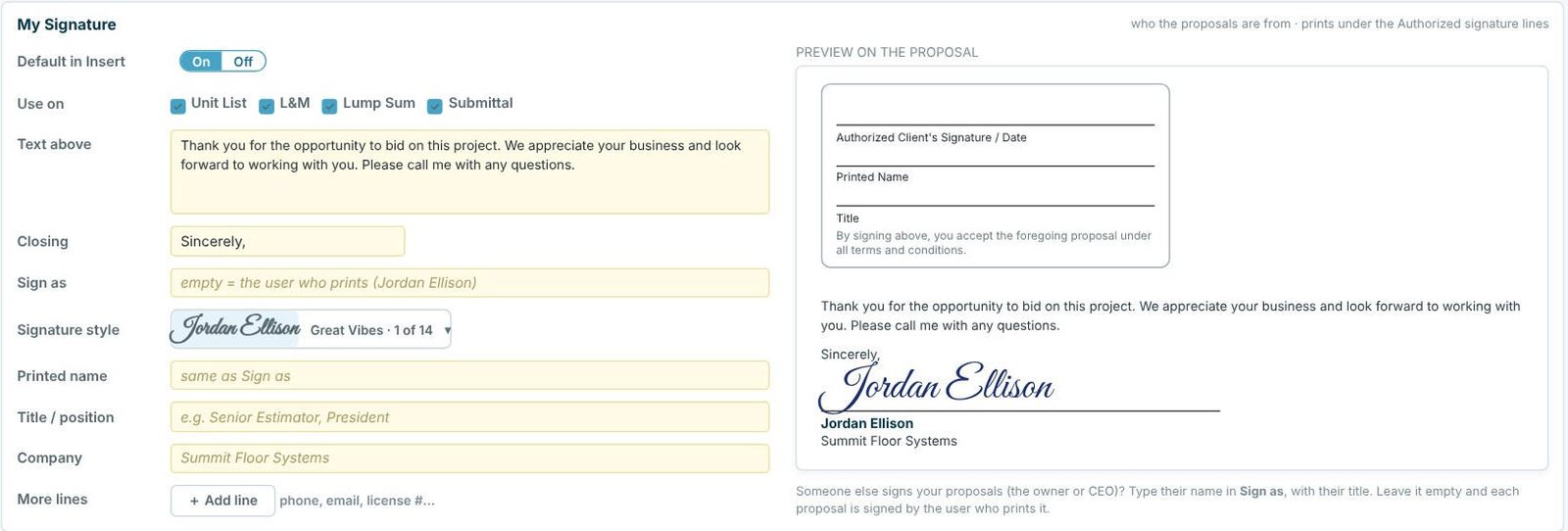
My Signature is who the proposal is from. It prints under the Authorized Client’s Signature / Date lines: the Text above (a thank-you note in the sample), the Closing, the signature in one of 14 Signature styles, the printed name, title and company, and any More lines you add such as a phone or license number. Leave Sign as empty and each proposal is signed by the user who prints it. If the owner or CEO signs every proposal, type their name in Sign as, with their title.
5Save, then adjust a single bid when you need to
Press Save settings. The green note at the top right shows when all settings were last saved, and Revert drops changes you have not saved. On a proposal, the Insert tab ticks which boxes print on that bid, Edit this bid changes the wording for that proposal only, and Reset to Settings brings your standard text back. The unit list proposal guide shows the Insert tab step by step.
Worked example: the sample company’s exclusions and qualifications
What Summit Floor Systems, the sample company, prints under every proposal. These are starting texts to edit, not legal advice; write your own with your attorney.
| Box | Style | What it says |
|---|---|---|
| Standard Exclusions | Bullets, 6 items | Floor prep, leveling, moisture mitigation and shot blasting unless listed; moisture / vapor emission and pH testing; demolition, asbestos abatement and disposal of hazardous materials; moving furniture or equipment, final clean, waxing or sealing; overtime, night or weekend work and phasing beyond one mobilization; bonds, permits and prevailing wage unless noted. |
| Qualifications | Bullets, 3 items | Pricing is based on the plans and specifications listed; quantities are per our takeoff. Work during normal business hours, Monday through Friday. Substrate to be clean, dry, level and ready for flooring when our crew arrives. |
| Terms & Conditions | Numbered, 6 items | Net 30 from invoice with monthly progress billing and 10% retention; price based on one mobilization, additional mobilizations at $650.00 each; material pricing held 30 days; one-year workmanship warranty; extra work needs a signed change order. |
| Notice to Proceed | Paragraph | Materials are ordered only after approved submittals and the Notice to Proceed; allow ten working days for lead times and crew scheduling. |
Look at what the $650.00 mobilization line does: a phased job that needs three trips is no longer a dispute, because the proposal priced one and said what the others cost. That is the kind of line worth having on every bid.
The boxes CFE starts you with
- Terms & Conditions: payment, retention, mobilizations, price hold, change orders.
- Standard Exclusions: the work your price does not include.
- Qualifications: what the price is based on.
- Special Provisions: site conditions, such as temperature, concrete cure time and attic stock delivery.
- Notice to Proceed and List of Sub-Contractors, as paragraphs.
- Payment Schedule and Warranty, custom boxes on by default.
- My Signature, and any custom box you add with + Add custom box.
For ideas on what to put in them, read our article on flooring bid qualifications and exclusions.
What to do next
Next, invite your team members so they all send the same text, then build your first estimate and print it as a unit list proposal.
Write your terms once
Proposal text, signature and every proposal format are in the 30-day free trial. No credit card.
Frequently Asked Questions
Where do I change the terms and exclusions on my CFE proposals?
In Settings › Proposal text. Each box has its own title, text, list style and the proposals it prints on, and the text is used by every new proposal and RFI.
Can I change the exclusions for just one bid?
Yes. On the proposal’s Insert tab, Edit this bid changes the wording for that proposal only. Reset to Settings brings back your standard text.
Can someone else sign all our proposals?
Yes. Type the owner’s or CEO’s name in Sign as on My Signature, with their title. Leave Sign as empty and each proposal is signed by the user who prints it.
Can I add my own text box, such as safety notes?
Yes. + Add custom box adds one with its own title and text. Set Default in Insert to Off and tick it only on the bids that need it.

Written by
Cristian Valcu – Founder & CEO, Commercial Flooring Estimating LLC
Cristian has estimated commercial flooring for over 20 years and built CFE - Advanced Estimating Worksheet around the way flooring contractors actually price, propose and track their bids.
Last updated: