
CFE guide · Tracking and reports
Send Won Flooring Jobs to QuickBooks Online and Track Every Invoice
When a bid is won, one click sends it from CFE to QuickBooks Online as an Estimate under the GC and the project. The base bid, accepted alternates and approved change orders go at your proposal price; your costs, labor rates, margins and commission never leave CFE. You invoice in QuickBooks, all at once or a % at a time, and the QuickBooks Online tab in CFE shows what was invoiced, what was paid and what is still open, for every won job.


Why connect the estimate to QuickBooks?
On most flooring jobs the bid and the bookkeeping live in two places. The office retypes the won number into QuickBooks, an accepted alternate or an approved change order gets left out of the first invoice, and the estimator has to ask the bookkeeper whether the GC has paid.
The QuickBooks Online tab in CFE - Advanced Estimating Worksheet closes that gap. The won bid goes across once, line by line, at the price on your proposal. Billing stays in QuickBooks, where your bookkeeper already works, and what QuickBooks knows about invoices and payments comes back to CFE every five minutes.
The five steps
- Connect QuickBooksMaster user signs in on Intuit’s own page, once.
- Mark the bid WonIn the Bid Tracker, as you do today.
- Send it to QuickBooksCheck the preview, then Send to QuickBooks.
- Invoice in QuickBooksCreate invoice: all, or a % at a time.
- Watch the money come inInvoiced, paid and open balance on one screen.
1Connect your QuickBooks Online company
First, in QuickBooks: go to Account and settings › Sales › Progress Invoicing and turn on Create multiple partial invoices from a single estimate, so you can bill a job a % at a time. Have your Products and Services ready; CFE makes Flooring Installation and Change Orders if they are missing.
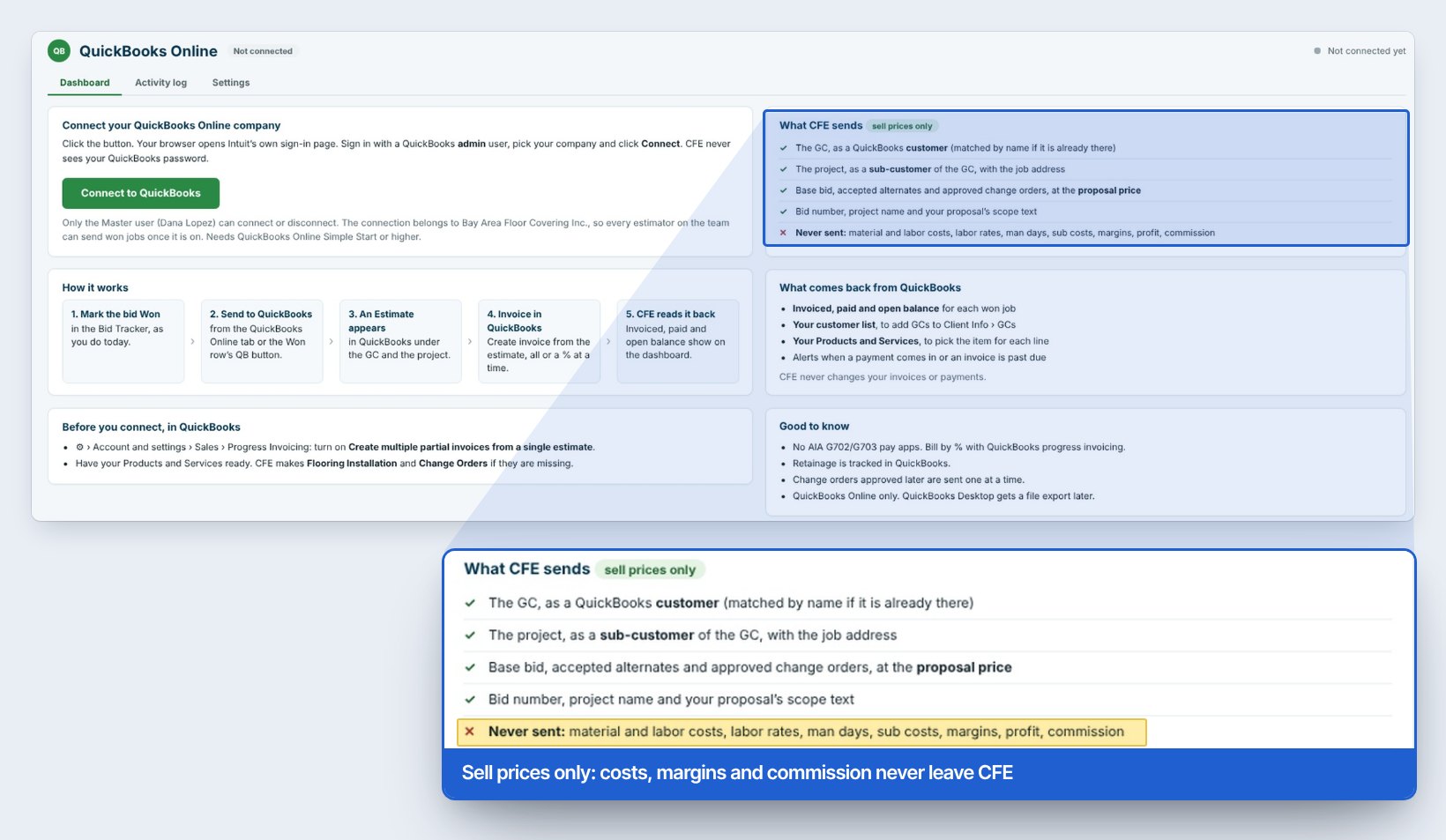
Open the green QuickBooks Online tab and click Connect to QuickBooks. Your browser opens Intuit’s own sign-in page: sign in with a QuickBooks admin user, pick your company and click Connect. CFE never sees your QuickBooks password.
Only the Master user can connect or disconnect. The connection belongs to the company (here Bay Area Floor Covering Inc.), so once it is on, every estimator on the team can send won jobs. It needs QuickBooks Online Simple Start or higher.
Connect while your bookkeeper is next to you. They know which QuickBooks user is the admin and which Products and Services they want the flooring lines posted to.
2Mark the bid Won in the Bid Tracker
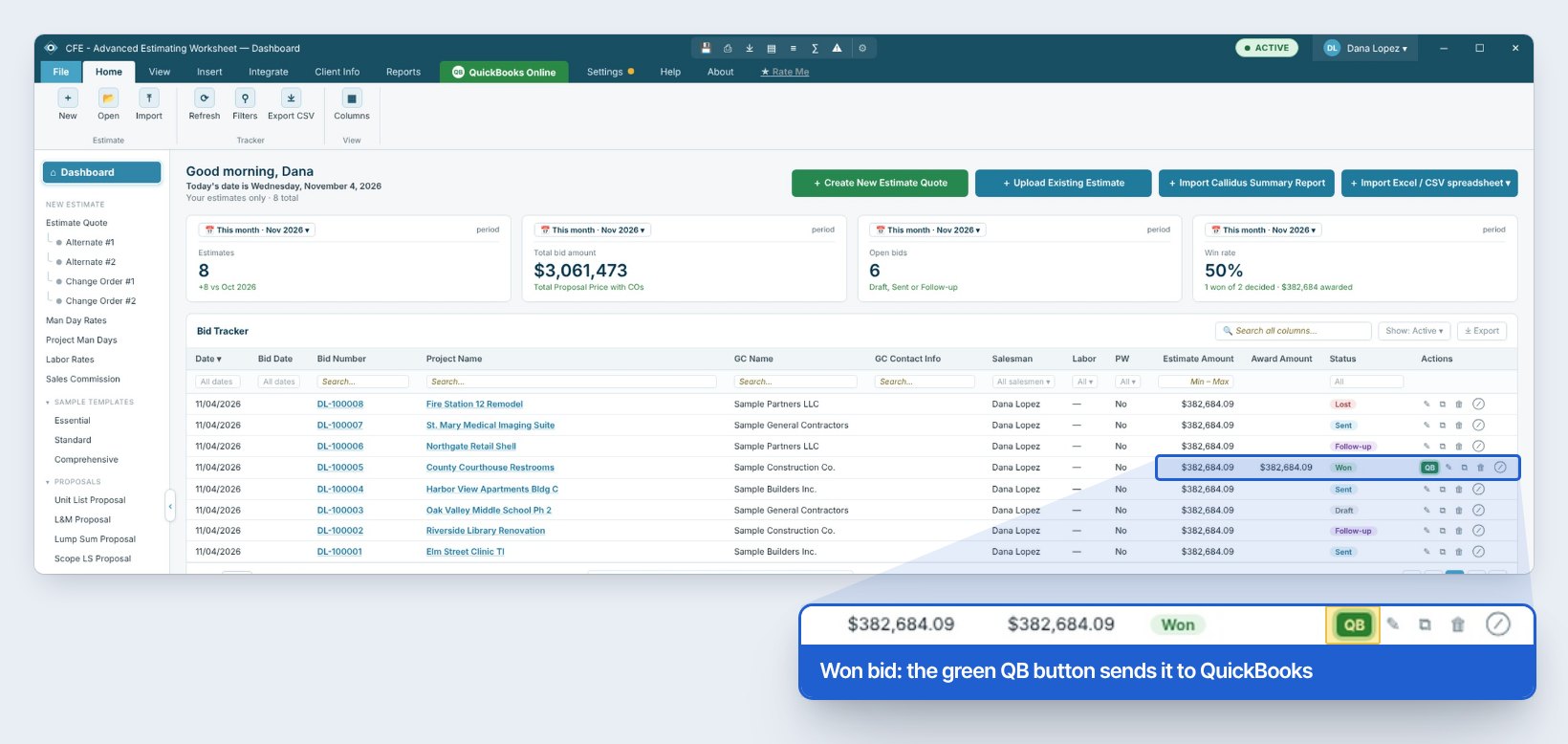
Nothing changes in how you win a bid: set its status to Won on the Bid Tracker. As soon as it is Won, the row shows a green QB button in its actions. Here it is DL-100005, County Courthouse Restrooms for Sample Construction Co., $382,684.09.
3Send the won job to QuickBooks
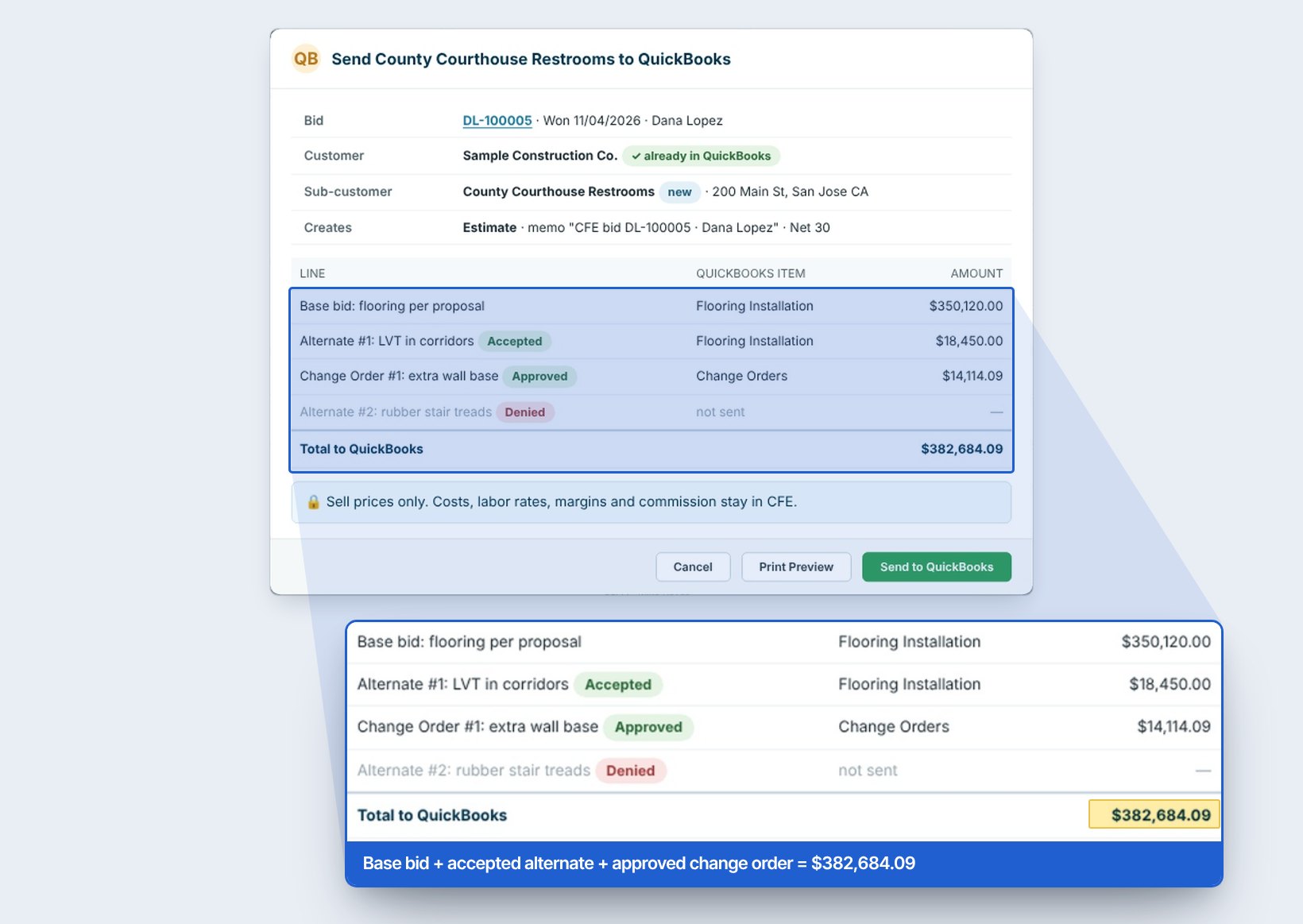
Click the row’s QB button, or Send won job on the QuickBooks Online ribbon. A preview shows exactly what will be created:
- Customer: the GC, matched by name if it is already in QuickBooks
- Sub-customer: the project, with the job address
- Estimate: a memo with the CFE bid number and estimator, and the terms (Net 30 here)
- Lines: the base bid, accepted alternates and approved change orders, each posted to a QuickBooks item, at the proposal price
A denied alternate is shown greyed out as not sent. Use Print Preview if the office wants a copy, then click Send to QuickBooks.
4Create the invoice in QuickBooks
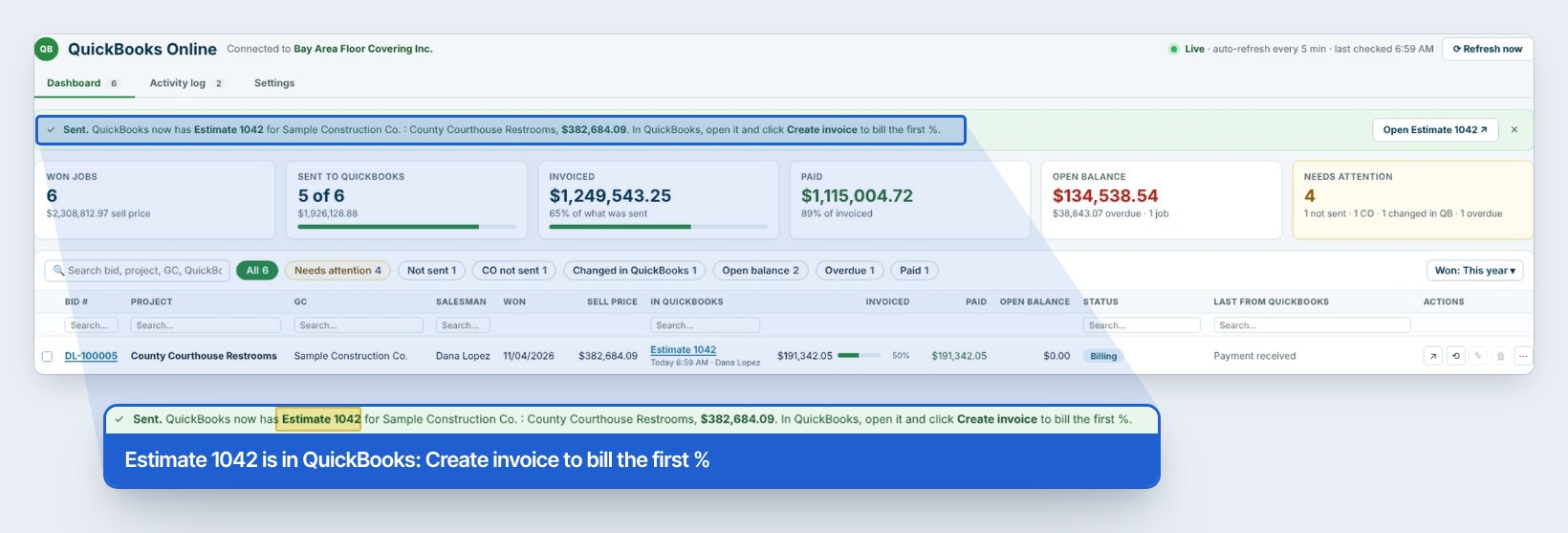
CFE confirms with a green banner: QuickBooks now has Estimate 1042 for Sample Construction Co. : County Courthouse Restrooms, $382,684.09. Click Open Estimate 1042, then in QuickBooks click Create invoice to bill the first %, or the whole amount. Billing, retainage and payments stay in QuickBooks; CFE never changes your invoices or payments.
5Watch invoiced, paid and open balance in CFE
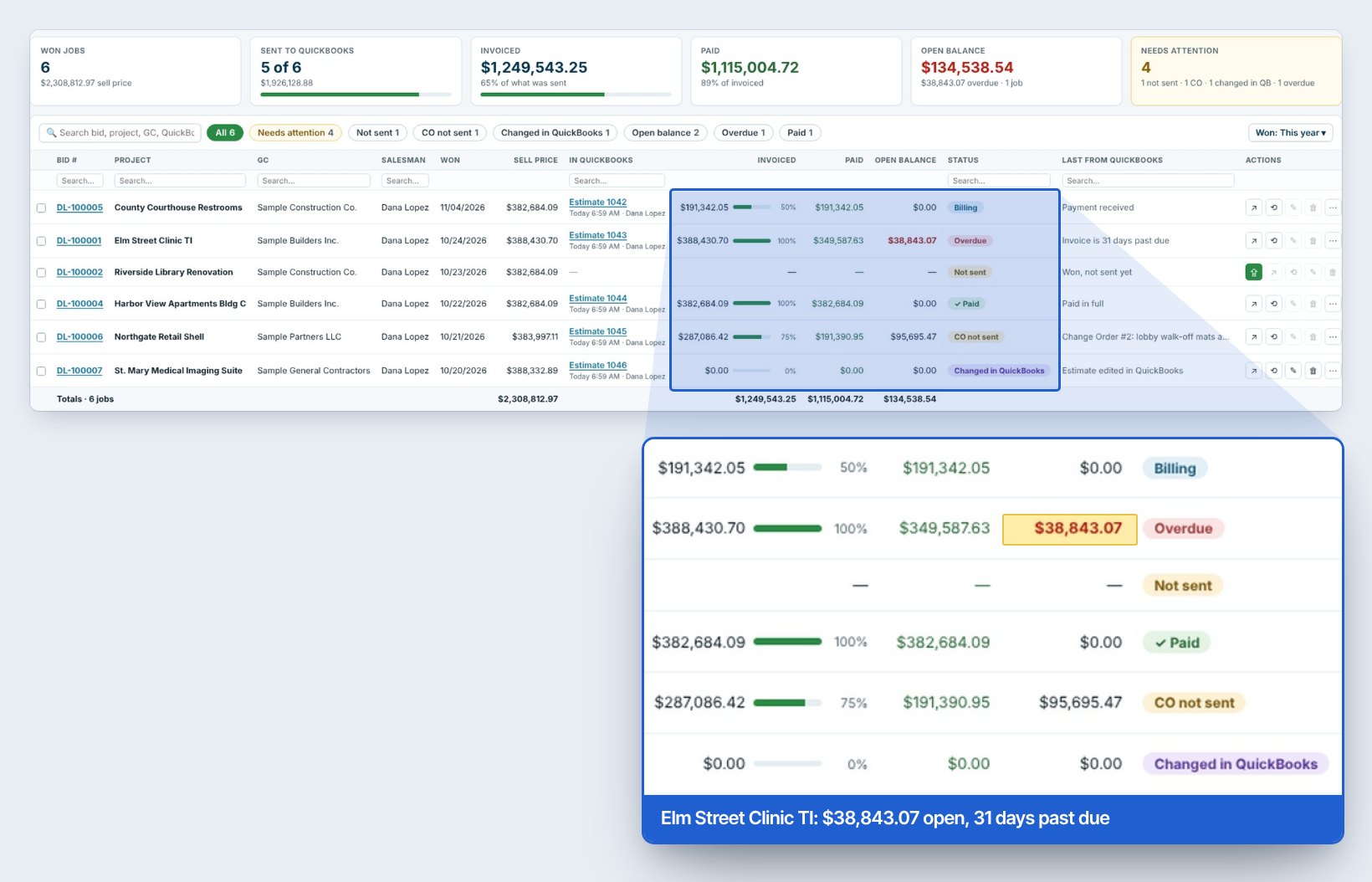
The Dashboard on the QuickBooks Online tab lists every won job with its QuickBooks estimate or invoice, Invoiced (with a % bar), Paid, Open balance, a Status and the Last from QuickBooks. It refreshes on its own every 5 minutes, or click Refresh now. The six boxes on top add it up: won jobs, sent to QuickBooks, invoiced, paid, open balance and Needs attention.
The status tells you what to do next: Not sent (won, not in QuickBooks yet), Billing, Open balance, Overdue, Paid, CO not sent (an approved change order still to send) and Changed in QuickBooks (someone edited the estimate there). Click a chip such as Needs attention or Overdue to see only those jobs.
Worked example: County Courthouse Restrooms
DL-100005 was won on November 4, 2026 for Sample Construction Co. Alternate #1 was accepted, Change Order #1 was approved and Alternate #2 was denied. This is what went to QuickBooks:
| Line | QuickBooks item | Amount |
|---|---|---|
| Base bid: flooring per proposal | Flooring Installation | $350,120.00 |
| Alternate #1: LVT in corridors (Accepted) | Flooring Installation | $18,450.00 |
| Change Order #1: extra wall base (Approved) | Change Orders | $14,114.09 |
| Alternate #2: rubber stair treads (Denied) | not sent | — |
| Total to QuickBooks | Estimate 1042 | $382,684.09 |
The office then invoiced 50% in QuickBooks: $191,342.05. The GC paid it, so the CFE row shows Invoiced $191,342.05 (50%), Paid $191,342.05, Open balance $0.00 and the status Billing, with Payment received as the last word from QuickBooks.
On the same screen, Elm Street Clinic TI ($388,430.70) is invoiced 100% with $349,587.63 paid. The last $38,843.07, 10% of the job, is Overdue: Invoice is 31 days past due. That is the call to make today.
Bring in your GCs from QuickBooks
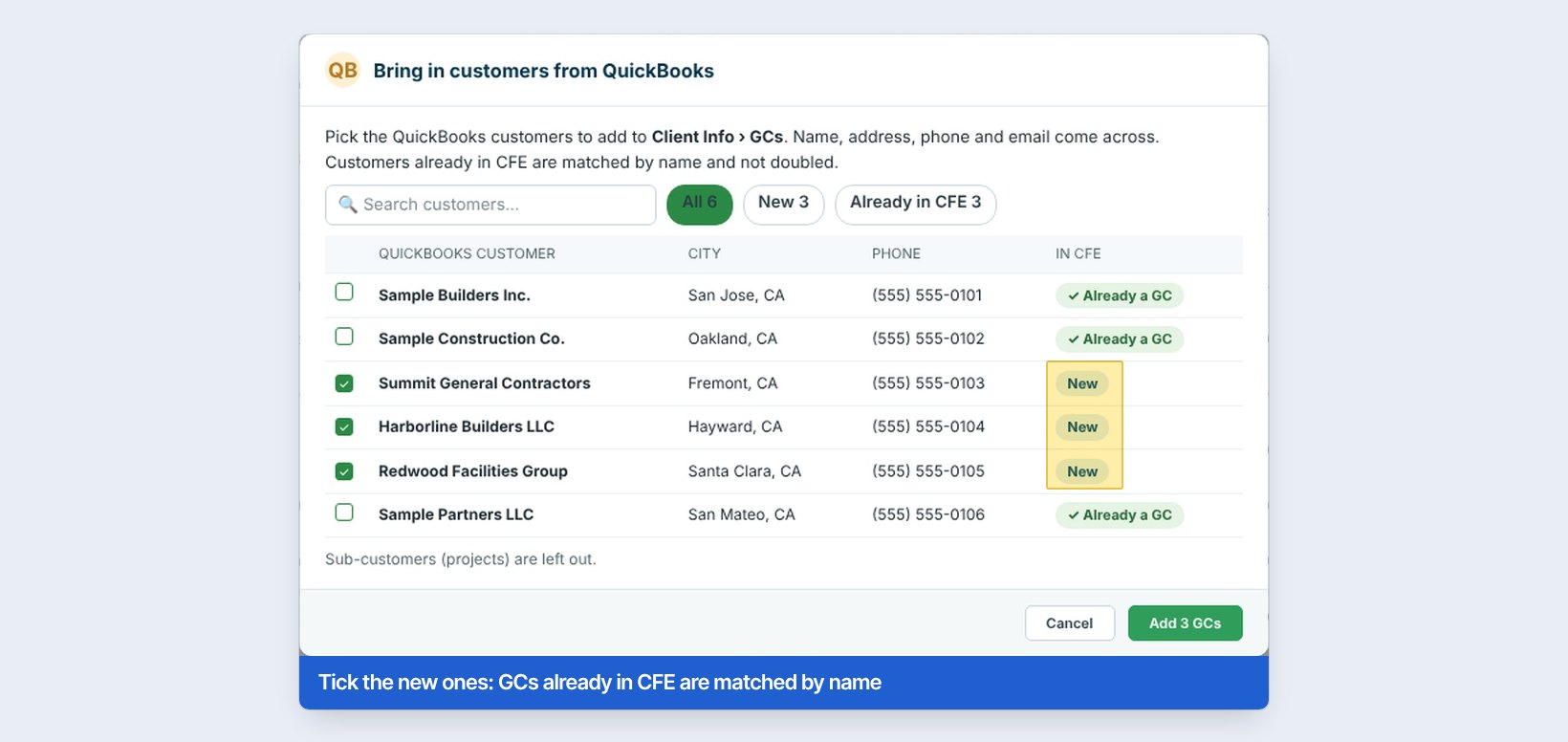
Already have your general contractors in QuickBooks? Customers on the QuickBooks Online ribbon lists them and lets you tick the ones to add to Client Info › GCs, with name, address, phone and email. Customers already in CFE are matched by name and not doubled, and sub-customers (projects) are left out. Products & services brings in your QuickBooks items, so you can pick the item for each line.
Change orders, edits and the activity log
A change order approved after the job was sent goes across on its own with Send change order, one at a time; until then the job shows CO not sent. If someone edits the estimate in QuickBooks, the row says Changed in QuickBooks so the estimator knows the numbers moved. Every send and every update from QuickBooks is listed on the Activity log tab, and the dashboard prints, saves as PDF or exports to Excel/CSV from the Output group.
Good to know: CFE does not make AIA G702/G703 pay applications; bill by % with QuickBooks progress invoicing instead. Retainage is tracked in QuickBooks. This works with QuickBooks Online only; QuickBooks Desktop gets a file export later.
What to do next
Keep the Bid Tracker current so won jobs are ready to send, price late scope on its own sheet with the change orders and alternates guide, and keep the GC list clean in the GC and sub database.
Send your next won job to QuickBooks
The QuickBooks Online connection is part of CFE - Advanced Estimating Worksheet. Start with the 30-day free trial, no credit card.
Frequently Asked Questions
Does CFE send my costs or margins to QuickBooks?
No. Only sell prices go across: the base bid, accepted alternates and approved change orders at the proposal price, with the bid number, project name and scope text. Material and labor costs, labor rates, man days, sub costs, margins, profit and commission stay in CFE.
Does it work with QuickBooks Desktop?
Not yet. The connection is for QuickBooks Online, Simple Start or higher. QuickBooks Desktop gets a file export later.
Who can connect CFE to QuickBooks?
Only the Master user can connect or disconnect, signing in with a QuickBooks admin user on Intuit’s own page. The connection belongs to the company, so every estimator on the team can send won jobs once it is on.
Can I bill a job a percentage at a time?
Yes. Turn on progress invoicing in QuickBooks, then create invoices from the estimate for all of it or a % at a time. CFE shows the invoiced %, paid and open balance for each job.
Does CFE change my invoices or payments?
No. CFE creates the customer, project and estimate when you send a won job, and only reads invoices and payments back. Billing, retainage and payments are handled in QuickBooks.

Written by
Cristian Valcu – Founder & CEO, Commercial Flooring Estimating LLC
Cristian has estimated commercial flooring for over 20 years and built CFE - Advanced Estimating Worksheet around the way flooring contractors actually price, propose and track their bids.
Last updated: