
CFE guide · BidWise Job Board
Job Bid Board on Your Phone: BidWise Sales, Start to Finish
You are out on a job walk and someone asks: are you bidding on Harbor Point? You check your phone.
In BidWise Sales, open Settings, How I use it, and click Show my phone code. Scan the QR code with your phone camera, or open app.bidwise.software/salesboard and type the code.


Why it matters
A GC, a rep or another sub asks if you are bidding a job. The answer is on the Job Bid Board, and now the board is in your pocket.
The 7 steps
- Show my phone codeSettings, How I use it.
- Scan or type the codeQR, or the SB- code.
- The boardLast 30 bids, 10 a page.
- Search every bidType harbor.
- MineOnly your bids.
- Tap a bidPreview only, no prices.
- New code or turn it offLost phone? New code.
1Show your phone code
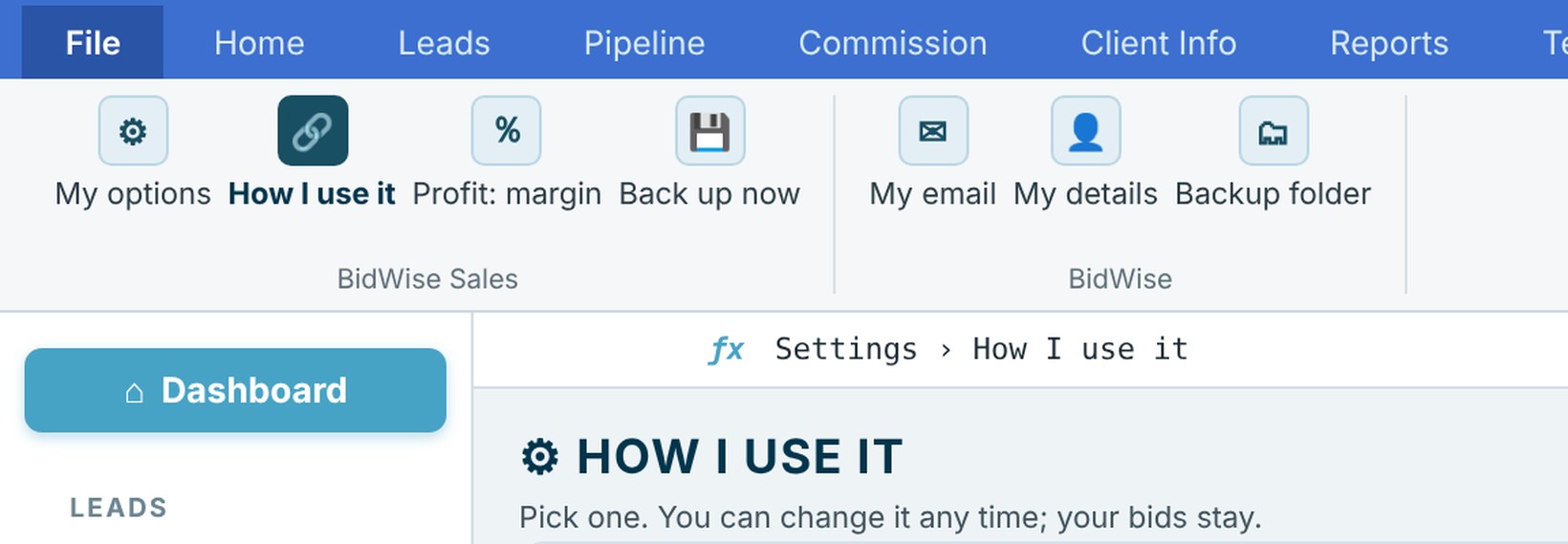

In BidWise Sales, click Settings, then How I use it. Scroll to Job Bid Board on my phone and click Show my phone code.
It works once your link to the company is approved, so you show as Connected.
2Scan the QR code, or type the code
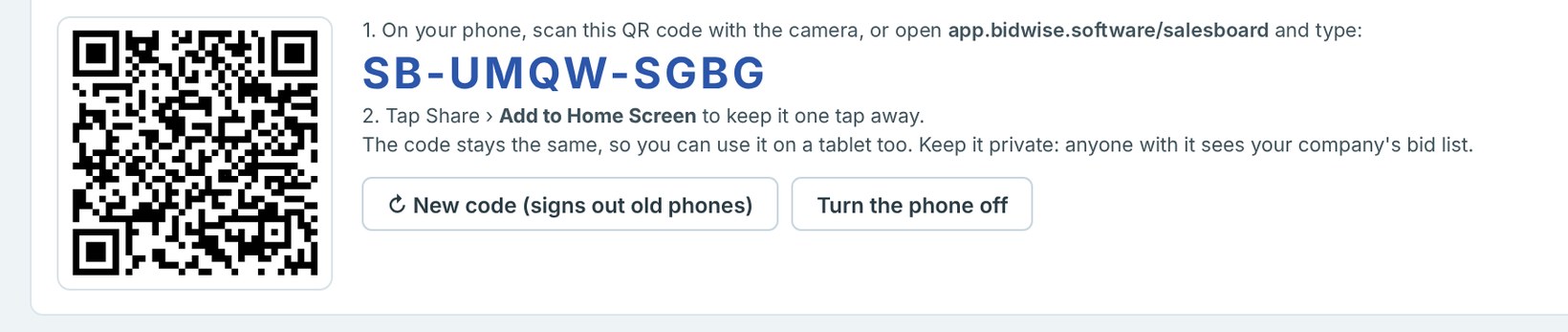
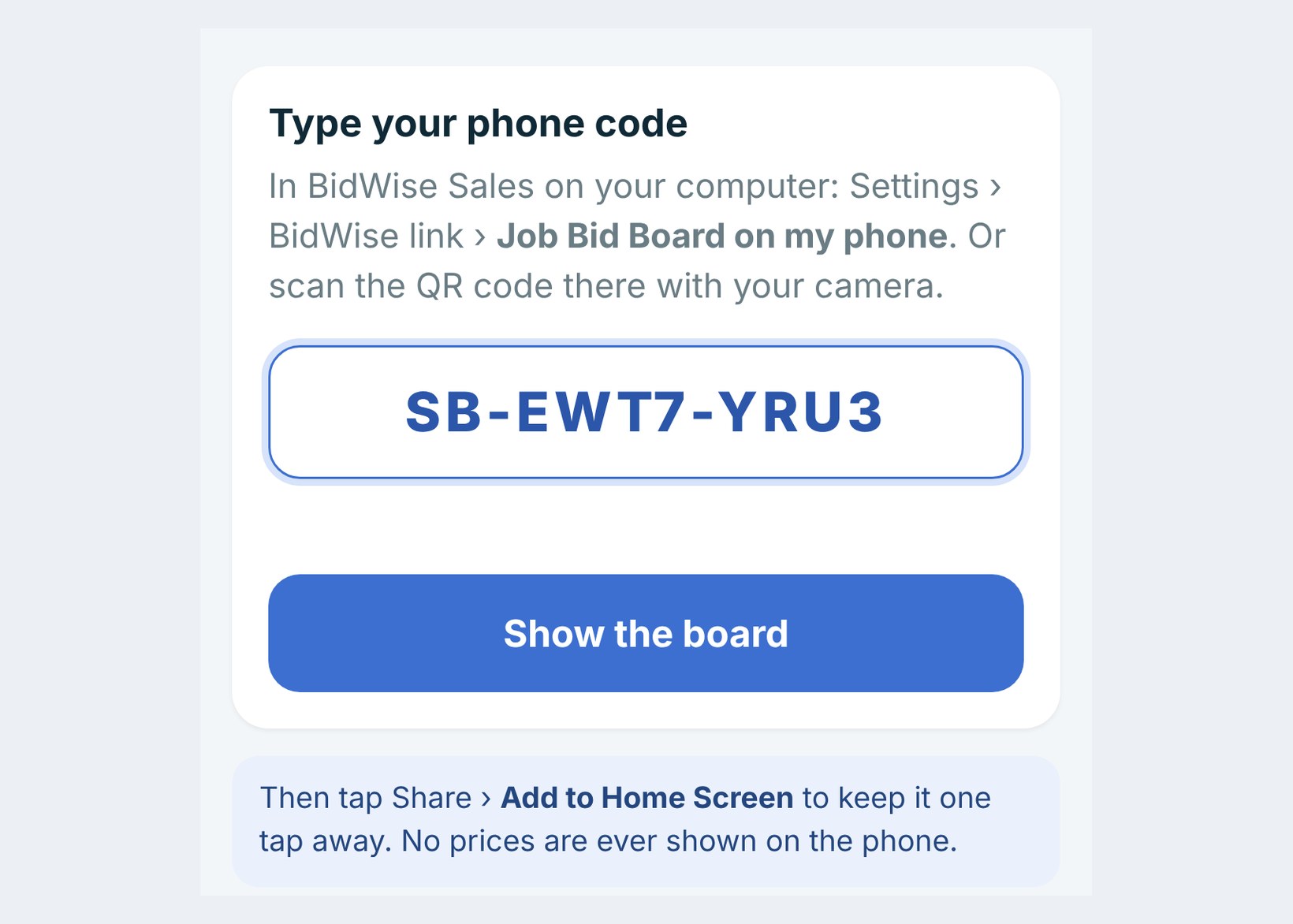
Point your phone camera at the QR code. Or open app.bidwise.software/salesboard and type the code that starts with SB. Tap Show the board.
Then tap Share, Add to Home Screen, so the board is one tap away.
The same code works on a tablet too. Keep it private: anyone with it sees your company bid list.
3Read the board
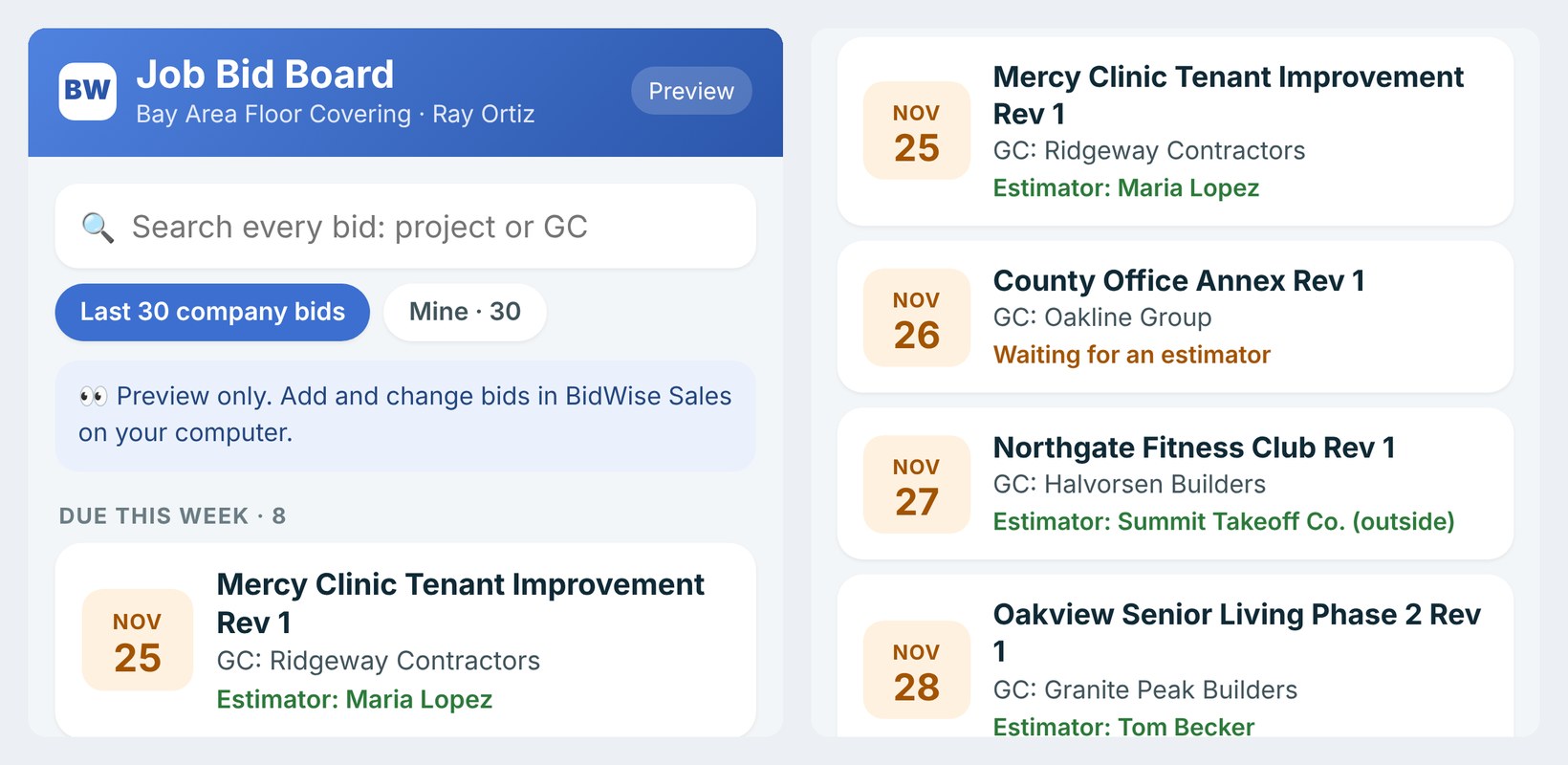

The board shows your company’s last 30 bids, 10 a page, with Due this week first. Each bid shows just four things: Bid due, Project, GC and Estimator, or Waiting for an estimator.
4Search every bid
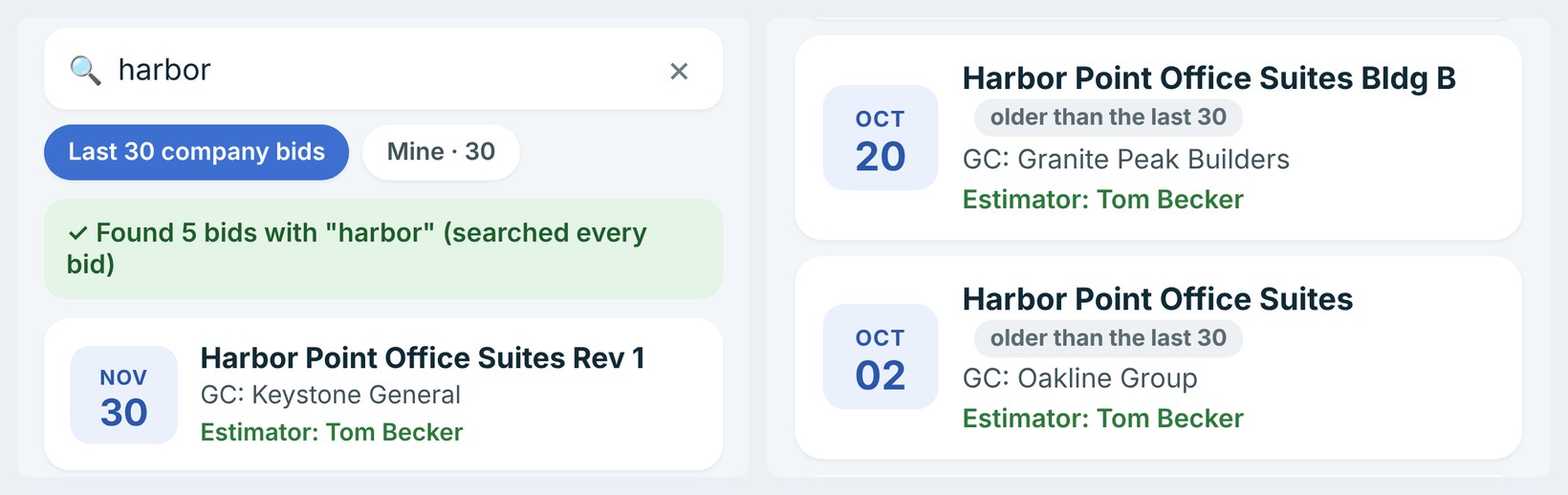
Type in the search box, for example harbor. The search looks at every bid, not just the last 30. Here it found 5 bids. Bids from before the last 30 are tagged older than the last 30.
5See only your bids with Mine
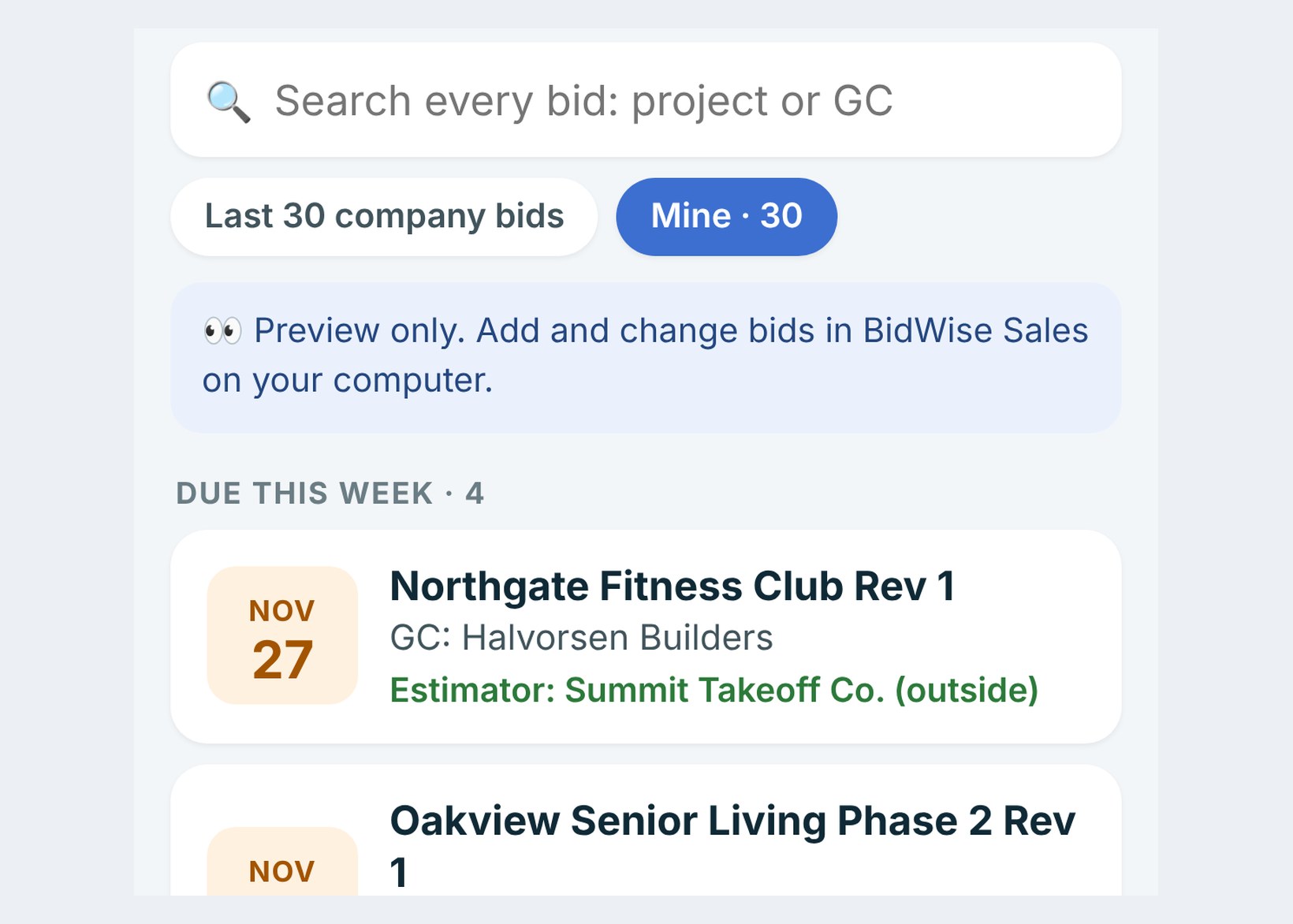
Tap Mine to see only your own bids. Tap Last 30 company bids to go back to the whole company.
6Tap a bid for a preview
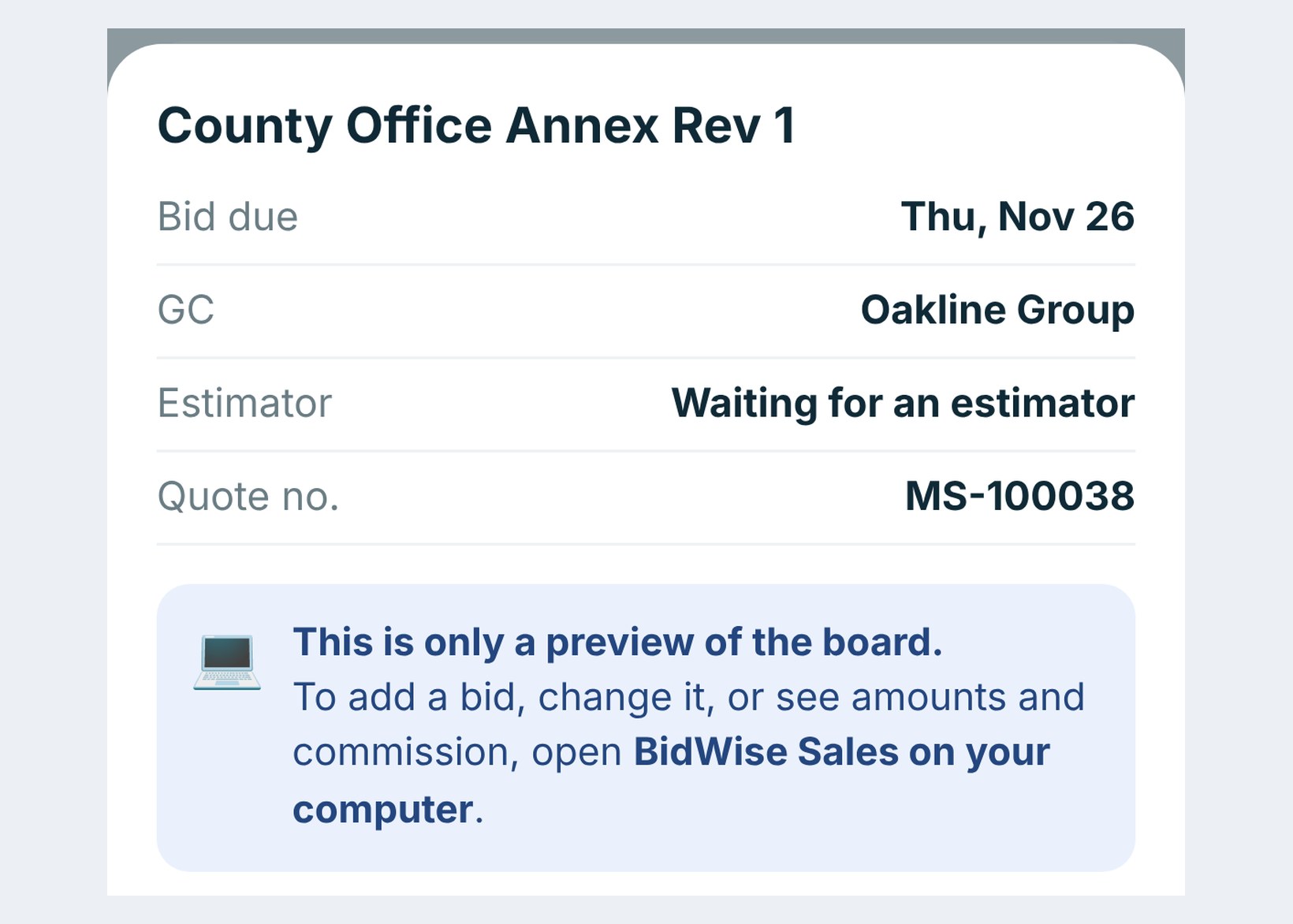
Tap a bid to see its preview: bid due, GC, estimator and quote number. To add or change a bid, use BidWise Sales on your computer.
No prices, amounts or commission ever go to the phone.
7Make a new code, or turn the phone off
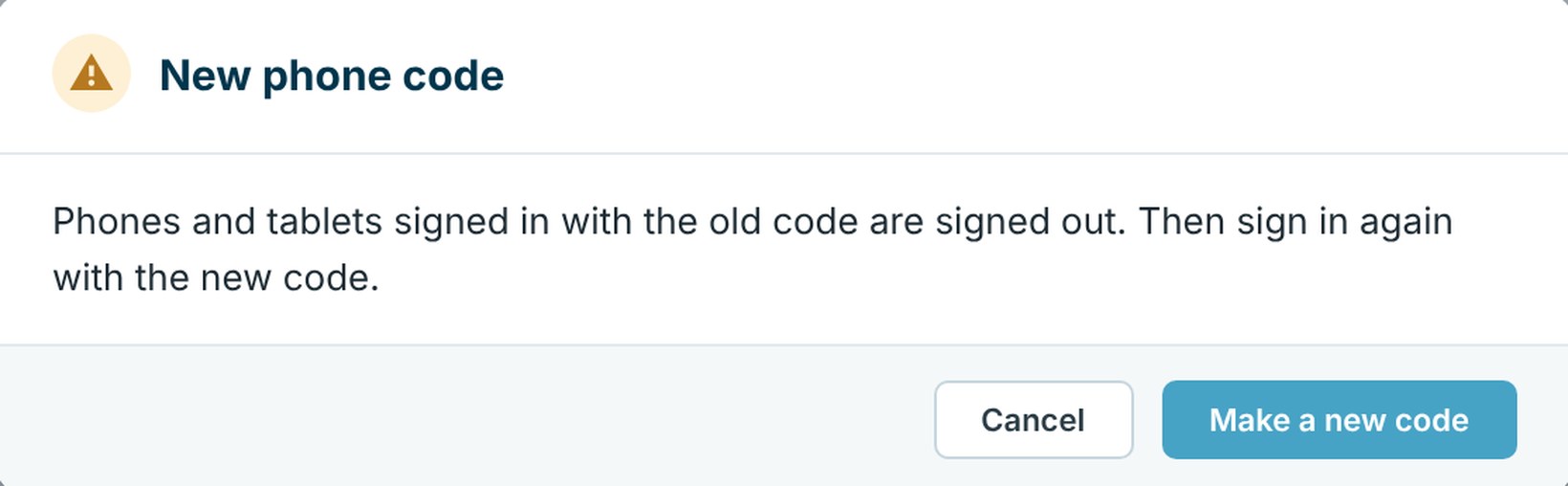

Lost a phone? Click New code, then Make a new code. Every phone with the old code is signed out. Sign in again with the new code.
Don’t want the board on a phone at all? Click Turn the phone off.
Worked example: are we bidding on Harbor Point?
On a job walk, from your pocket in seconds:
| You do | The phone shows |
|---|---|
| Open the board from the Home Screen | Last 30 company bids |
| Search harbor | Found 5 bids |
| Tap Harbor Point Office Suites Rev 1 | Due Nov 30, Keystone General, Tom Becker |
| Answer | Yes, Tom has it |
Yes, we are bidding it, and Tom Becker has it.
What to do next
Next, see Connect BidWise Sales to your company. Or see all the step-by-step guides.
Put the board in your pocket
Show your phone code in BidWise Sales and check every bid from the job walk. The Job Bid Board comes with the CFE BidWise Personal and Business plans. Try CFE BidWise for 30 days, no credit card.
Frequently Asked Questions
Does the phone show prices?
No. No prices, amounts or commission ever go to the phone.
Can I add a bid on the phone?
No. The phone is a preview. Add or change bids in BidWise Sales on your computer.
I lost my phone. What now?
Click New code in BidWise Sales. Every phone with the old code is signed out.

Written by
Cristian Valcu – Founder & CEO, Commercial Flooring Estimating LLC
Cristian has estimated commercial flooring for over 20 years and built CFE BidWise around the way commercial flooring contractors actually price, propose and track their bids.
Last updated: