
CFE guide · BidWise Sales
Connect BidWise Sales to Your Company With an Invite Code
The Hub Master opens CFE BidWise › Integrate › Team and presses Invite a salesman. The salesman types the code and email in BidWise Sales › Settings › How I use it › Connected and presses Link to my company, then reads the linking disclaimer, ticks I have read and accept, and types their full name and initials. The Hub Master sees the signed disclaimer and presses Approve, the salesman picks the company folder, and every bid lands on the Job Bid Board. Once linked, the profit mode (margin or mark-up) follows the company’s setting and is locked. A salesman takes no paid seat.


Why it matters
When the salesman keeps bids in one place and the estimators in another, bid invites get lost in email and takeoffs start late.
Linking BidWise Sales to CFE BidWise puts every bid the salesman adds straight onto the company’s Job Bid Board, while the salesman’s prices, margin and commission stay private.
The 8 steps
- Invite a salesmanIn CFE BidWise.
- Send the codeWorks once, 7 days.
- Type the codeIn BidWise Sales.
- Accept the disclaimerName and initials.
- ApproveHub Master presses Approve.
- Pick the company folderThen it syncs.
- Give a seat (optional)Unlocks Estimate Quote.
- What can go wrongWrong email, old code.
1Invite a salesman in CFE BidWise
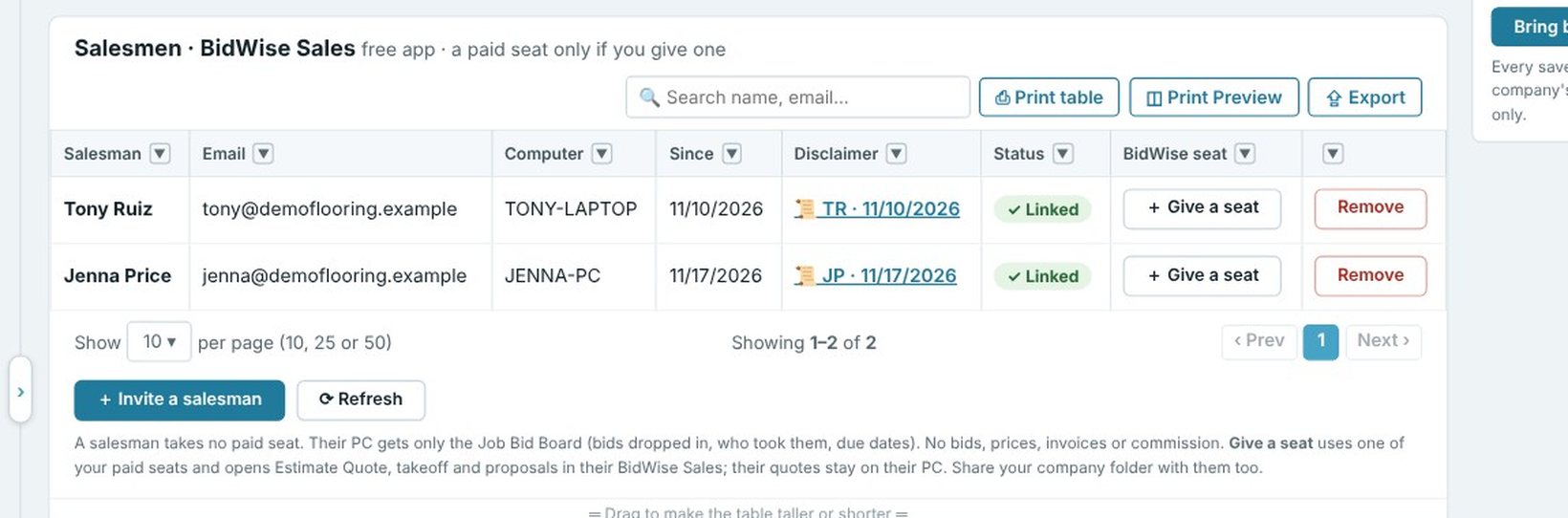
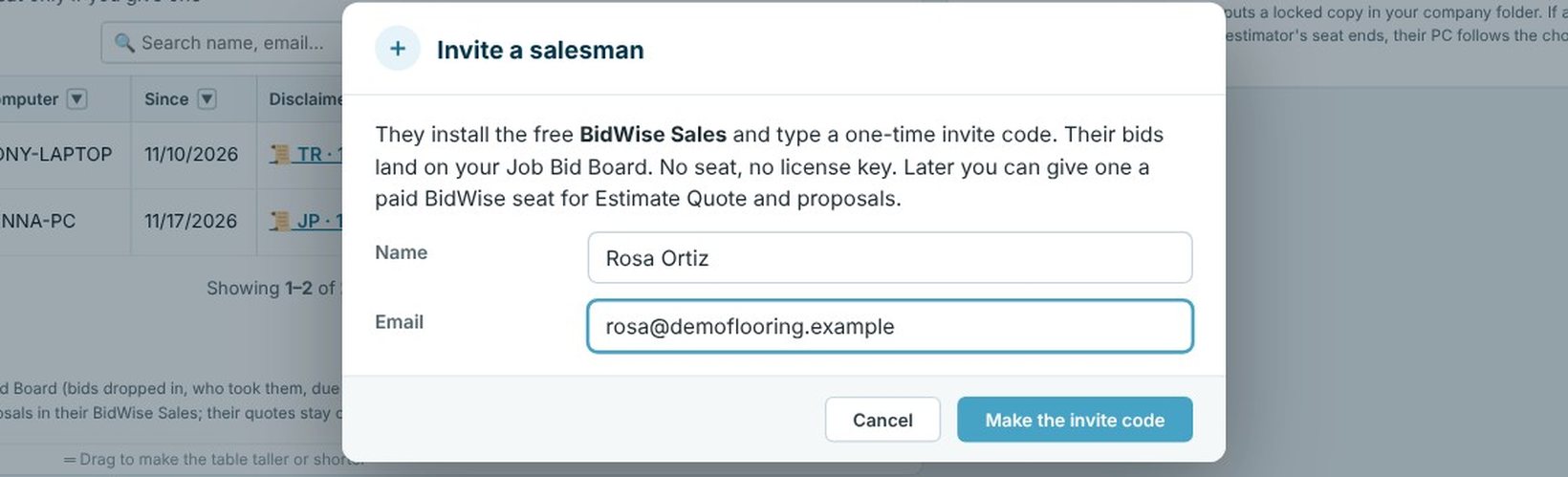
The Hub Master opens CFE BidWise, Integrate, Team. Salesmen, BidWise Sales lists the linked salesmen, with the disclaimer each one signed. A salesman takes no paid seat. Press Invite a salesman, type the name and email, and press Make the invite code.
2Send the invite code
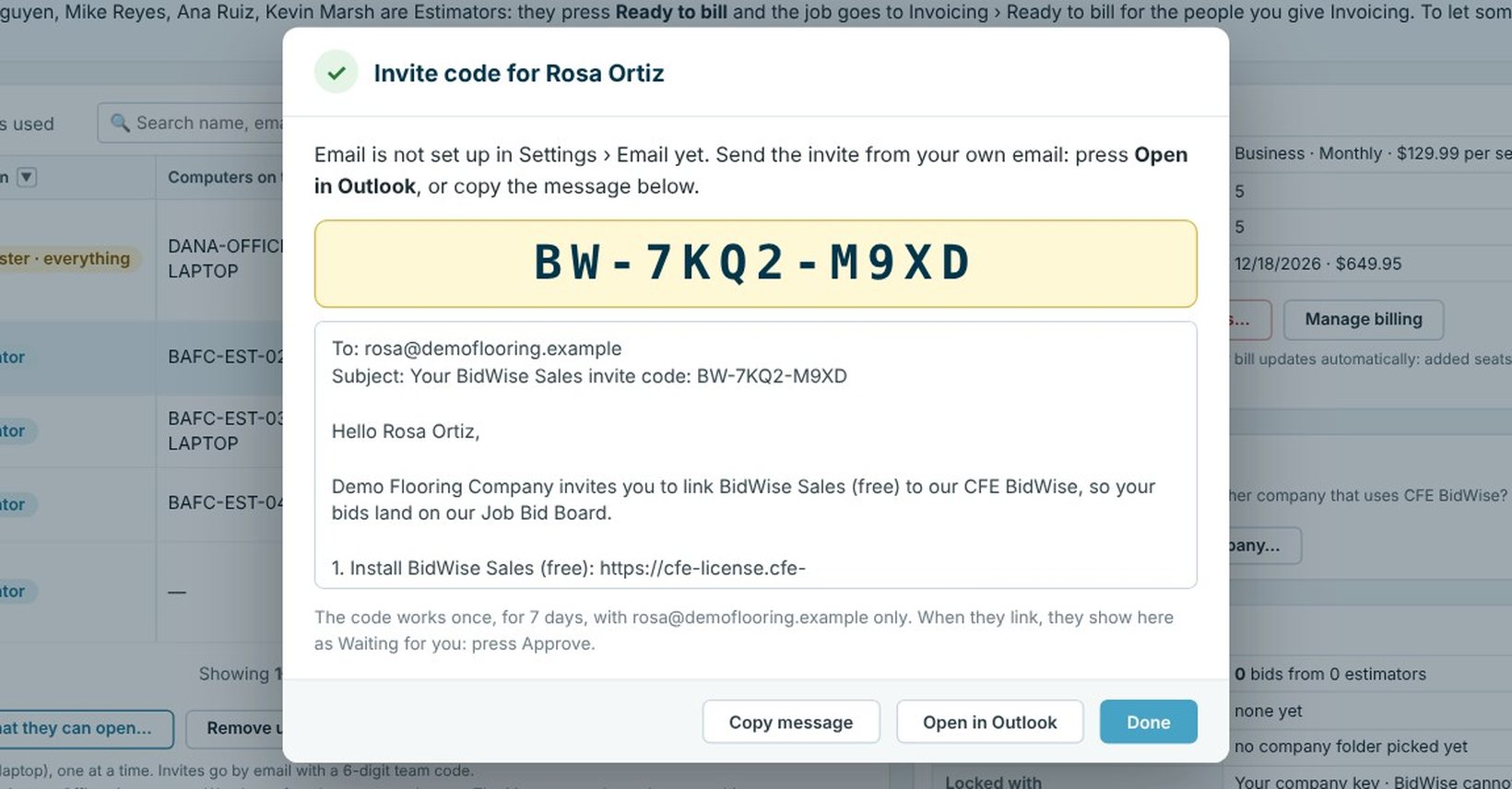
The invite code shows, with a message ready to send. The code works once, for 7 days, with that email only. Press Open in Outlook, or Copy message.
Send the invite code to the email the salesman will type, and ask them to link the same day. The code works once, for 7 days, with that email only.
3Type the code in BidWise Sales
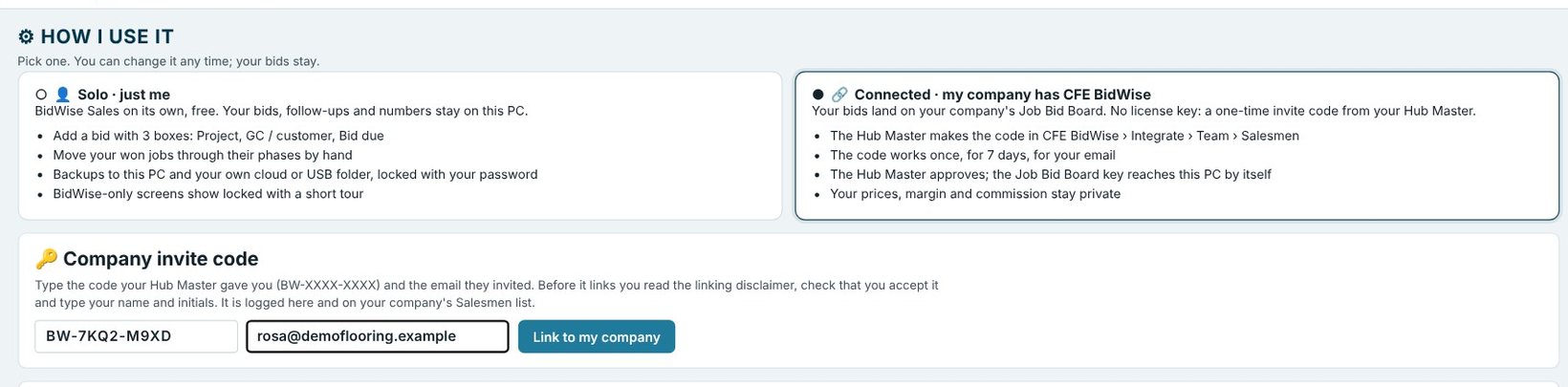
The salesman opens BidWise Sales, Settings, How I use it, and picks Connected. Under Company invite code, type the code and the email it was sent to, and press Link to my company.
4Read and accept the linking disclaimer
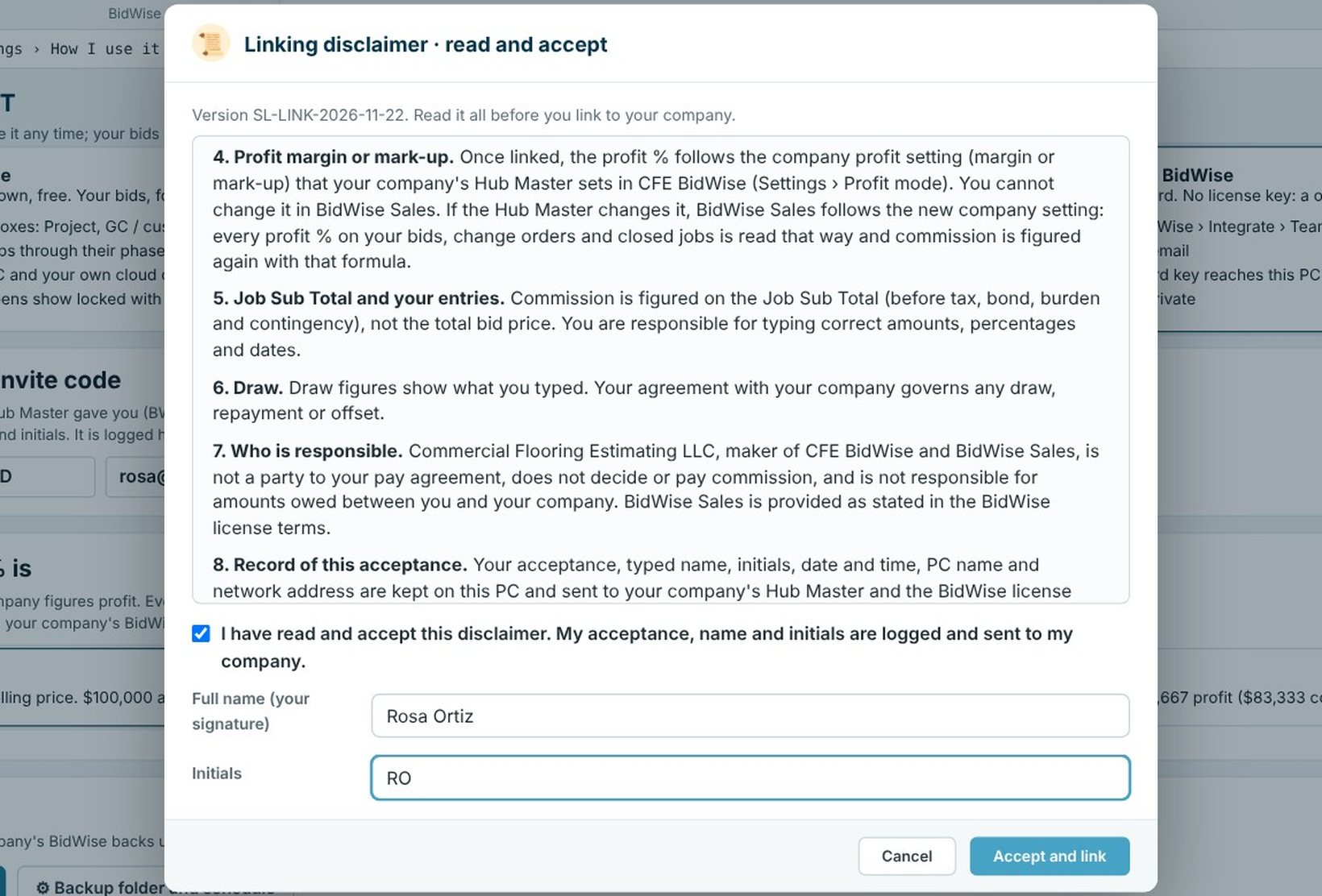

Before it links, BidWise Sales shows the linking disclaimer. Read it to the end: your commission figures are estimates, and your agreement with your company governs what you are owed. Tick I have read and accept, type your full name and your initials, and press Accept and link. Without them it will not link.
BidWise Sales now waits for the Hub Master's approve, and asks again every minute. Your signed disclaimer shows under the code.
5Approve the salesman
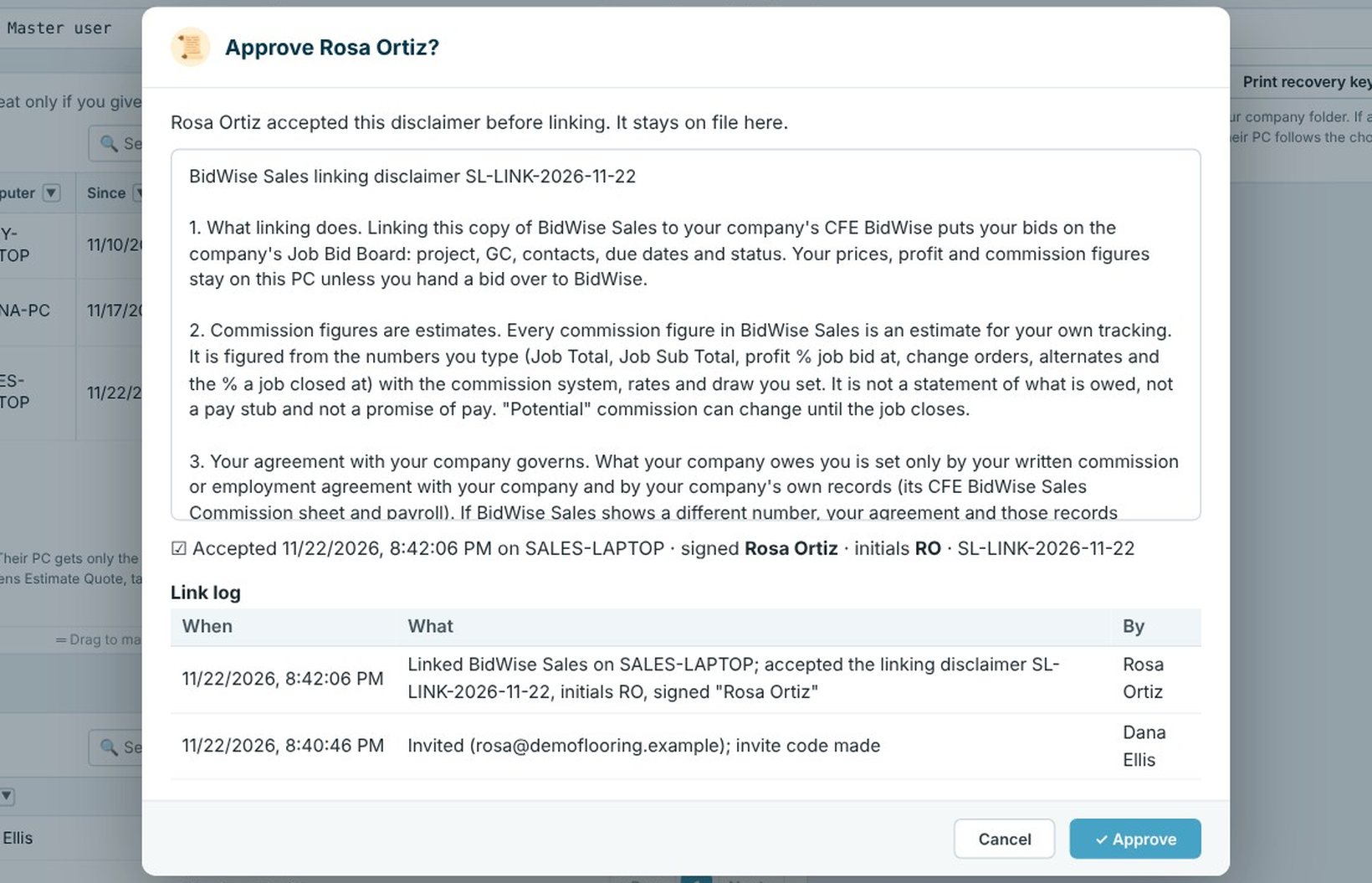
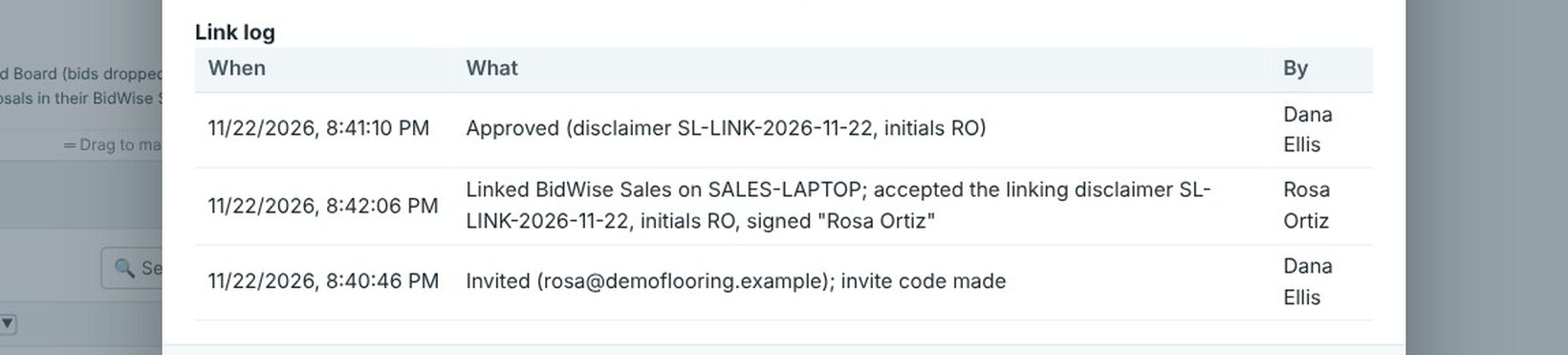
In CFE BidWise the salesman shows as Waiting for you. Press Approve: the disclaimer they signed shows first, with the link log. Each salesman keeps a link log: invited, linked and accepted, then approved, with the date, time and who did it.
6Pick the company folder
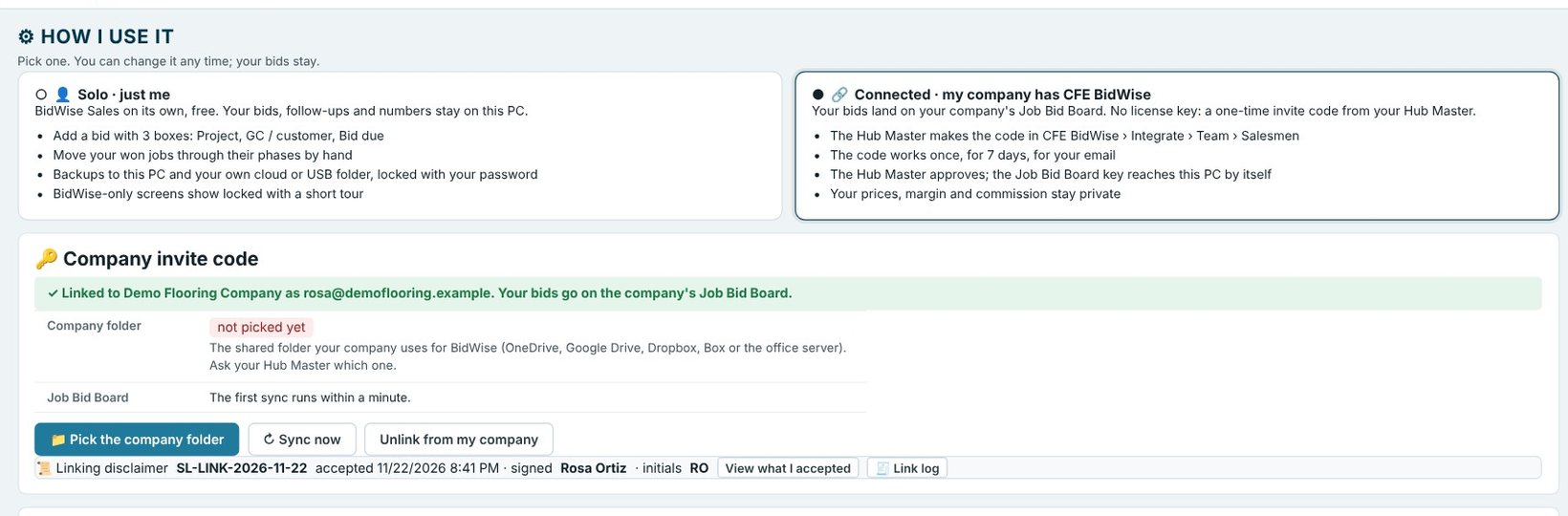
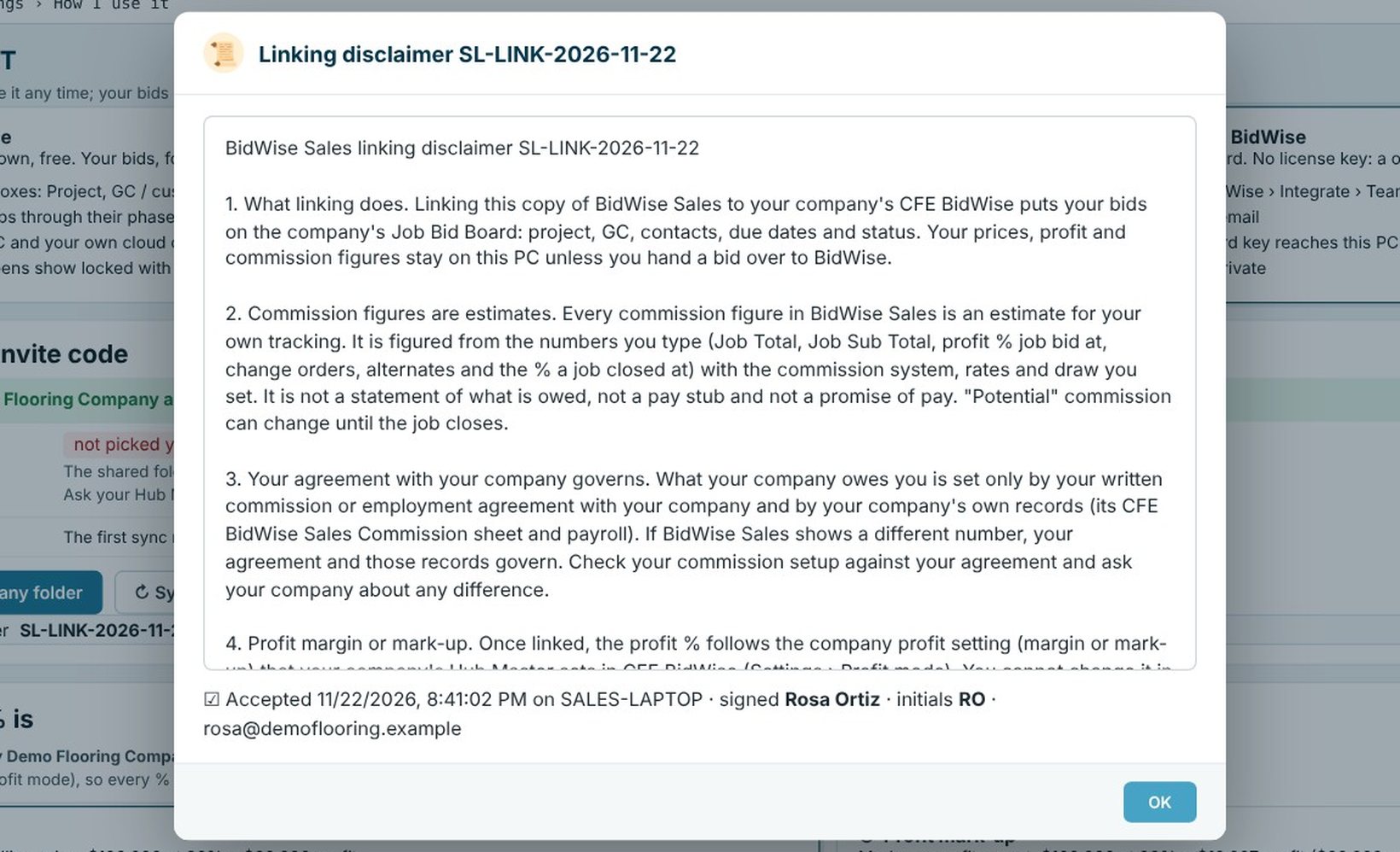
BidWise Sales shows Linked to your company. Your bids go on the company's Job Bid Board. Press Pick the company folder: the shared folder your company uses for BidWise. The first sync runs within a minute.
The linking disclaimer line shows who signed it and when. Press View what I accepted to read it again. Once linked, My profit percent is follows the setting your Hub Master picks in CFE BidWise, Settings, Profit mode, and is locked here. If the Hub Master changes it, BidWise Sales follows, so every percent means the same in both apps.
Your prices, margin and commission stay private on your PC.
7Optional: give the salesman a BidWise seat
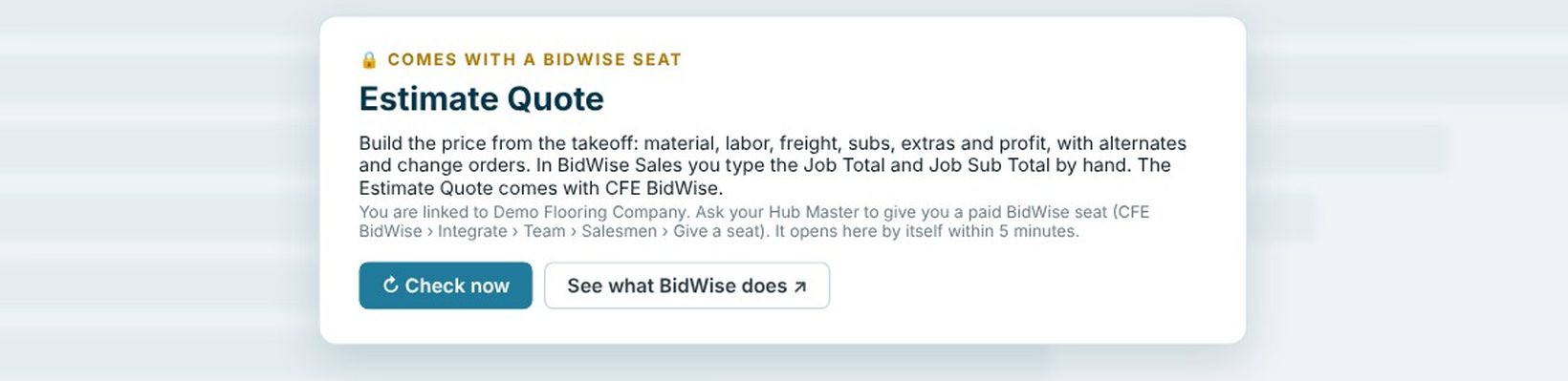
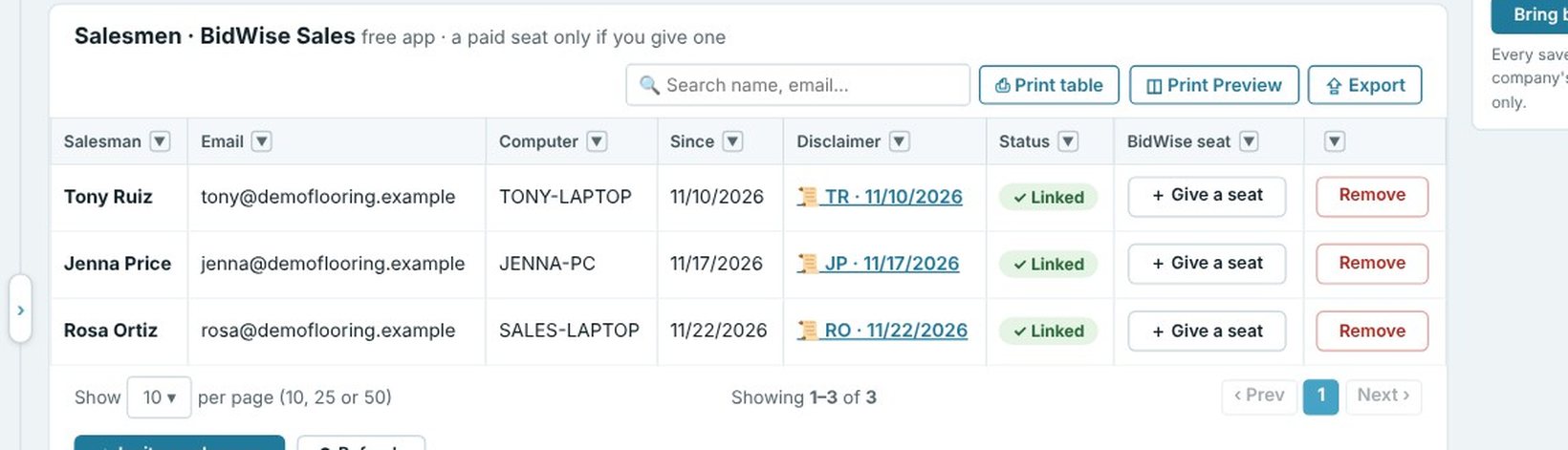
A linked salesman takes no paid seat, so Estimate Quote, takeoff and Bid proposals stay locked: Comes with a BidWise seat. Ask your Hub Master. To unlock them, the Hub Master opens Integrate, Team, Salesmen, and in the BidWise seat column presses Give a seat. It uses one of the company paid seats.
The row now shows Seat and Take back. Estimate Quote opens in the salesman's BidWise Sales within 5 minutes. Take back locks it again. With a seat, the badge reads Linked, BidWise seat, and the salesman builds the price in Estimate Quote from the takeoff, like an estimator.
Bid proposals opens too: unit list, L and M, lump sum and scope proposals.
8What can go wrong, and how to fix it


The code is refused. It works once, for 7 days, with the email it was sent to. Ask the Hub Master for a new one.
It will not link. Tick I have read and accept, and type your full name and initials, 2 to 4 letters.
Estimate Quote is still locked after Give a seat. It opens within 5 minutes; press Check now on the lock.
Still waiting. The Hub Master has not pressed Approve yet. Press Check now after they do.
No company folder. Ask your Hub Master which folder the company uses: OneDrive, Google Drive, Dropbox, Box or the office server.
Worked example: Rosa joins Demo Flooring Company
| Who | What | Where |
|---|---|---|
| Dana (Hub Master) | Invite a salesman, Rosa | CFE BidWise |
| Dana | Sends code BW-7KQ2-M9XD | Outlook |
| Rosa | Types the code, Link to my company | BidWise Sales |
| Rosa | Accepts the disclaimer, signs Rosa Ortiz, RO | BidWise Sales |
| Dana | Approve | CFE BidWise |
| Rosa | Picks the company folder | BidWise Sales |
Six clicks between two people, a signed disclaimer on file, and every bid Rosa adds lands on the Job Bid Board.
What to do next
Next: Job Bid Board: review, take it, pass. Or see all the step-by-step guides.
Your sales desk, free
BidWise Sales is free for commercial flooring salesmen. It works offline, your numbers stay on your PC, and it links to CFE BidWise when your company has it.
Frequently Asked Questions
Does a salesman need a paid seat?
No. BidWise Sales is free and a linked salesman takes no seat. If you want a salesman to price jobs, the Hub Master can press Give a seat in CFE BidWise › Integrate › Team › Salesmen: it uses one paid seat and unlocks Estimate Quote, takeoff and Bid proposals in that salesman’s BidWise Sales. Take back locks them again.
What does the company see from the salesman?
The bids on the Job Bid Board. The salesman’s prices, margin and commission stay private.
What is the linking disclaimer?
Before BidWise Sales links, the salesman reads and accepts it with their full name and initials. It says the commission figures are estimates and that the agreement with the company governs what is owed. It is logged on the salesman’s PC and in CFE BidWise › Integrate › Team › Salesmen, in the Disclaimer column and the link log.
Can a linked salesman change margin or mark-up?
No. Once linked, My profit % is follows the company’s Settings › Profit mode and is locked, so every percent means the same in both apps.
The invite code is refused. Why?
It works once, for 7 days, with the email it was sent to. Ask the Hub Master for a new one.

Written by
Cristian Valcu – Founder & CEO, Commercial Flooring Estimating LLC
Cristian has estimated commercial flooring for over 20 years and built CFE BidWise around the way flooring contractors actually price, propose and track their bids.
Last updated: