
CFE guide · BidWise Job Board
The Job Bid Board in Your Pocket: Put It on Your Phone in a Minute
In BidWise Sales, click Settings › How I use it, then Show my phone code. Scan the QR code with your phone’s camera, or open the board page and type the code. Tap Show the board, then Share › Add to Home Screen to keep it one tap away. New code signs out old phones. No prices, amounts or commission ever go to the phone.


Why it matters
A salesman is rarely at a desk. The question comes in the truck, at a job walk or on the phone with a GC: are we bidding on that job, when is it due, and who is estimating it?
The phone board answers in seconds, without calling the office. It shows the bid date, project, GC and estimator, never a price, so it is safe to open anywhere.
The 5 steps
- Open How I use itSettings › How I use it.
- Show my phone codeA QR code and a code.
- Sign in on the phoneScan, or type the code.
- New codeSigns out old phones.
- What can go wrongNo card, old code.
1Open How I use it in BidWise Sales


In BidWise Sales, click Settings, then How I use it. You need Connected: your company has CFE BidWise and your bids land on its Job Bid Board.
Scroll to Job Bid Board on my phone. It is a preview of the company board: bid due, project, GC and estimator for the last 30 bids, plus a search over every bid.
2Click Show my phone code
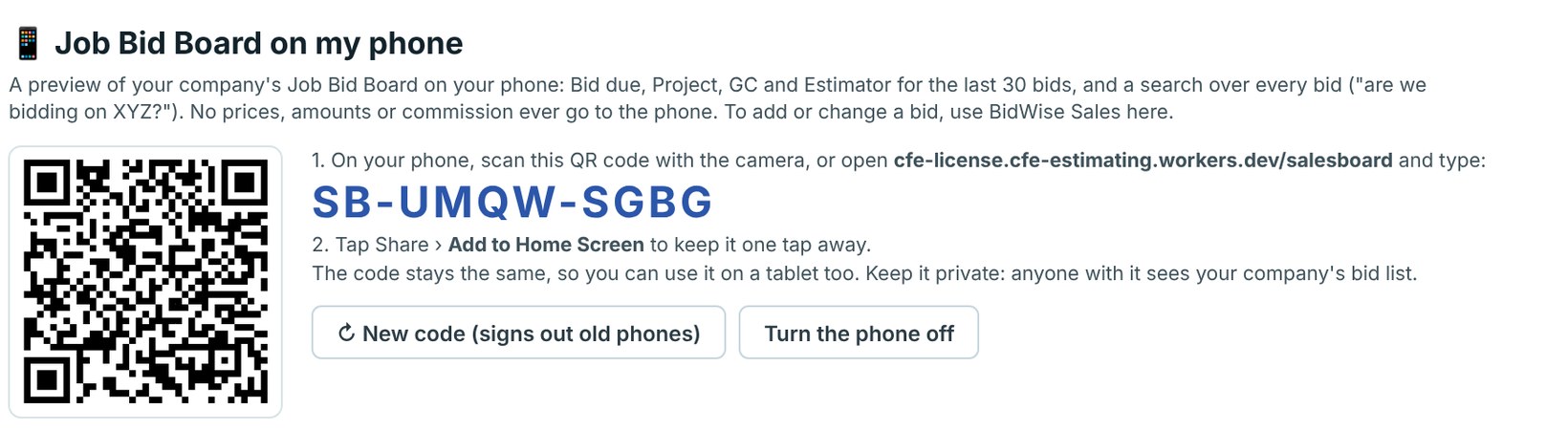

Click Show my phone code. A QR code appears, with the same code in big letters to type by hand.
The code stays the same, so it works on a tablet too. Keep it private: anyone with it sees your company’s bid list.
3Scan the QR code, or type the code
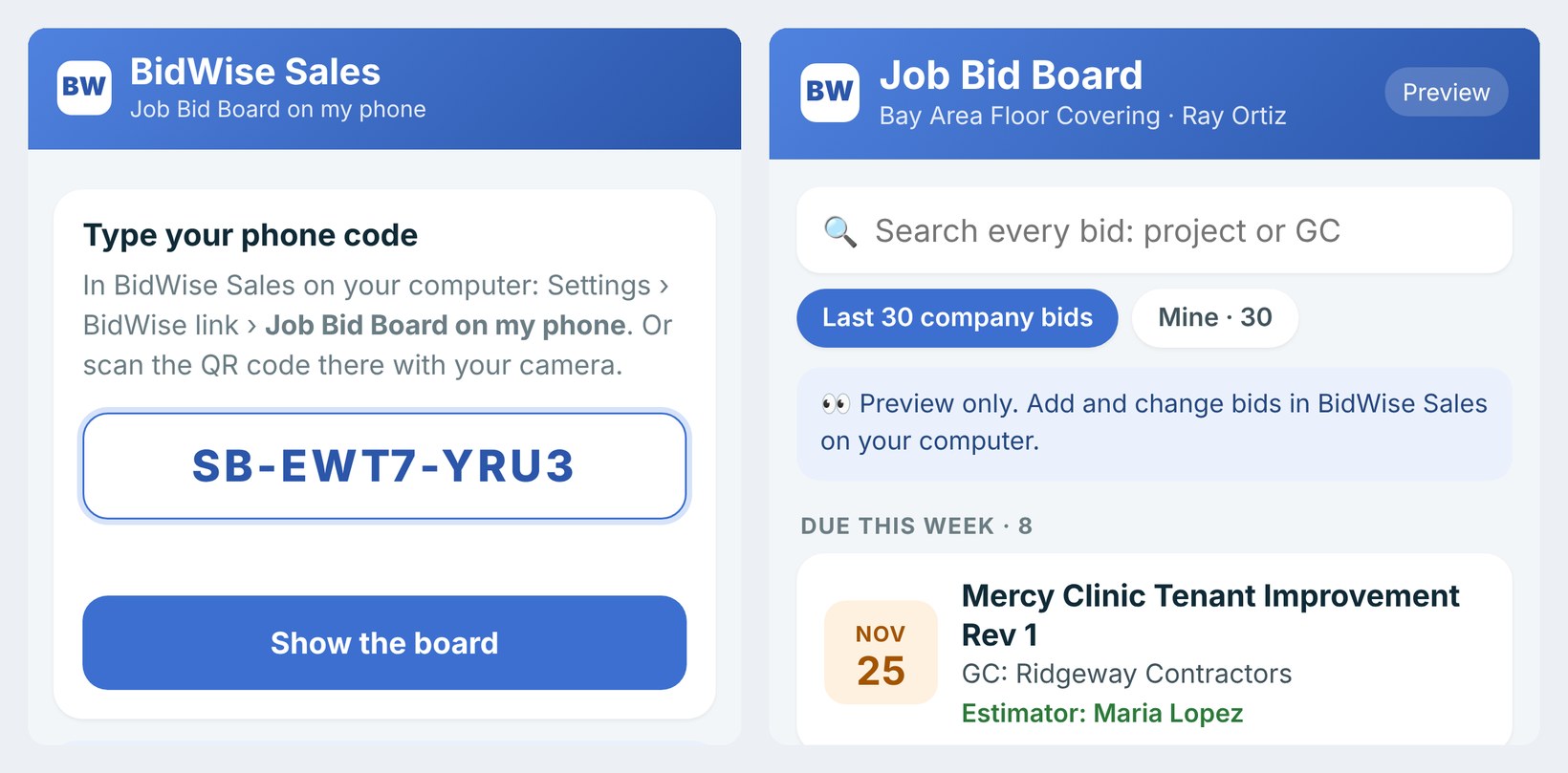
Point your phone’s camera at the QR code and tap the link. Or open the board page on the phone and type the code. Tap Show the board.
The Job Bid Board opens with your company name, Bay Area Floor Covering, and your name, Ray Ortiz.
Tap Share, then Add to Home Screen. The board gets its own icon, one tap away, like an app.
4Make a new code to sign out old phones
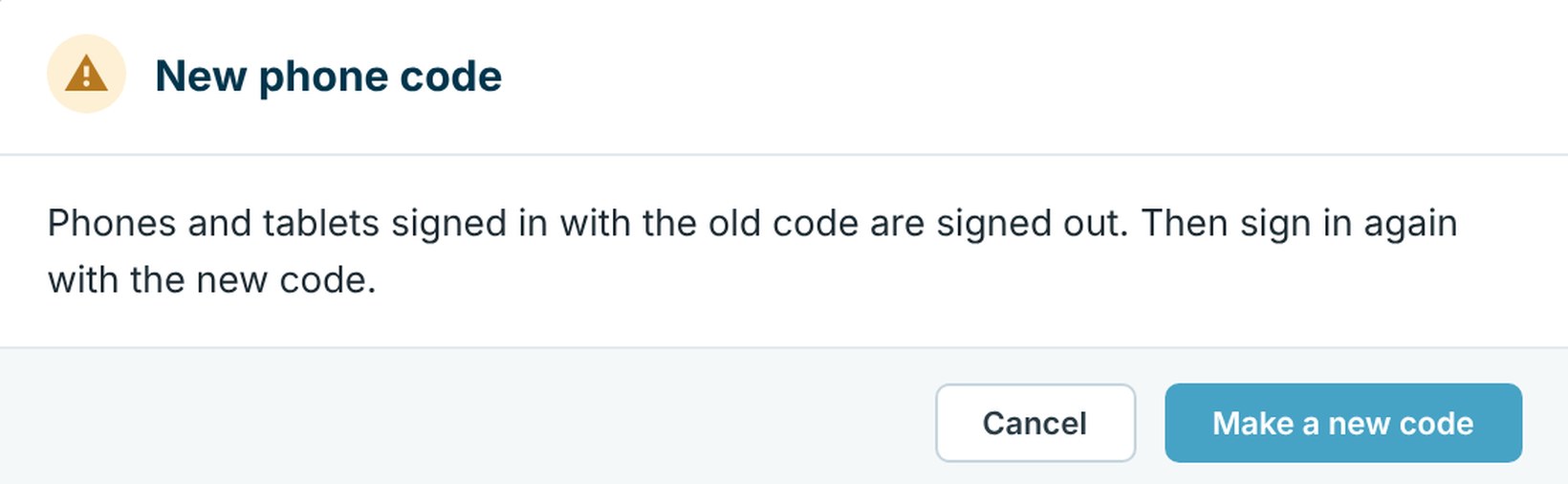
Lost a phone, or shared the code by mistake? Click New code. BidWise asks first: phones and tablets signed in with the old code are signed out.
Click Make a new code, then sign in again on your own phone with the new one.
5What can go wrong, and how to fix it
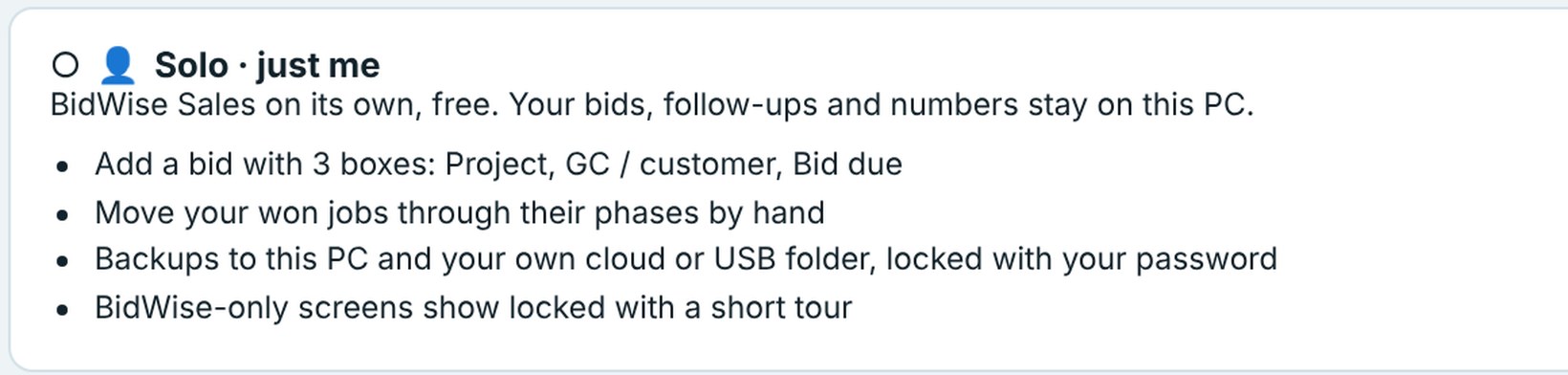
There is no Job Bid Board on my phone card. You are on Solo. Link to your company first with the invite code from your Hub Master.
The phone says the code is wrong. Someone made a new code. Copy the new one from Settings. Done with the phone? Click Turn the phone off.
Worked example: Ray’s phone, in one minute
Ray Ortiz sells for Bay Area Floor Covering:
| Step | Where | What Ray sees |
|---|---|---|
| Show my phone code | BidWise Sales, Settings | QR code and the code |
| Scan it | Phone camera | Type your phone code |
| Show the board | Phone | Last 30 company bids |
| Add to Home Screen | Phone, Share | A board icon |
From now on, one tap shows Ray every bid the company is working on.
What to do next
Next, use it on a job walk in “Are we bidding on it?” Ask your phone. Or see all the step-by-step guides.
Take the board on the road
Link BidWise Sales to your company’s Job Bid Board and keep every bid in your pocket. The Job Bid Board comes with the CFE BidWise Personal and Business plans. Try CFE BidWise for 30 days, no credit card.
Frequently Asked Questions
Does the phone show prices?
No. No prices, amounts or commission ever go to the phone. It shows bid due, project, GC and estimator.
Can I add or change a bid on the phone?
No. The phone is a preview. Add and change bids in BidWise Sales on your computer.
Does it work on a tablet?
Yes. The code stays the same, so sign in on a tablet with the same code.
Is the Job Bid Board free?
No. It comes with your company’s CFE BidWise Personal or Business plan. BidWise Sales links a salesman to it.

Written by
Cristian Valcu – Founder & CEO, Commercial Flooring Estimating LLC
Cristian has estimated commercial flooring for over 20 years and built CFE BidWise around the way commercial flooring contractors actually price, propose and track their bids.
Last updated: