
CFE guide · Schedule and the field
A Day on the Job With the CFE BidWise Field App
The CFE BidWise Field app puts the job on the crew’s phone: the address, the material, the plans and the checklist the office made. The crew clocks in, checks the material and dye lots, logs the moisture test, drops notes and photos on the plan, sends hours and material used at the end of the day, and has the GC sign the job off on the phone. Everything goes back to the office by itself, into the job’s Job Folder.


Why put the job on the phone?
Most flooring problems start on site and reach the office late: a short pallet, two dye lots, a slab that was never tested, a punch list nobody wrote down. By the time someone calls, the crew has left and the GC is asking for a back charge.
The Field app gives the crew the same job the office sees and makes the important checks part of their day. Every answer, photo and hour goes back to the job’s Job Folder and Field reports on its own.
The five steps
- Start the dayToday: the job, the address, Clock in crew.
- Check the materialTap each item on site; note dye lots and damage.
- Test and mark the planMoisture readings, probe spots, plan notes.
- Photos and end of dayTagged photos; hours and material used.
- Punch list and sign-offWalk with the GC; the GC signs on the phone.
1Start the day on the Today screen
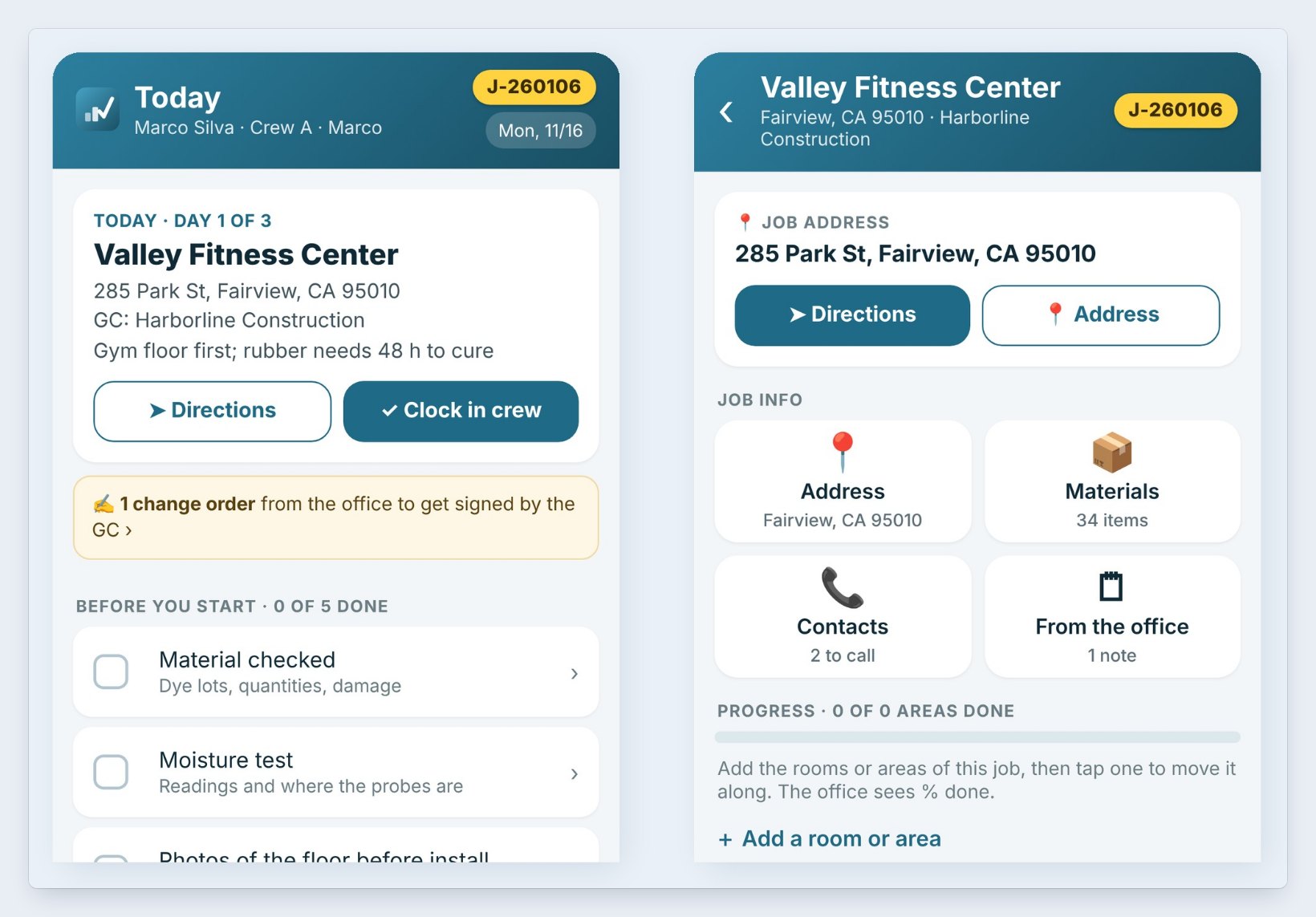
The crew lead opens the app to Today: Valley Fitness Center, day 1 of 3, 285 Park St in Fairview, GC Harborline Construction, and the office’s note: Gym floor first; rubber needs 48 h to cure. Directions opens the map and Clock in crew starts the hours.
Below is Before you start, the checklist the office made: material checked, moisture test, photos before install, floor prep and room temperature. Each answer goes to the job’s Job Folder. A banner shows 1 change order from the office to get signed by the GC.
2Check the material and dye lots
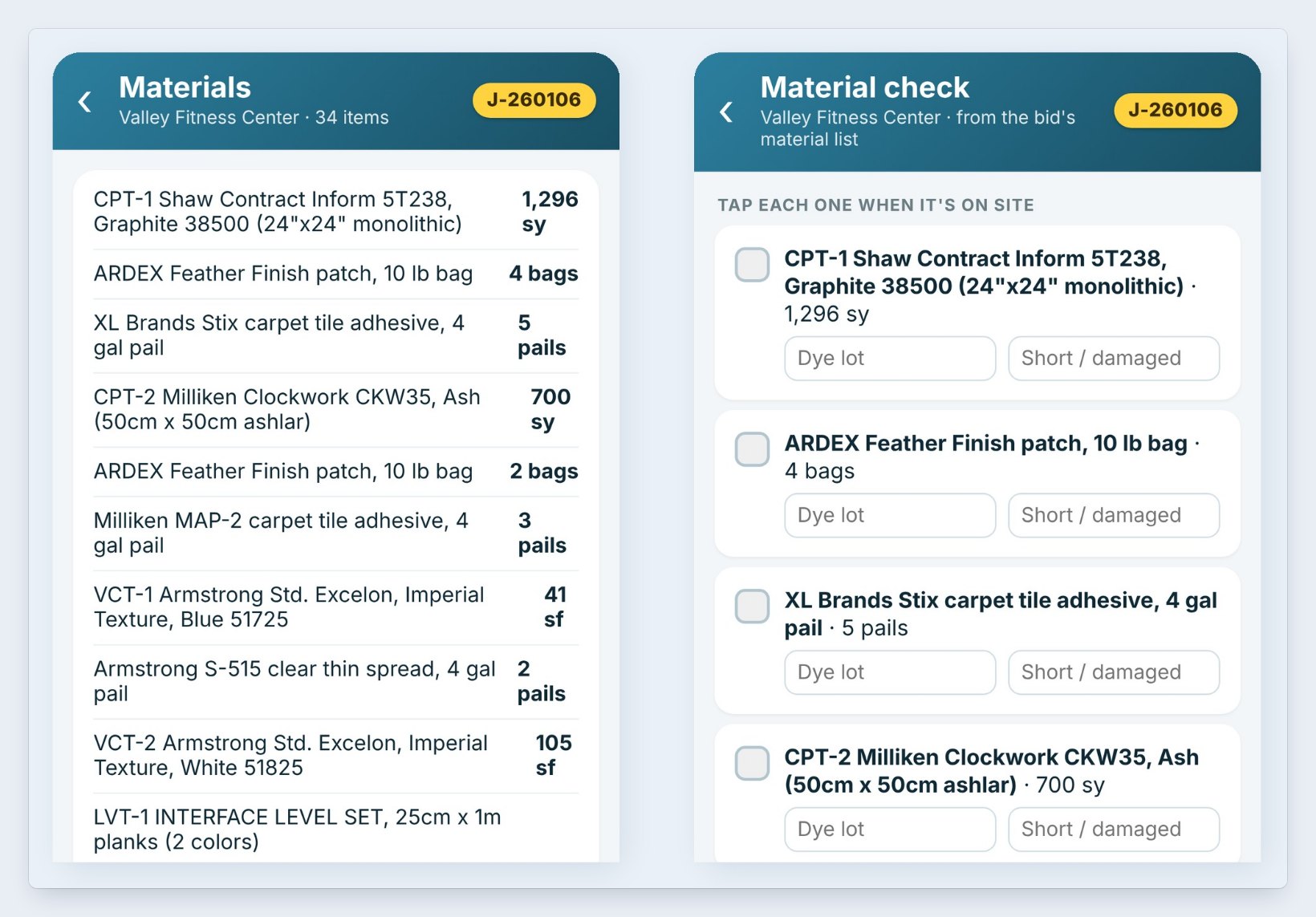
Materials lists the 34 items for the job, straight from the bid’s Material List: 1,296 square yards of Shaw carpet tile, 700 square yards of Milliken, the adhesives, patch and VCT.
In Material check, the crew taps each item when it is on site and types the Dye lot, or taps Short / damaged. A short pallet reaches the office in the morning, not at the end of the job.
Have the crew photo the dye lot label on each carpet roll or tile box. Two lots in one room is the claim you will not win later without it.
3Log the moisture test and mark the plan
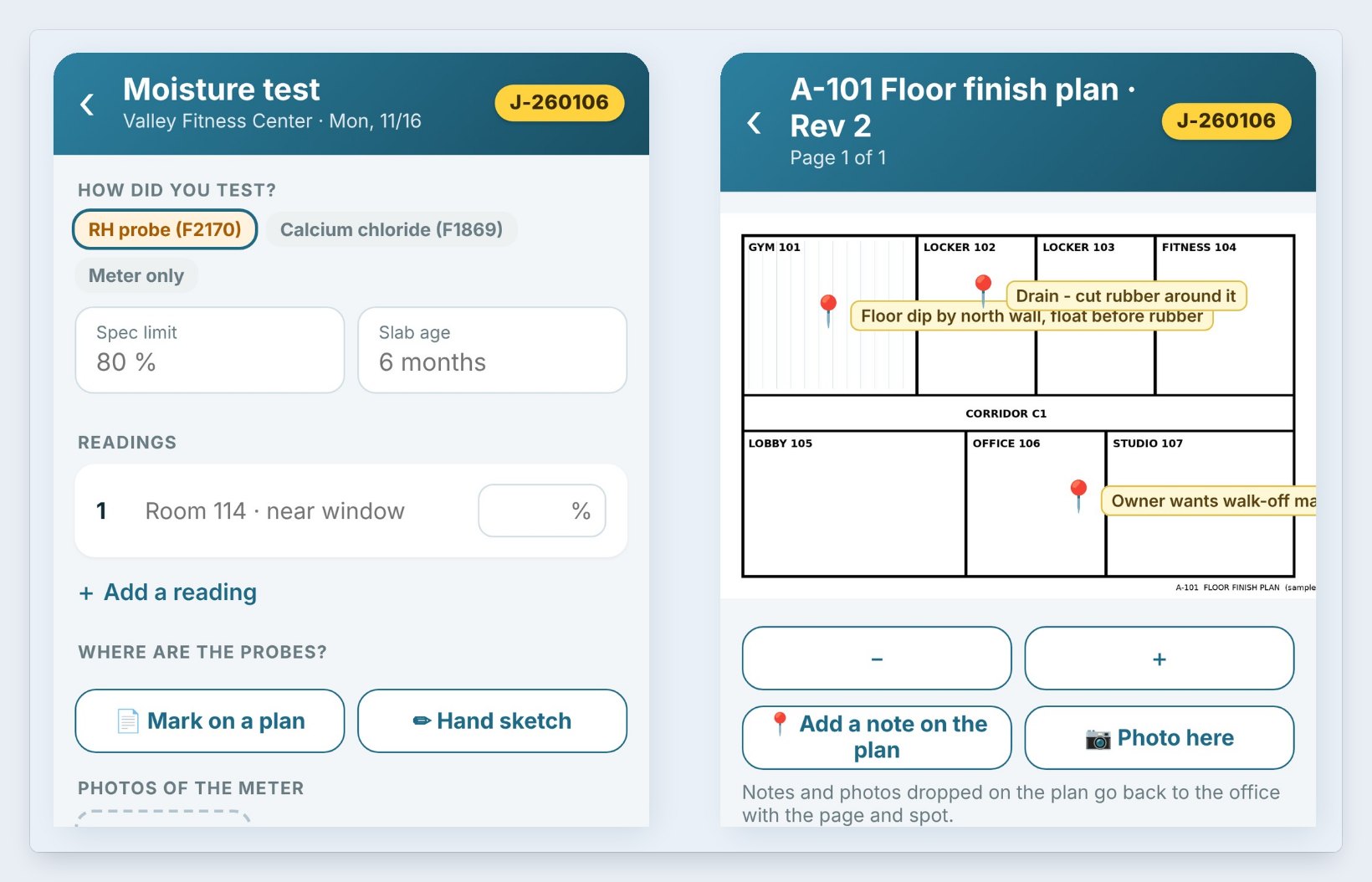
Moisture test asks how the slab was tested, RH probe (F2170), calcium chloride (F1869) or meter only, with the spec limit, here 80%, and the slab age. Add a reading per room, mark where the probes are on a plan or a hand sketch, and photo the meter.
The plans from the office are in Plans. On the A-101 floor finish plan, the crew drops pins with notes, such as Floor dip by north wall, float before rubber, and photos. They go back to the office with the page and the spot.
4Take photos and close out the day
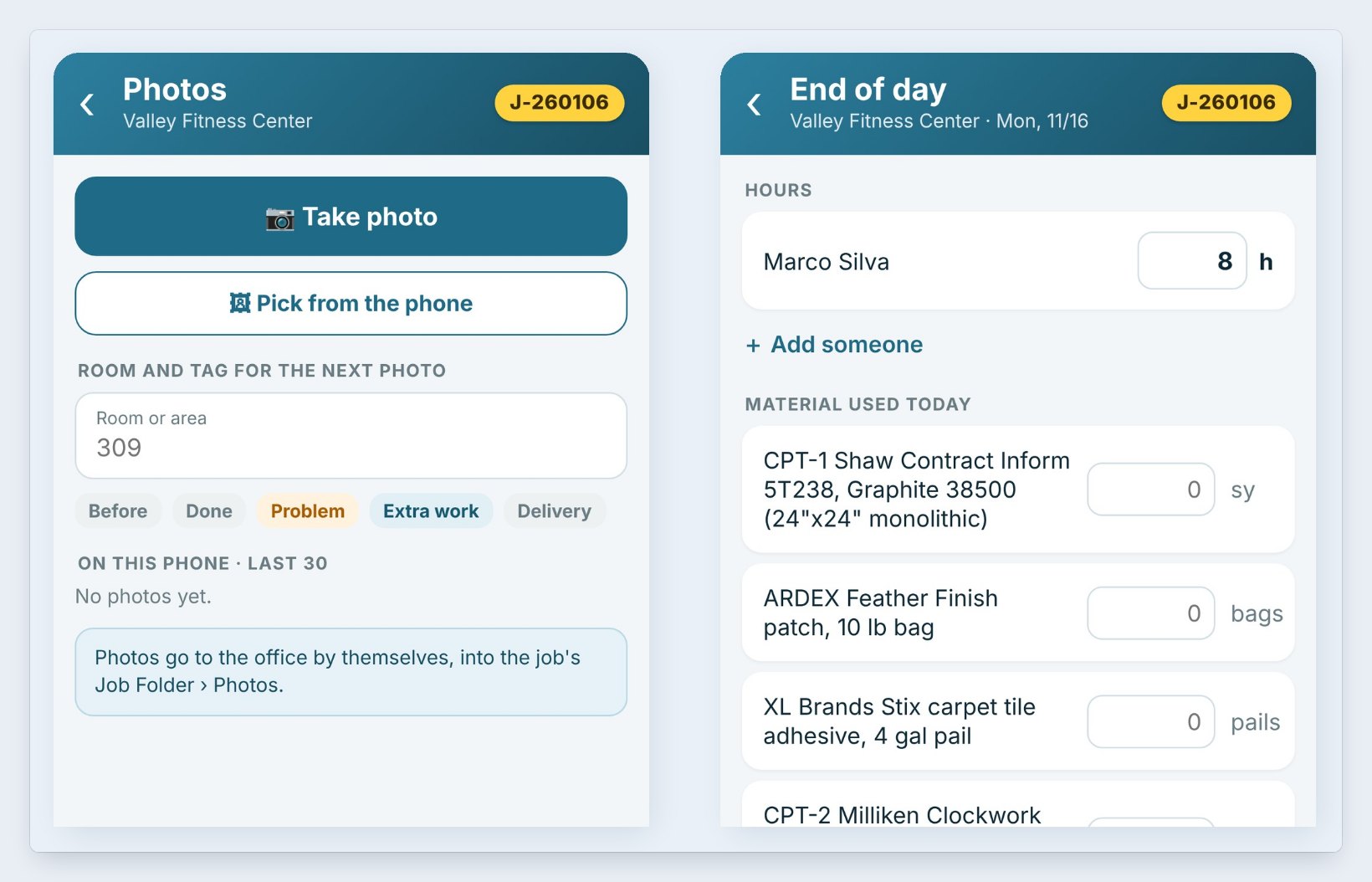
Photos takes a picture or picks one from the phone, tagged with the room and Before, Done, Problem, Extra work or Delivery. They go to the job’s Job Folder › Photos by themselves.
At End of day, the lead puts in the hours per person, here Marco Silva 8 hours, and the material used today. On CFE Business, hours feed Job costs and material used feeds the leftovers, so the office knows what is coming back.
5Walk the punch list and get the GC’s sign-off
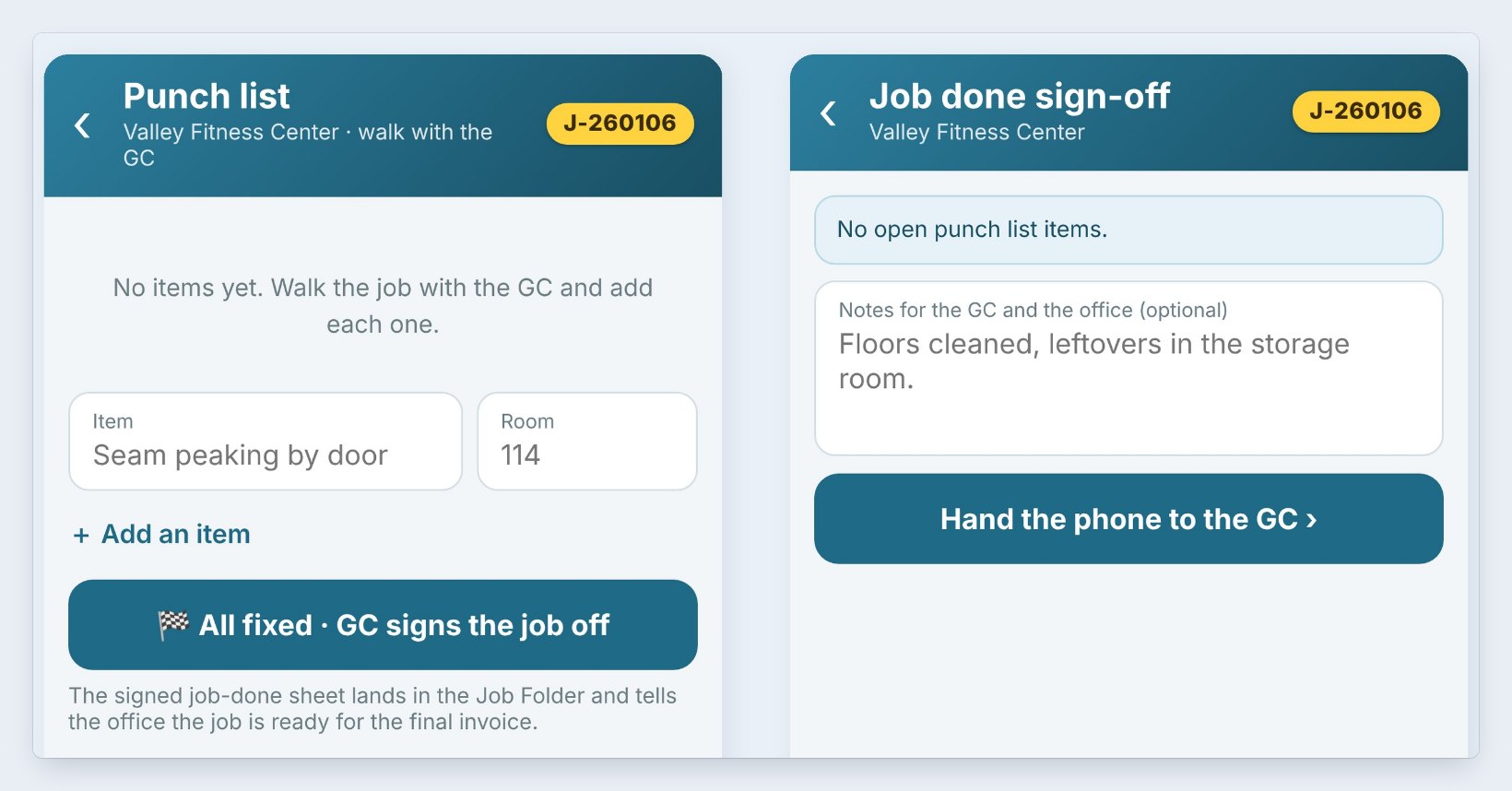
On the last day, walk the job with the GC and add each Punch list item with its room, such as Seam peaking by door, room 114. When they are fixed, tap All fixed · GC signs the job off.
Job done sign-off takes a note for the GC and the office, Floors cleaned, leftovers in the storage room, then Hand the phone to the GC to sign. The signed sheet lands in the Job Folder and tells the office the job is ready for the final invoice.
Worked example: Valley Fitness Center, Monday
Crew A, Marco Silva, on day 1 of 3 at Valley Fitness Center (J-260106):
| Time | In the Field app | Goes to the office |
|---|---|---|
| 7:00 AM | Clock in crew | Hours start on the job |
| 7:20 AM | Material check: 34 items, dye lots typed | Job Folder › Field reports |
| 7:45 AM | Moisture test: RH probe, room 114, spec 80% | Job Folder, with probe spots |
| 2:10 PM | Plan note: floor dip by north wall | The plan, page and spot |
| 3:30 PM | End of day: 8 h, material used | Job costs and leftovers |
The office saw every step on the job without a phone call, and the change order banner was signed by the GC before the crew left.
What to do next
Book the installs the crew sees on the work orders, and pull the material with the warehouse pick ticket.
Put your next job on the crew’s phone
The Field app comes with CFE BidWise. Start with the 30-day free trial, no credit card.
Frequently Asked Questions
What phones does the Field app run on?
iPhone, iPad and Android. The office side runs in CFE BidWise on Windows 10 and 11.
Who makes the checklist?
The office. The Before you start list, the job notes and the plans come from CFE BidWise, and each answer goes back to the job’s Job Folder.
Can the GC sign a change order on the phone?
Yes. The crew can write a change order or a new area on the phone, and the GC signs it there. The signed sheet goes to the office.
Do the crews see prices?
No. The Field app shows the job, the material quantities, the plans and the checklist, not your costs or prices.

Written by
Cristian Valcu – Founder & CEO, Commercial Flooring Estimating LLC
Cristian has estimated commercial flooring for over 20 years and built CFE BidWise around the way flooring contractors actually price, propose and track their bids.
Last updated: