
CFE guide · Getting started
Back Up, Restore and Roll Back Your Estimates
Turn on cloud backup once in Settings › Backup / restore. Pick a synced folder on this PC (OneDrive, Google Drive, Dropbox, Box or iCloud) or a Google Drive folder link, tick Back up automatically, and CFE backs up the estimates, users, settings and logo to the cloud and this PC once a day. Restore from backup brings a backup back, File › Info › Restore a version opens an earlier version of one estimate, and Save & history restores an earlier settings save.

Why backup is part of estimating
An estimator’s computer holds months of work: open bids, won jobs waiting for change orders, the price history you use to check the next bid. A dead hard drive or a stolen laptop should cost you a day, not a year of estimates.
CFE - Advanced Estimating Worksheet does not keep your estimates in its own cloud. It writes a backup to a folder of the cloud service you already use, and that service uploads it. It also keeps versions of each estimate and a history of every settings save, so a mistake can be rolled back without restoring everything.
The five steps
- Open Backup / restoreSettings tab, Save & history group.
- Pick where backups goA synced folder on this PC, or a Google Drive folder link.
- Turn on daily backupBack up automatically, and how long to keep backups.
- RestoreA whole backup, or one estimate’s earlier version.
- Roll back a settings changeSave & history: Restore on any earlier save.
1Open Settings › Backup / restore
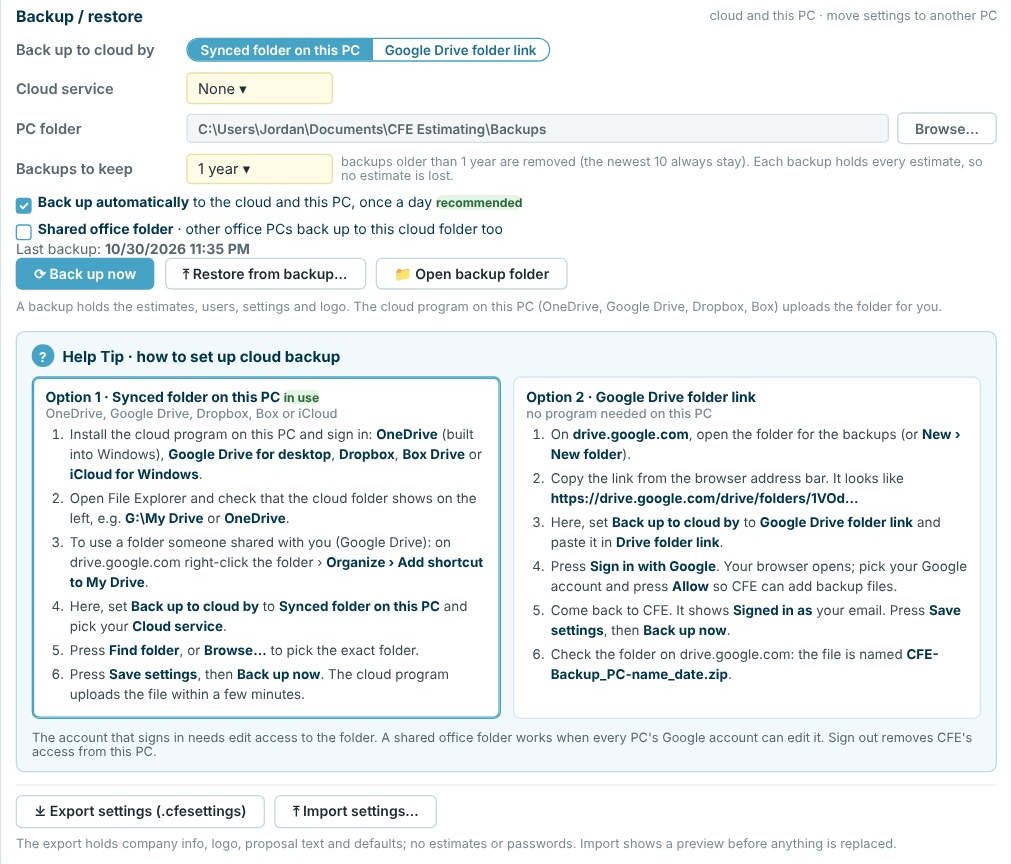
On the Settings tab, open Backup / restore under Save. The status line sums it up: cloud and this PC, and moving settings to another PC. A backup holds the estimates, users, settings and logo.
2Pick where backups go
Back up to cloud by has two options, each explained in the Help Tip below it:
- Synced folder on this PC: install the cloud program (OneDrive, built into Windows, Google Drive for desktop, Dropbox, Box Drive or iCloud for Windows) and sign in, pick your Cloud service, then Browse to the folder. The cloud program uploads the backup within a few minutes.
- Google Drive folder link: no program needed on this PC. Paste the folder’s link from drive.google.com, press Sign in with Google and allow CFE to add backup files. Backups are named CFE-Backup_PC-name_date.zip.
Tick Shared office folder when several office PCs should back up to the same cloud folder. The account that signs in needs edit access to that folder.
3Turn on daily backup
Tick Back up automatically (marked recommended): CFE backs up to the cloud and this PC once a day. Backups to keep sets how long they stay; on 1 year, backups older than a year are removed, but the newest 10 always stay. Each backup holds every estimate, so no estimate is lost when an old backup is removed. Back up now runs one at once, and the screen shows the last backup time.
4Restore a backup or an earlier version
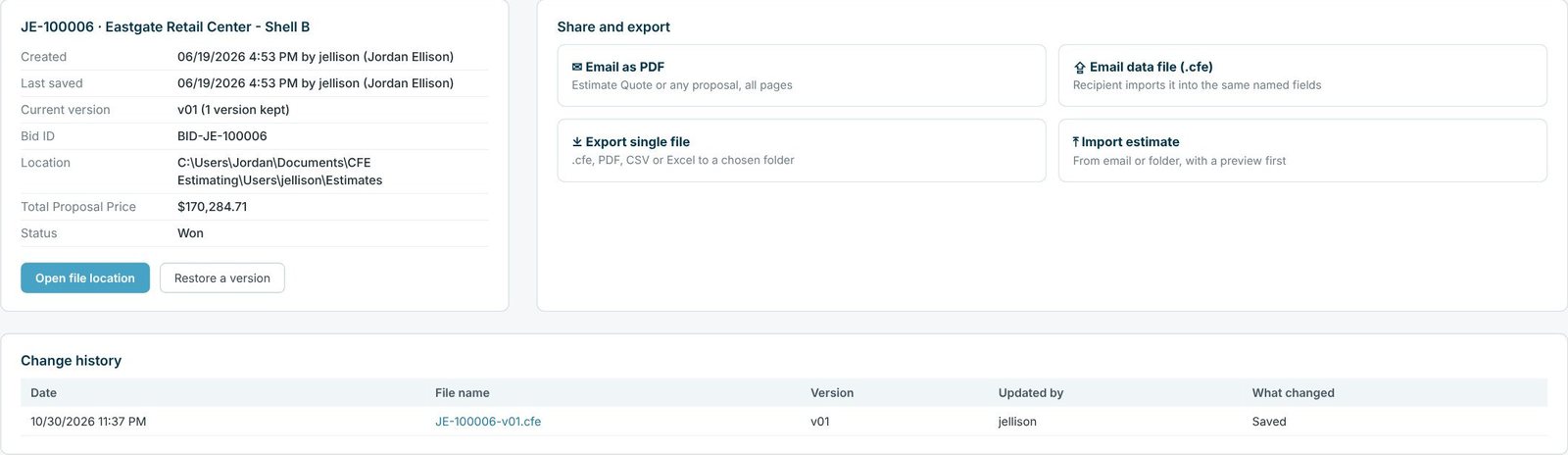
Restore from backup on the Backup / restore screen brings a backup back, and Open backup folder shows the files. To go back on one estimate only, open it and go to File › Info. It shows who created and last saved it, the current version and how many are kept, the bid ID, where the file is, the total proposal price and its status. Restore a version opens an earlier one, and Change history lists each saved file (JE-100006-v01.cfe) with who updated it.
5Roll back a settings change

Save & history lists unsaved changes, setting by setting, with Revert all and Revert selected. Settings history lists each save with the time, who made it and what changed, and a Restore button. Saving updates the company database for every user; new proposals use it right away, and saved proposals keep the text they were saved with.
Worked example: what each tool brings back
Three different problems, three different tools.
| What happened | Use | What comes back |
|---|---|---|
| The laptop died | Restore from backup on the new PC | Every estimate, the users, the settings and the logo from the last backup |
| A price was overwritten on one bid | File › Info › Restore a version | That estimate as it was saved earlier |
| Someone changed the exclusions for everyone | Save & history › Restore | The earlier settings save, with who changed what and when |
| Moving to a new PC | Export settings (.cfesettings), then Import settings | Company info, logo, proposal text and defaults; no estimates or passwords |
Import settings shows a preview before anything is replaced. To keep working on two computers every day, use desktop and laptop sync; backup is the safety net behind it.
What to do next
Next, set up your company settings and invite your team members. To work on a desktop and a laptop, see install and sync two computers.
Keep every estimate safe
Daily cloud backup and version history are in the 30-day free trial. No credit card.
Frequently Asked Questions
Where does CFE back up my estimates?
To a synced folder on your PC (OneDrive, Google Drive, Dropbox, Box or iCloud), which the cloud program uploads, or straight to a Google Drive folder link. It also keeps a copy on the PC.
How often does CFE back up?
Once a day with Back up automatically ticked, and any time you press Back up now.
How long are backups kept?
As long as Backups to keep says. On 1 year, older backups are removed but the newest 10 always stay, and each backup holds every estimate.
Can I go back to an earlier version of one estimate?
Yes. Open it, go to File › Info and press Restore a version. The change history lists each saved version and who saved it.

Written by
Cristian Valcu – Founder & CEO, Commercial Flooring Estimating LLC
Cristian has estimated commercial flooring for over 20 years and built CFE - Advanced Estimating Worksheet around the way flooring contractors actually price, propose and track their bids.
Last updated: