
CFE guide · Schedule and the field
Schedule Availability: Who Is Free Next
Availability shows every crew across six weeks, one row per crew. Green is free, the crew’s color is booked, grey is a day off or weekend, yellow is a holiday and amber is held. Under Who is free next?, type how many work days the job needs and click Find: each crew’s next open stretch lights up, with a Book button.


Why look at Availability?
A GC calls and asks when you can start. The answer is usually on a whiteboard, in someone’s head, or in three different calendars.
Availability shows the answer on one screen: which crew is free, for how many days, and from when. You can tell the GC a date before you hang up.
The five steps
- Open AvailabilitySchedule tab, Availability.
- Read the weeksGreen free, color booked.
- Who is free next?Type the work days, click Find.
- Book itBook it, or click a green day.
- What can go wrongA crew is never suggested.
1Open Availability
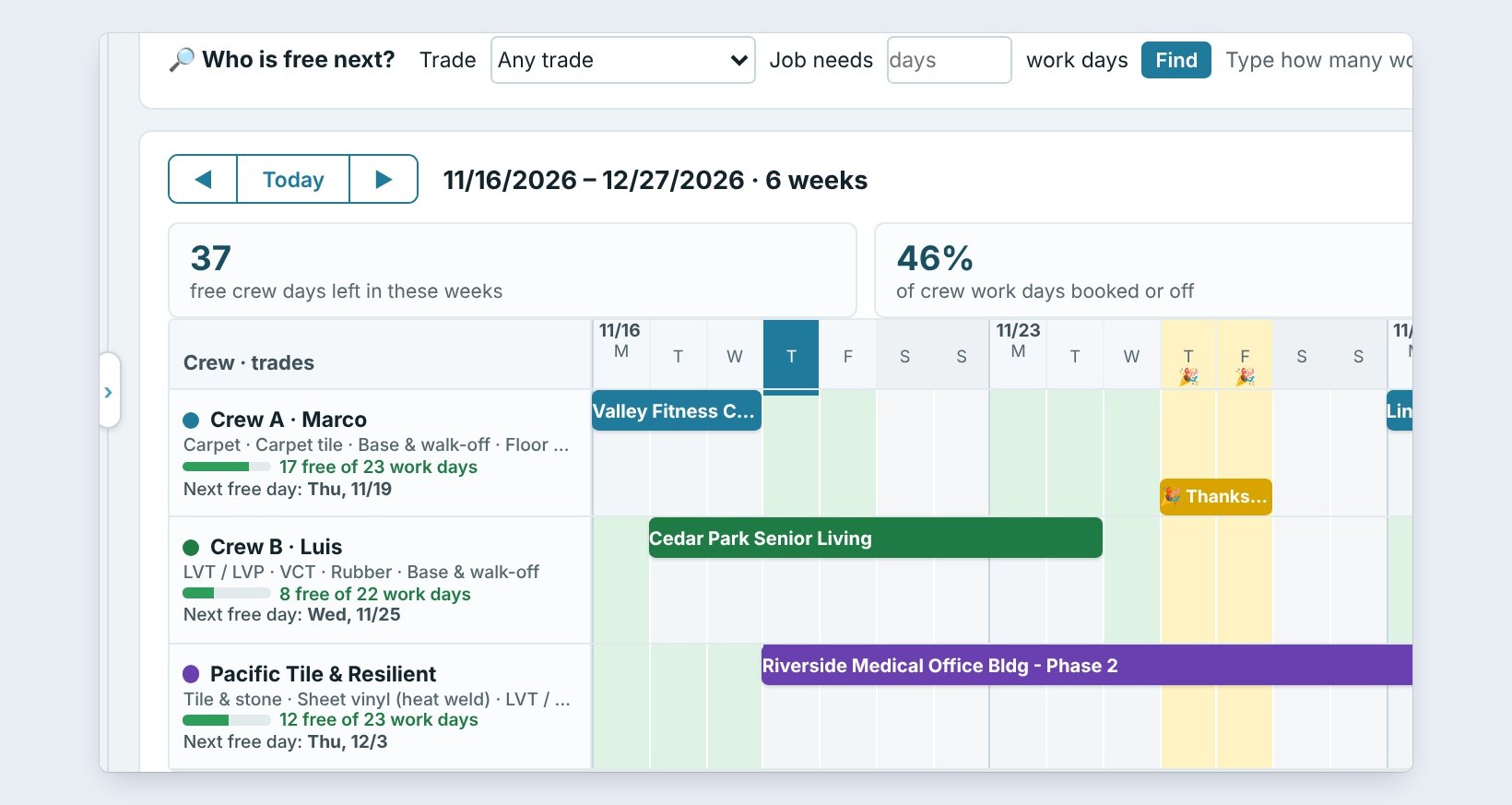
On the Schedule tab, click Availability. It shows six weeks, here 11/16 to 12/27. The tiles say 37 free crew days are left, 46% of crew work days are booked or off, 3 days off and holidays are coming up, and 1 hold.
Each row is one crew with its trades: Crew A, Marco for carpet, carpet tile, base and floor prep; Crew B, Luis for LVT, VCT and rubber; and the sub Pacific Tile & Resilient for tile and sheet vinyl. Under each, how many work days are free and the next free day.
2Read the weeks
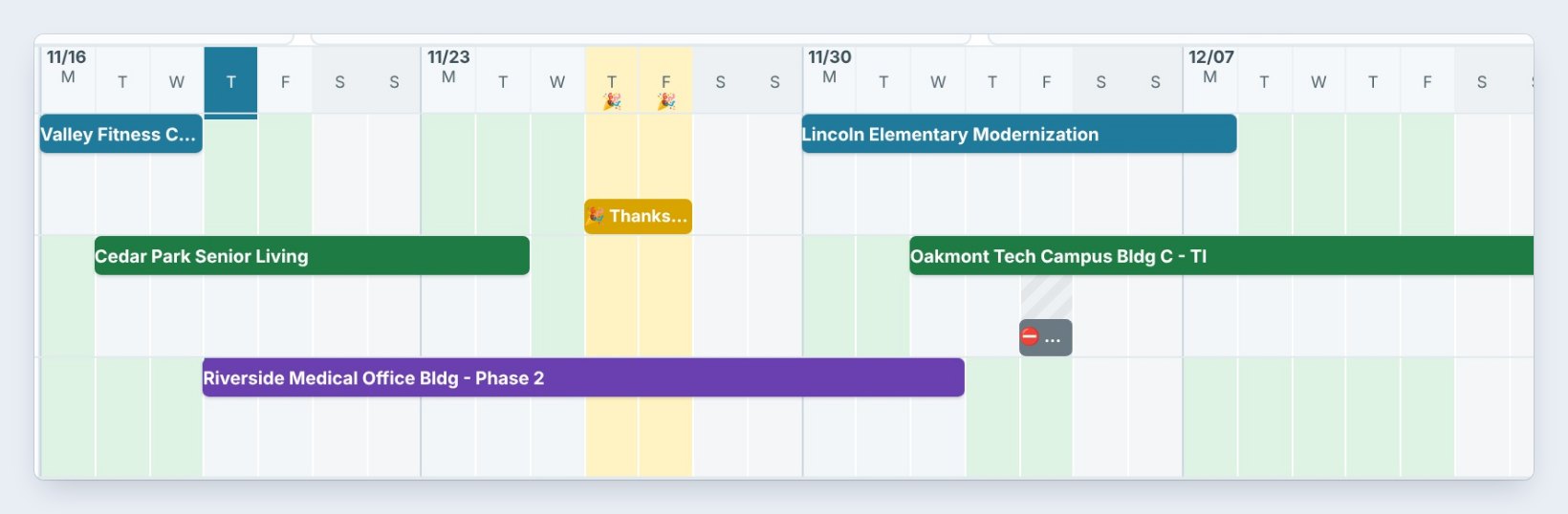
Each booked install shows as a bar in the crew’s color, such as Lincoln Elementary Modernization on Crew A and Oakmont Tech Campus on Crew B. Thanksgiving and Christmas are yellow, and the amber block is a hold.
Light green days are free. A half-filled day is booked for part of the day, so the crew can take a short job in the afternoon.
3Ask Who is free next

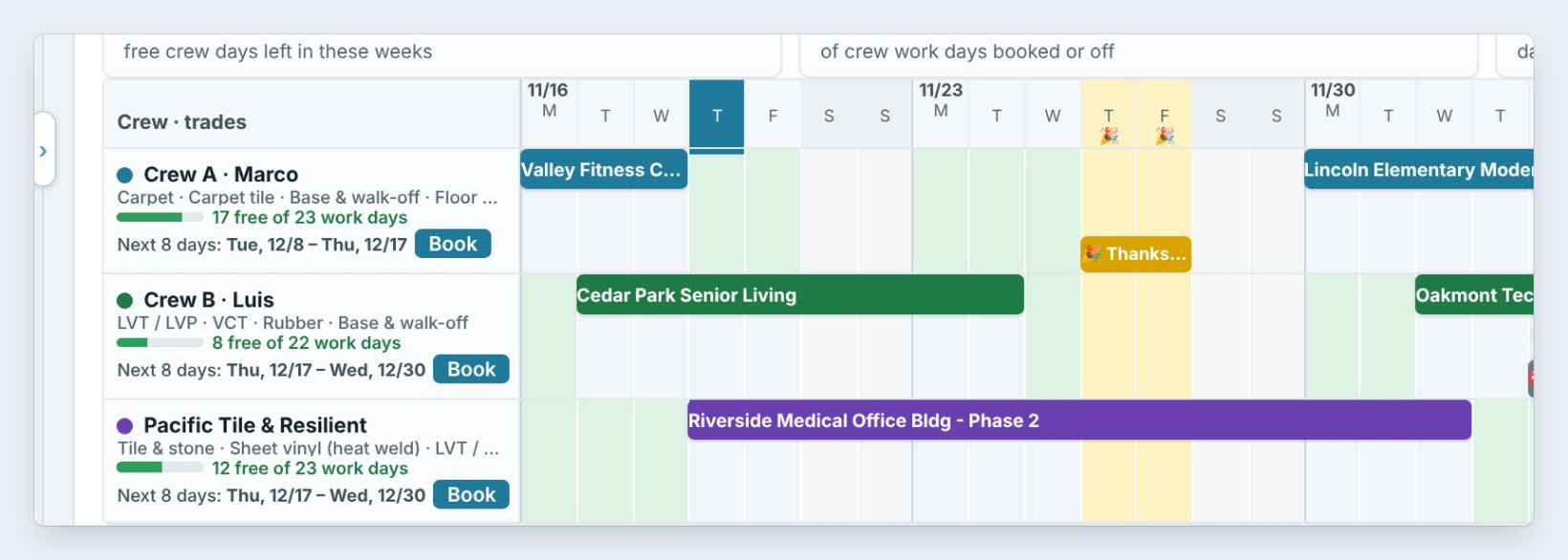
In Who is free next?, pick a Trade or leave Any trade, type how many work days the job needs, here 8, and click Find.
The earliest crew shows at the end of the bar: Crew A, Marco, from Tue 12/8 to Thu 12/17. Under every crew, Next 8 days gives its own open stretch, and the stretch is outlined in green on the weeks.
Pick the trade before you click Find. A sheet vinyl job with heat welding only goes to a crew that has that trade ticked, so you never promise a date to the wrong crew.
4Book the open stretch
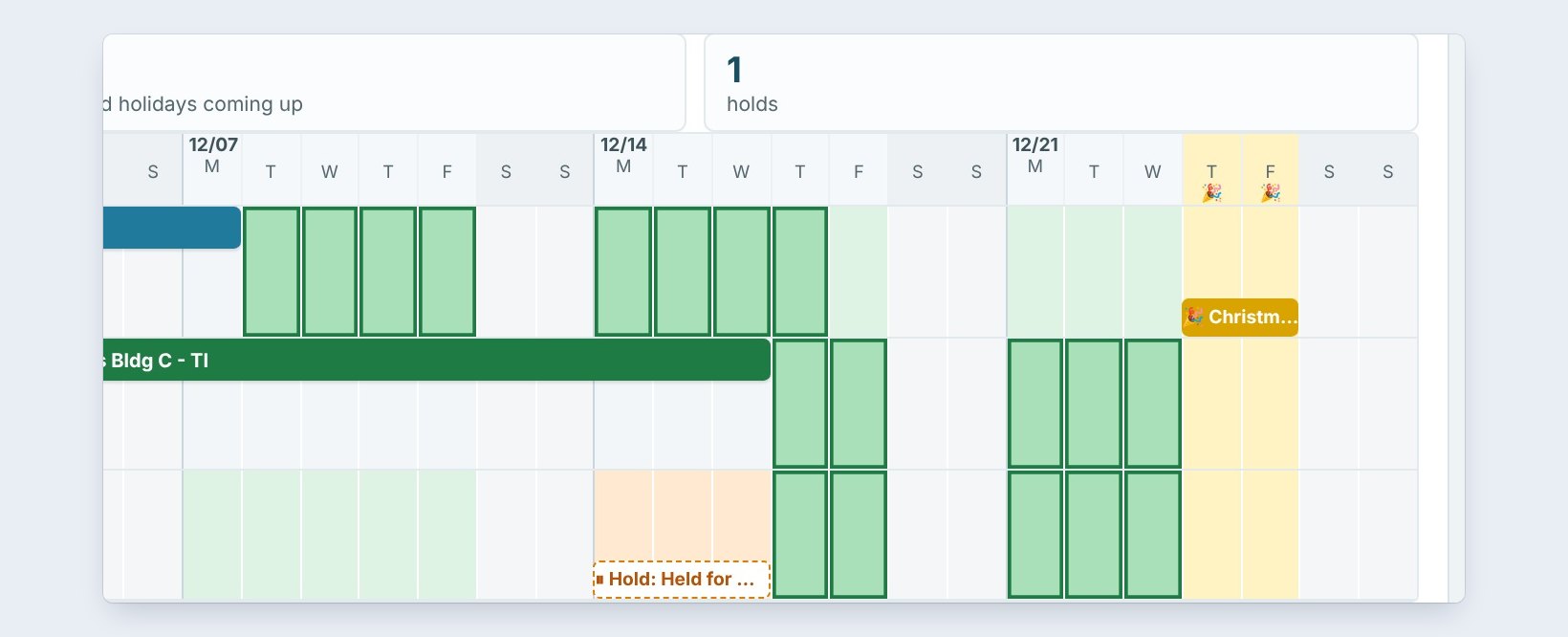
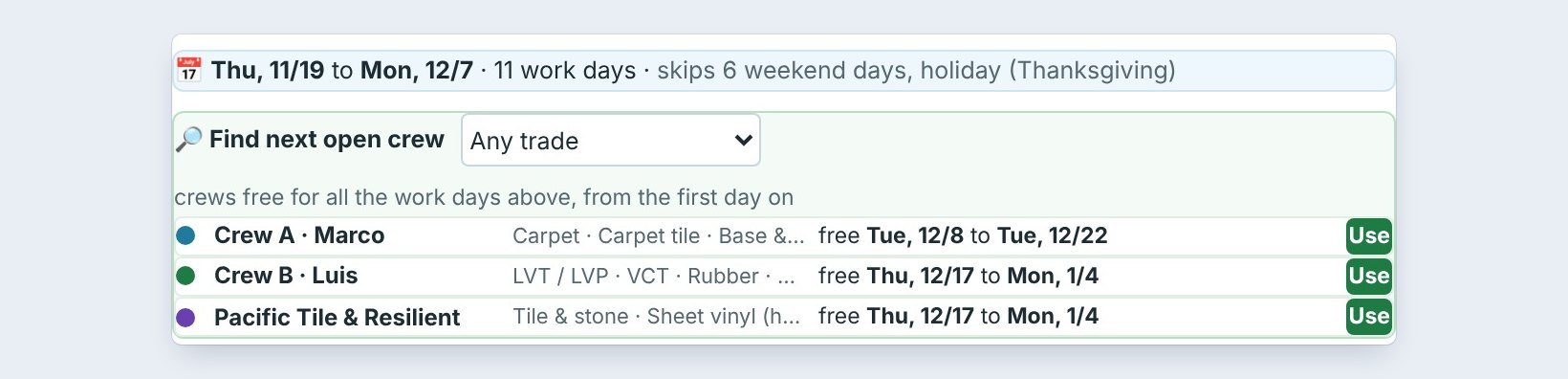
Click Book it on the bar, or Book under a crew. Book an install opens with that crew and the first day filled in. You can also click any green day in a crew’s row to book that crew there.
In Book an install, Find next open crew does the same search, with a Use button for each crew.
5What can go wrong, and how to fix it
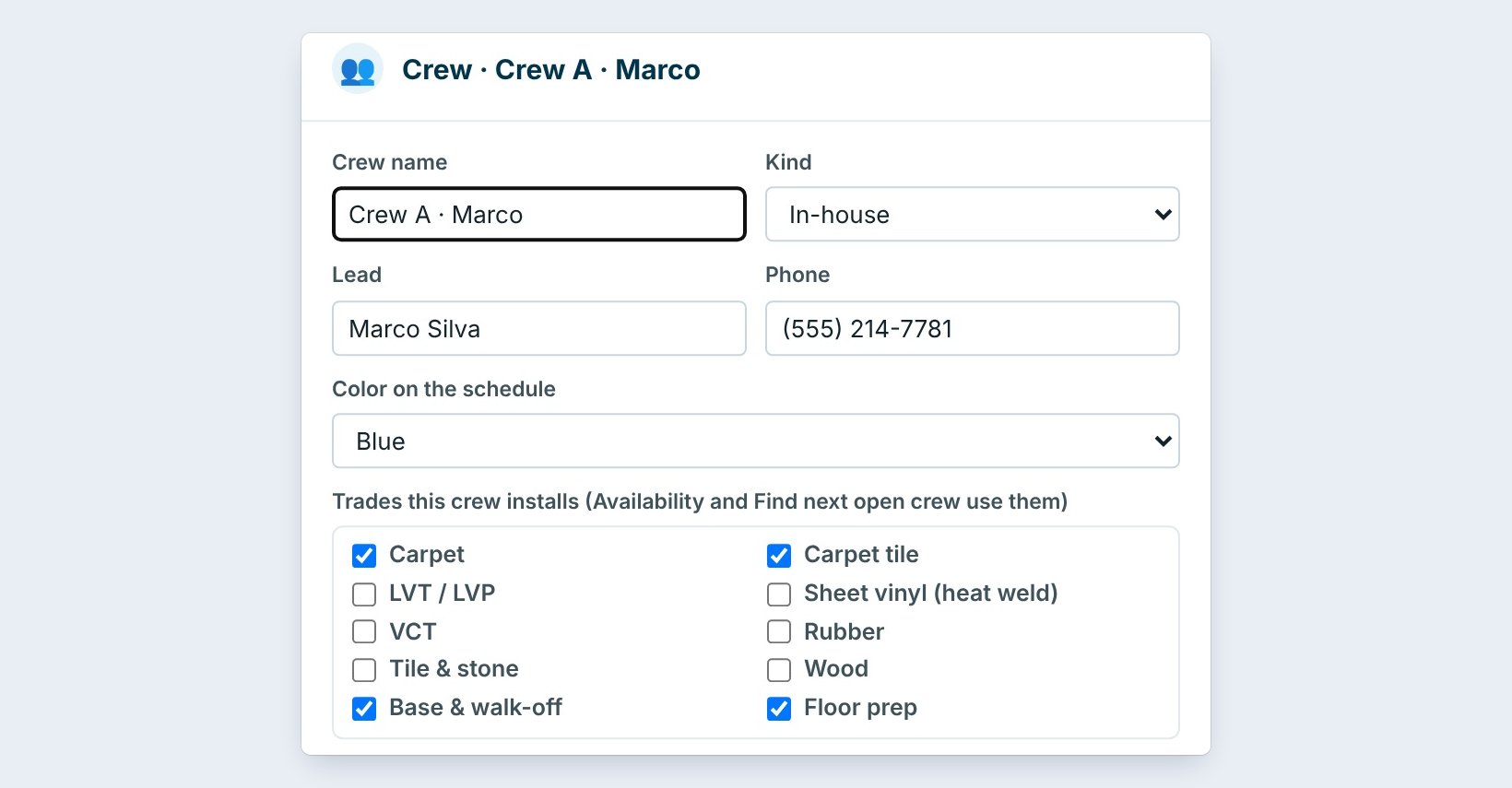
A crew is never suggested. Find only offers crews with the trade ticked. Open Crews and tick the trades that crew installs.
A crew looks free but is on vacation. Add a Day off for that crew, and the days turn grey.
Weekends never show as free. Mon to Fri are work days by default. Change it under Schedule settings, or book one install through a weekend.
Worked example: a GC asks for a start date
A GC calls on November 19 about an 8-day carpet tile job:
| Crew | Next 8 work days | Fits? |
|---|---|---|
| Crew A, Marco | Tue 12/8 to Thu 12/17 | Yes, carpet tile, earliest |
| Crew B, Luis | Thu 12/17 to Wed 12/30 | No carpet tile trade |
| Pacific Tile & Resilient | Thu 12/17 to Wed 12/30 | No carpet tile trade |
Jordan tells the GC December 8 before hanging up, and books Crew A from the same screen.
What to do next
Next: add days off, holidays and holds.
Know who is free before the GC asks
The schedule is part of CFE BidWise Business. Start with the 30-day free trial, no credit card.
Frequently Asked Questions
What do the colors mean?
Green is free, the crew’s color is booked, half filled is part of the day booked, grey is a day off or weekend, yellow is a holiday and amber is held.
How far ahead does it show?
Six weeks at a time. Use the arrows to move through the weeks, or Today to come back.
Does it count subs?
Yes. A sub is a crew like any other, with its own trades and color.

Written by
Cristian Valcu – Founder & CEO, Commercial Flooring Estimating LLC
Cristian has estimated commercial flooring for over 20 years and built CFE BidWise around the way flooring contractors actually price, propose and track their bids.
Last updated: