
CFE guide · Tracking and reports
Click a Phase to Filter the Job Check Card
On the Dashboard, click a phase in the Won jobs · Where we are bar. Click Installing, and the Job Check card right under it shows only the jobs that are installing, worst first, with what needs doing, who does it and by when. Click Show all to see every job again.


Why filter Job Check by phase?
On a Monday the question is rarely “what is wrong with every job”. It is “what is wrong with the jobs we are installing this week”. A crew on site waiting for adhesive costs money by the hour.
Clicking the phase on the Dashboard narrows Job Check to exactly those jobs, without opening another screen.
The five steps
- Find the Won jobs barDashboard, under the tiles.
- Click a phaseInstalling, for example.
- Read and fix each jobWho, by when, Fix it.
- Show all againShow all, or See all.
- What can go wrongA job in the wrong phase.
1Find the Won jobs bar on the Dashboard

Open the Dashboard on the Home tab. Under the four tiles, Won jobs · Where we are shows a chip for each phase that has open jobs, with the count. Northgate has 5 open: Scheduled 2, Installing 2 and Punch list 1.
On the right are Waiting on someone, Show all and Project phases, the full board.
2Click a phase
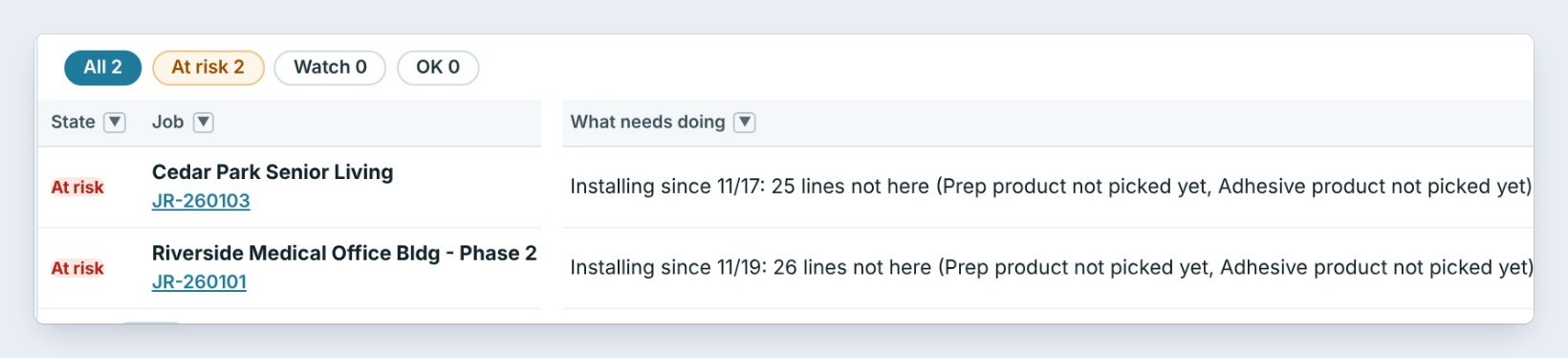
Click Installing. The chip turns green, and the Job Check card right under it changes its title to Job Check · Installing · 2 jobs. It lists every job in that phase, worst first.
Both are At risk. Cedar Park Senior Living has been installing since 11/17 with 25 lines not here, and Riverside Medical Office since 11/19 with 26: the prep and adhesive products are not picked yet.
3Read each line, and fix it
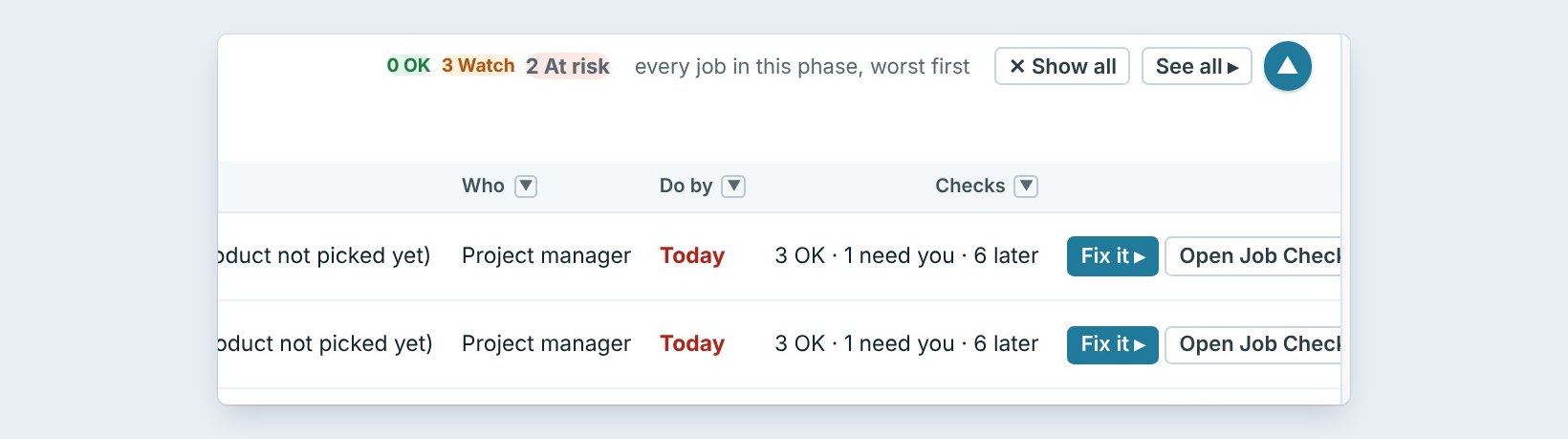
Each line says who should act, here the project manager, and by when: Today. Checks sums up the job: 3 OK, 1 needs you, 6 later.
Click Fix it to deal with the line right there, or Open Job Check for the whole job. The chips under the title, All, At risk, Watch and OK, narrow it further.
Start the day with Installing, then Scheduled. A problem on a job that is already installing costs crew hours today; one on a scheduled job can still be fixed before the crew shows up.
4Show every job again

Click Show all, on the bar or on the card, and Job Check lists every open job again. See all opens the full Job Check screen.
Click another phase, such as Punch list, and the card follows it.
5What can go wrong, and how to fix it

A job is in the wrong phase. Click Project phases and move it. The bar and the card follow.
A phase is missing from the bar. Only phases with open jobs get a chip.
The card shows every job after a refresh. The phase you picked is only a filter. Click it again.
Worked example: Friday morning, November 20
Jordan clicks Installing on the Dashboard:
| Job | Since | What needs doing | Who | By |
|---|---|---|---|---|
| Cedar Park Senior Living | 11/17 | 25 lines not here | Project manager | Today |
| Riverside Medical Office Bldg, Phase 2 | 11/19 | 26 lines not here | Project manager | Today |
Two calls to the supplier before 9 AM, and both crews have their adhesive.
What to do next
Next, see the jobs held up by someone else in Waiting on someone, and folding the Job Check card.
See the jobs that matter today
Job Check is part of CFE BidWise Business. Start with the 30-day free trial, no credit card.
Frequently Asked Questions
Where is the phase filter?
On the Dashboard, in the Won jobs · Where we are bar under the tiles.
Does it change the jobs?
No. It only filters what the Job Check card shows. Click Show all to see every job.
How do I move a job to another phase?
Open Project phases and move it there.

Written by
Cristian Valcu – Founder & CEO, Commercial Flooring Estimating LLC
Cristian has estimated commercial flooring for over 20 years and built CFE BidWise around the way flooring contractors actually price, propose and track their bids.
Last updated: