
CFE guide · Tracking and reports
Job Check Settings: Which Checks, When, Who
Job Check settings is one table: each check, On or off, When it warns, and Who gets it in My day. Only the Master user can change it; everyone else sees it read-only. Below the table you choose whether Job Check shows on the Dashboard and in the Bid Tracker, and set each GC’s pay app cut-off day.


Why set up the checks?
A 3-person shop and a 40-person contractor need different warnings. One wants the owner to hear about everything; the other wants material to the warehouse, billing to the accountant and change orders to the salesman.
Job Check settings decides that once, for the whole company, so the right line lands on the right person’s My day at the right time.
The five steps
- Open the settingsJob Check settings, Master user only.
- Turn checks on or offTick the checks you want.
- Set when and whoDays ahead, and whose My day.
- Dashboard and pay appsWhere it shows, and GC cut-off days.
- What can go wrongToo many lines, or nobody gets one.
1Open Job Check settings
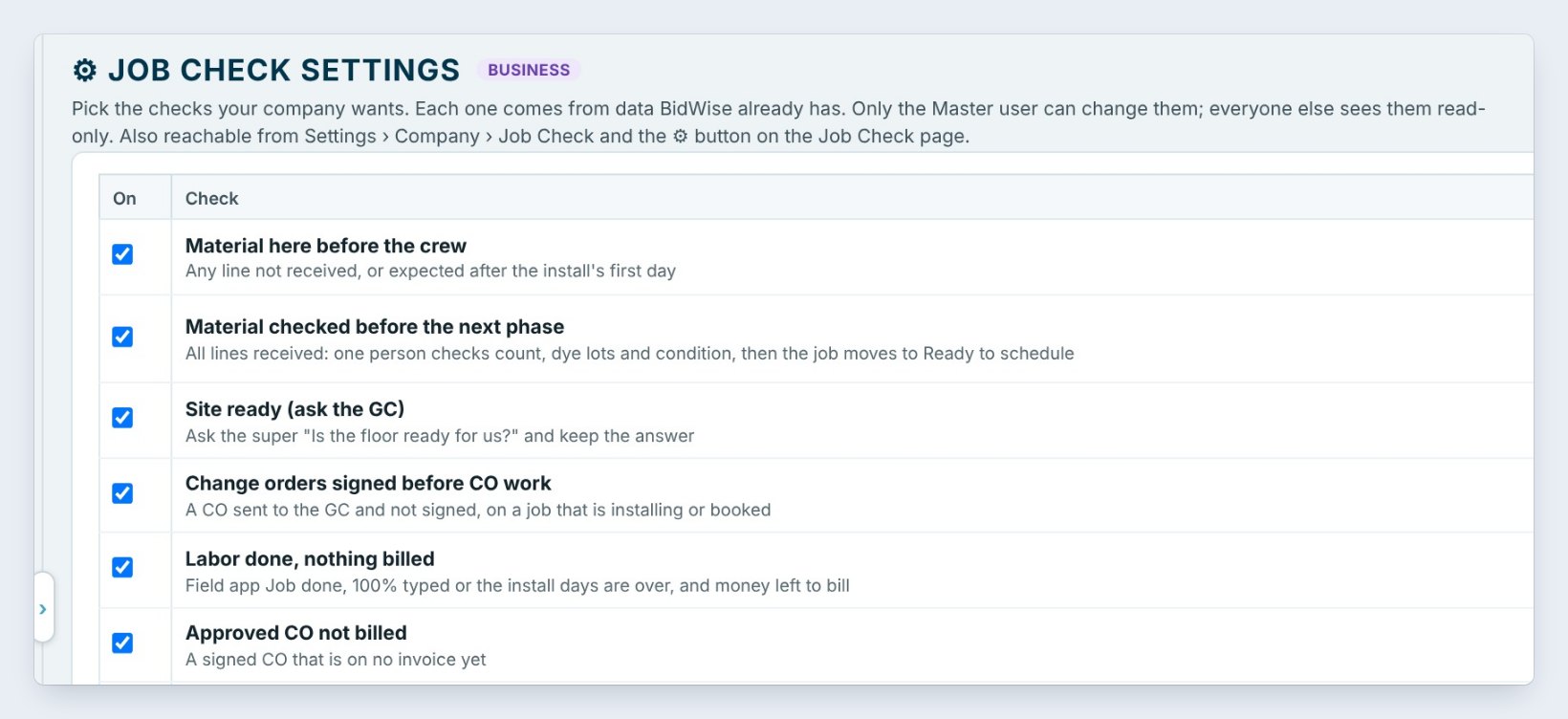
Click Job Check settings on the Home ribbon, or the gear on the Job Check page. It is also under Settings › Company › Job Check.
Each check comes from data BidWise already has. Only the Master user can change them; everyone else sees the settings read-only. Under each check name, one line says what it looks for, such as Any line not received, or expected after the install’s first day.
2Turn each check on or off
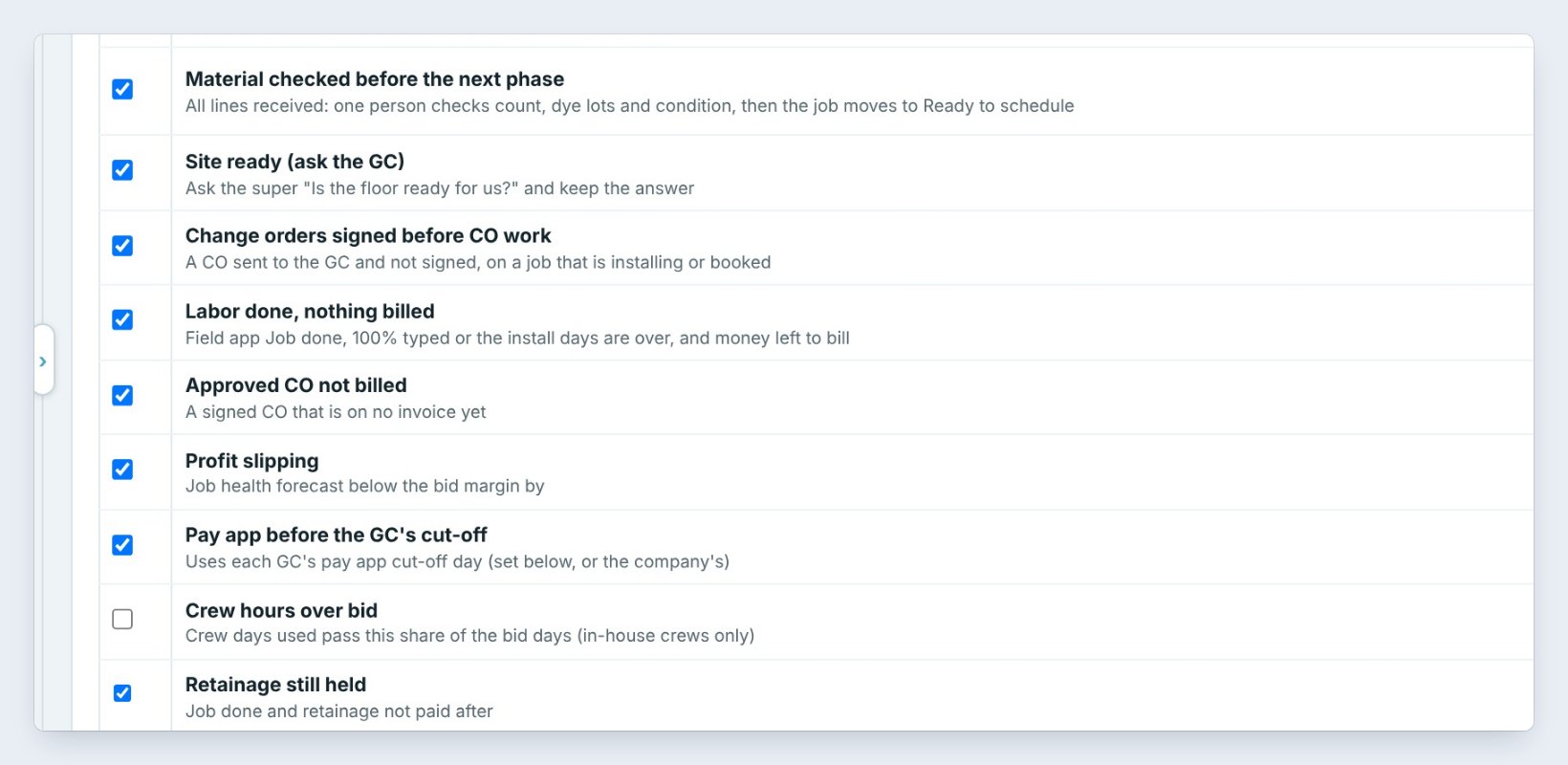
There are eleven checks, in the order a job runs: Material here before the crew, Material checked before the next phase, Site ready, Change orders signed before CO work, Labor done, nothing billed, Approved CO not billed, Profit slipping, Pay app before the GC’s cut-off, Crew hours over bid, Retainage still held and Closeout papers.
Untick the ones you don’t want. Here Crew hours over bid is off, because it is for in-house crews only and this company mostly uses subs.
3Set When, and Who gets it in My day
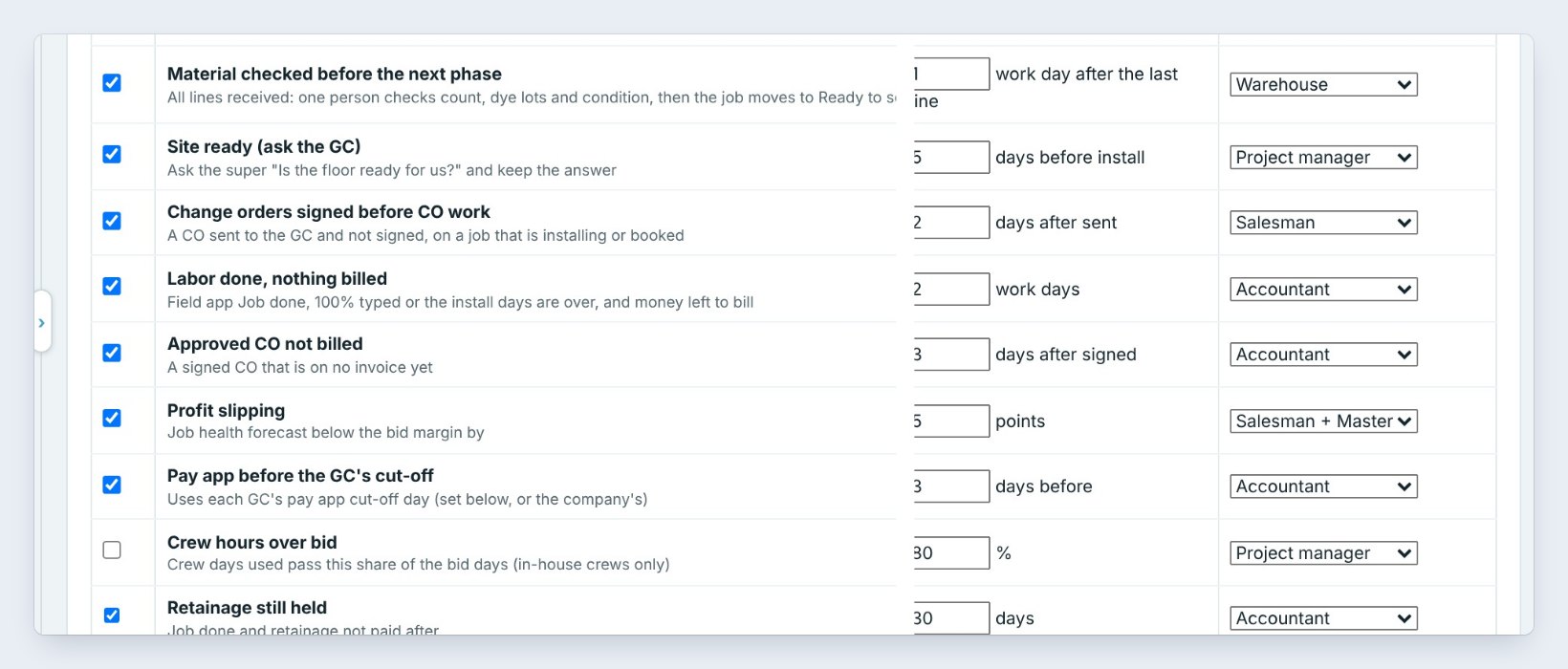
For each check, set When and Who gets it in My day. Material here before the crew warns 3 days before install and goes to the Project manager. Material checked goes to the Warehouse, 1 work day after the last line arrives. Site ready asks 5 days before install.
An unsigned change order goes to the Salesman 2 days after it was sent. Billing checks go to the Accountant. Profit slipping warns when the job’s forecast drops 5 points below the bid margin, and goes to the salesman and the Master user.
Give each check to one role, not to everyone. If a line lands on five My days, everybody thinks someone else has it. One owner per line, and the Master user only hears about it if it sits two days overdue.
4Dashboard options and GC pay app cut-offs


Below the table: Show Job Check on the Dashboard, Show the Job Check column in the Bid Tracker, how many jobs the Dashboard list shows, and a Monday email with every At risk job to the Master user.
Under GC pay app cut-off days, type the day of the month each GC wants the pay app by. Blank means the company’s day, the 25th. The Pay app check puts it on the accountant’s My day before that day. Click Save settings.
5What can go wrong, and how to fix it
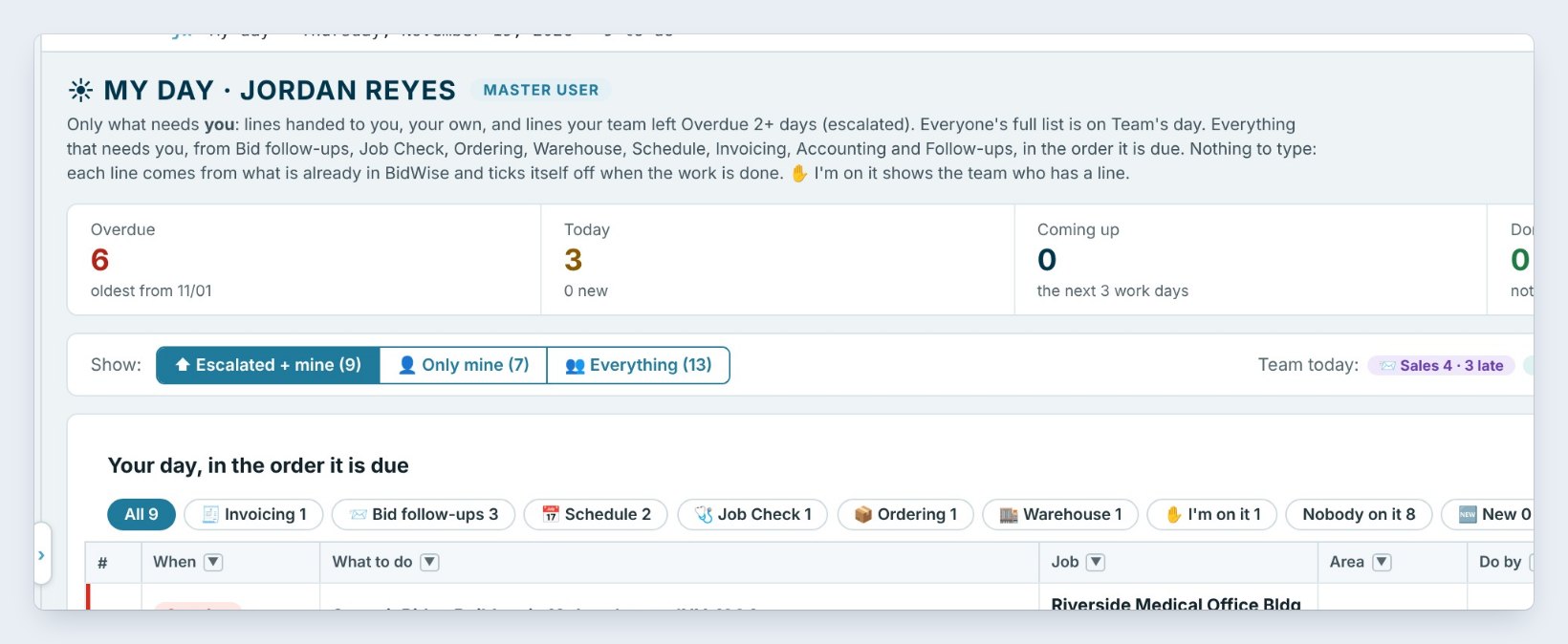
A line goes to nobody. If the job has no project manager set, a project manager line has no owner. Set the PM on the job, or give the check to the Salesman.
Too many warnings. Raise the days, or turn a check off. Profit slipping at 2 points warns on every small change; 5 is a good start.
The settings are greyed out. Only the Master user can change them. Ask the owner to log in.
Worked example: who gets what at Northgate
Northgate Commercial Flooring sets Job Check once:
| Check | When | Who |
|---|---|---|
| Material here before the crew | 3 days before install | Project manager |
| Material checked | 1 work day after the last line | Warehouse |
| Change orders signed | 2 days after sent | Salesman |
| Labor done, nothing billed | 2 work days | Accountant |
| Profit slipping | 5 points | Salesman + Master |
Each person sees only their own lines on My day. The owner gets the Monday email with the At risk jobs, and nothing else unless it is two days overdue.
What to do next
Next: follow up on every sent bid.
Send each warning to the right person
Job Check is part of CFE BidWise Business. Start with the 30-day free trial, no credit card.
Frequently Asked Questions
Who can change Job Check settings?
Only the Master user. Everyone else can open the settings and read them.
What is the GC pay app cut-off day?
The day of the month a GC wants your pay application by. Each GC can have its own day; blank uses the company’s day, the 25th.
Does turning a check off delete anything?
No. It only stops that check from showing on Job Check and My day. Turn it back on any time.

Written by
Cristian Valcu – Founder & CEO, Commercial Flooring Estimating LLC
Cristian has estimated commercial flooring for over 20 years and built CFE BidWise around the way flooring contractors actually price, propose and track their bids.
Last updated: