
CFE guide · BidWise Sales
BidWise Sales File Page: Print, Import, Export and Backups
Press File. Print & Reports opens any list in Print Preview, with your company footer and Page n of N. Import brings in bids, bid invites, leads and company lists. Export saves a table as Excel CSV. Backups saves everything to this PC and a folder you pick, locked with your password.


Why it matters
Sooner or later the boss wants the pipeline printed for the sales meeting, the old spreadsheet needs to come in, and the PC needs a backup before it dies.
BidWise Sales puts all of it on one page, and backups never go to anyone’s server: they go to your own cloud folder or USB stick.
The 6 steps
- Open the File pageInfo and version.
- Print and reportsPrint Preview or PDF.
- ImportBids, leads, companies.
- ExportExcel CSV.
- BackupsThis PC and your folder.
- What can go wrongNo backup folder.
1Open the File page
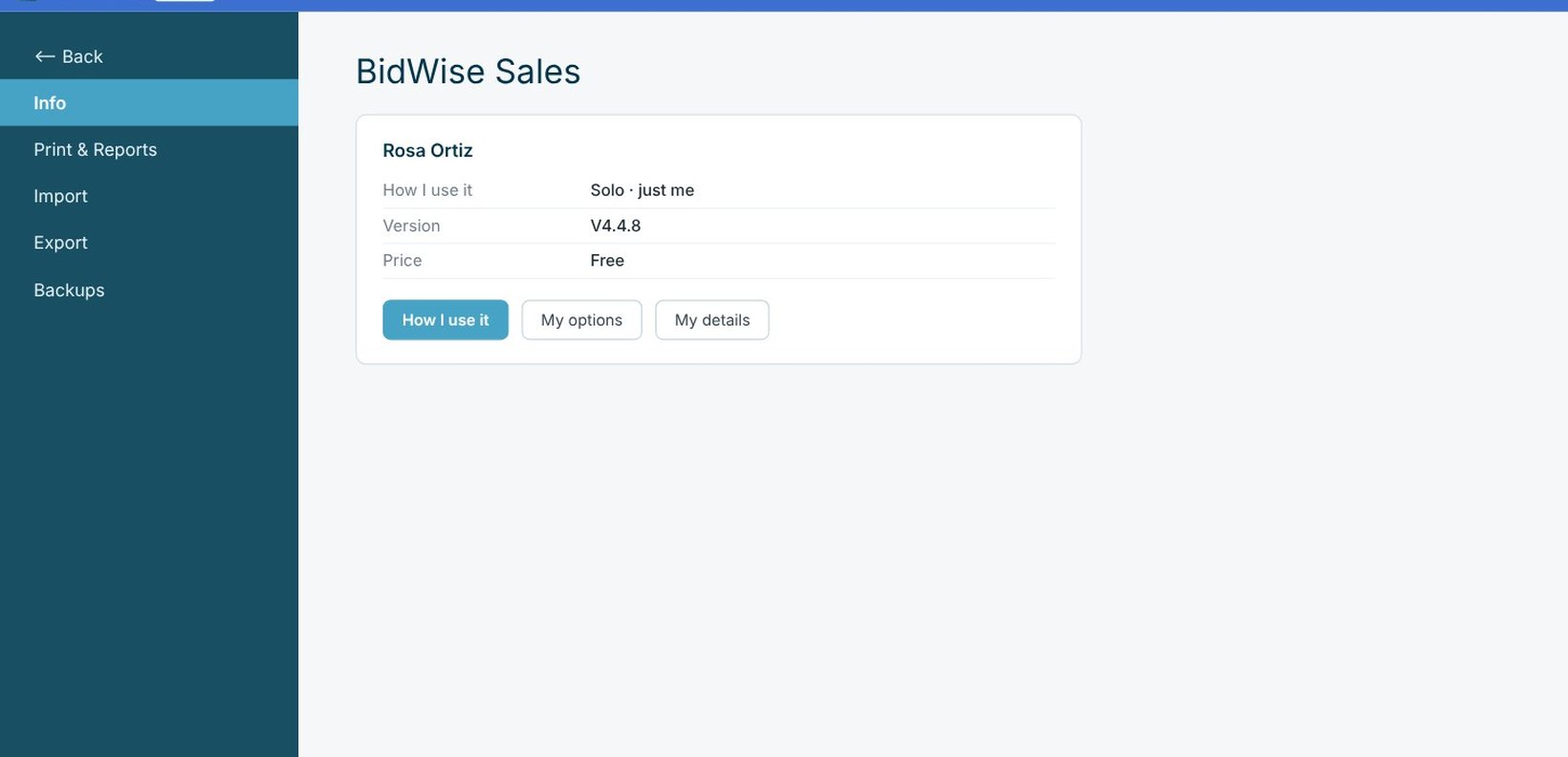
Press File. Info shows your name, how you use it, the version and the price: free. How I use it, My options and My details are one click from here.
2Print your reports
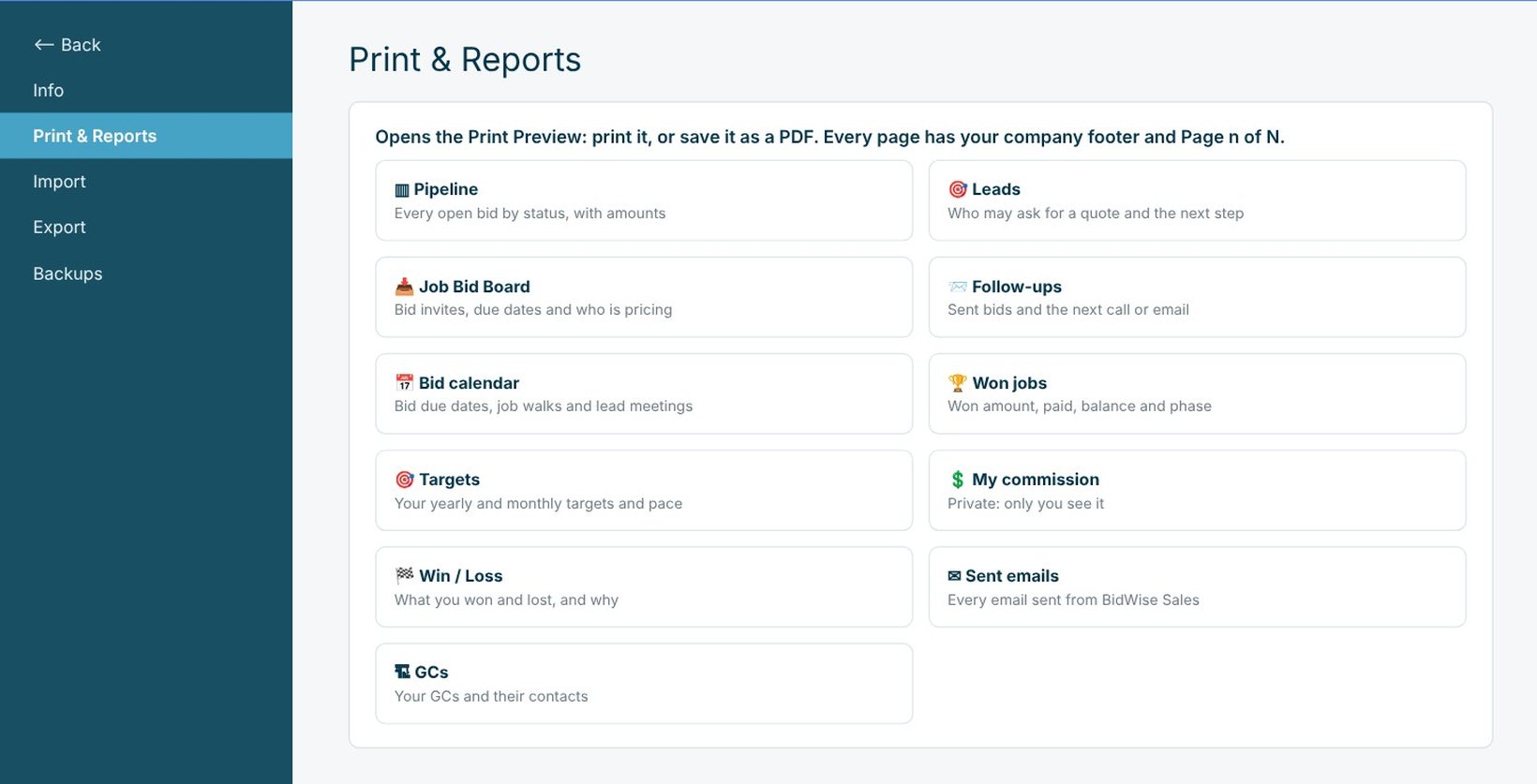
Print and Reports lists every print: pipeline, leads, Job Bid Board, follow-ups, bid calendar, won jobs, targets, commission, win loss, sent emails and GCs. Each one opens in Print Preview. Print it or save it as a PDF, with your company footer and Page n of N.
Pick a cloud folder like OneDrive or Google Drive in Backup folder and schedule on day one. A backup on the same PC does not help when the PC is stolen.
3Import your bids and leads
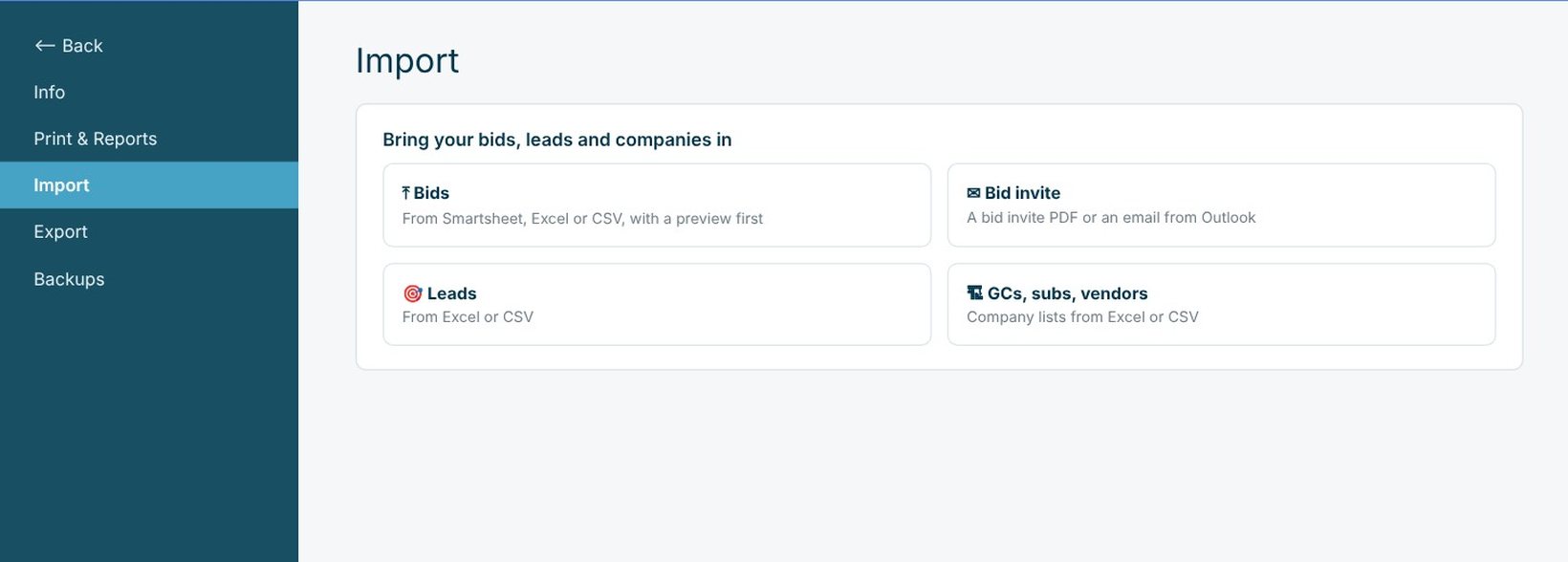
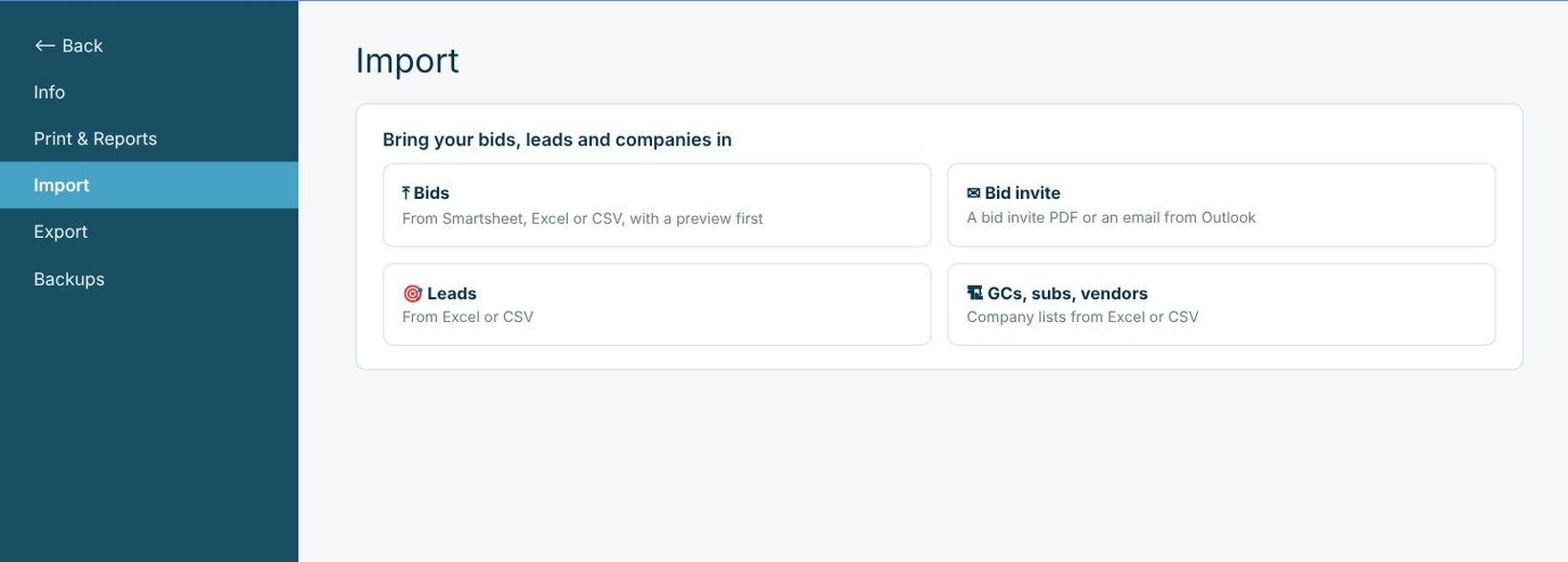
Import brings in bids from Smartsheet, Excel or CSV, with a preview first. It also takes a bid invite PDF or an email, leads from Excel, and your GC, sub and vendor lists.
4Export to Excel
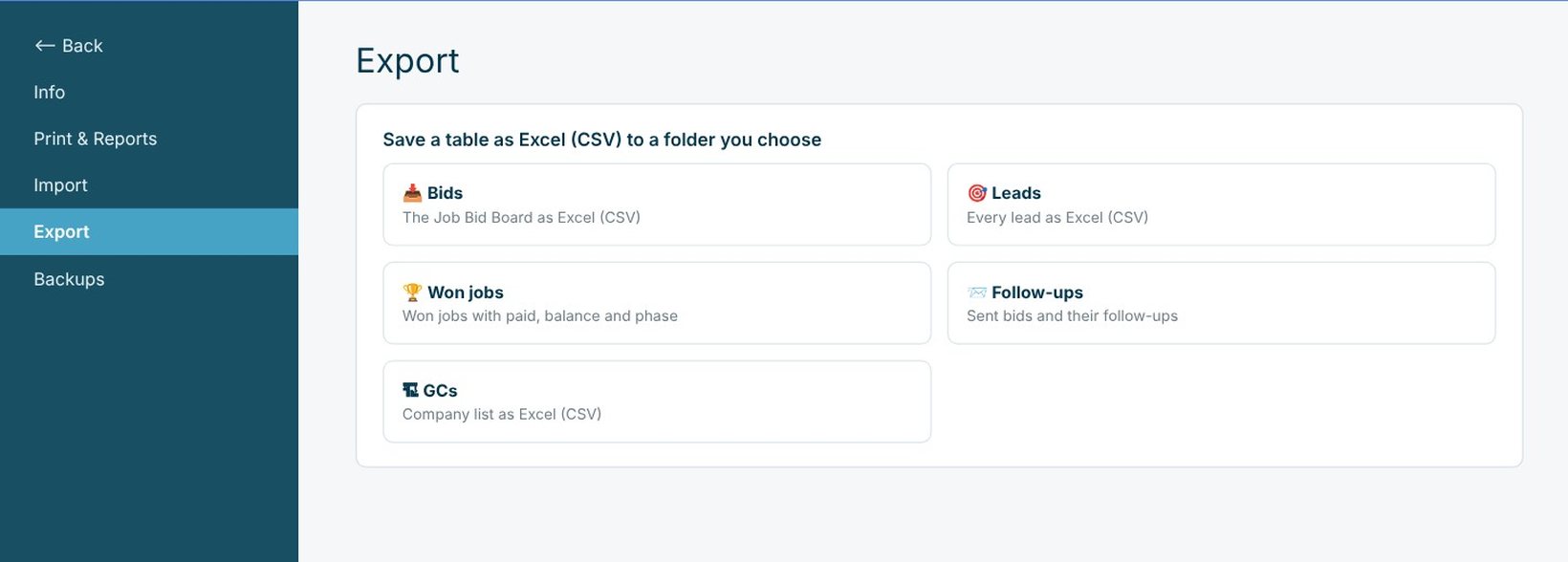
Export saves a table as Excel CSV to a folder you choose: bids, leads, won jobs, follow-ups or GCs.
5Back up your data
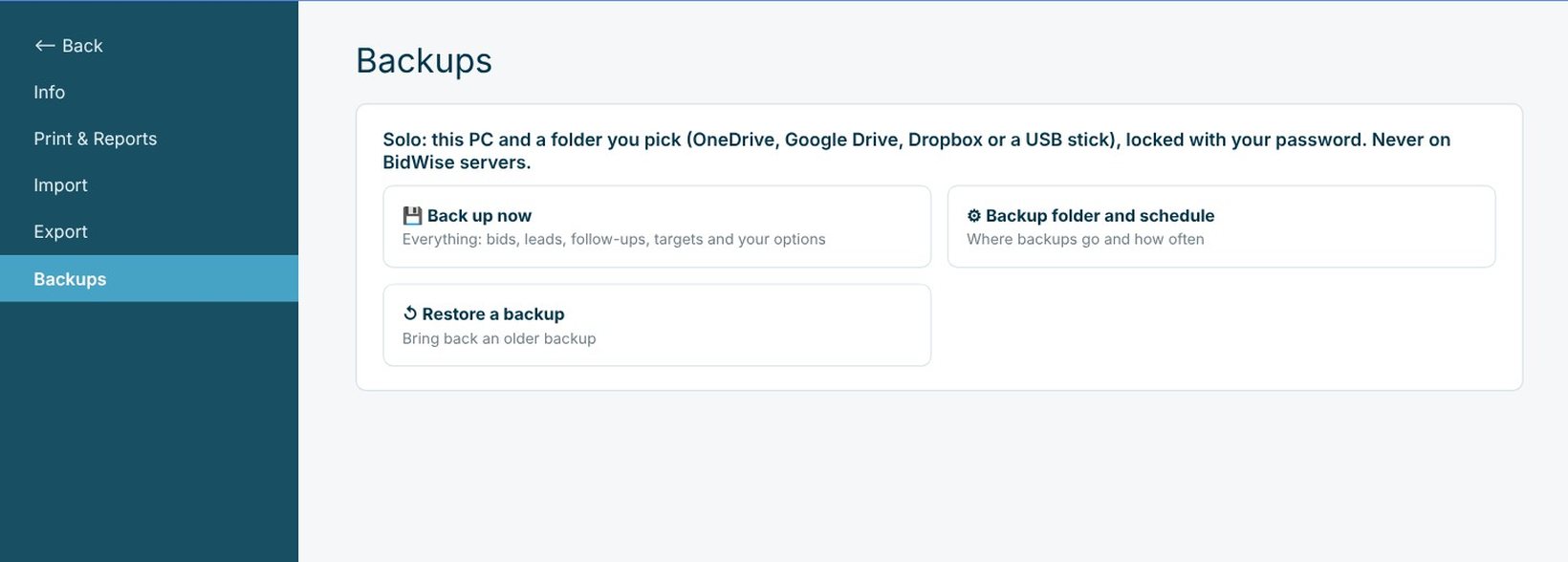
Backups: Back up now saves everything, bids, leads, follow-ups, targets and your options. Backup folder and schedule picks where backups go, OneDrive, Google Drive, Dropbox or a USB stick, and how often. They are locked with your password.
Restore a backup brings back an older one.
6What can go wrong, and how to fix it
Backups only on this PC. If the PC dies, they go with it. Pick a cloud or USB folder in Backup folder and schedule.
An import looks wrong. Check the preview and match each column before you press Import.
Worked example: a Monday routine
| Task | Where | Time |
|---|---|---|
| Print the pipeline for the sales meeting | File › Print & Reports | 1 min |
| Import last week's bid invites | File › Import | 2 min |
| Export leads for the boss | File › Export | 1 min |
| Back up to OneDrive | File › Backups | automatic |
Five minutes on Monday, and the whole week is printed, imported and backed up.
What to do next
Next: Connect BidWise Sales to your company. Or see all the step-by-step guides.
Your sales desk, free
BidWise Sales is free for commercial flooring salesmen. It works offline, your numbers stay on your PC, and it links to CFE BidWise when your company has it.
Frequently Asked Questions
Do my backups go to BidWise servers?
No. Solo backups go to this PC and a folder you pick, locked with your password.
Can I import my old Smartsheet or Excel bid list?
Yes. File › Import › Bids takes Smartsheet, Excel or CSV and shows a preview first.
What does Export give me?
An Excel CSV of the table you pick: bids, leads, won jobs, follow-ups or GCs.

Written by
Cristian Valcu – Founder & CEO, Commercial Flooring Estimating LLC
Cristian has estimated commercial flooring for over 20 years and built CFE BidWise around the way flooring contractors actually price, propose and track their bids.
Last updated: