
CFE guide · BidWise Sales
Install BidWise Sales and Add Your First Bid
Install BidWise Sales, create the Admin account, save the recovery code and accept the license. Then press Add a bid and fill 3 boxes: Project, GC / customer and Bid due date, plus your price when you have it: the Job Total is your full bid price and counts in your pipeline, wins and targets; the Job Sub Total is before tax, bond, burden and contingency and is used only for your commission. The bid gets its number, like RO-100001, and waits on the Job Bid Board as New. BidWise Sales is free, works offline and keeps your numbers on your PC.


Why it matters
A flooring salesman juggles bid invites from a dozen GCs, and the ones that slip are the ones written on a sticky note. A free app that takes a bid in three boxes removes the excuse.
BidWise Sales keeps every bid, lead, follow-up and target on your own PC. When your company runs CFE BidWise, the same bids land on its Job Bid Board for the estimators.
The 6 steps
- Create your accountName, initials, company, password.
- Save the recovery codeYour way back in.
- Accept the licenseScroll, tick, I accept.
- Your dashboardSolo or connected.
- Add your first bidProject, GC, bid due, your amount.
- What can go wrongEmpty boxes, lost password.
1Create your account
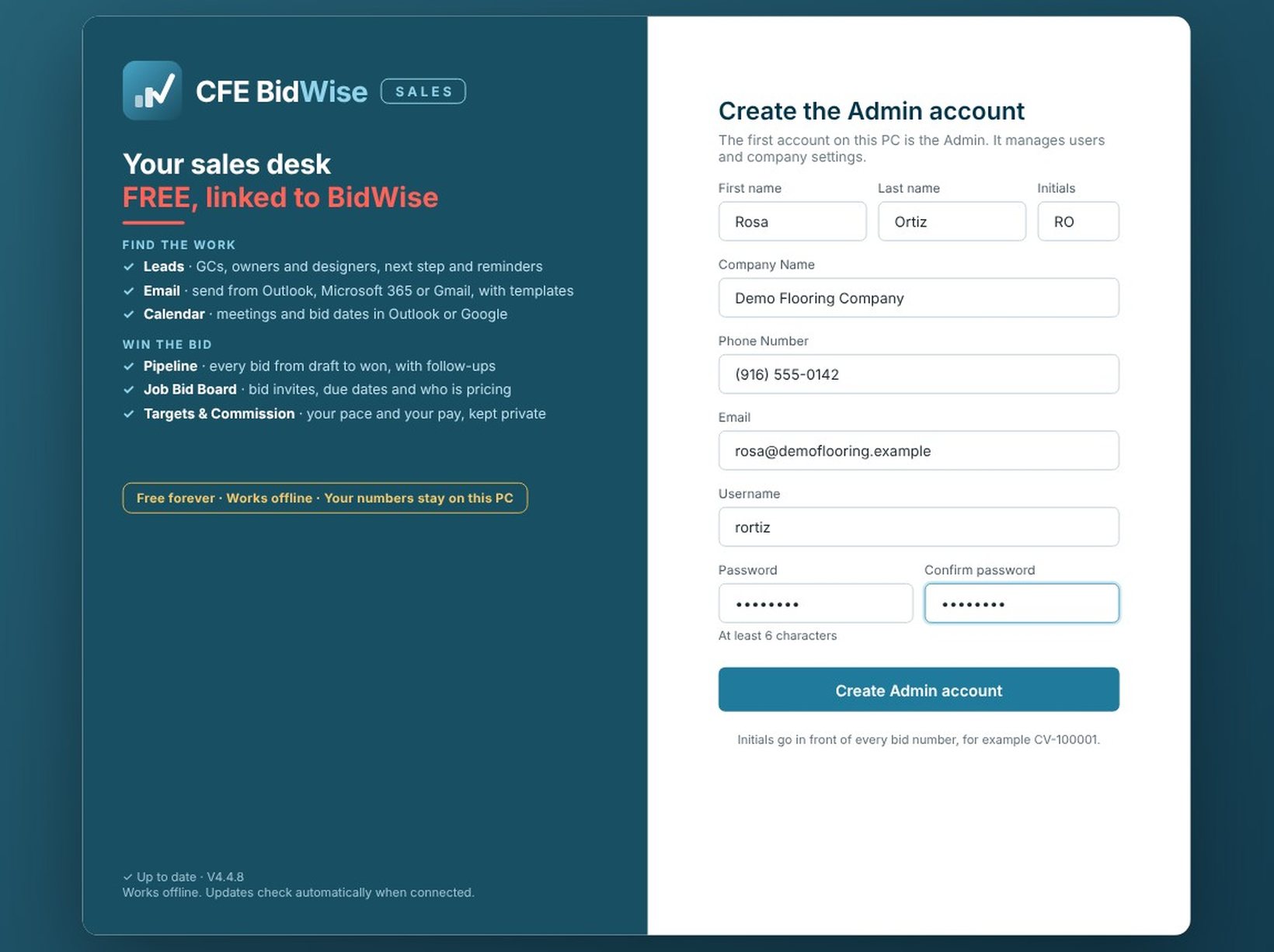
Download BidWise Sales and run the installer. It opens on Create the Admin account. Type your first and last name, your initials, your company, phone and email. Your initials go in front of every bid number, like RO-100001.
Pick a username and a password of at least 6 characters, then press Create Admin account.
2Save your recovery code
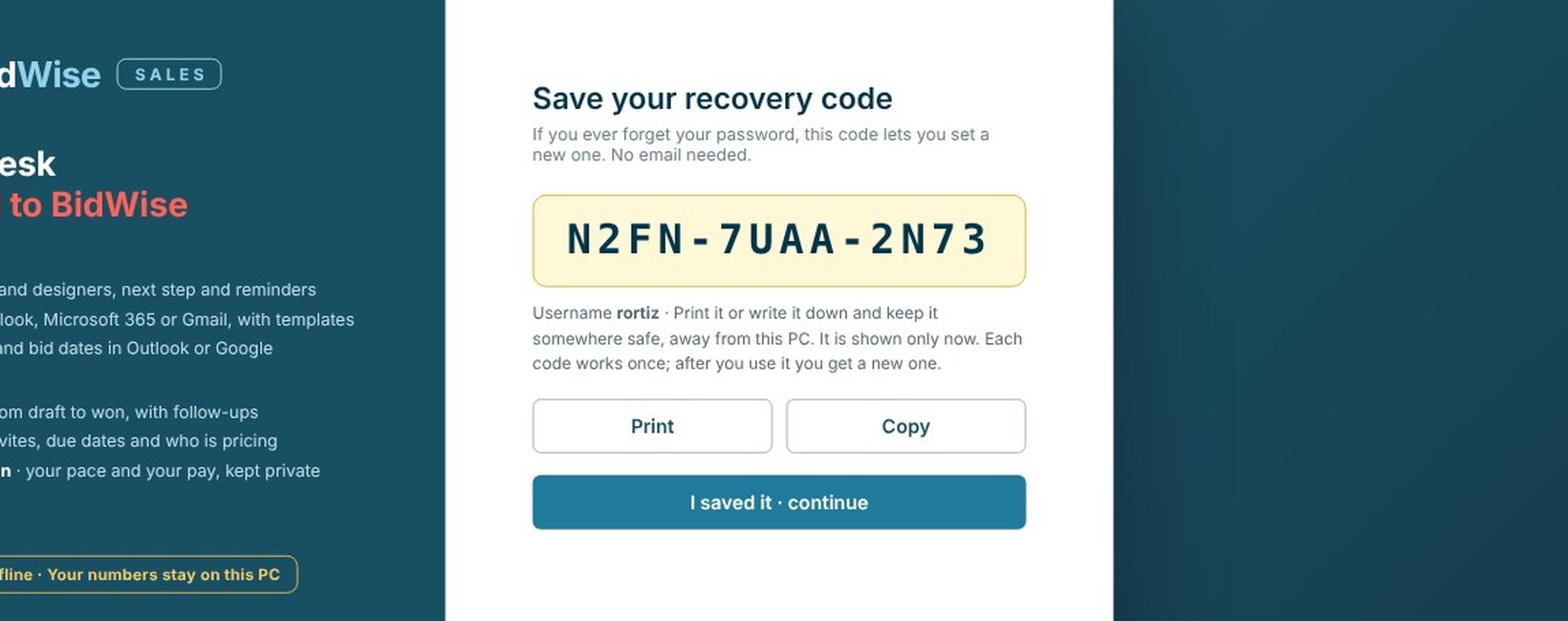
BidWise Sales shows your recovery code once. Print it or copy it, and keep it away from this PC. If you forget your password, this code lets you set a new one. No email needed. Press I saved it.
Write the recovery code on paper and keep it in your truck or desk drawer, not in a file on the same PC. If the PC dies, the code still gets you back in.
3Accept the license agreement
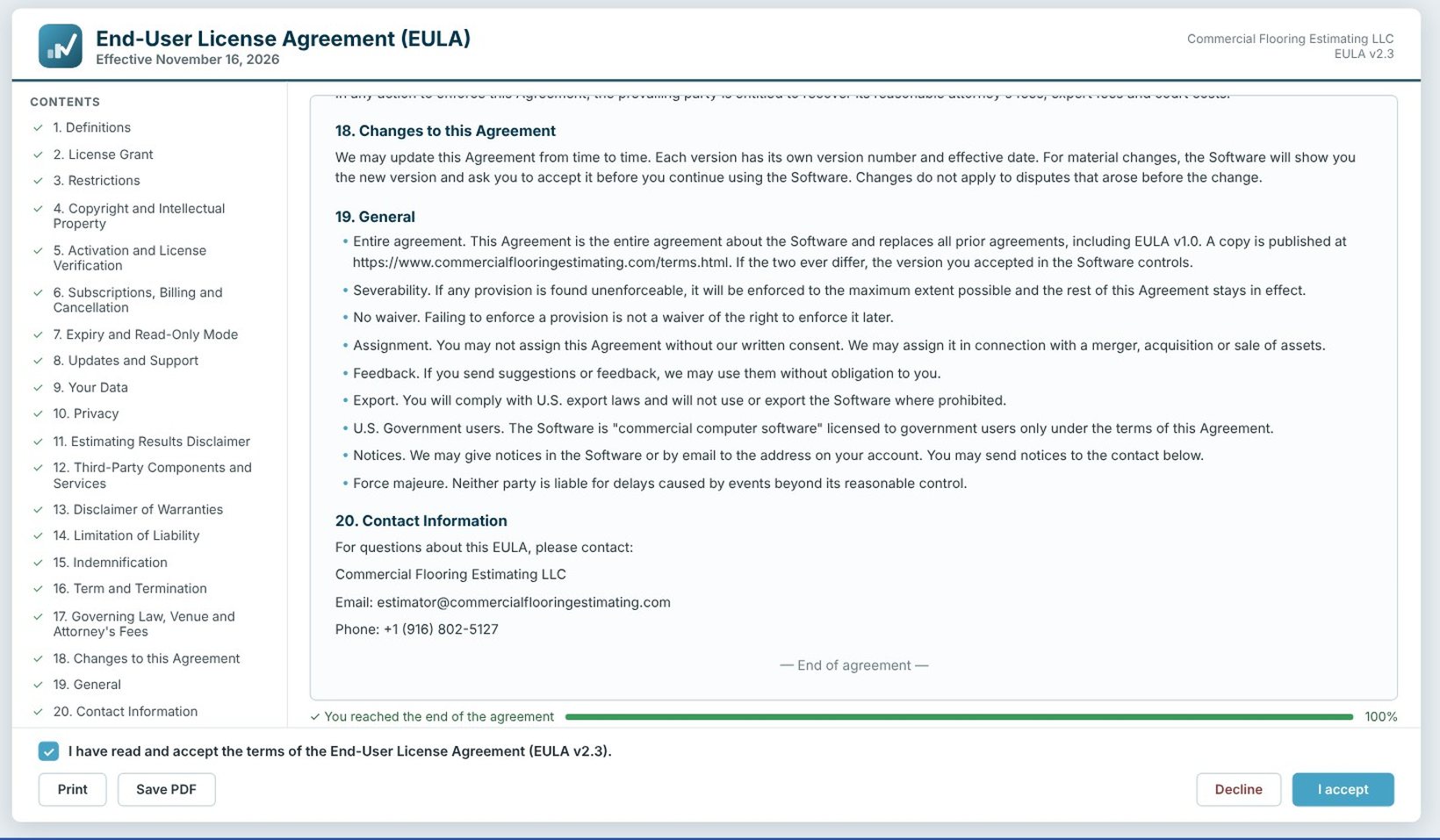
Scroll the license agreement to the end. The tick box unlocks at the bottom. Tick I have read and accept, then press I accept.
4Your dashboard
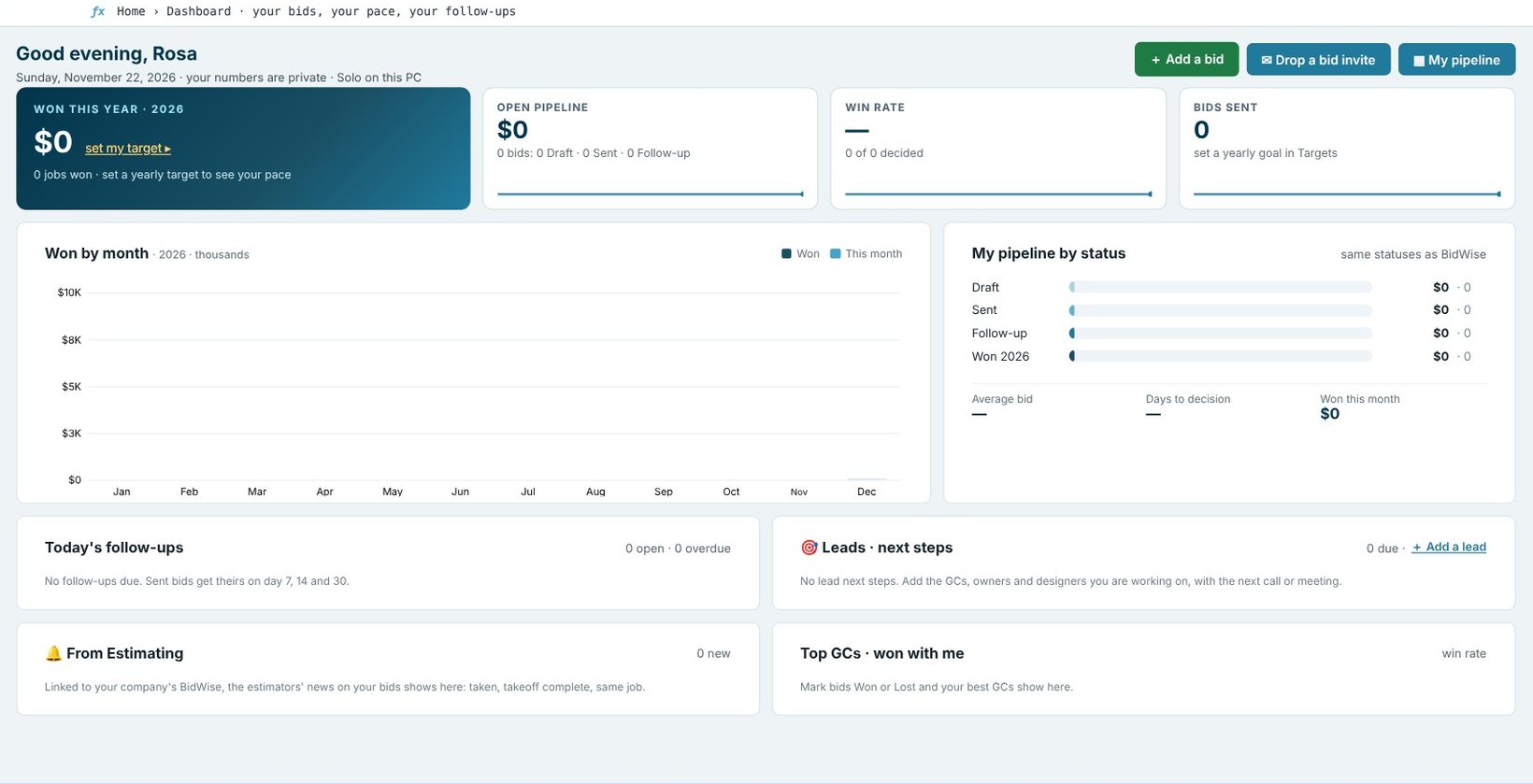

Your dashboard opens. Won this year, open pipeline, win rate and bids sent are on top, all zero for now. Below are today's follow-ups and your leads' next steps.
In Settings, How I use it, keep Solo, just me. If your company has CFE BidWise, pick Connected and type its invite code. Below it, under My profit percent is, pick Profit margin or Profit mark-up, the same way your company figures profit. Ask your boss if you are not sure. Once you are linked to your company, your Hub Master sets it in CFE BidWise and it is locked here.
5Add your first bid

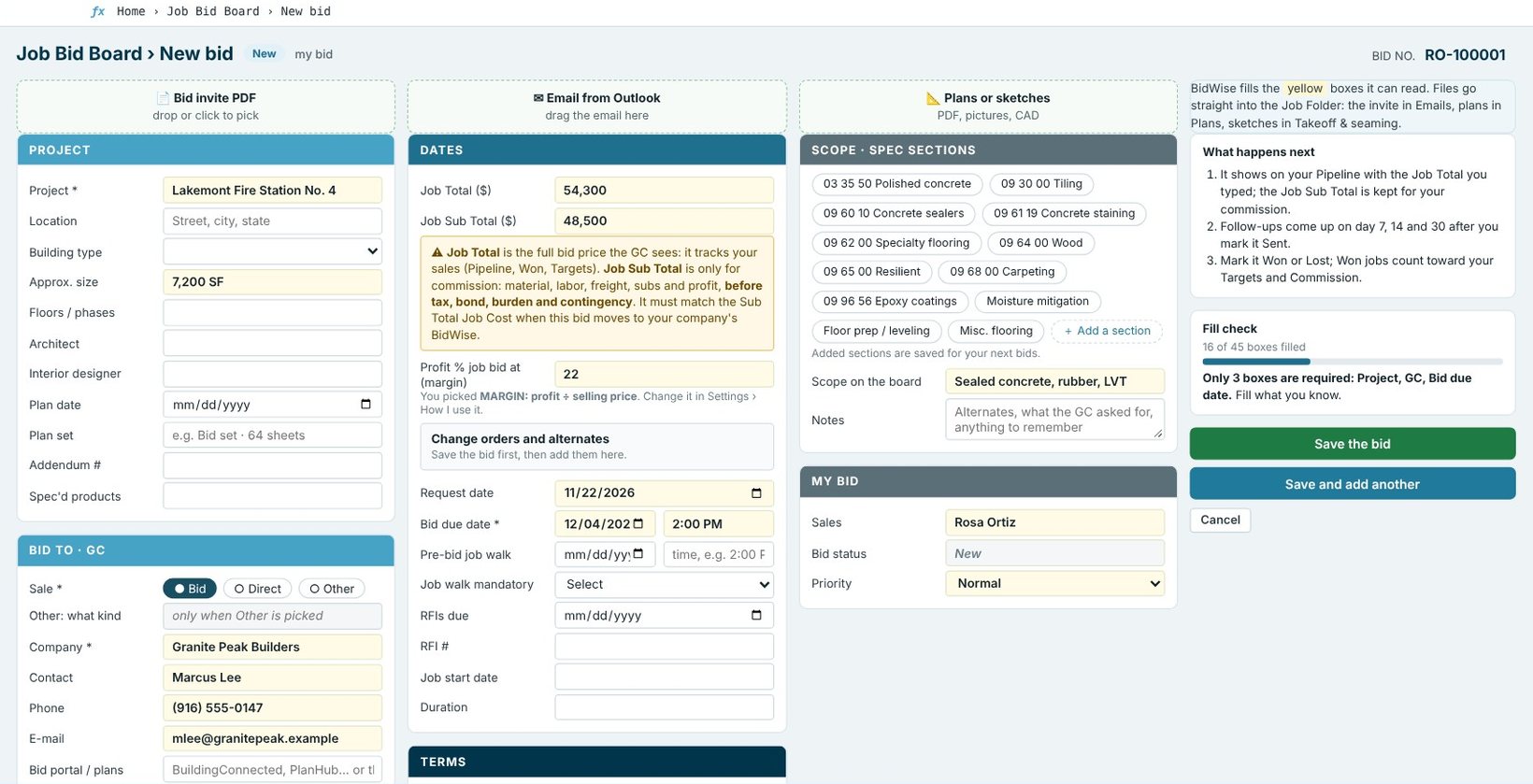
Press Add a bid. Only 3 boxes are needed: Project, GC or customer, and Bid due date. Type the Job Total: your full bid price. It counts in your pipeline, your wins and your targets.
Then the Job Sub Total, before tax, bond, burden and contingency. It is only for your commission. Then the profit percent you bid the job at. Under it, BidWise Sales shows if you picked margin or mark-up. Check it every time: 22 percent margin and 22 percent mark-up pay different commission.
Under Sale, pick Bid, Direct or Other. Contact, phone, email, size and scope are optional. More details has the dates, terms, scope sections and the files for the Job Folder.
Press Save the bid. It gets its number, RO-100001, and shows on your Job Bid Board and Pipeline.
6What can go wrong, and how to fix it


The bid will not save. A required box is empty: fill Project, GC and Bid due, then press Save again.
Your commission looks too high. You typed the full price as the Job Sub Total. The Job Sub Total is before tax, bond, burden and contingency.
Your commission does not match the company. Your profit percent is set to mark-up, but your company uses margin. Change it in Settings, How I use it, My profit percent is.
You forgot your password. Press Forgot password on the sign-in screen and type your recovery code.
Worked example: Rosa's first bid
| Box | What Rosa typed |
|---|---|
| Project | Lakemont Fire Station No. 4 |
| GC / customer | Granite Peak Builders |
| Bid due date | 12/04/2026, 2:00 PM |
| Job Total | $54,300 |
| Job Sub Total | $48,500 |
| Profit % (margin) | 22% |
| Bid number | RO-100001 |
Three boxes, her full price for sales, and her Job Sub Total for commission. The bid is numbered, dated and on the board in under a minute.
What to do next
Next: Leads: add, call, meet, then bid. Or see all the step-by-step guides.
Your sales desk, free
BidWise Sales is free for commercial flooring salesmen. It works offline, your numbers stay on your PC, and it links to CFE BidWise when your company has it.
Frequently Asked Questions
What is the difference between Job Total and Job Sub Total?
Job Total is your full bid price, used for your pipeline, wins and targets. Job Sub Total is before tax, bond, burden and contingency, and is used only for your commission. Typing the full price as the Job Sub Total makes your commission wrong.
Margin or mark-up: which one do I pick?
The way your company figures profit. Pick it once in Settings, How I use it, My profit % is. Under the profit box each bid says which one you picked, so you can check it every time.
Is BidWise Sales really free?
Yes. BidWise Sales is free for flooring salesmen, with no trial and no credit card.
Do I need CFE BidWise to use it?
No. Pick Solo, just me, and it works on its own. If your company has CFE BidWise, you can connect later with an invite code.
What are the 3 boxes?
Project, GC or customer, and Bid due date. Everything else is optional and can be added later.

Written by
Cristian Valcu – Founder & CEO, Commercial Flooring Estimating LLC
Cristian has estimated commercial flooring for over 20 years and built CFE BidWise around the way flooring contractors actually price, propose and track their bids.
Last updated: