
CFE guide · BidWise Sales
BidWise Sales Targets, Commission and Commission Draw
Open Targets and press Set my targets. Type your yearly target and bids sent goal; the dashboard then shows your pace. Commission figures your pay on every won job from the bid amount and profit % you typed, with the system your company uses: percent of gross profit, percent of job sub total, point for point, shop cut or tier incentive. Change orders and accepted alternates count too. Each job’s commission stays Potential until you close the job with the profit % it closed at, then it is Final. A monthly commission draw is counted too. Private: it stays on your PC.


Why it matters
A yearly number in your head is easy to miss by October. A chart that shows each month against the target tells you in March.
Salesmen are paid in different ways: a percent of profit, tiers, a shop cut, a draw against commission. BidWise Sales uses the same five systems as CFE BidWise, so the number you see is the number you are owed.
The 5 steps
- Open TargetsYour pace by month.
- Set my targetsYearly target, bids goal.
- My commissionPotential and final.
- Commission setupYour company's system.
- What can go wrongWrong profit %.
1Open Targets

Open Targets under Performance. The cards show your yearly target, won so far, bids sent and win rate. Won by month shows each month against the dashed target line.
2Set your targets
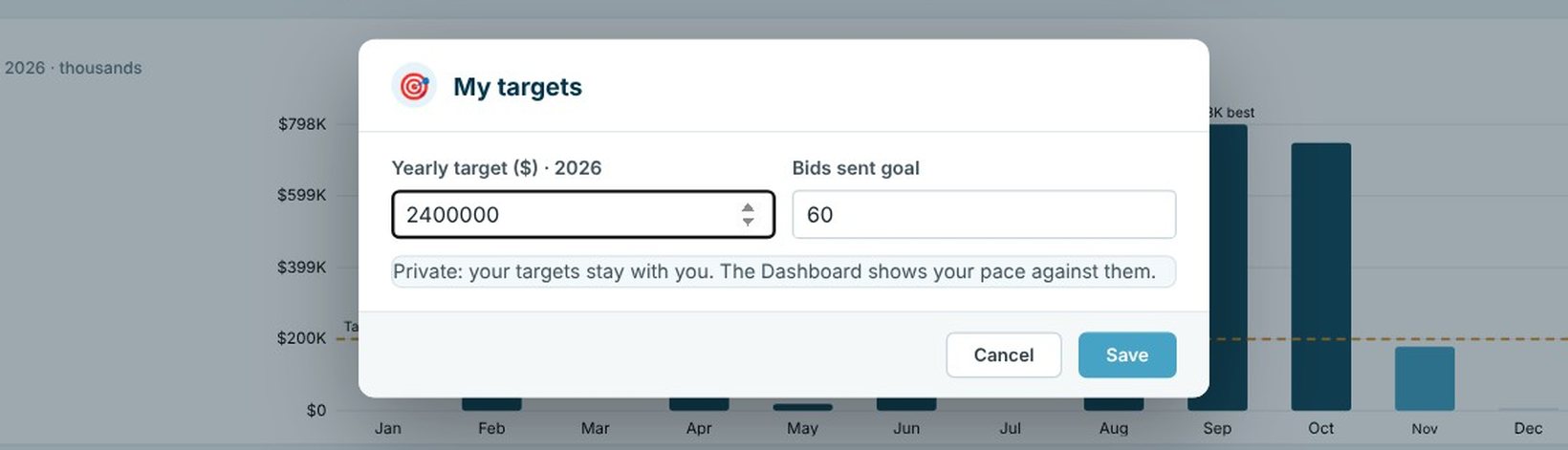
Press Set my targets. Type your yearly target in dollars and your bids sent goal. Press Save. Your dashboard now shows your pace against it.
Pick My profit % is in Settings, How I use it, the way your company figures profit: margin (profit divided by the selling price) or mark-up (profit divided by the cost). The bid, the job closing box and My commission setup all show which one you picked. One wrong setting changes every job.
3Check your commission

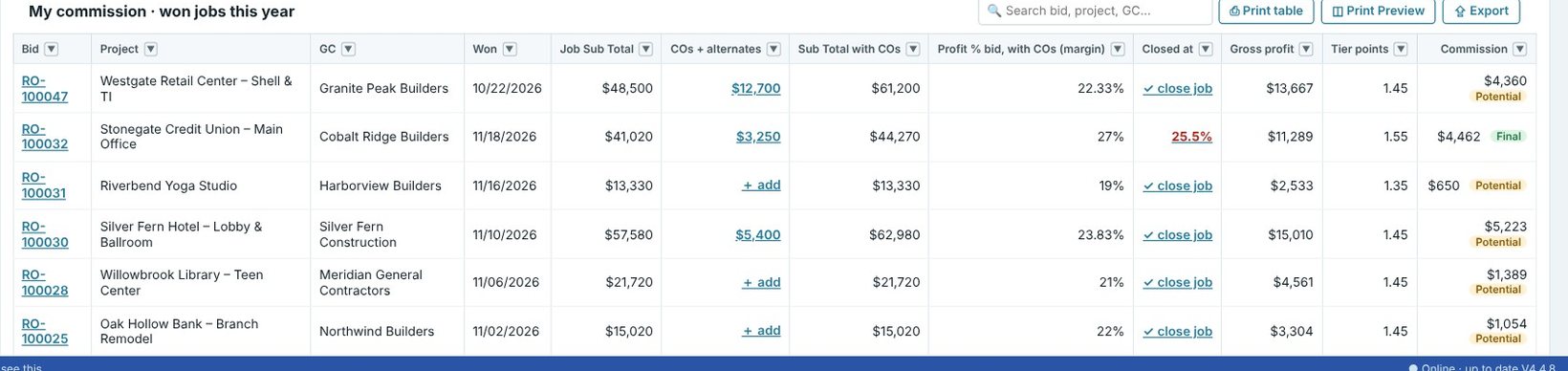
Open Commission. The top card shows your commission this year: what is final, from closed jobs, and what is still potential. A job stays potential until it closes. Press close job on its line and type the profit percent it closed at.
With a commission draw, you see the draw taken, how much of it your commission covers, and what is earned above the draw. Each won job shows the Job Sub Total, change orders and alternates, the profit percent you bid and the percent it closed at, and your commission, tagged Potential or Final.
4Set up your commission
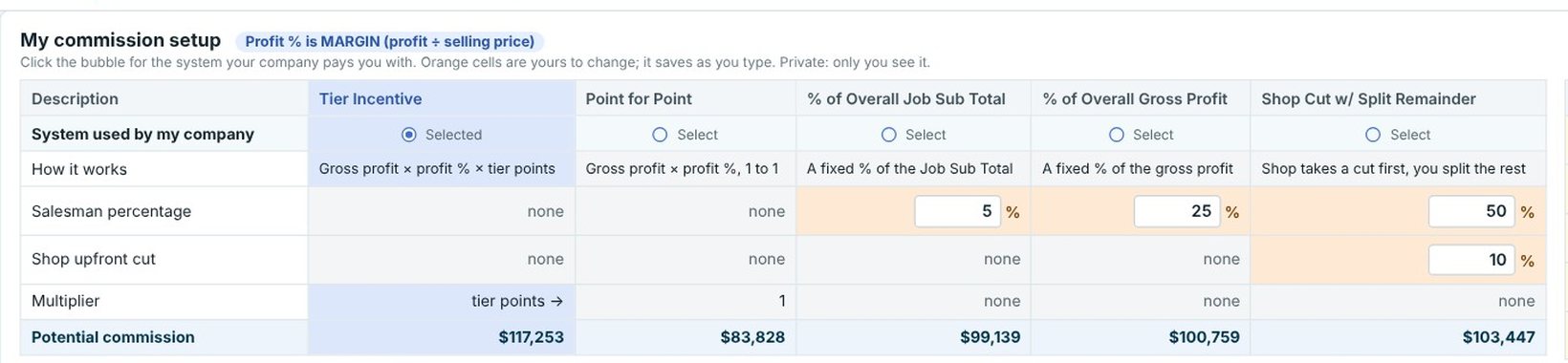
Under My commission setup, click the bubble for the system your company pays you with: tier incentive, point for point, percent of the job sub total, percent of the gross profit, or shop cut. The tag on top says if your profit percent is margin or mark-up. It must be the way your company figures profit. Margin is profit divided by the selling price; mark-up is profit divided by the cost. Switch it with Mark-up or Margin on the right. When you are linked, your Hub Master sets it.
Type your numbers in the orange cells; they save as you type. Pick mark-up or margin, and for tier incentive, the points for each profit level. The bottom row shows what each system would pay you this year, so you can check it against your pay stub.
If your company pays you a draw each month, tick My company pays me a commission draw, and type the draw and the month it started.
5What can go wrong, and how to fix it
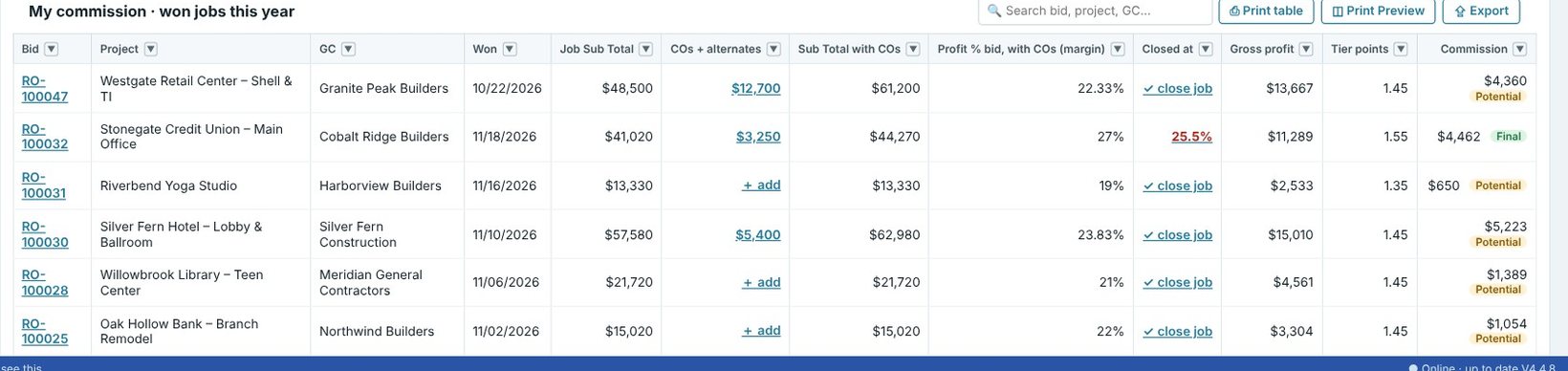

A job pays too little. Check the profit percent you typed on the bid; your commission is figured from it.
Your commission does not match your pay stub. Check the tag: your company figures profit as margin, but you picked mark-up, or the other way. Switch it, and every number is figured again.
Your boss asks for your numbers. Commission stays private on your PC, and is never on the dashboard.
Worked example: Rosa, 2026, Tier Incentive
| Item | Amount |
|---|---|
| Won Job Sub Totals | $1,982,780 |
| Gross profit | $403,037 |
| My commission | $117,253 |
| Draw taken, $6,000 a month | $66,000 |
| Earned above the draw | $51,253 |
The draw is covered 178 percent, and Rosa knows exactly what the company owes her.
What to do next
Next: File page: print, import, export, back up. Or see all the step-by-step guides.
Your sales desk, free
BidWise Sales is free for commercial flooring salesmen. It works offline, your numbers stay on your PC, and it links to CFE BidWise when your company has it.
Frequently Asked Questions
Who can see my commission?
Only you. In BidWise Sales it stays on your PC and is never on the dashboard.
Is my profit percent margin or mark-up?
The one you pick in Settings, How I use it, My profit % is. The tag on My commission setup and the line under the profit box on each bid show it. 22% margin and 22% mark-up pay different commission, so pick the way your company figures it.
Which commission systems are there?
Percent of overall gross profit, percent of overall job sub total, point for point, shop cut, and tier incentive, the same five as CFE BidWise.
How does the commission draw work?
Tick My company pays me a commission draw and type the monthly draw. The draw counts against your commission, and only what is earned above it is owed.

Written by
Cristian Valcu – Founder & CEO, Commercial Flooring Estimating LLC
Cristian has estimated commercial flooring for over 20 years and built CFE BidWise around the way flooring contractors actually price, propose and track their bids.
Last updated: