
CFE guide · BidWise Sales
Set Up BidWise Sales Step by Step: Every Setting, in Order
Open Settings in BidWise Sales and work left to right. In How I use it pick Solo or Connected, then pick Profit margin or Profit mark-up. In My options set your Leads, Email and Calendar tabs. Add your signature, pick a Backup folder and click Back up now. Every bid, email and calendar date uses these settings.


Why it matters
BidWise Sales works the moment it is installed, but a few choices change every number it shows. Margin or mark-up changes every profit % and every commission. Your signature goes on every email. Your calendar choice decides where every bid date lands.
Ten minutes now saves fixing fifty bids later. If you have not installed BidWise Sales yet, start with Install BidWise Sales and add your first bid.
The 6 steps
- Open SettingsThe Settings ribbon, left to right.
- How I use itSolo or Connected.
- Profit margin or mark-upChanges every profit %.
- My optionsLeads, Email, Calendar.
- BackupsPick a folder, back up now.
- What can go wrongEmails, dates, profit.
1Open Settings and work left to right
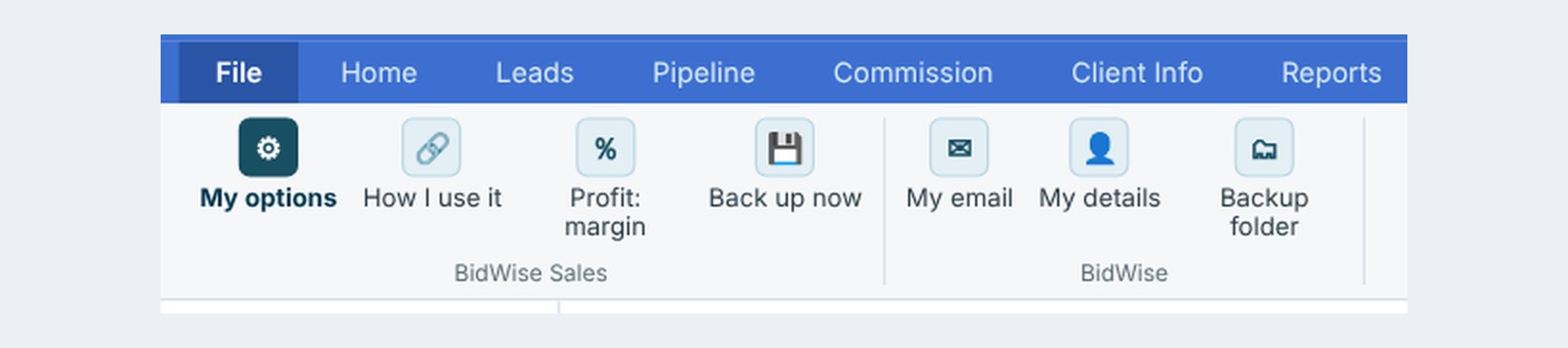
Click Settings on the ribbon. The buttons run left to right in the order you set them: My options, How I use it, Profit: margin, Back up now, My email, My details and Backup folder.
We start with How I use it, because it decides the rest.
2Pick Solo or Connected
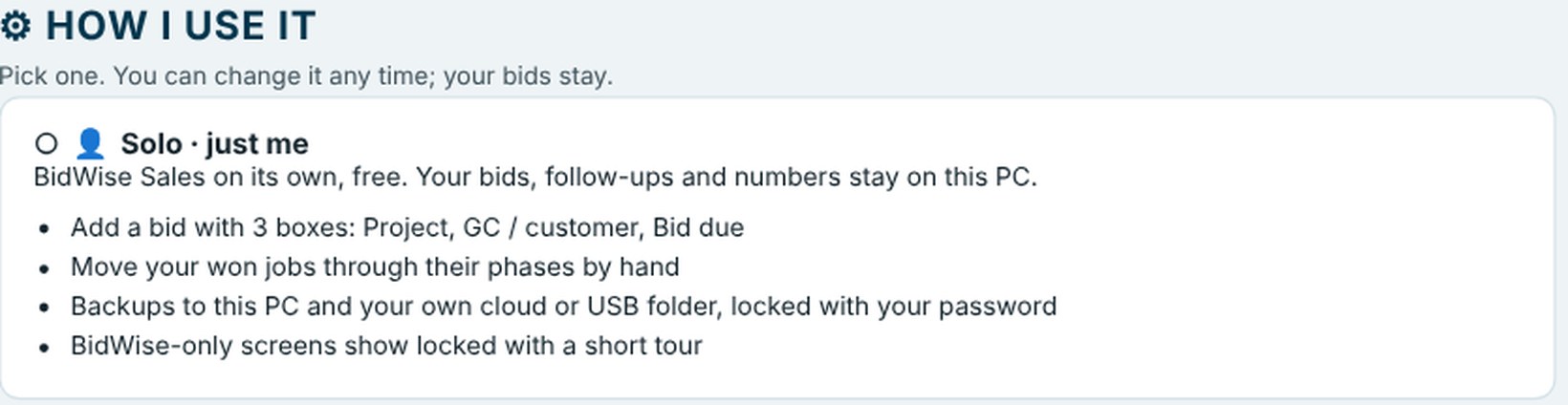
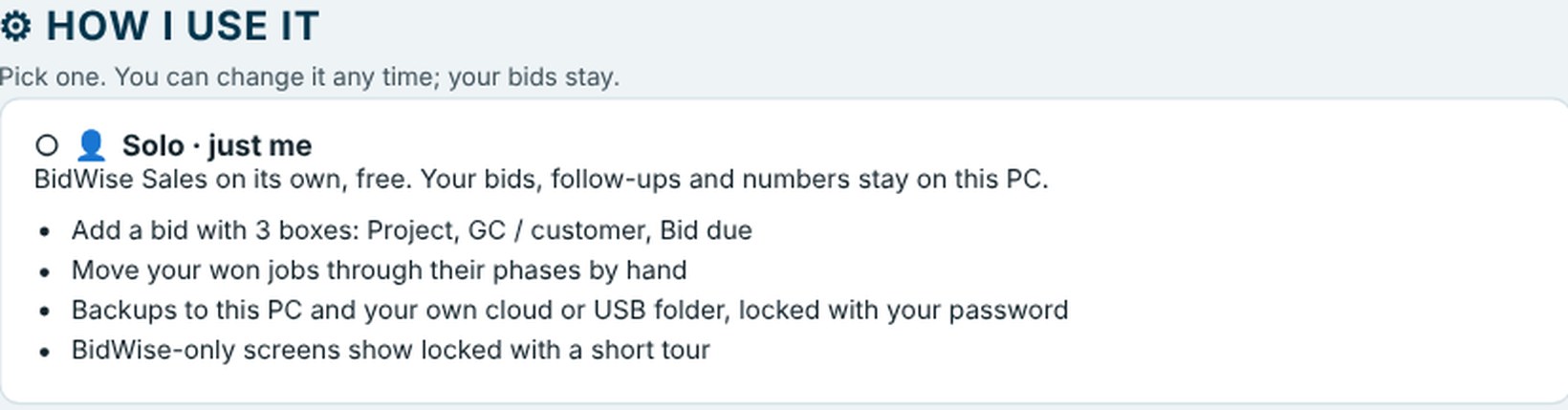
Click How I use it. Solo · just me keeps BidWise Sales on its own, free: your bids, follow-ups and numbers stay on this PC.
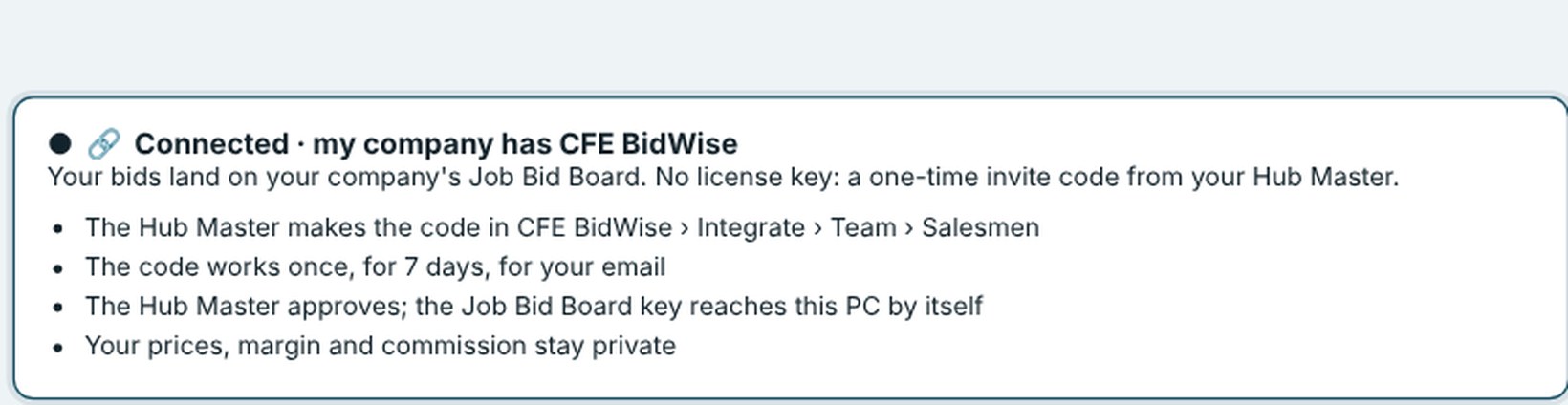
Connected · my company has CFE BidWise sends your bids to the company’s Job Bid Board. You need a one-time invite code from your Hub Master. You can change this any time, and your bids stay.
3Pick how your profit % is figured
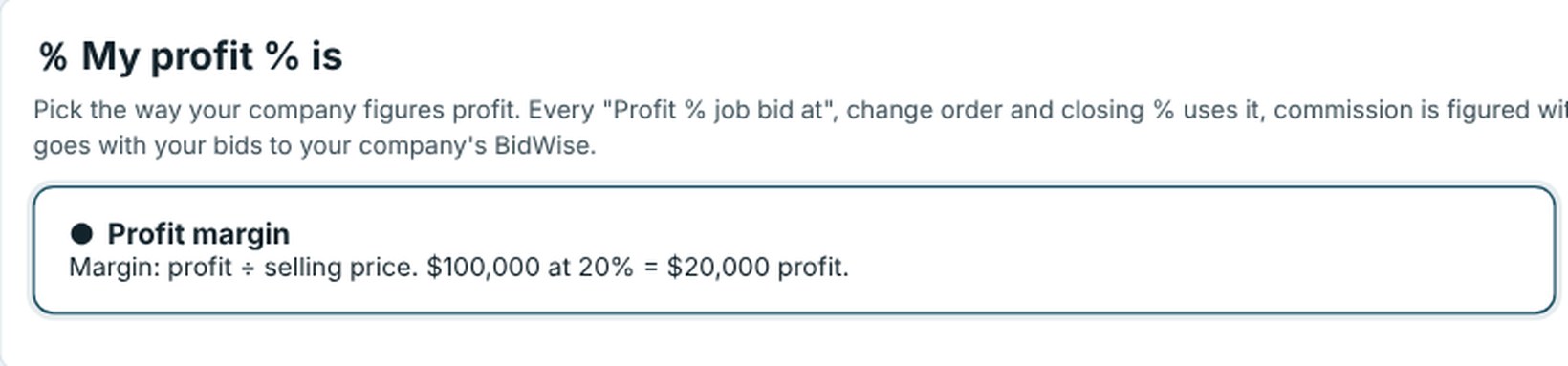

Under My profit % is, pick the way your company figures profit. Profit margin is profit divided by the selling price: a $100,000 bid at 20% is $20,000 profit.
Profit mark-up is profit divided by cost: the same bid at 20% is $16,667 profit. Every profit %, change order and commission uses this choice.
Ask your office which one the company uses before you enter your first bid. When you are Connected, the company setting wins anyway.
4Set the My options tabs
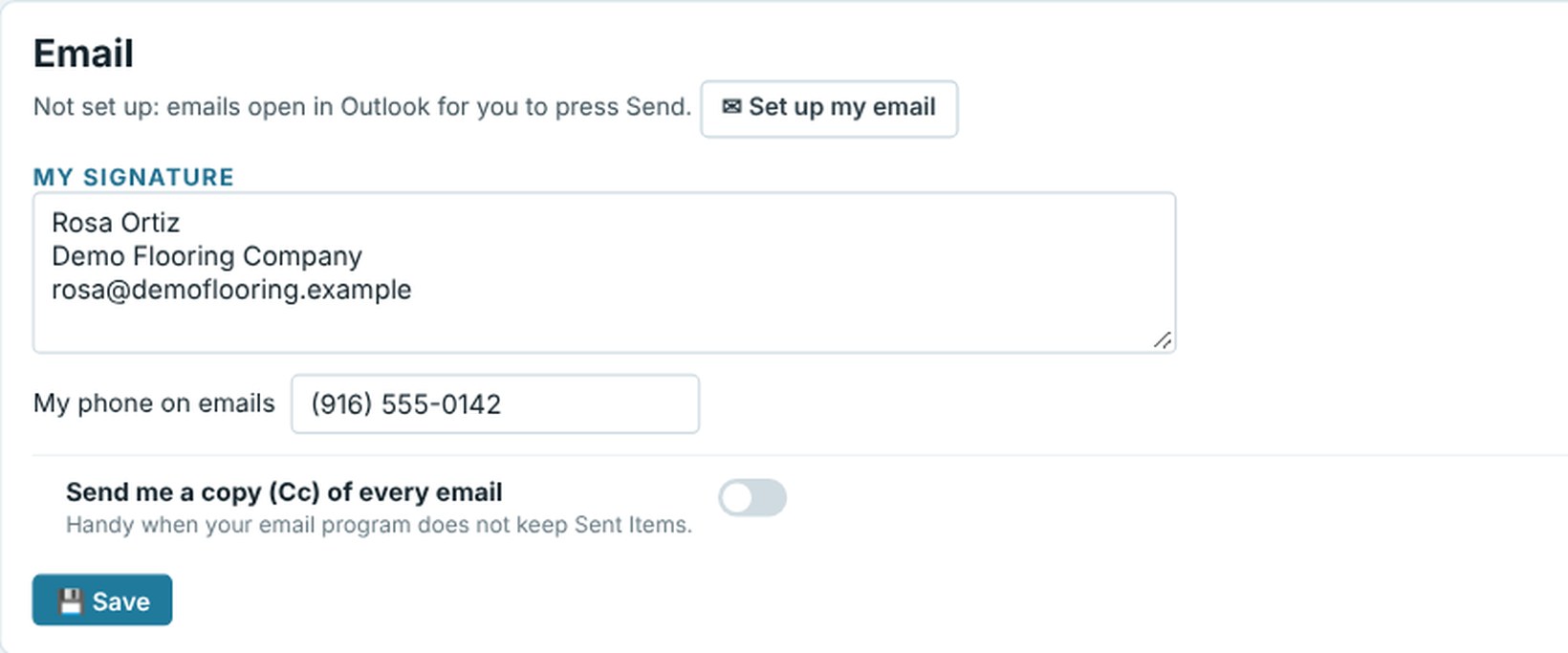
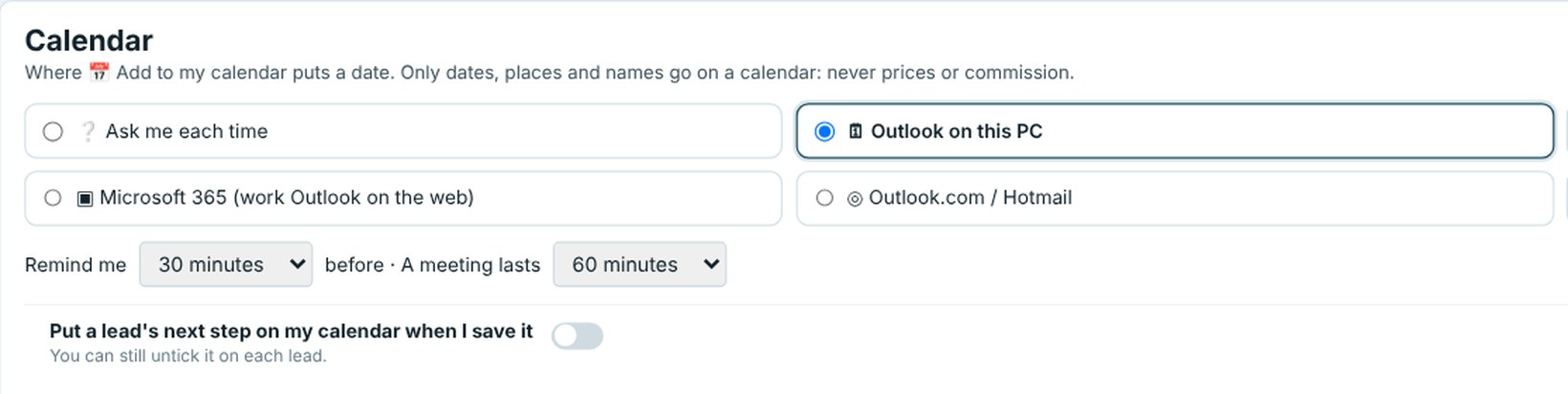
Click My options. On the Leads tab, pick your lead sources and the boxes a lead needs. On the Email tab, type your signature and the phone number for your emails, then click Set up my email to send from your own account.
On the Calendar tab, pick where dates go: Outlook on this PC, Google Calendar, Microsoft 365 or a calendar file. Set Remind me 30 minutes before, and Save.
5Pick a backup folder and back up
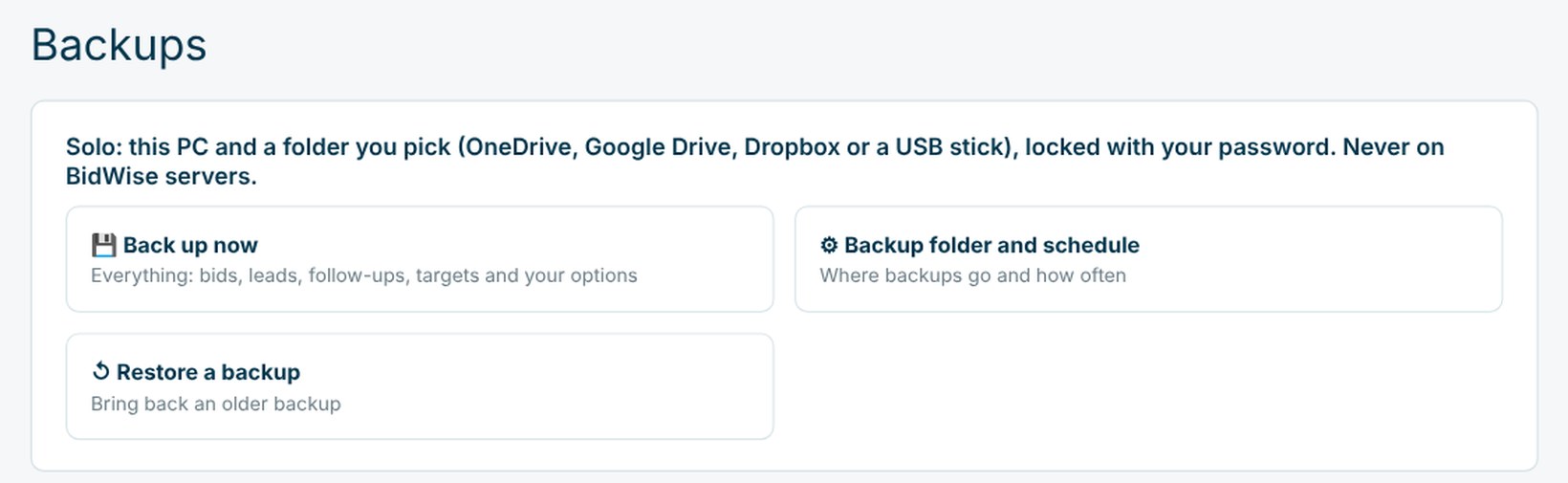
Click Backup folder and pick a folder you trust: OneDrive, Google Drive, Dropbox or a USB stick. Backups are locked with your password and never go to BidWise servers.
Set how often under Backup folder and schedule, then click Back up now once to be sure it works.
6What can go wrong, and how to fix it
Emails open in Outlook instead of sending. Your email is not set up yet. Click Set up my email on the Email tab and sign in with Microsoft or Google.
Dates do not show on your calendar. Pick a calendar on the Calendar tab and click Save.
The profit % looks wrong. Margin or mark-up is set the wrong way. Change it in How I use it. When Connected, ask your Hub Master.
Worked example: Rosa’s first ten minutes
Rosa installed BidWise Sales this morning:
| Setting | Rosa picks |
|---|---|
| How I use it | Solo for now, Connected when her company sends the code |
| My profit % is | Profit margin |
| Leads | Contact person required, warn me about duplicates |
| Signature, phone (916) 555-0142 | |
| Calendar | Outlook on this PC, remind me 30 minutes before |
| Backups | OneDrive folder, Back up now |
Now every bid Rosa adds has the right profit, every email has her signature, and every date lands in Outlook.
What to do next
Next, learn to read your numbers on The BidWise Sales Dashboard. Or see all the step-by-step guides.
Set up once, sell every day
BidWise Sales is free for salesmen. Download it and go through the settings in ten minutes. It works offline, your numbers stay on your PC, and it links to CFE BidWise when your company has it.
Frequently Asked Questions
Do I have to be Connected?
No. Solo is free and works on its own. Connect later with an invite code; your bids stay.
Where are my backups kept?
On this PC and in a folder you pick, locked with your password. Never on BidWise servers.
Can I change margin or mark-up later?
Yes, in How I use it. When Connected, the company setting is used.

Written by
Cristian Valcu – Founder & CEO, Commercial Flooring Estimating LLC
Cristian has estimated commercial flooring for over 20 years and built CFE BidWise around the way flooring contractors actually price, propose and track their bids.
Last updated: