
CFE guide · BidWise Job Board
Open the BidWise Demo and the BidWise Sales Demo With One Sign-Up
Install the BidWise Demo and you get two icons: the orange CFE BidWise Demo for the office and the blue BidWise Sales Demo for salesmen. Sign up once with your name and email, type the 6-digit key we email you, and click Open the sample jobs. Both demos open the same made-up company and 40 sample jobs, and the 30 days count once.


Why it matters
The office and the salesmen use different apps. Estimators, project managers and the office work in CFE BidWise. Salesmen work in the free BidWise Sales app, and their bids land on the company’s Job Bid Board, which comes with CFE BidWise Personal and Business.
The BidWise Demo download gives you both, on the same made-up company, so you can see a bid from both sides before you buy anything.
The 5 steps
- Find the two iconsOrange and blue.
- Sign up onceName, company, email.
- Type the key6 digits from the email.
- Look aroundThe orange bar.
- Jump to the Sales DemoSame jobs, no new sign-up.
1Find the two icons on your desktop
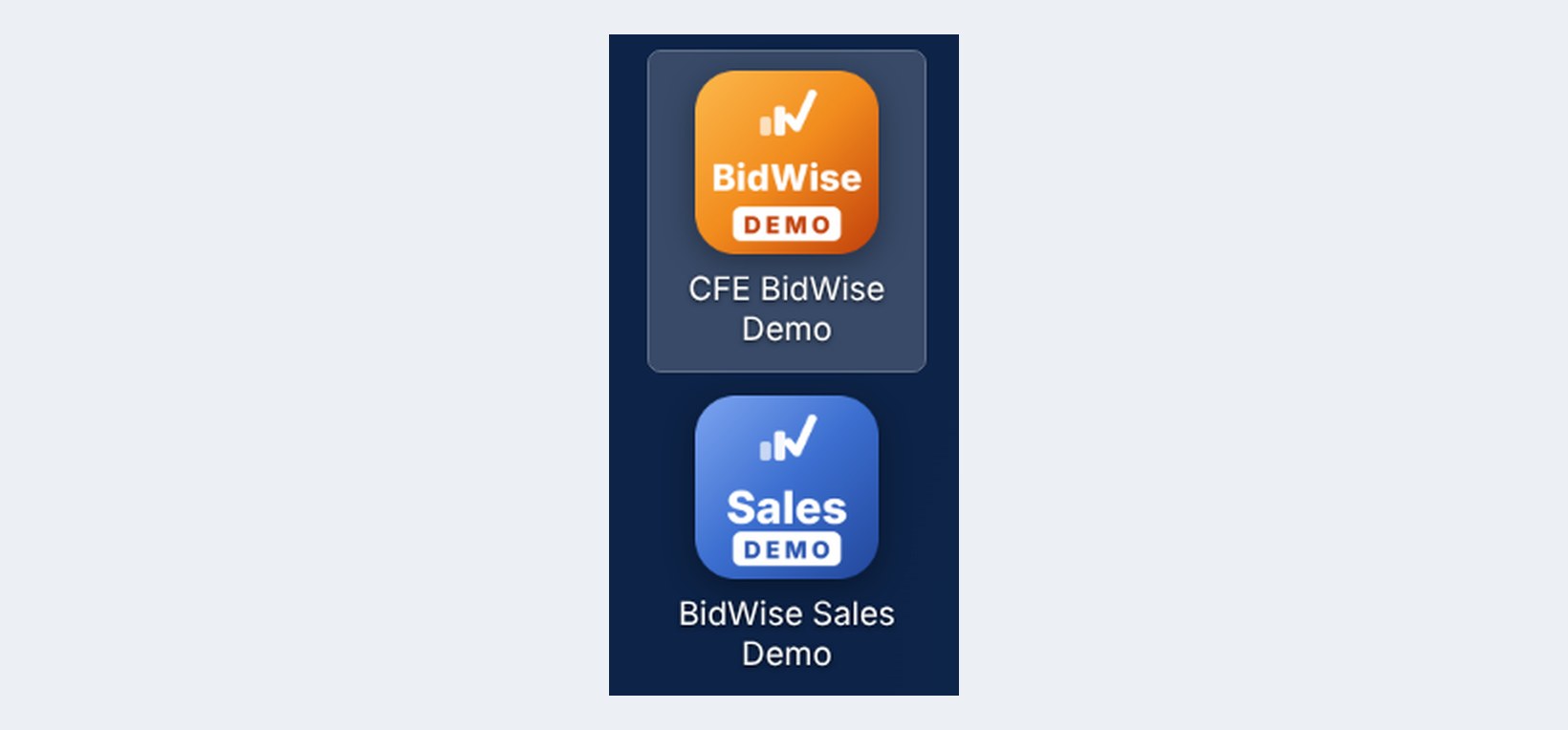
After the BidWise Demo installs, your desktop and Start menu have two new icons. The orange CFE BidWise Demo is the full program the office uses. The blue BidWise Sales Demo is the free app for salesmen.
Open either one first. They share one sign-up.
2Sign up once
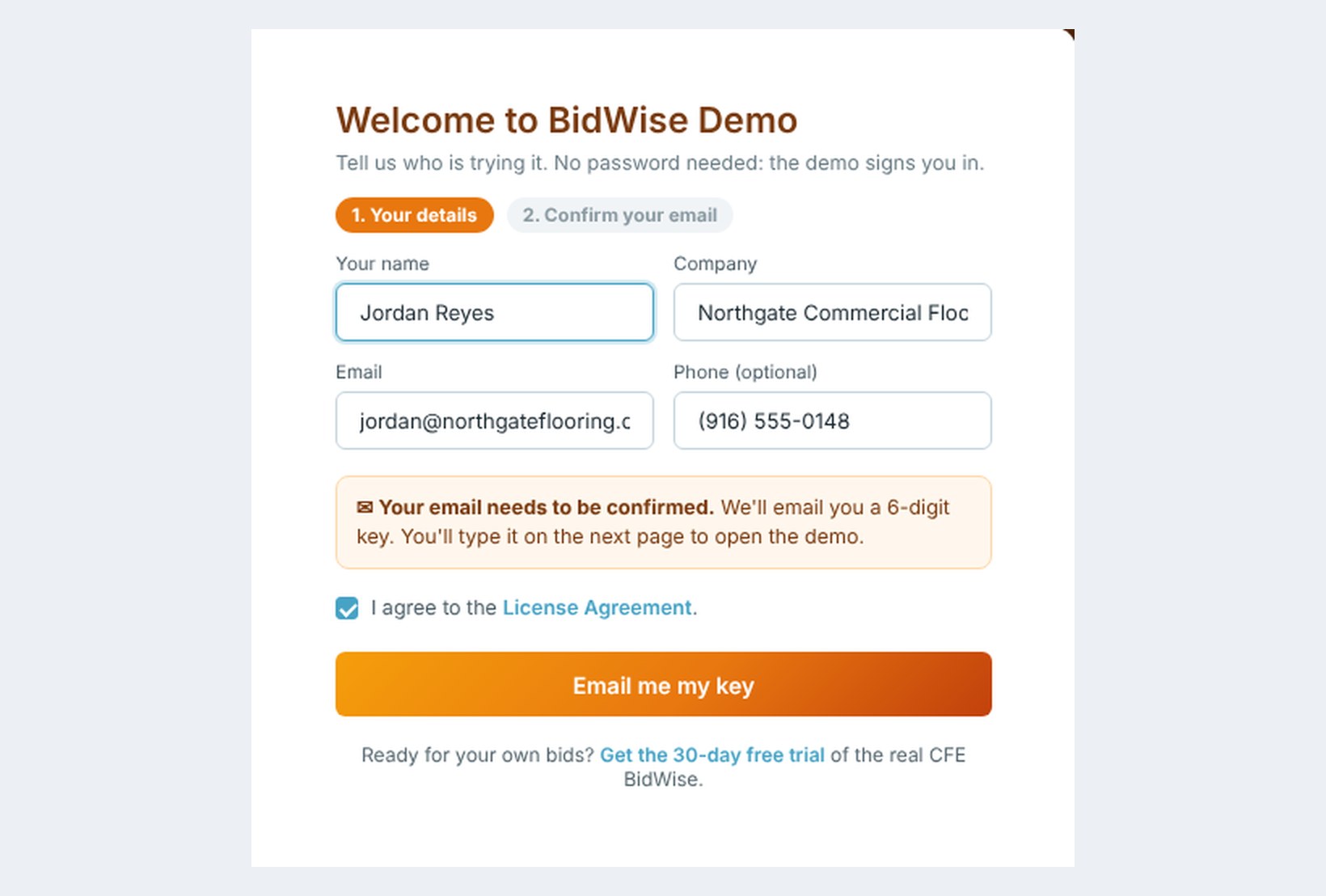
Type your name, company and email. The phone is optional. Tick I agree to the License Agreement and click Email me my key.
No password is needed. The demo signs you in.
3Confirm your email with the 6-digit key
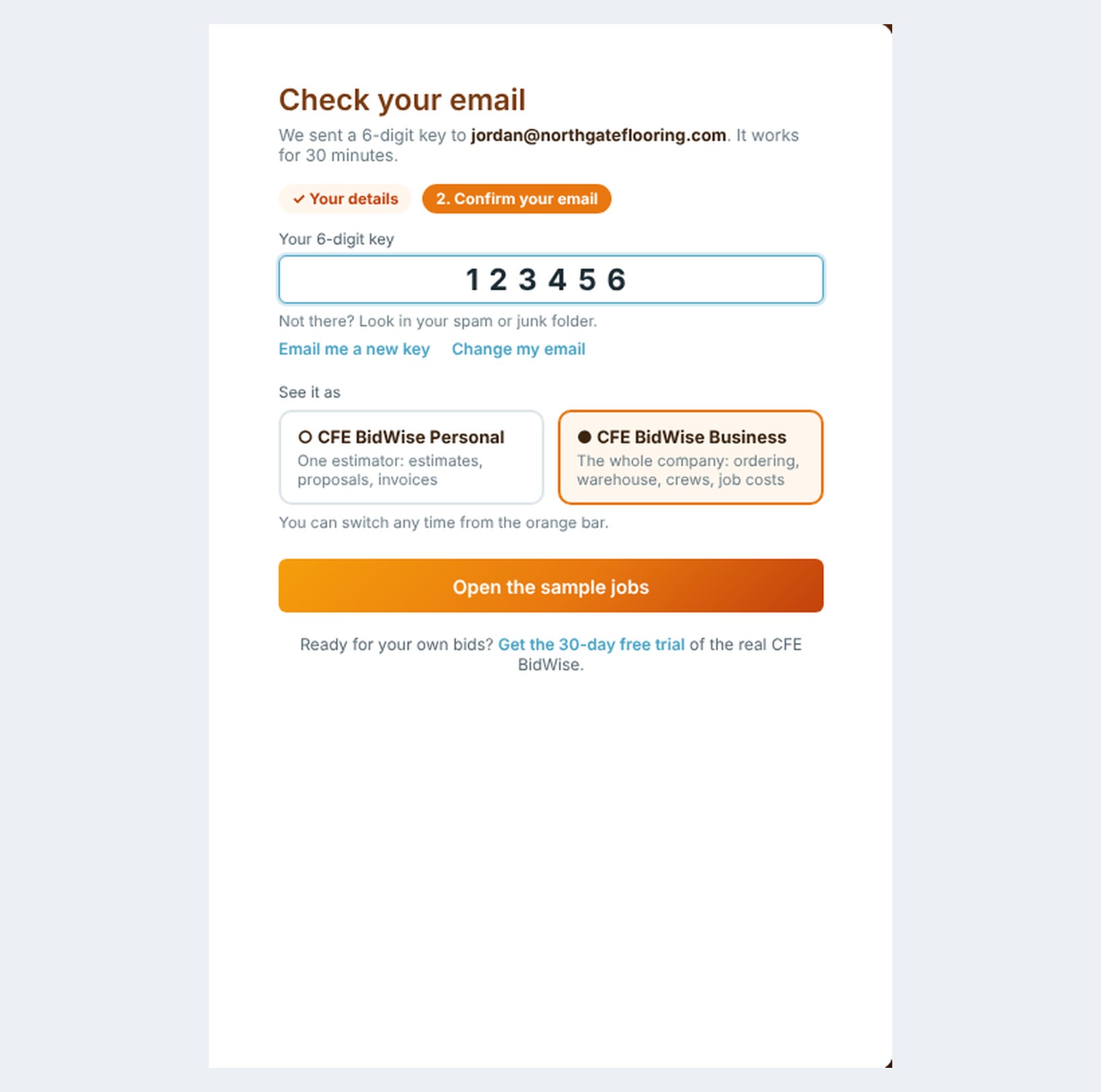
Open the email from BidWise and type the 6 numbers. The key works for 30 minutes. Not there? Look in your spam or junk folder, or click Email me a new key.
Pick how you want to see it, CFE BidWise Personal or Business, and click Open the sample jobs. The first time takes about 15 seconds while the 40 sample jobs are built.
4Look around BidWise Demo
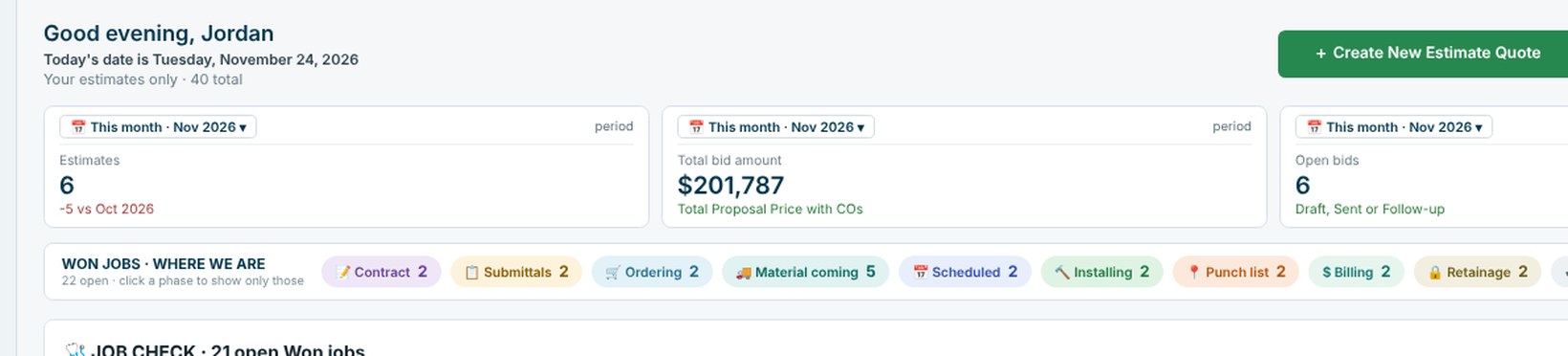

The orange bar at the top is the demo’s control panel. See it as flips between Personal and Business, Reset sample jobs puts everything back, and Open BidWise Sales Demo jumps to the other app.
5Jump to the BidWise Sales Demo
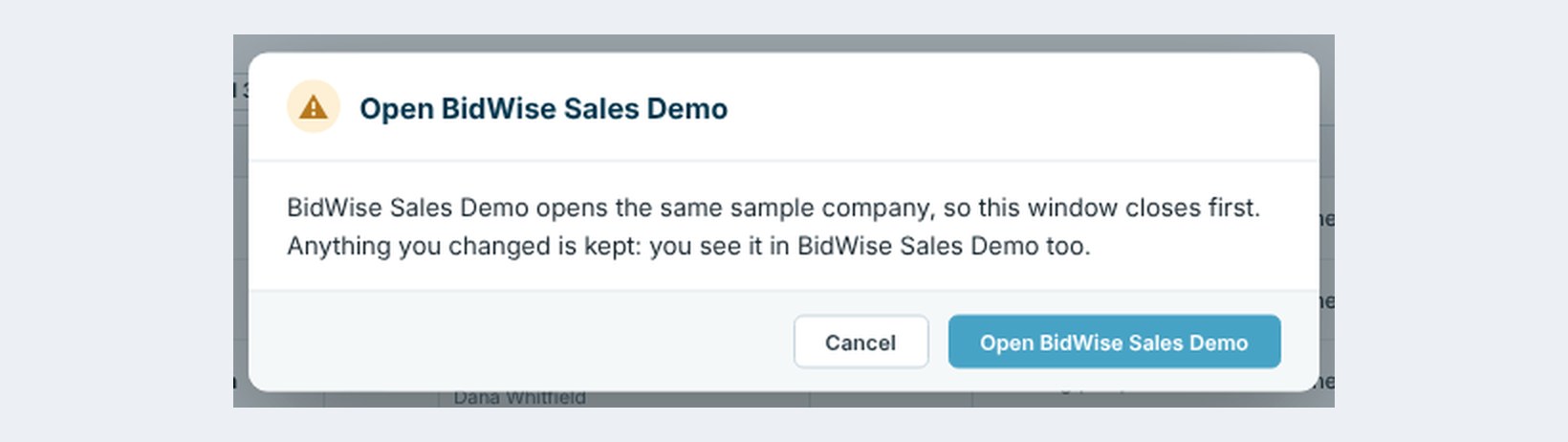
Click Open BidWise Sales Demo. The two demos share one database, so they open one at a time: this window closes first, and anything you changed is kept.
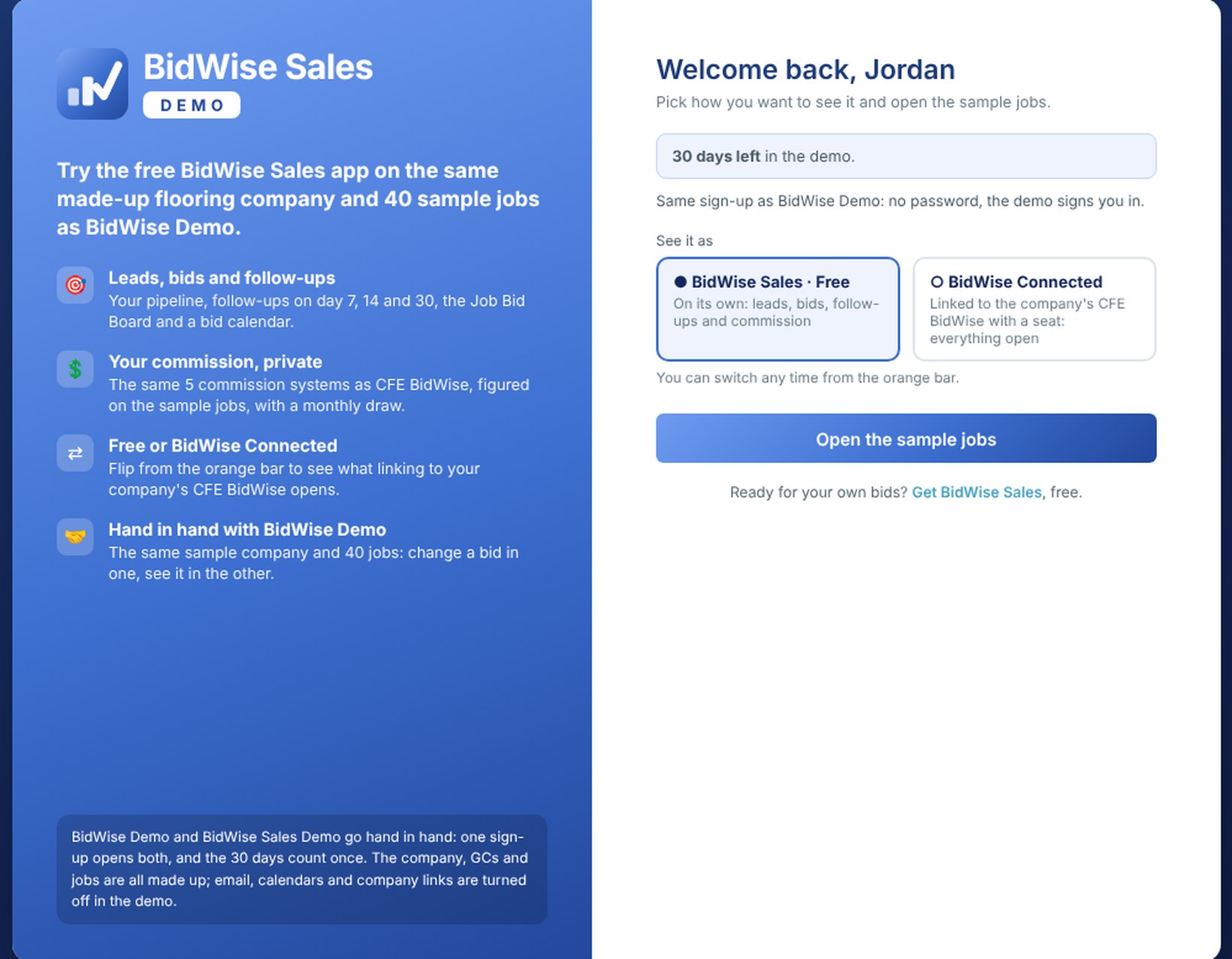
The blue Sales Demo says Welcome back, with no new sign-up. Pick Free or BidWise Connected and open the same 40 sample jobs.
Change a bid in one demo and open the other: you see the change there too. The 30 days count once for both.
What you get in the download
One BidWise Demo download, one sign-up:
| Icon | App | Who it is for | Sample jobs |
|---|---|---|---|
| Orange | CFE BidWise Demo | Estimators and the office | 40 |
| Blue | BidWise Sales Demo | Salesmen | The same 40 |
Both run 30 days from the first sign-up.
What to do next
Next, see what changes when a salesman links to the company in Sales Demo: Free vs BidWise Connected. Or see all the step-by-step guides.
Try both demos
Download the free BidWise Demo: CFE BidWise and BidWise Sales on the same 40 sample jobs. The Job Bid Board itself comes with CFE BidWise Personal and Business. The demo runs on its own sample data, so nothing touches your real jobs.
Frequently Asked Questions
Do I need two sign-ups?
No. One sign-up opens both demos, and the 30 days count once.
Can both demos be open at the same time?
No. They share one sample company, so one closes when you open the other. Your changes are kept.
Is the company real?
No. The company, GCs, vendors and jobs are all made up. Email, phones, calendars and QuickBooks Online are turned off in the demo.
Can I start over?
Yes. Reset sample jobs on the orange bar puts the 40 sample jobs back.

Written by
Cristian Valcu – Founder & CEO, Commercial Flooring Estimating LLC
Cristian has estimated commercial flooring for over 20 years and built CFE BidWise around the way flooring contractors actually price, propose and track their bids.
Last updated: