
CFE guide · Your data, backups and support
The Built-In User Guide, With Video Buttons
Click Help › User guide. Type what you are looking for, such as Job Check or stored material, and every topic that mentions it is listed. Each topic has Open this screen, real BidWise pictures, and on the topics a guide video covers, a red Watch the video button with its length. Need more? Email, Video Guides and Remote Support are on the same page.


Why use the built-in User guide?
Most questions come up in the middle of a bid, when there is no time to search the web or wait for a call back. The answer should be in the app, about the screen in front of you, in plain words.
The User guide covers every screen of BidWise, takes you straight to it, and on the bigger topics plays the step-by-step video.
The six steps
- Open the User guideHelp › User guide.
- Search a topicType a word, pick a topic.
- Watch the videoThe red button.
- Open this screenGo straight to it.
- Need more help?Email, videos, online guide.
- What can go wrongNothing found, no video.
1Open the User guide

Click the Help tab, then User guide, the first button. The same ribbon has the SAMPLE walkthrough, Shortcuts, Video Guides, What’s new and Remote Support.
The status bar says how many topics there are: 338.
2Search for what you need
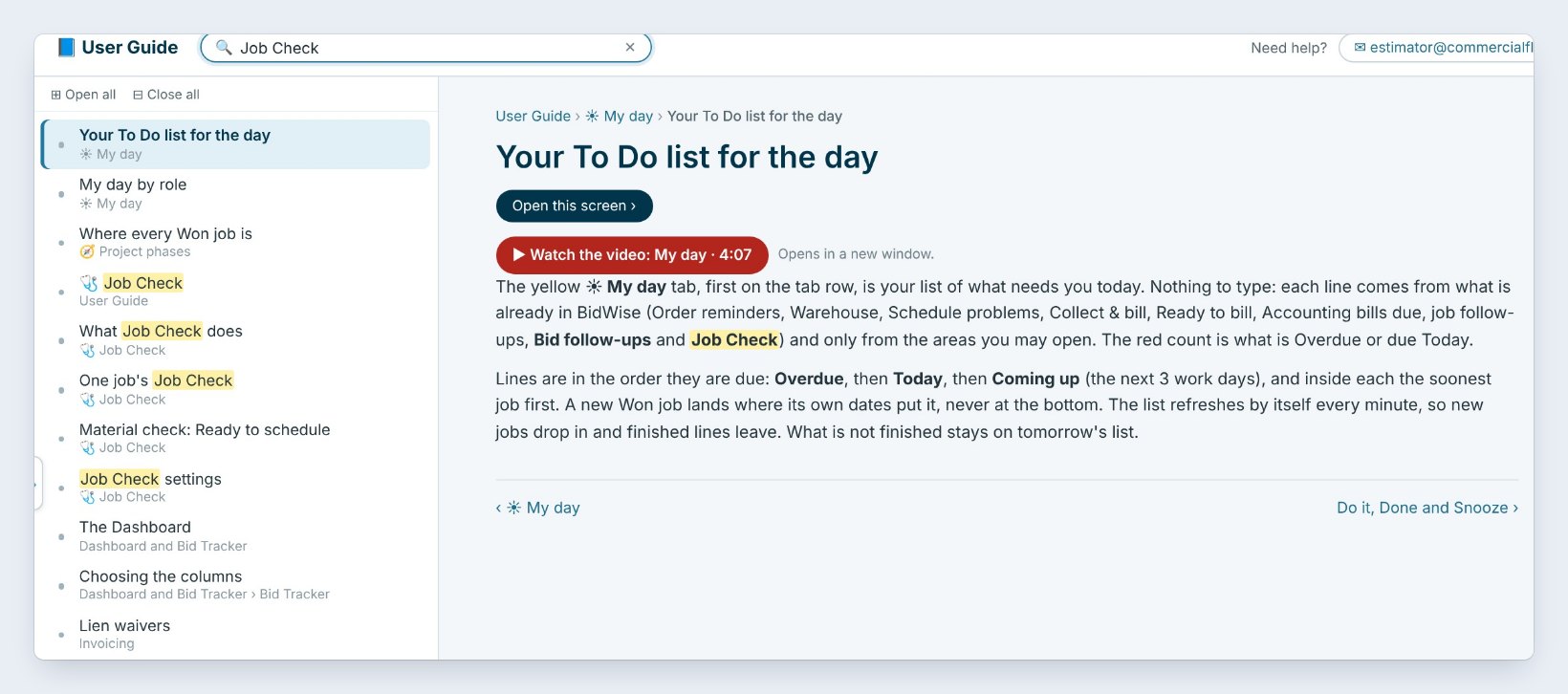
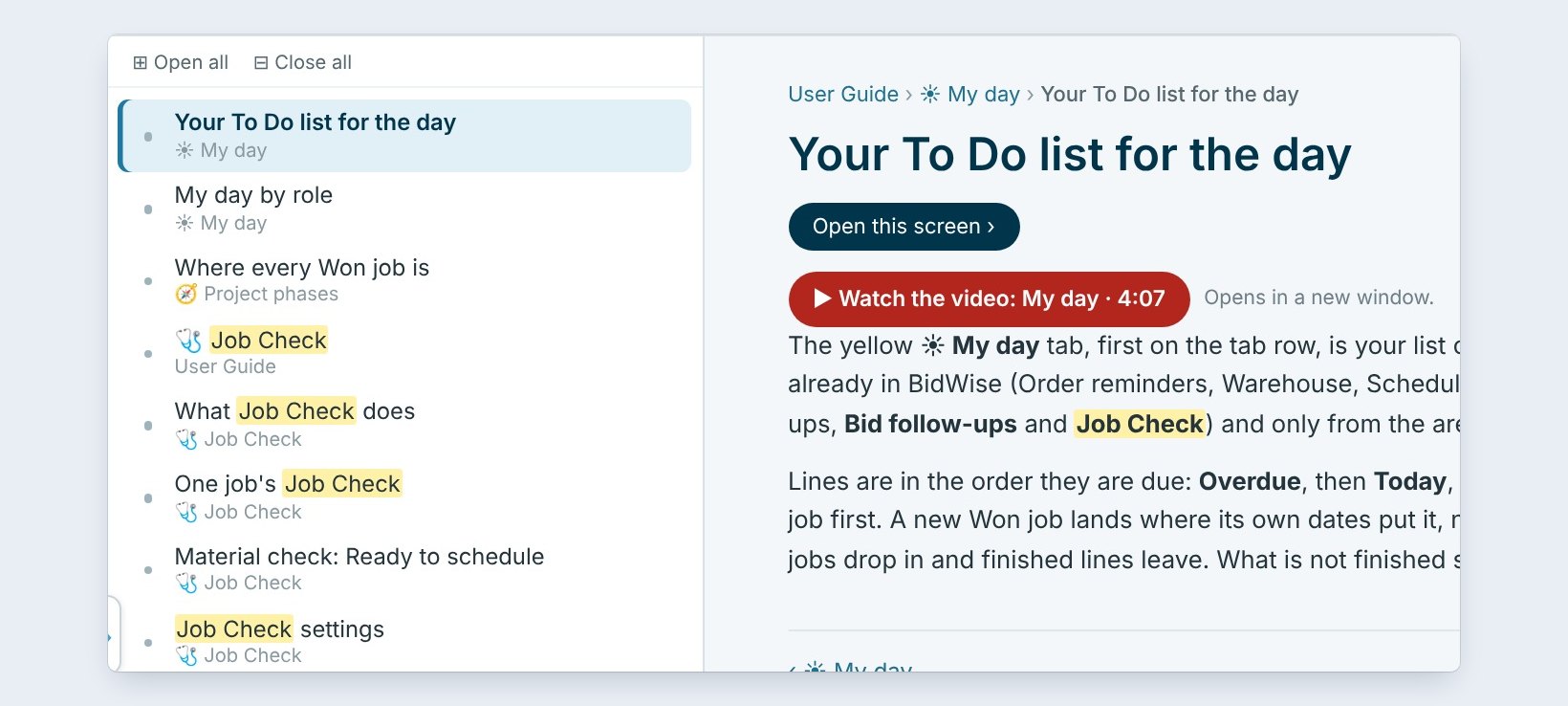
Type in the search box at the top, here Job Check. The list on the left shows every topic that mentions it, with the word highlighted and the part of the app under each one: My day, Project phases, Job Check, Dashboard.
Click a topic to read it. Open all and Close all expand or fold the whole list when you browse without searching.
3Watch the video
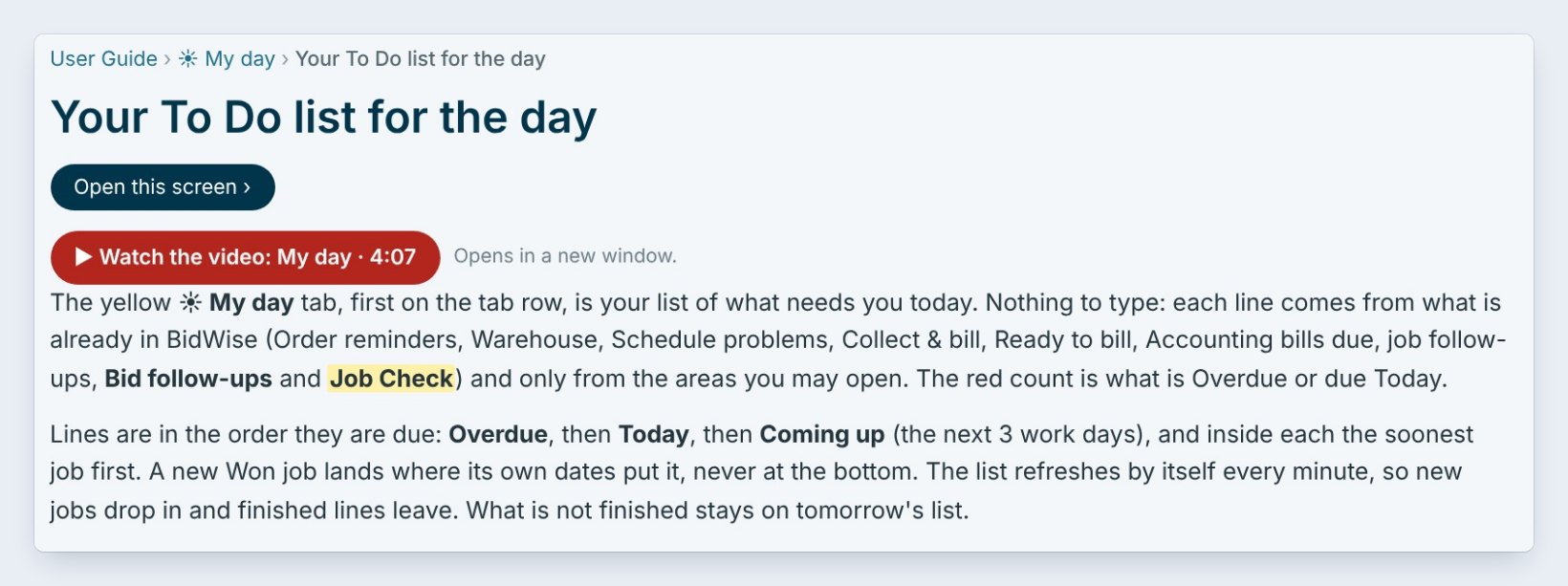
On a topic that a guide video covers, a red button sits under the title: Watch the video: My day, 4:07. It opens in a new window, so the app stays where you were.
The videos are the same step-by-step guides as on our website, one for each part of the app.
Watch the video with the app open next to it, and pause after each step to do it on your own estimate. Ten minutes that way beats an hour of reading.
4Open the screen, and see the picture
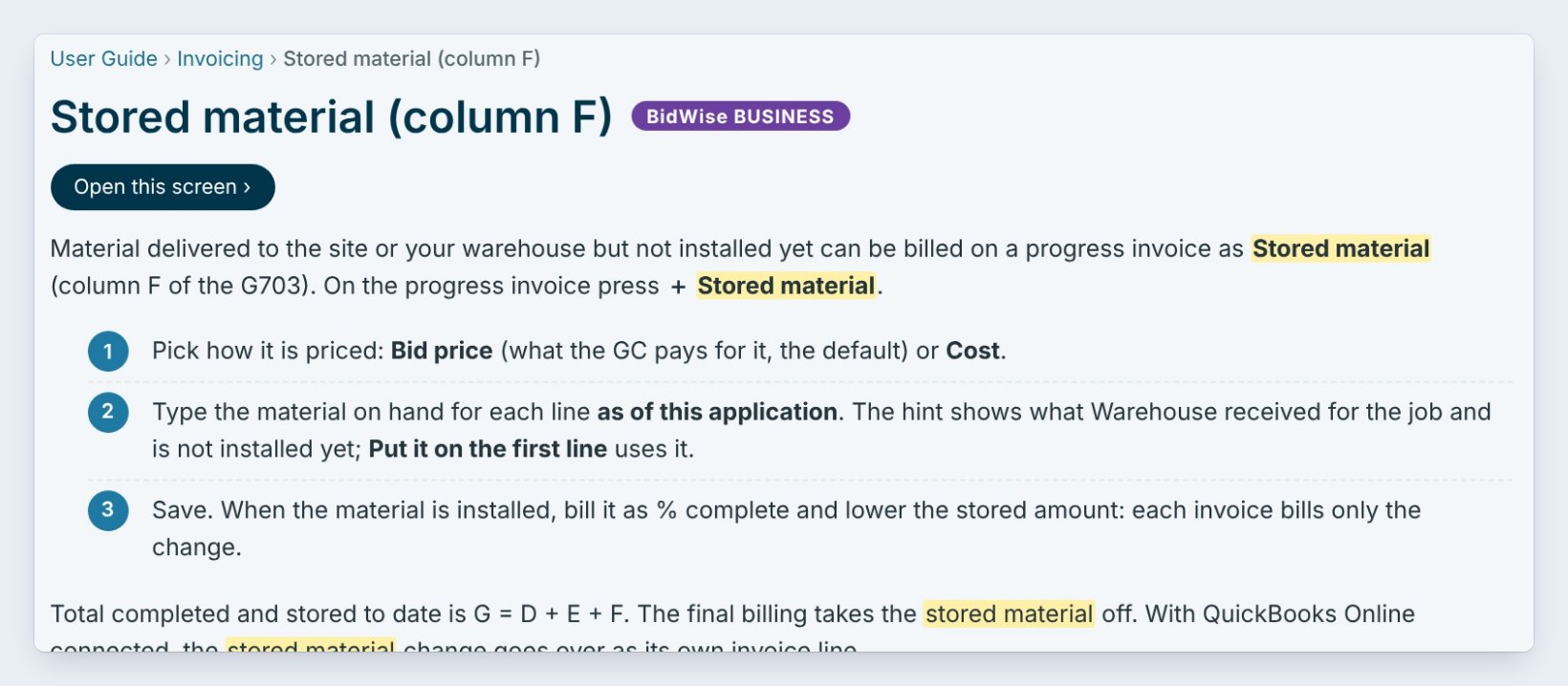
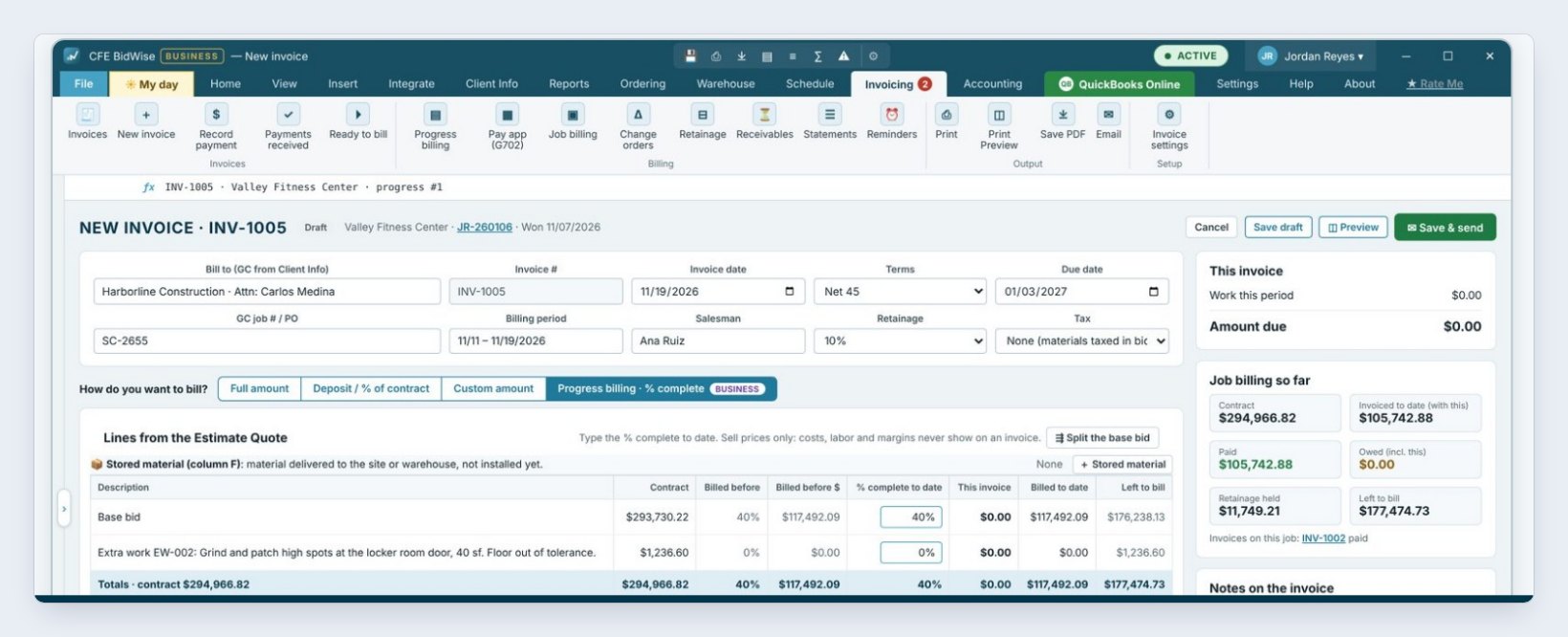
Search stored material, and the topic Stored material (column F) opens, tagged BidWise Business. Click Open this screen, and BidWise takes you to the progress invoice it talks about.
Numbered steps say what to do, and under them a real BidWise picture shows the screen, so you know you are in the right place.
5Get more help from the same page

At the top right, Need help? has the support email, Video Guides for the whole list of videos, and the Online User Guide in your browser.
For a hand on your own screen, click Remote Support on the Help ribbon, and we connect to your PC while you watch.
6What can go wrong, and how to fix it
Nothing is found. Use one word instead of a sentence, such as retainage instead of how do I hold retainage, or clear the box and browse.
The video does not play. The videos stream from the internet. Check the connection, or open Video Guides on our website.
A topic has a purple BidWise Business tag. That screen is part of the Business plan. The topic still explains it, so you can see what it does before you upgrade.
Worked example: three questions, three searches
A new estimator’s first week:
| Searched | Topic | Video |
|---|---|---|
| Job Check | Your To Do list for the day | My day, 4:07 |
| stored material | Stored material (column F) | Open this screen |
| Job Check | Job Check settings | Open this screen |
No phone call, and the answer was about the screen in front of them.
What to do next
That is the last guide for now. See all the step-by-step guides.
Learn BidWise as you go
The User guide is in every CFE BidWise plan. Start with the 30-day free trial, no credit card.
Frequently Asked Questions
Where is the User guide?
Help › User guide, the first button on the Help tab.
Does every topic have a video?
No. Topics that a guide video covers have a red Watch the video button with its length.
Can I get help on my own screen?
Yes. Help › Remote Support connects us to your PC while you watch.

Written by
Cristian Valcu – Founder & CEO, Commercial Flooring Estimating LLC
Cristian has estimated commercial flooring for over 20 years and built CFE BidWise around the way flooring contractors actually price, propose and track their bids.
Last updated: