
CFE guide · BidWise Sales
BidWise Sales Won Jobs: Phases, Change Orders and Job Closing
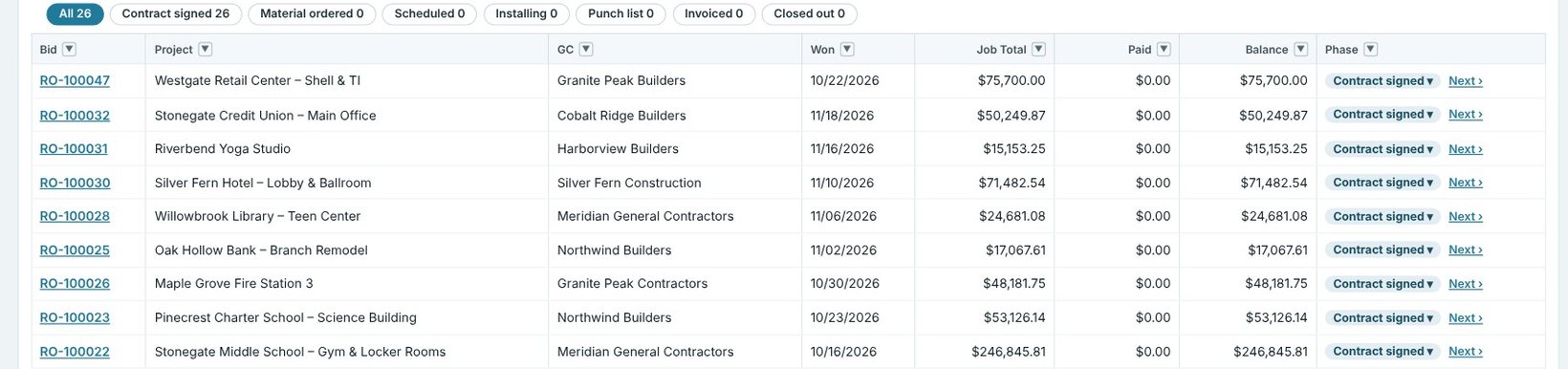
Open Projects under Won jobs. Every job you won is listed with the GC, won amount, paid and balance. Press Next to move it one phase, or click its phase to pick any of the seven: contract signed, material ordered, scheduled, installing, punch list, invoiced and closed out. On the bid, add change orders and alternates by hand, and when the job is done, enter how it closed under Job closing. Client Info › GCs keeps your general contractors, contacts and every bid you sent them.


Why it matters
After the award, the salesman still gets the calls: when is it scheduled, has it been invoiced, why has the GC not paid. Knowing where each job stands saves a call to the office.
BidWise Sales lists every won job with what is paid and what is open, and moves through the phases by hand, or by itself when you are linked to CFE BidWise.
The 6 steps
- Open ProjectsWon, paid, balance.
- Move a jobSeven phases by hand.
- Change orders and alternatesAdd or deduct, by hand.
- Close the jobFinal profit % and date.
- Your GCsContacts and their bids.
- What can go wrongPhases that never move.
1Open Projects
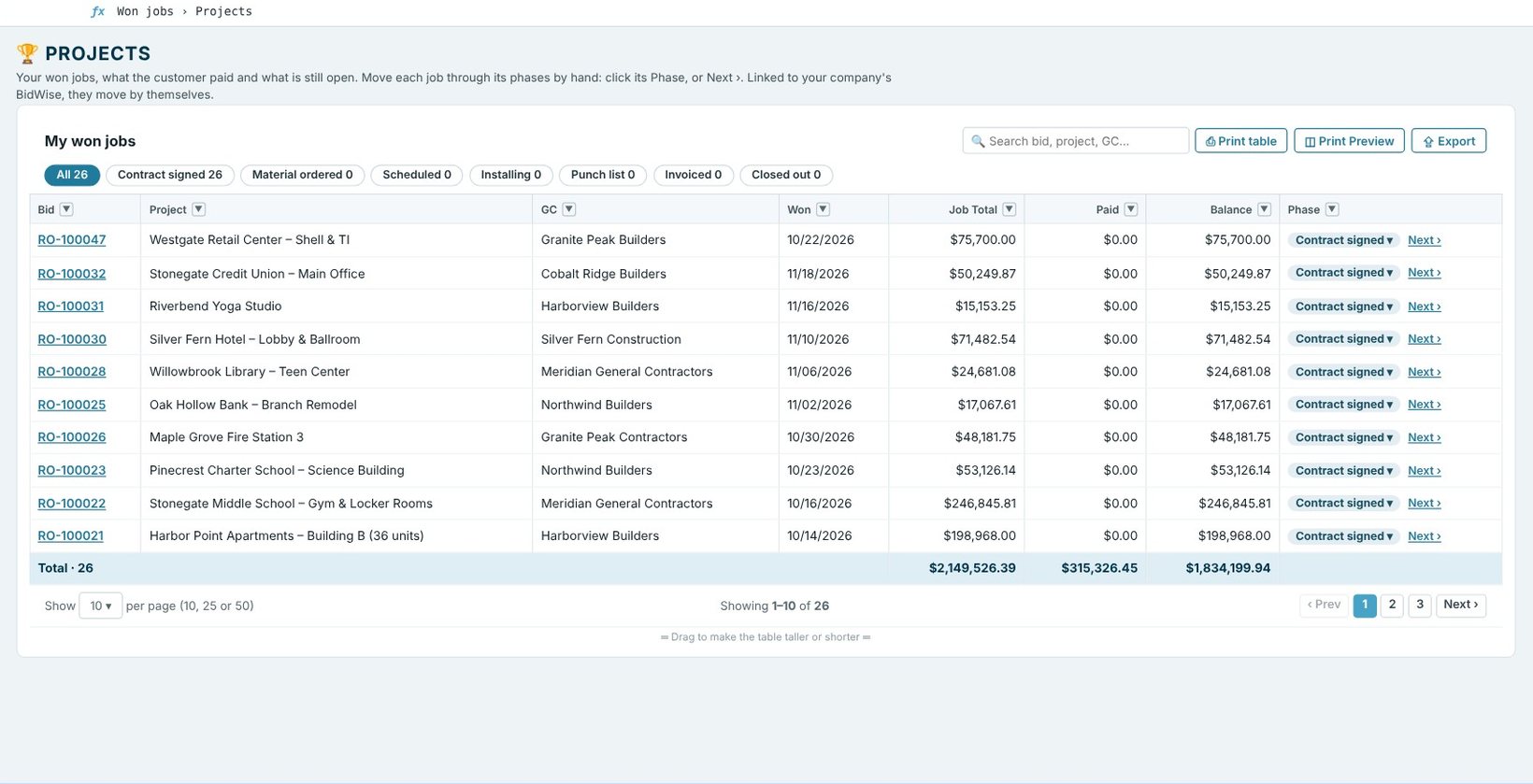
Open Projects under Won jobs. Every won job is listed with the GC, the won date, the won amount, paid and balance. The chips on top count the jobs in each phase. Click one to see only those.
2Move a job to the next phase
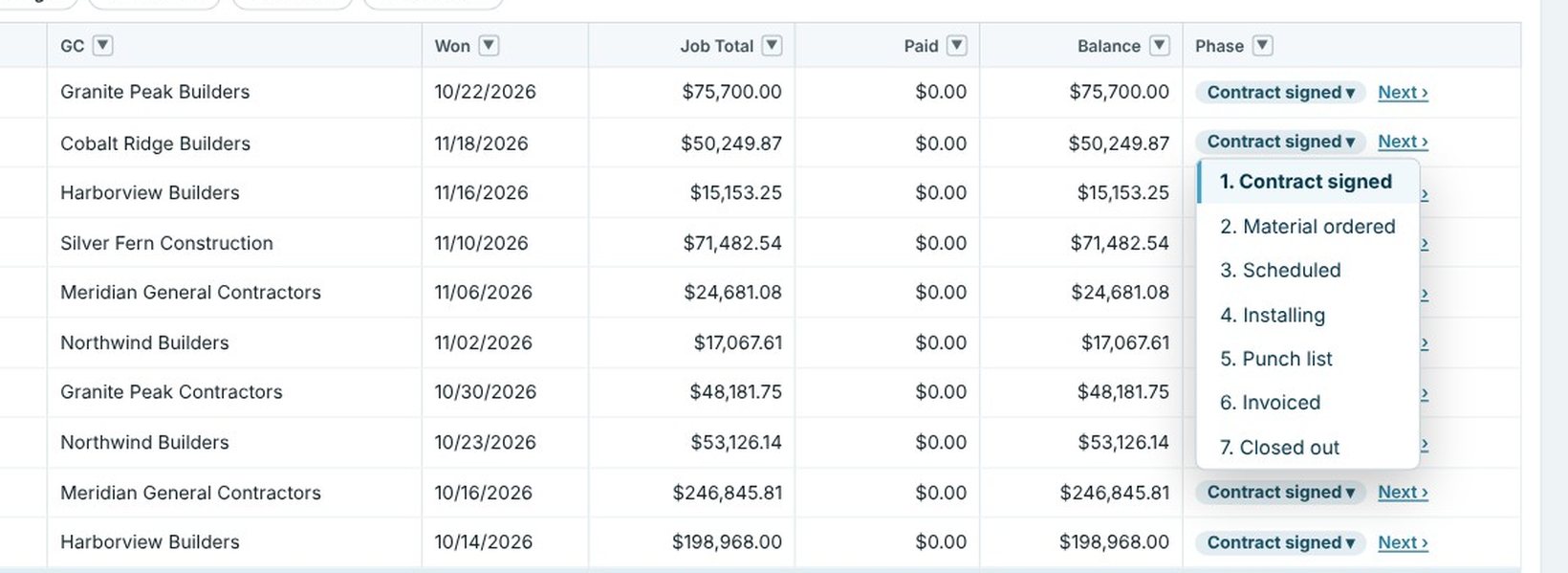

Press Next on a job to move it one phase, or click its phase to pick any of the seven. The phases are contract signed, material ordered, scheduled, installing, punch list, invoiced and closed out.
When you are linked to your company's BidWise, the phases move by themselves.
Pick a time each week, like Monday morning, filter Projects by phase and press Next on the jobs that moved. Two minutes keeps the list true.
3Add change orders and alternates
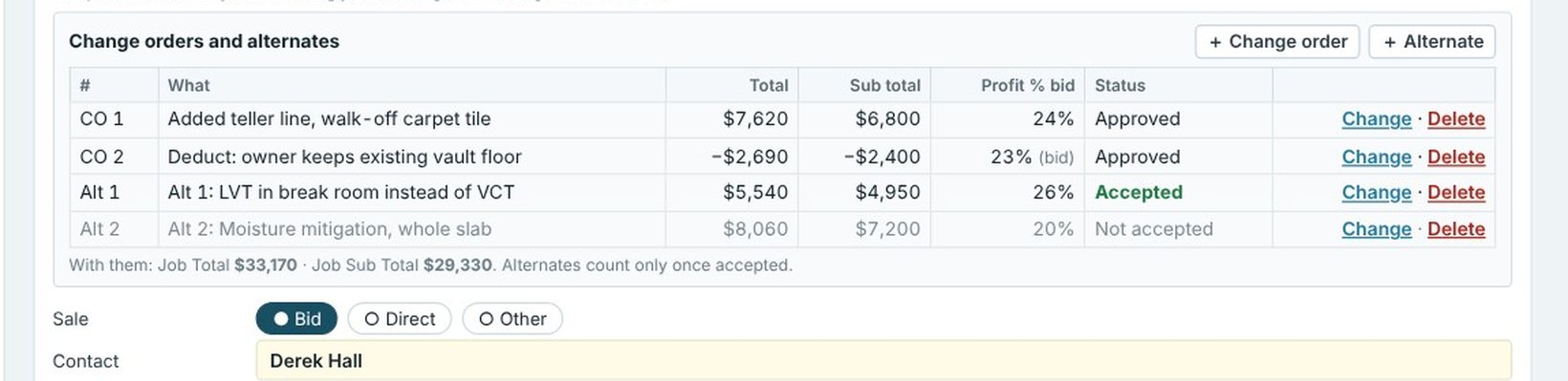
Open the won bid. Under Profit percent, press Change order or Alternate. Type its total and its sub total, with a minus for a deduct, and its own profit percent. An alternate counts only once it is accepted.
Change orders and accepted alternates count in your won jobs and your commission.
4Close the job
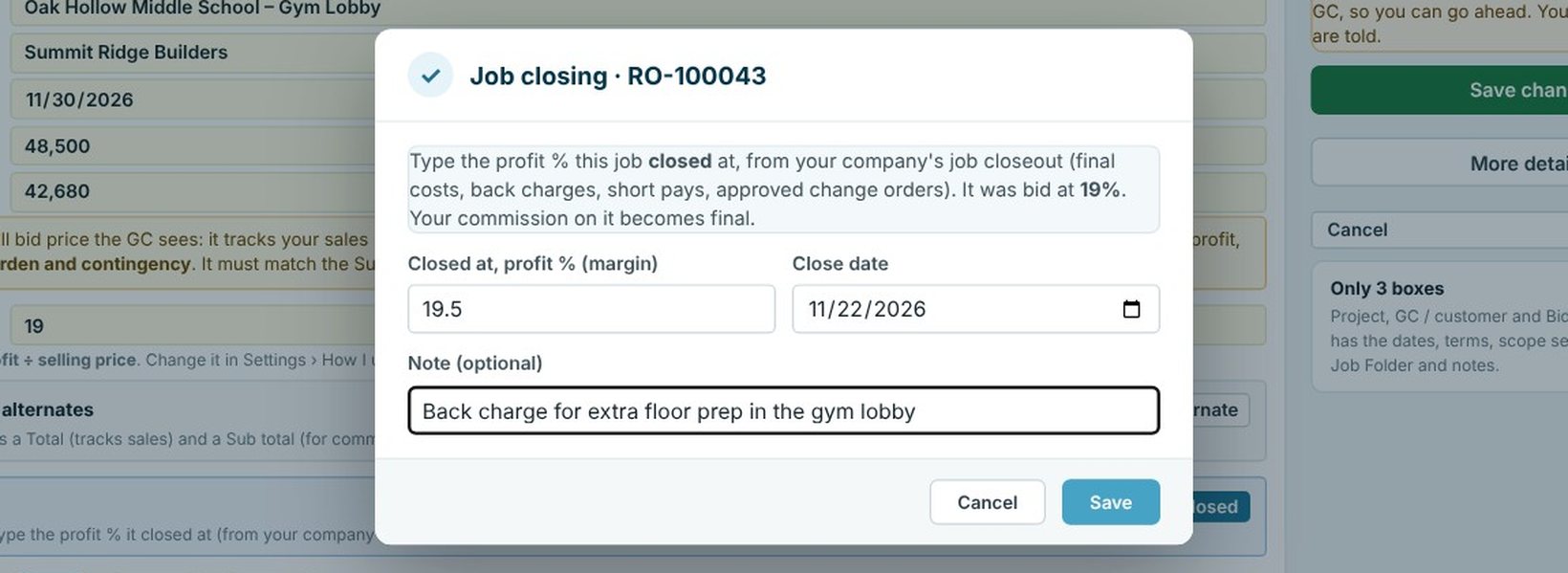
When the job is done, open the bid and, under Job closing, press Enter how it closed. Type the profit percent it closed at, the close date and a note. The box says margin or mark-up, the same as your bid. Your commission on that job is now final.
5Keep your GCs in Client Info
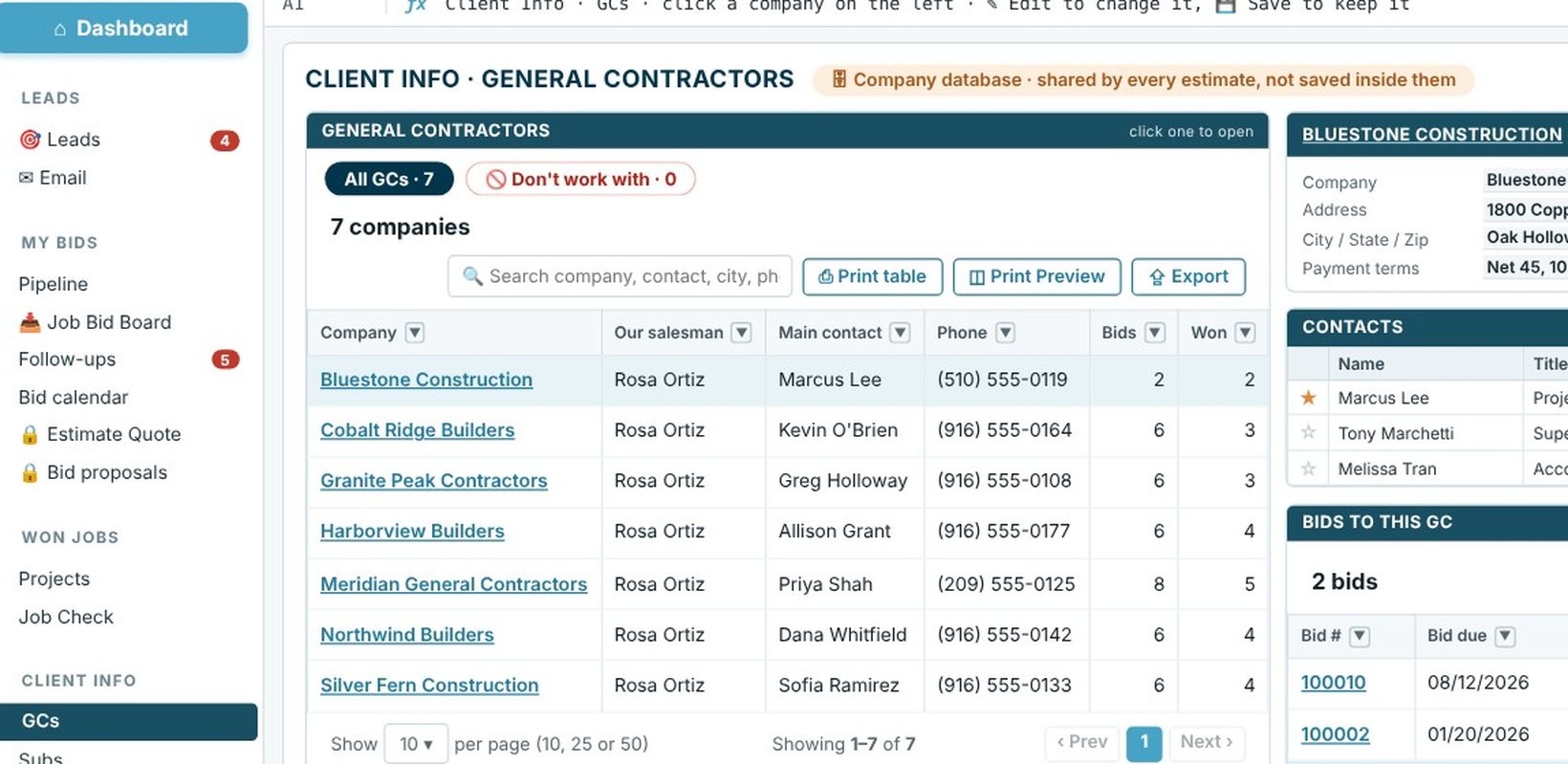
Client Info, GCs lists your general contractors, with the main contact, phone, bids and wins. Click a GC to see its address, payment terms, contacts and every bid you sent them.
6What can go wrong, and how to fix it
A job sits on Contract signed for weeks. Filter by phase each Monday and press Next on the ones that moved.
The balance looks wrong. Paid comes from what the customer paid, so check the won amount on the bid.
Worked example: Stonegate Credit Union, Main Office
| Date | Phase |
|---|---|
| 11/18 | Contract signed, $50,249.87 |
| 11/25 | Material ordered |
| 12/02 | Scheduled |
| 12/09 | Installing |
| 12/16 | Invoiced |
One click a week keeps every won job honest, and your boss sees where each one stands.
What to do next
Next: Targets and your commission. Or see all the step-by-step guides.
Your sales desk, free
BidWise Sales is free for commercial flooring salesmen. It works offline, your numbers stay on your PC, and it links to CFE BidWise when your company has it.
Frequently Asked Questions
Do I have to move the phases by hand?
In Solo, yes. When you are linked to your company’s CFE BidWise, the phases move by themselves.
Where does Paid come from?
From what the customer paid on the job. The balance is the won amount less paid.
Are my GCs shared with the company?
In Solo they stay on your PC. When linked, Client Info is the company database shared by every estimate.

Written by
Cristian Valcu – Founder & CEO, Commercial Flooring Estimating LLC
Cristian has estimated commercial flooring for over 20 years and built CFE BidWise around the way flooring contractors actually price, propose and track their bids.
Last updated: