
CFE guide · Ask BidWise AI
Ask BidWise AI: Your First Question in 10 Seconds
Press F1 on any screen, or click Ask BidWise AI at the top right. Type your question in your own words and press Send. The answer comes back step by step from the User Guide, with Show me, a Video and the Guide topic. You get 50 questions a month, and answers straight from the User Guide are not counted.


Why it matters
Every estimator gets stuck on a button now and then. Hunting through menus or waiting on a call back costs time on bid day.
Ask BidWise AI answers like a coworker who knows the whole User Guide. It gives the steps, shows you the button and links the video, right next to your work.
The 5 steps
- Open Ask BidWise AIF1, or the top-right button.
- Ask in your own wordsType it, press Send.
- Let it show youShow me outlines the button.
- Open the Guide topicThe full page, one click.
- Free answersUser Guide answers do not count.
1Press F1 or click Ask BidWise AI

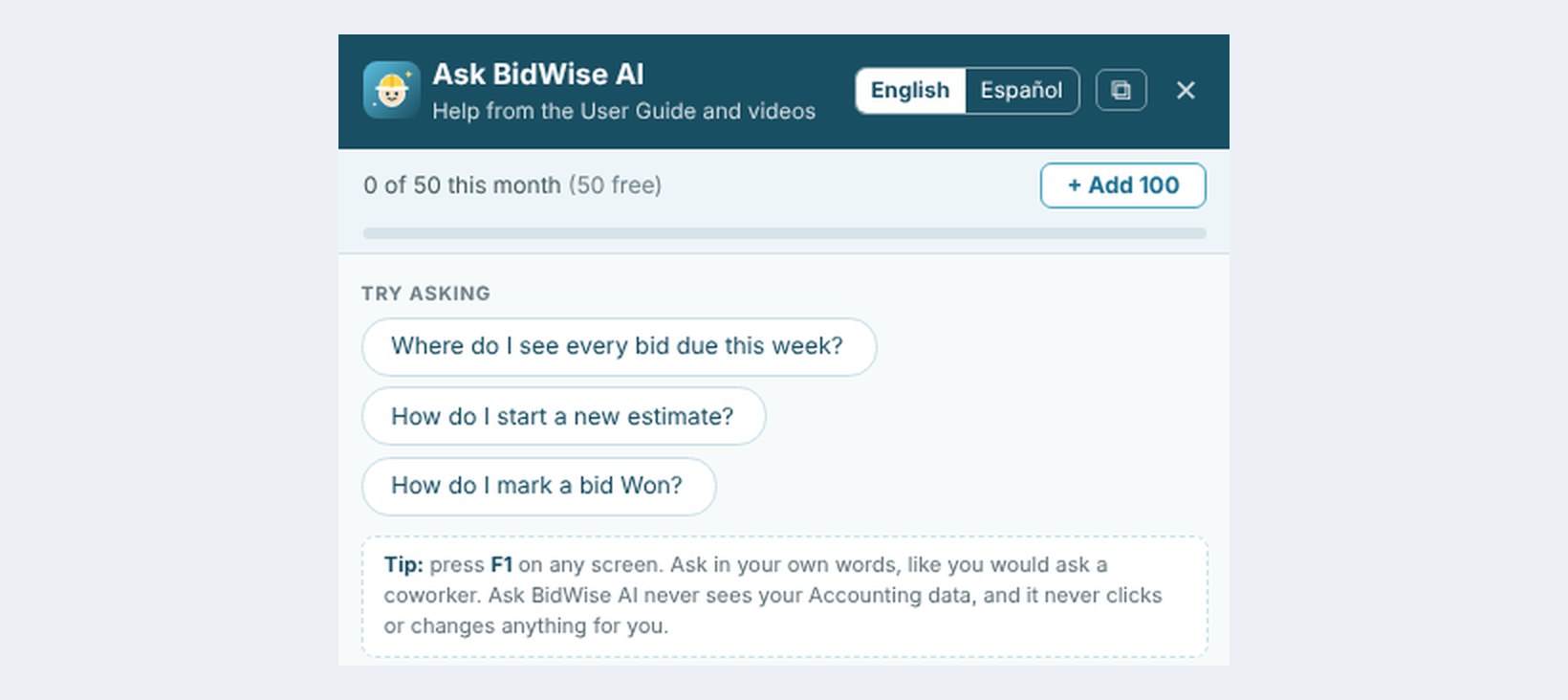
Click Ask BidWise AI at the top right, or press F1 on any screen. The panel opens on the right, next to your work.
The bar shows how many questions you used this month, out of 50 free. Click one of the Try asking questions, or type your own.
2Type your question and press Send
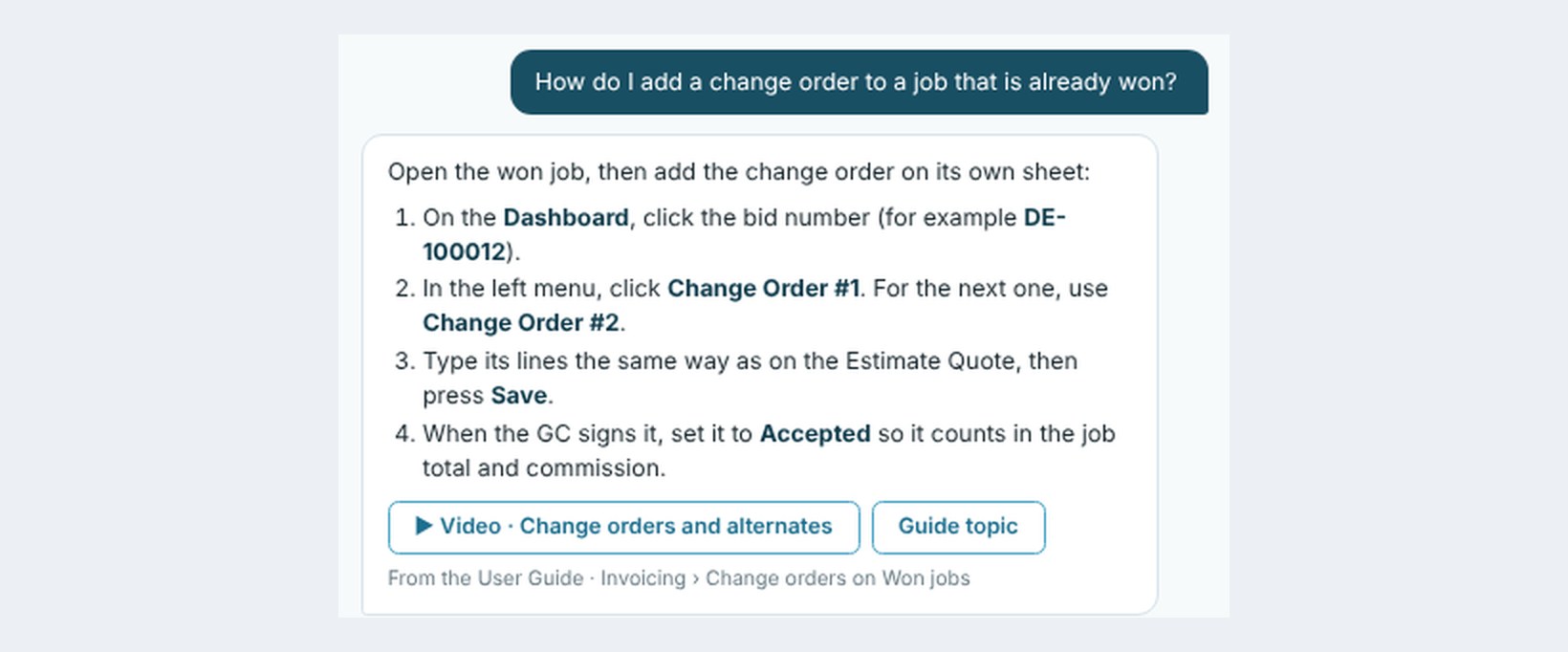
Type the question the way you would ask a coworker, for example How do I add a change order to a job that is already won? Press Send.
The answer comes back as numbered steps. Under it are a Video button and a Guide topic button, and a line that says which User Guide page it came from.
3Let BidWise outline the button for you
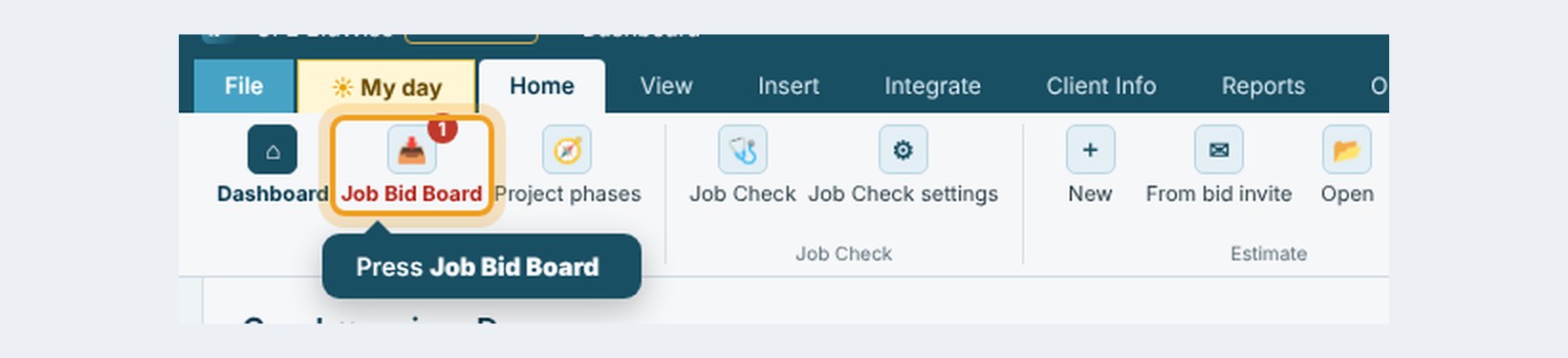
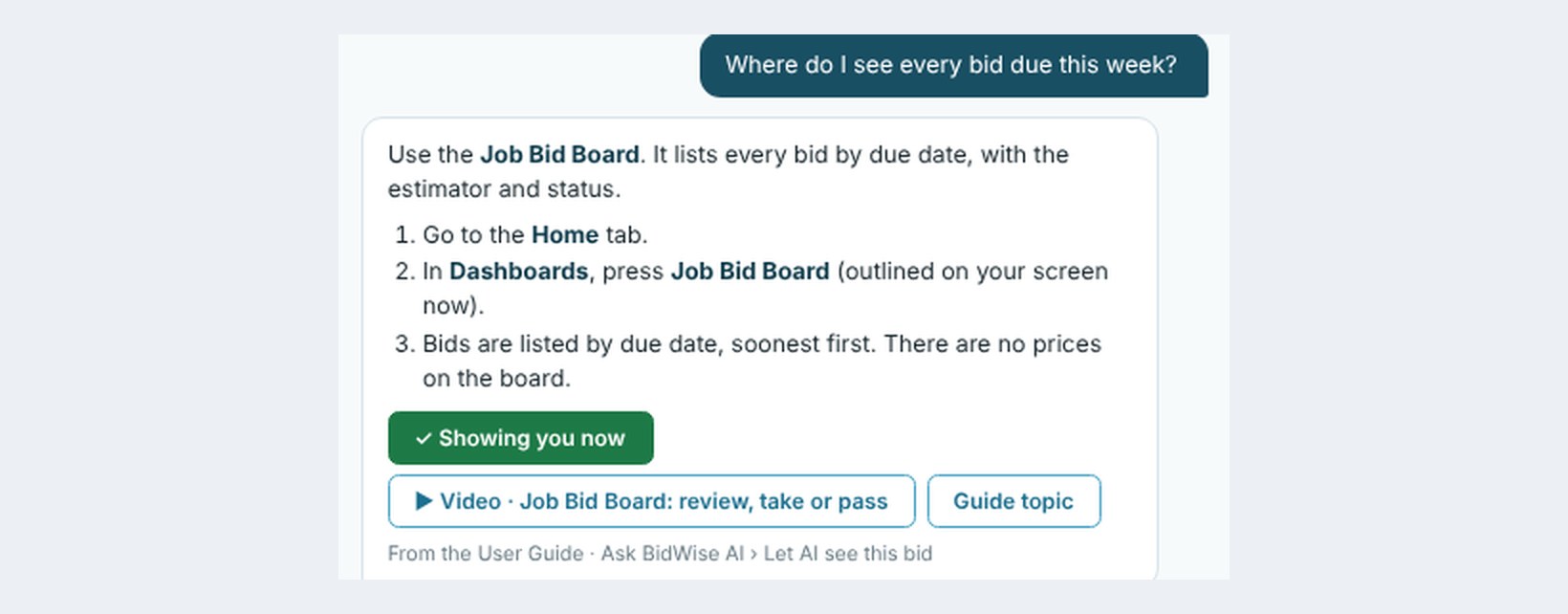
Ask Where do I see every bid due this week? The answer says to use the Job Bid Board, and the green Showing you now tag appears.
On the ribbon, the Job Bid Board button gets an outline with Press Job Bid Board under it. You see exactly where to click. On other answers, click Show me to do the same.
4Open the Guide topic for the full page
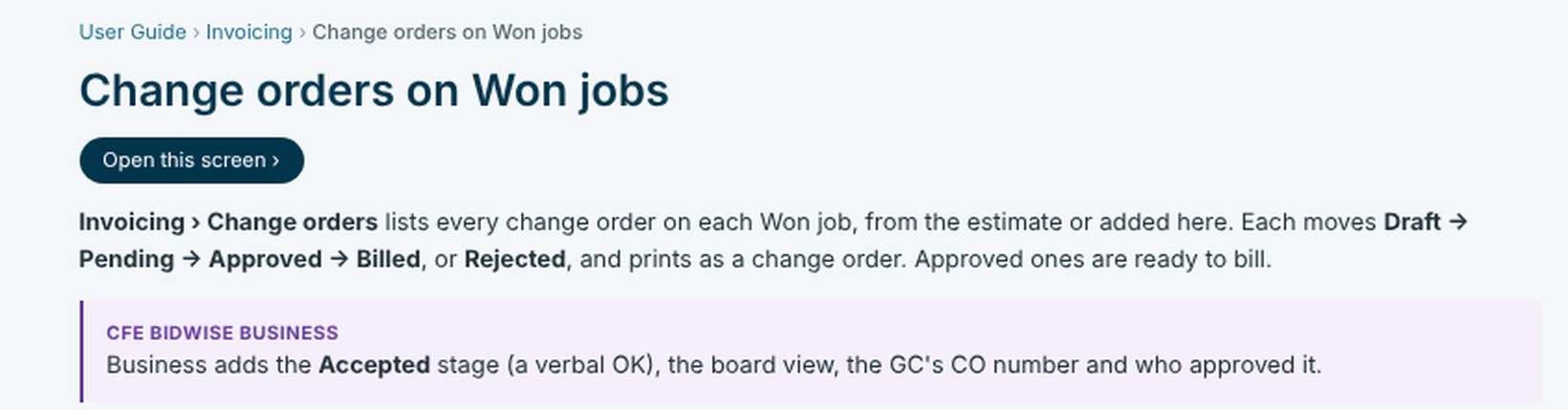
Want the whole page? Click Guide topic. The User Guide opens right on that topic, here Change orders on Won jobs.
Click Open this screen to jump to the screen it talks about, so you can read and try at the same time.
5Know what counts as a question
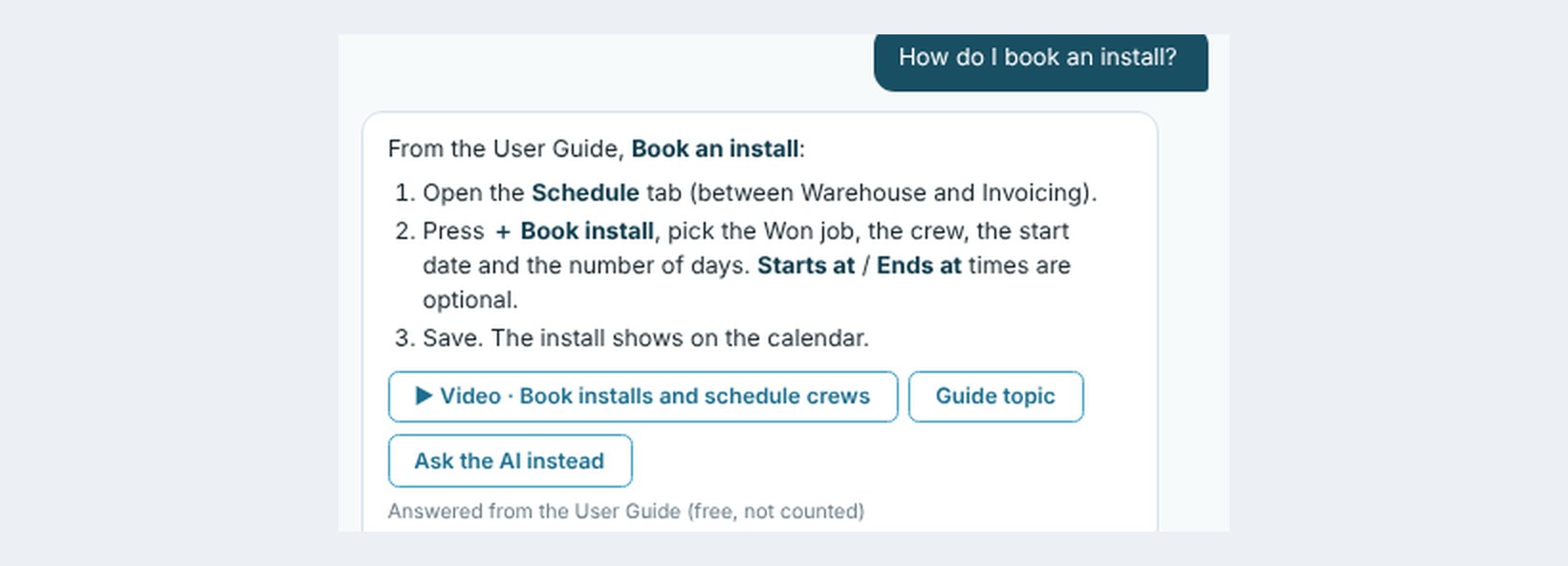
When the answer comes straight from the User Guide, it says Answered from the User Guide (free, not counted). The counter does not move.
If that page is not quite what you meant, click Ask the AI instead. That one counts as a question.
Ask one thing at a time, in plain words. Short questions get the clearest steps, and the free User Guide answers come up more often.
Worked example: Dana’s three questions
Dana Ellis opens Ask BidWise AI with F1 on the Dashboard:
| Question | Answer | Counter |
|---|---|---|
| Add a change order to a won job | Four steps, Video, Guide topic | 1 of 50 |
| See every bid due this week | Job Bid Board, outlined on screen | 2 of 50 |
| Book an install | From the User Guide | Still 2 (free) |
Three answers, two counted questions, and Dana never left the Dashboard.
What to do next
Next, let BidWise read the screen you are on in Explain this screen and let BidWise AI see your bid. Or see all the step-by-step guides.
Ask BidWise in your own words
Press F1 on any screen and get the steps, the button and the video. Ask BidWise AI comes with CFE BidWise, with 50 questions a month for each person.
Frequently Asked Questions
How many questions do I get?
50 questions a month come with BidWise. Answers straight from the User Guide are free and not counted. You can add 100 more a month for $10 a month.
Does Ask BidWise AI change anything in my bid?
No. It never clicks or changes anything for you. It gives the steps, and Show me outlines the button to press.
Can I open it on any screen?
Yes. Press F1 on any screen, or click Ask BidWise AI at the top right.
Where do the answers come from?
From the CFE BidWise User Guide and video guides. Each answer shows the User Guide page it came from.

Written by
Cristian Valcu – Founder & CEO, Commercial Flooring Estimating LLC
Cristian has estimated commercial flooring for over 20 years and built CFE BidWise around the way commercial flooring contractors actually price, propose and track their bids.
Last updated: