
CFE guide · Ordering and material
Import Your Vendor List From Excel
Open Client Info › Vendors and click Import vendors. Open your own Excel or CSV list. Each tab gets a category from its name and your column names, such as Mill, Acct. No. and Rep., are matched to the vendor profile. You check every vendor before anything is saved, then click Import, and you can undo it afterwards.


Why import the vendor list?
Most flooring offices already keep their mills and distributors in a spreadsheet: the account number, the order desk, the rep and the rep’s cell. Typing 30 of them into a new program takes an afternoon and brings typos with it.
Import vendors reads the list you already have, tab by tab, so Ordering, purchase orders and the Material List offer the right vendor, with the right account number, from day one.
The six steps
- Open Import vendorsClient Info › Vendors.
- One tab, one categoryThe tab name picks it.
- Match the columnsYour headings, matched.
- Check the vendorsNew, updates, already there.
- Import themApprove on import, then Import.
- What can go wrongNo category, wrong file.
1Open Import vendors
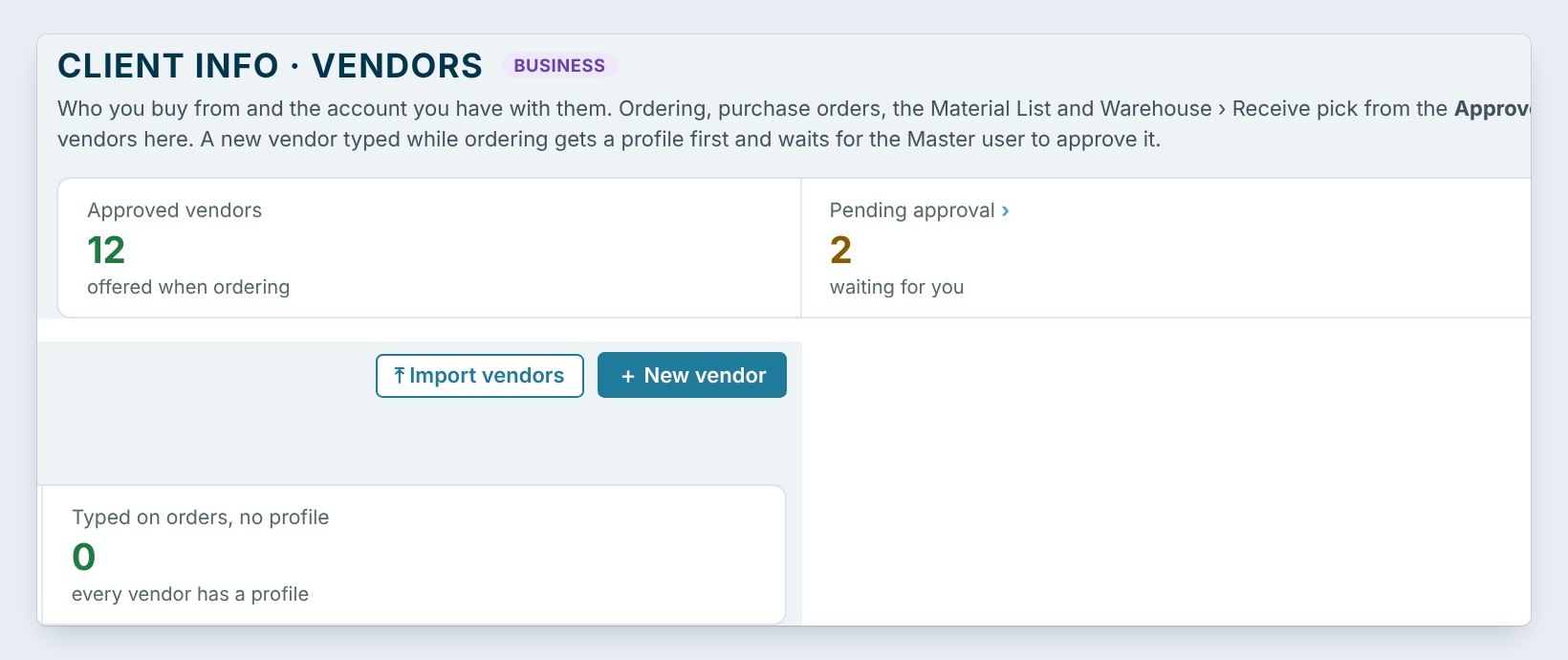
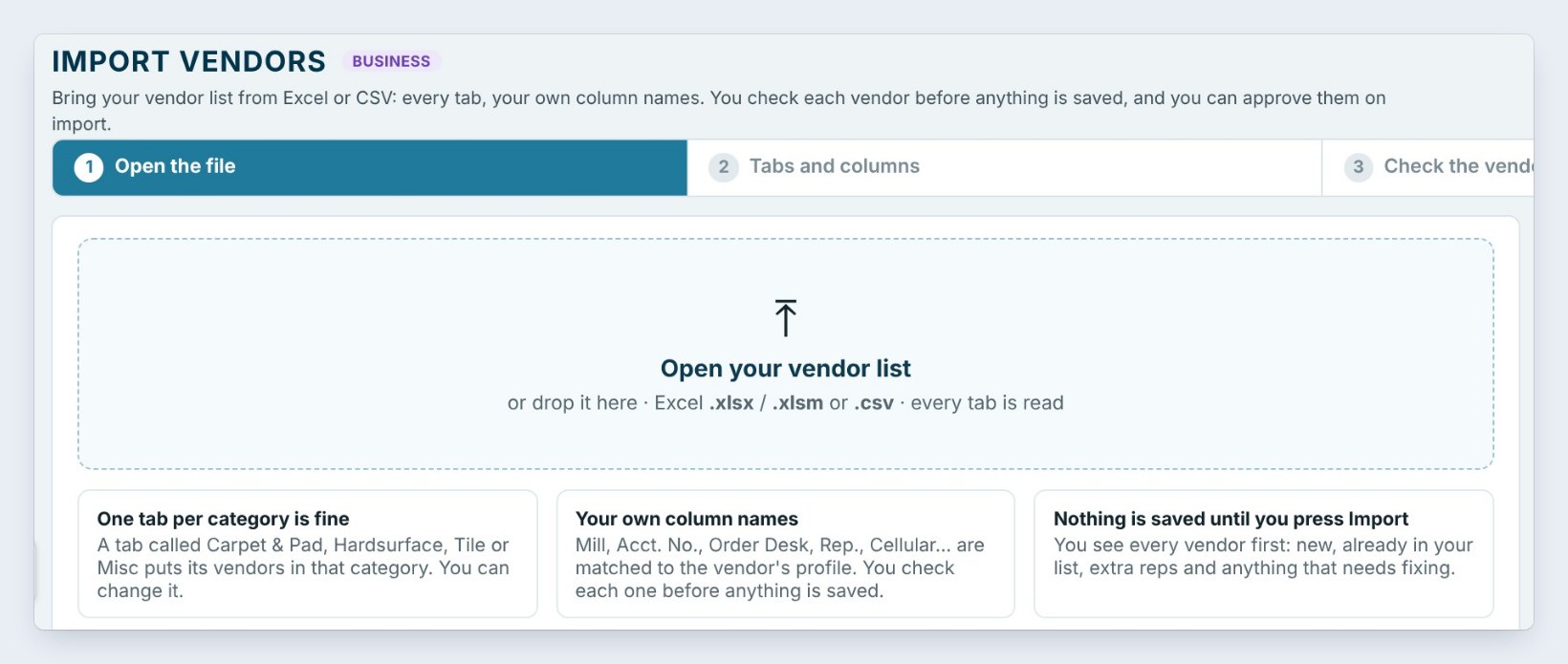
On the Client Info tab, click Vendors, then Import vendors at the top right. The Import Excel / CSV button on the ribbon does the same.
Click Open your vendor list, or drop the file on the box. Excel .xlsx and .xlsm and .csv all work, and every tab is read. Nothing is saved until you press Import.
2Give each tab its category
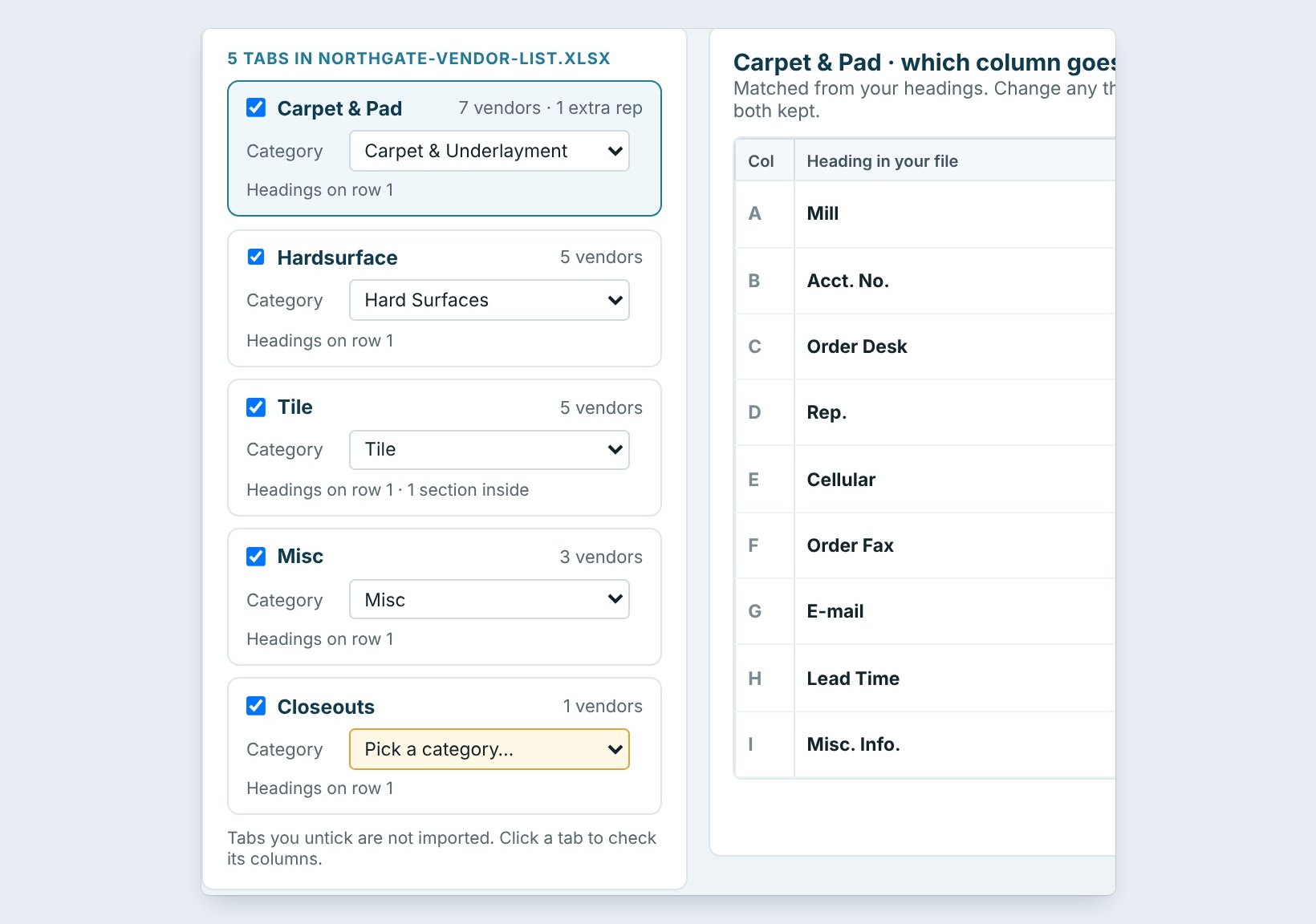
Step 2, Tabs and columns, lists every tab in the file. Northgate’s list has five. Carpet & Pad becomes Carpet & Underlayment, Hardsurface becomes Hard Surfaces, and Tile and Misc keep their names.
Change a category with its box. Untick a tab you do not want, and it is not imported.
3Check which column goes where
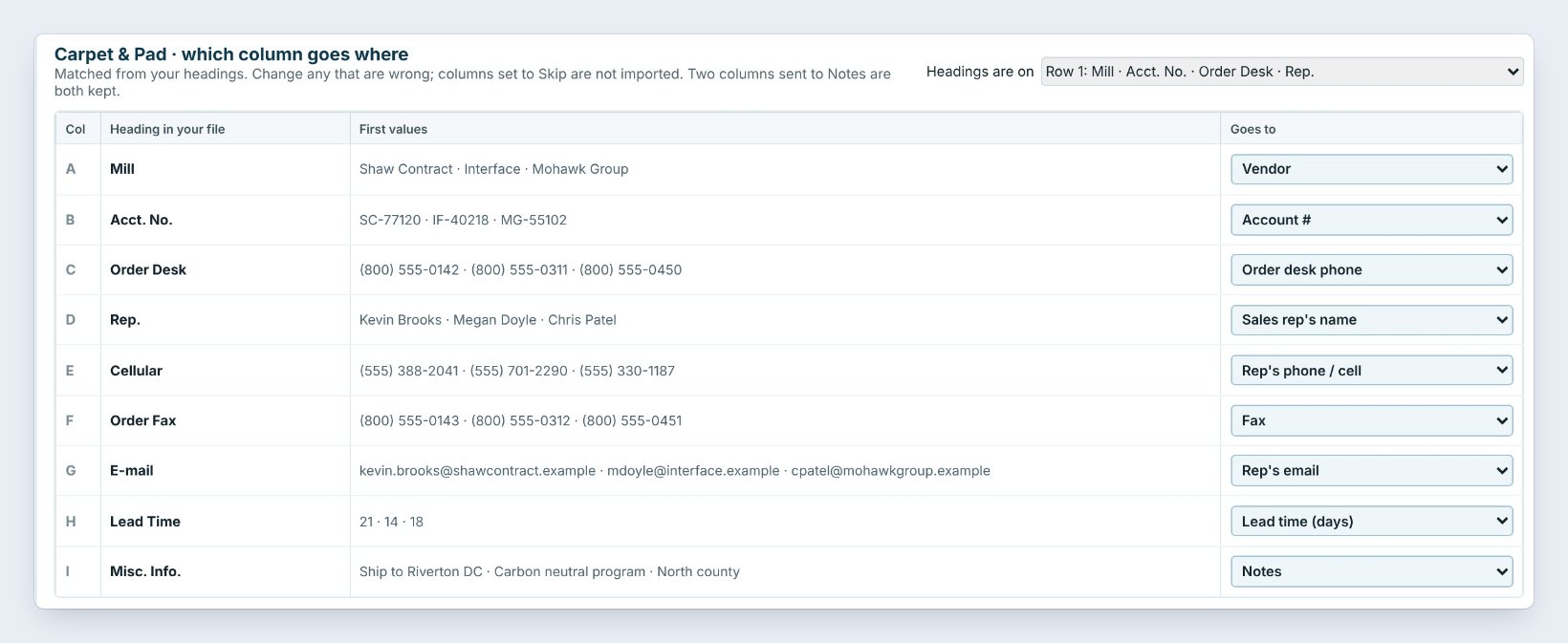
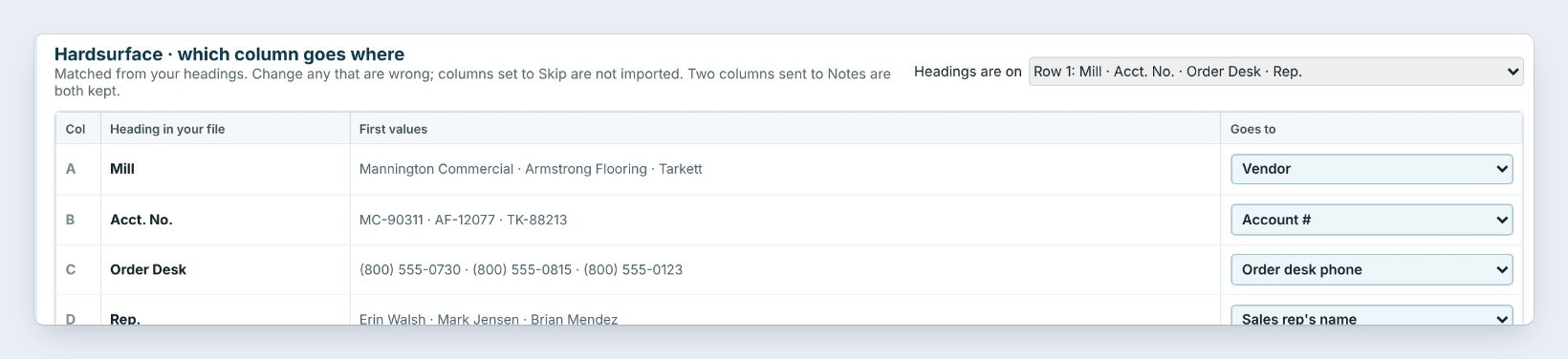
On the right, each column of the tab is matched from its heading. Mill goes to Vendor, Acct. No. to Account #, Order Desk to the order desk phone, Rep. to the sales rep’s name and Cellular to the rep’s cell. The first values show what is in each one.
Change any that are wrong with its box. A column set to Skip is not imported. Click the next tab to check its columns, and check that Headings are on the right row.
4Check every vendor before saving
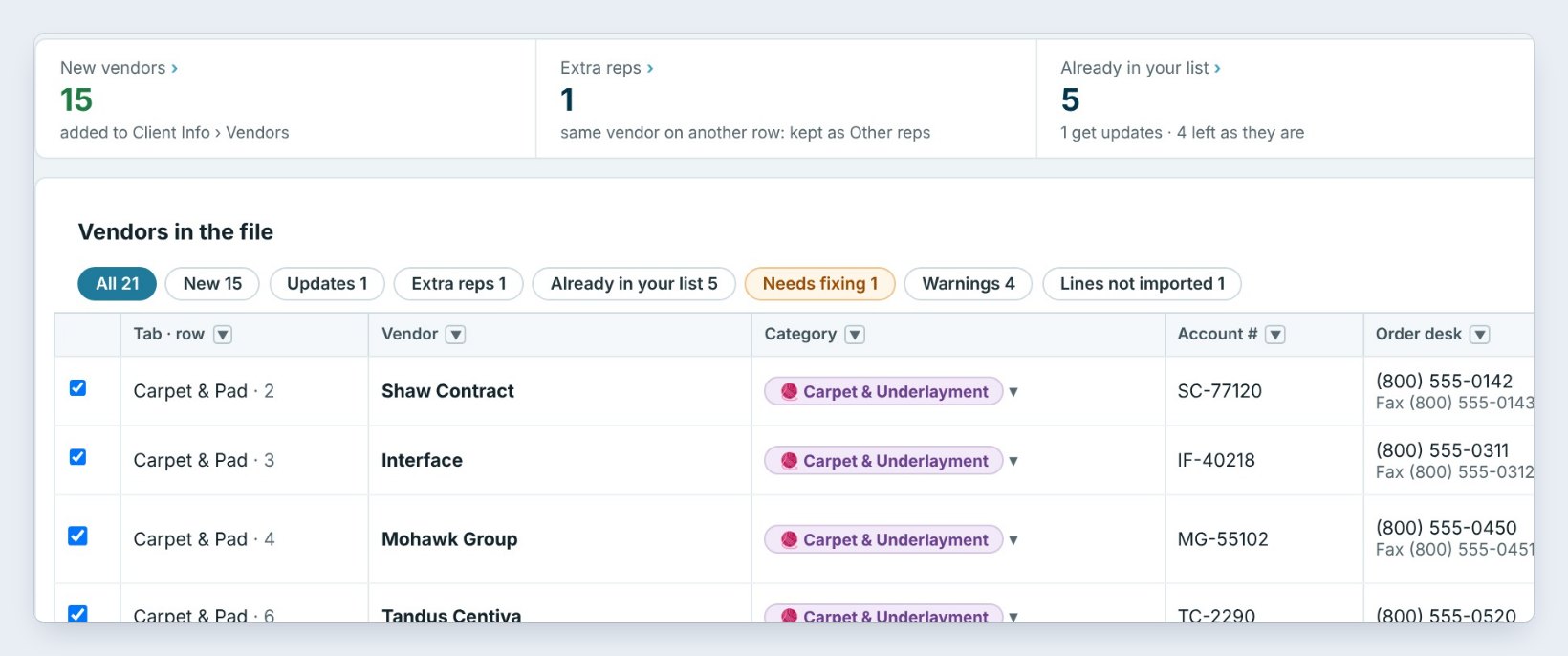
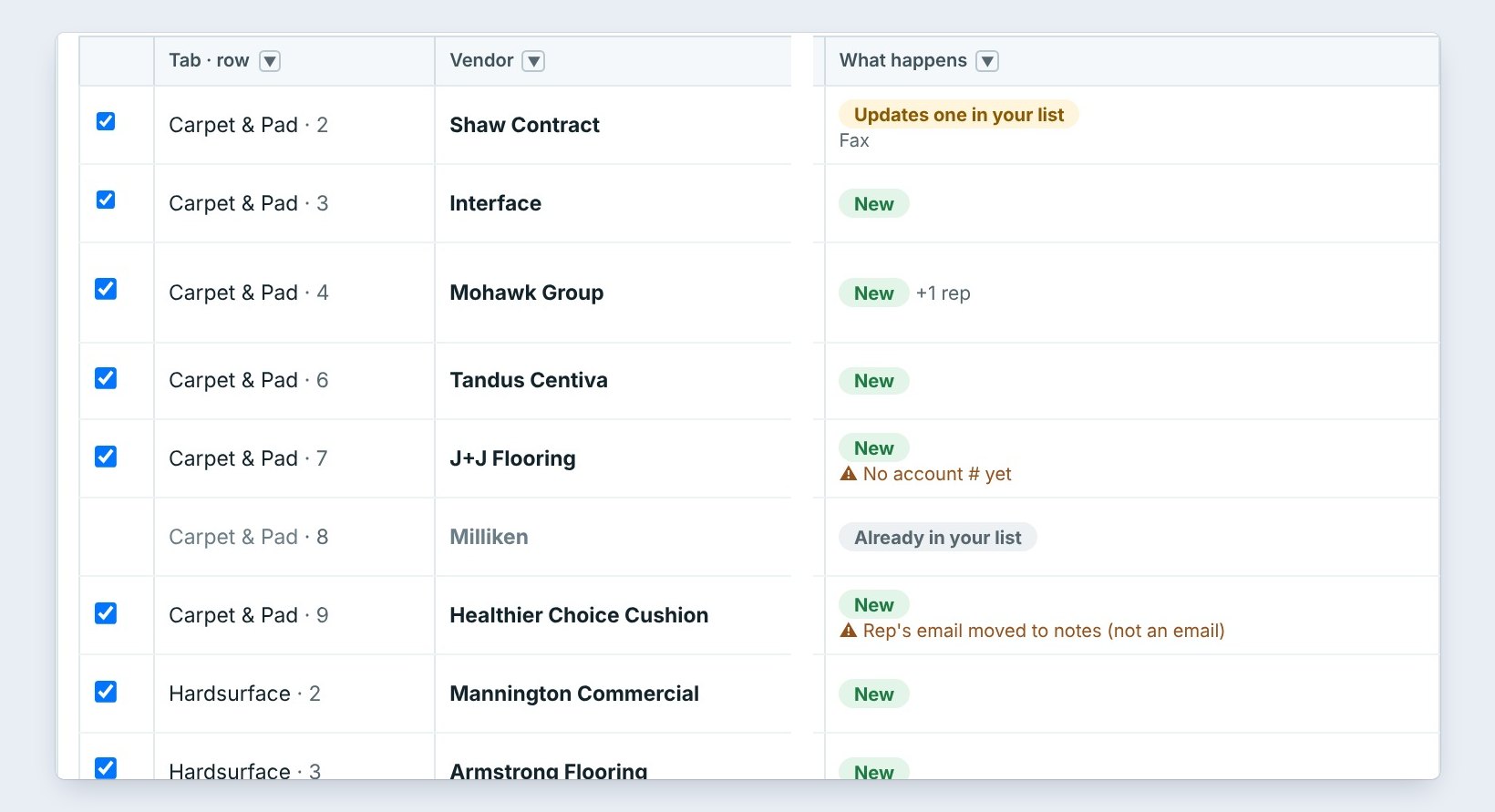
Click Check the vendors. The tiles count them: 15 new vendors, 1 extra rep, and 5 already in your list, of which 1 gets updates.
The What happens column says it line by line. Shaw Contract updates one in your list with its fax. Mohawk Group is New, +1 rep. Milliken is already in your list, so it stays unticked. A yellow line is a warning to read, not a stop.
Sort your spreadsheet by mill before you import. A mill on two rows with two reps comes in as one vendor with Other reps, not two vendors.
5Import, and approve them in one go
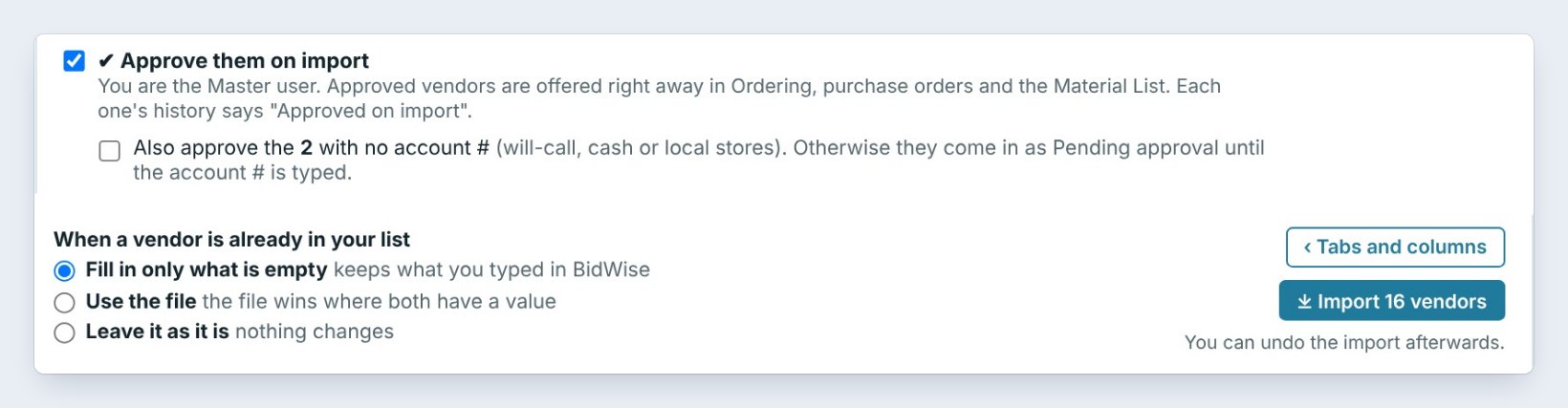
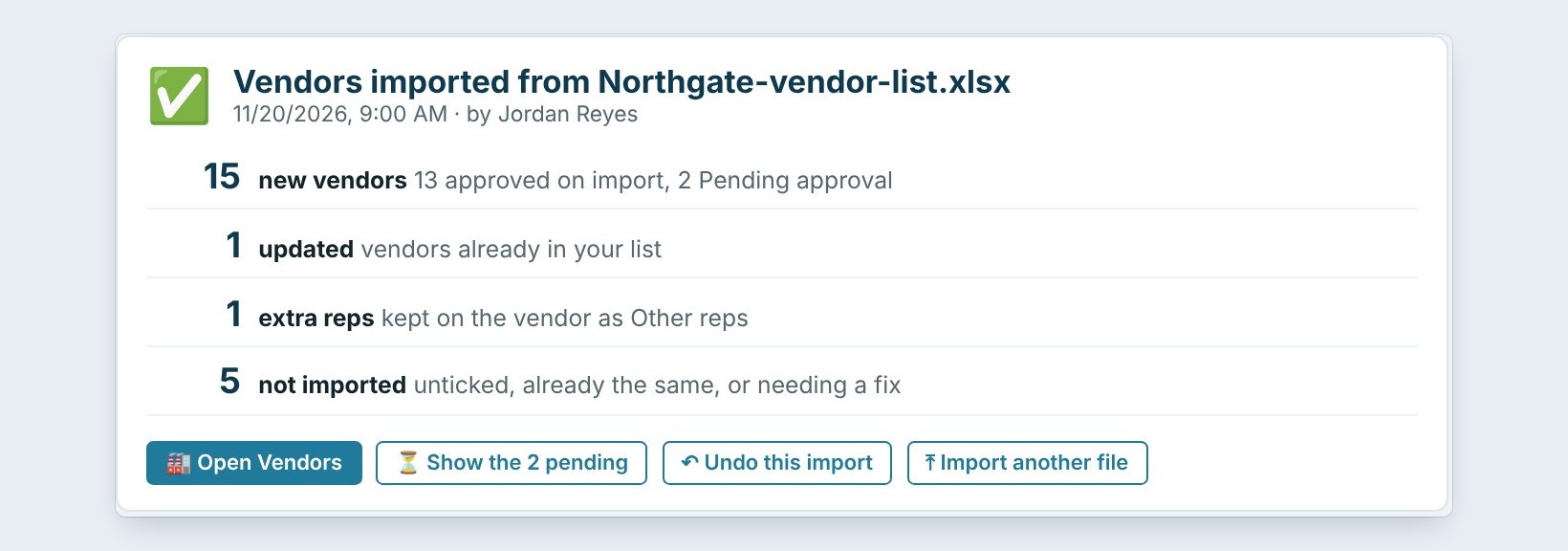
As the Master user, leave Approve them on import ticked, and the new vendors are offered right away in Ordering, purchase orders and the Material List. A vendor with no account number comes in as Pending approval, unless you also tick that box.
For vendors already in your list, Fill in only what is empty keeps what you typed in BidWise. Click Import 16 vendors. The summary shows 15 new, 13 approved and 2 pending, 1 updated and 1 extra rep.
6What can go wrong, and how to fix it
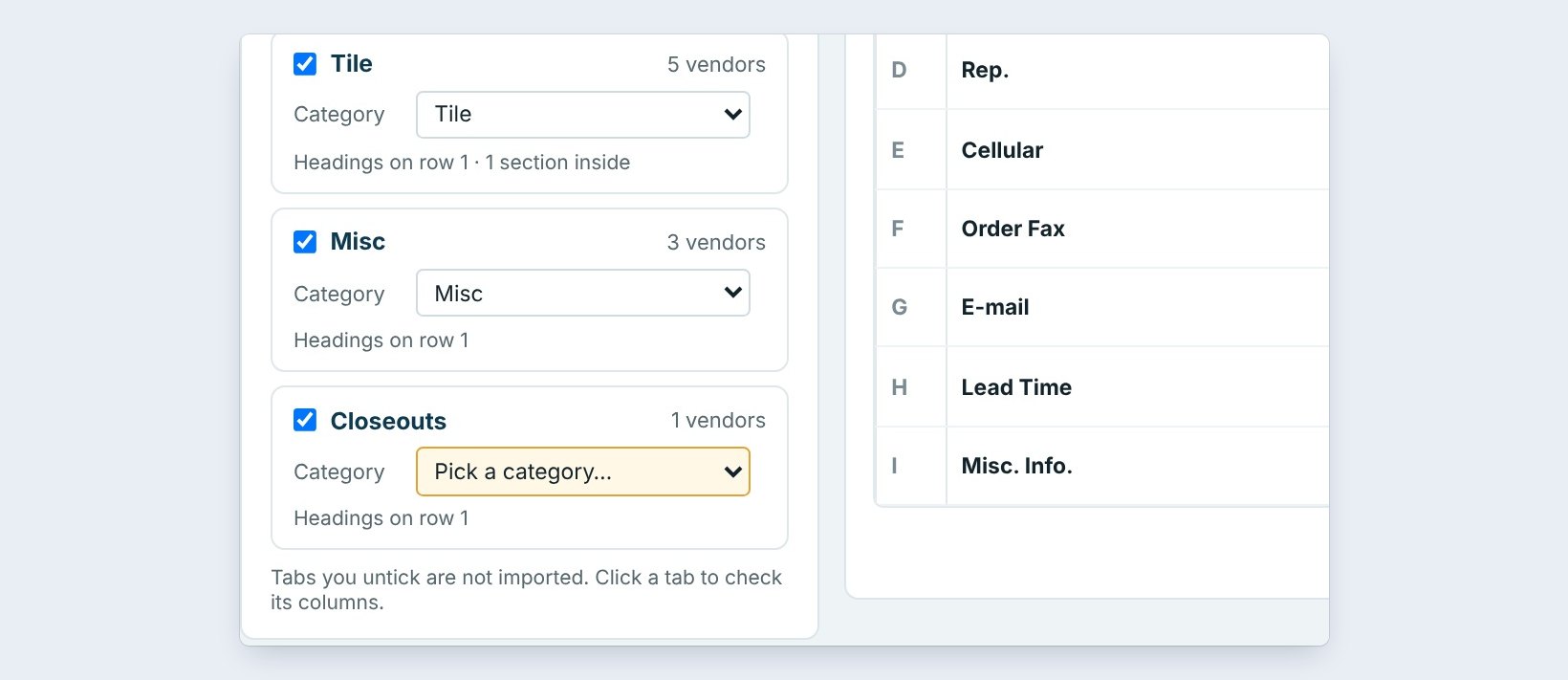
A tab has no category. Closeouts did not match a category, so its box says Pick a category, and its vendor waits until you pick one. Pick it, or untick the tab.
A column landed in the wrong place. Go back with Tabs and columns and change its box. Nothing was saved yet.
You imported the wrong file. Click Undo this import on the summary, and every vendor it added or changed goes back.
Worked example: Northgate’s vendor list
Northgate-vendor-list.xlsx, five tabs, imported on November 20, 2026:
| Tab | Category | Vendors | Result |
|---|---|---|---|
| Carpet & Pad | Carpet & Underlayment | 7, 1 extra rep | Mohawk gets Other reps |
| Hardsurface | Hard Surfaces | 5 | New |
| Tile | Tile | 5 | 1 with no account # |
| Misc | Misc | 3 | New |
| Closeouts | Pick a category | 1 | Needs fixing |
| Imported | 16 | 15 new, 1 updated |
Five minutes, and Ordering already offers 25 approved vendors.
What to do next
Next, see what each warning means in Check a vendor import before you save it.
Bring your vendor list into BidWise
Vendor import is part of CFE BidWise Business. Start with the 30-day free trial, no credit card.
Frequently Asked Questions
What file types can I import?
Excel .xlsx and .xlsm, and .csv. Every tab of an Excel file is read.
Do my column names have to match BidWise?
No. Your own headings, such as Mill, Acct. No., Order Desk, Rep. or Cellular, are matched to the vendor profile, and you can change any of them.
Can I undo an import?
Yes. The summary has Undo this import.
Who can approve vendors?
The Master user. Approved vendors are offered in Ordering, purchase orders and the Material List.

Written by
Cristian Valcu – Founder & CEO, Commercial Flooring Estimating LLC
Cristian has estimated commercial flooring for over 20 years and built CFE BidWise around the way flooring contractors actually price, propose and track their bids.
Last updated: